
 Join our Discord
Fair usage policy
Usage limits for Automated and Manual App Accessibility tests by plan tier.
BrowserStack App Accessibility Testing applies usage limits to ensure optimal performance for all customers.
Two limits apply for each product:
- Automated tests: scans per build and builds per user per day.
- Manual tests: scans per report and reports per user per day.
Enforcement policies
The following policies apply to both Automated tests and Manual tests:
- Limits apply per user, not per group.
- Daily limit counters reset at 00:00 UTC.
- BrowserStack checks per-report and per-build limits on each submission.
Submissions blocked at 100% of any limit are not queued or retried automatically. To continue, wait for the daily counter to reset or upgrade your plan.
The following sections describe these limits and explain how you are notified when using Automated tests and Manual tests.
Automated tests
Automated tests run as part of your CI build through the BrowserStack SDK.
Plan-based limits
The following limits apply to scans submitted from your CI build:
| Plan | Scans per build | Builds per user per day |
|---|---|---|
| Free | 50 | Capped by existing free-trial limit |
| Automate | 2,000 | 100 |
| Ultimate | 3,000 | 200 |
Dashboard notifications
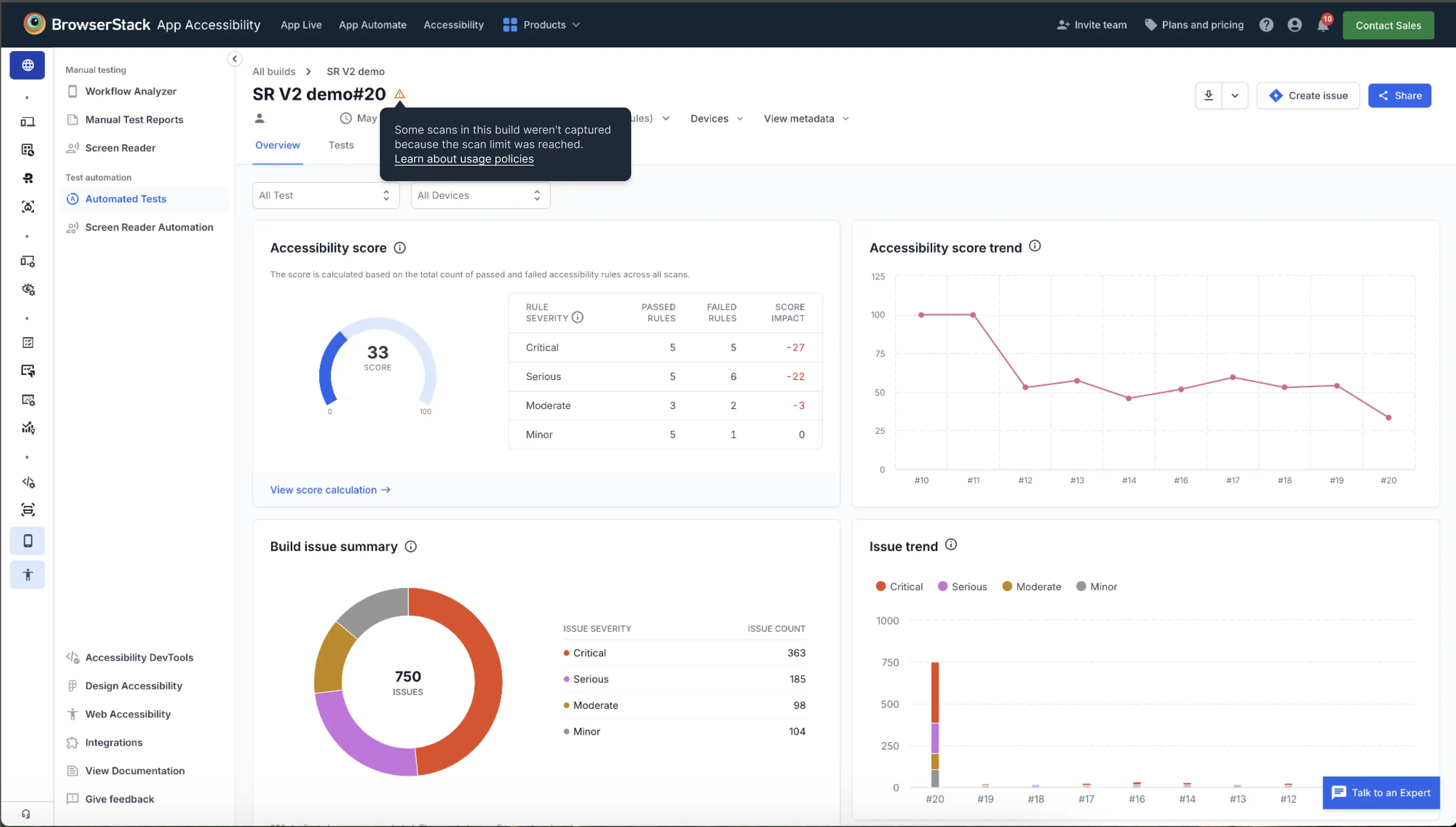
When a build exceeds the scans-per-build limit, the App Accessibility dashboard shows a warning on the build report indicating that some scans were not completed.
Manual tests
Manual tests run through Workflow Analyzer in the App Accessibility dashboard.
Plan-based limits
The following limits apply to scans submitted through Workflow Analyzer:
| Plan | Scans per report | Reports per user per day |
|---|---|---|
| Free | 50 | 25 |
| Essentials | 200 | 50 |
| Automate | 200 | 50 |
| Ultimate | 300 | 100 |
Dashboard and in-session notifications
When you approach or exceed a limit, Workflow Analyzer notifies you in one of the following ways:
-
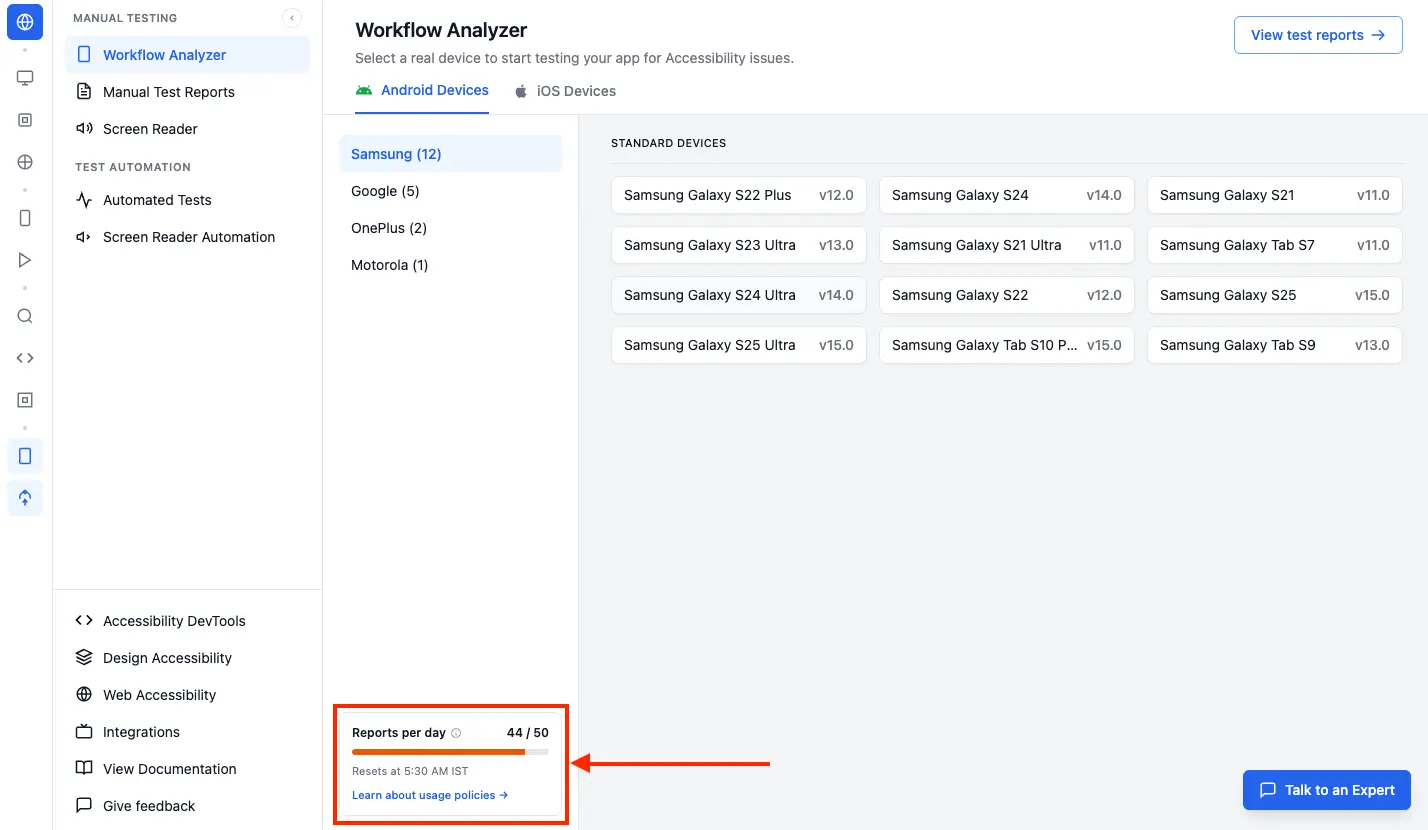
At 80% of the reports-per-day limit, a Reports per day card appears in the device-selection column with your current count and the next reset time. Device selection stays enabled, so you can continue starting new sessions.
-
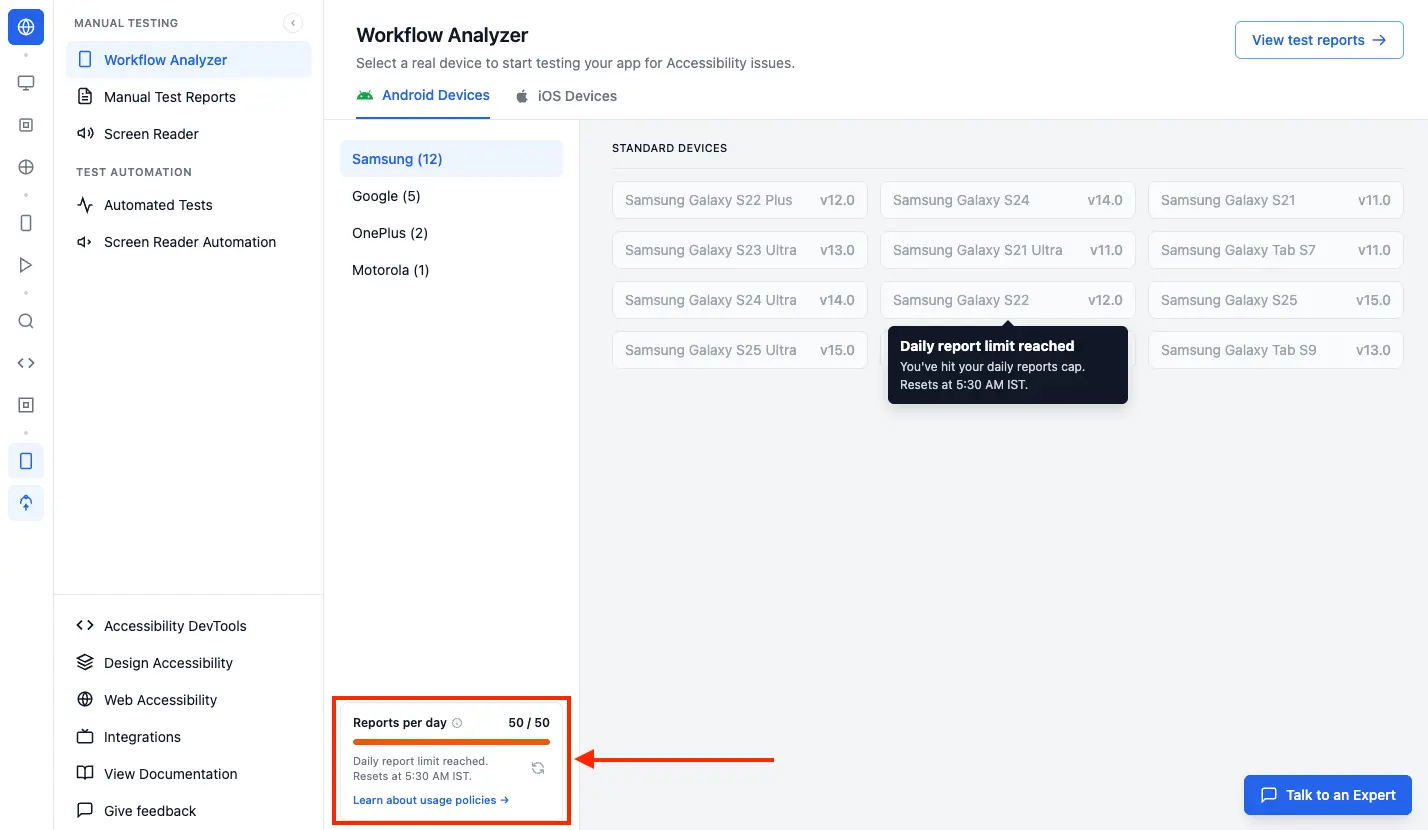
At 100% of the reports-per-day limit, the Reports per day card displays a Daily report limit reached message. Device selection is disabled until the daily counter resets. Hovering over a disabled device card shows the same message.
-
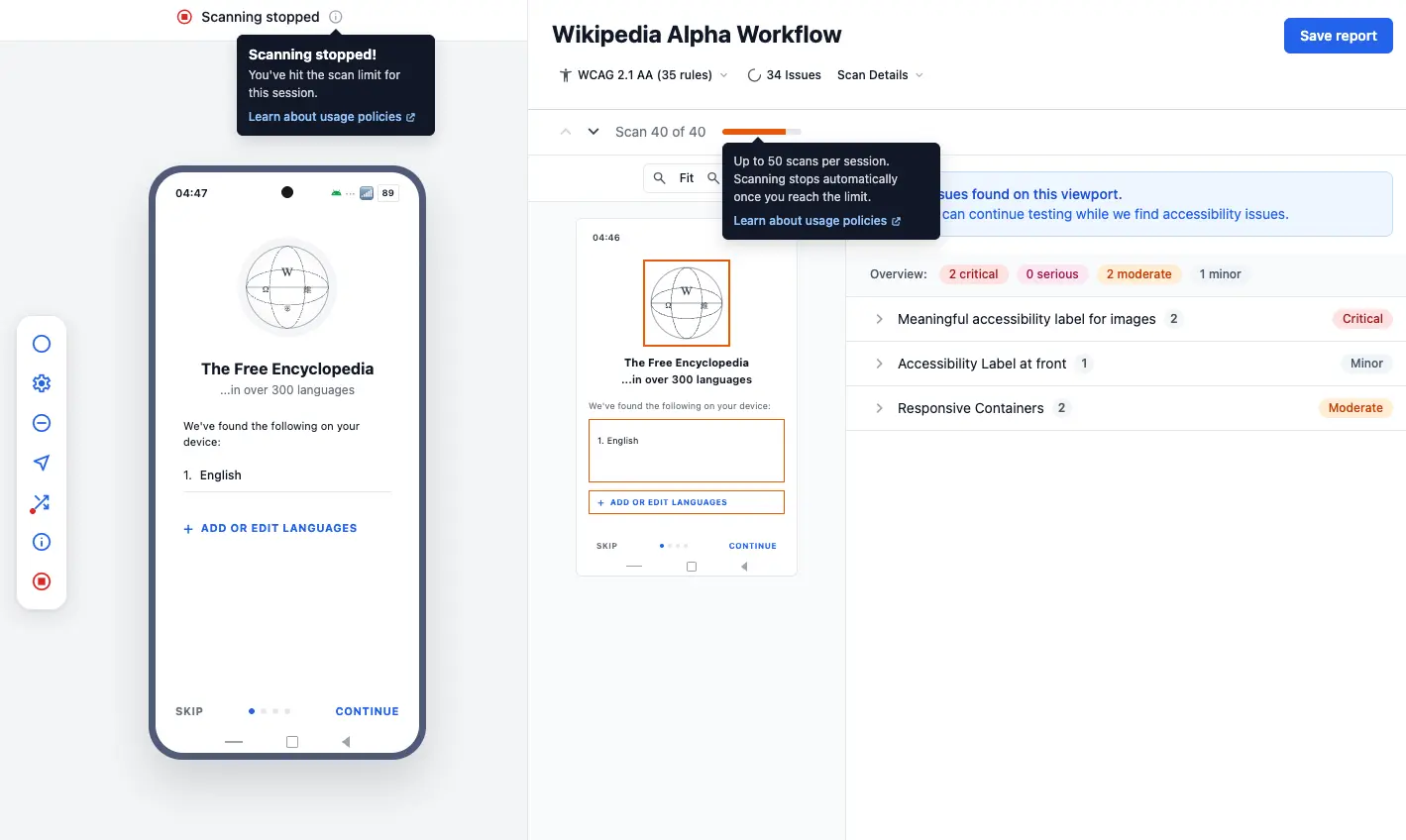
If you reach the scans-per-report limit during an active scanning session, App Accessibility stops scanning automatically and notifies you. You can save your current report to keep the issues captured up to that point.
We're sorry to hear that. Please share your feedback so we can do better
Contact our Support team for immediate help while we work on improving our docs.
We're continuously improving our docs. We'd love to know what you liked
We're sorry to hear that. Please share your feedback so we can do better
Contact our Support team for immediate help while we work on improving our docs.
We're continuously improving our docs. We'd love to know what you liked
Thank you for your valuable feedback!