
 Join our Discord
Trello
Connect App Percy to Trello to file cards from a snapshot, with the snapshot image and build context attached.
BrowserStack Percy’s Trello integration lets you connect your Percy Project with Trello for easier reporting of visual review findings. You can create Trello cards from the Percy review dashboard at the snapshot level, including a specific browser and width combination. This helps you report issues faster without switching between tools.
Percy supports Trello Cloud only.
How to integrate?
You integrate Trello with Percy while creating a card from the Percy build review screen.
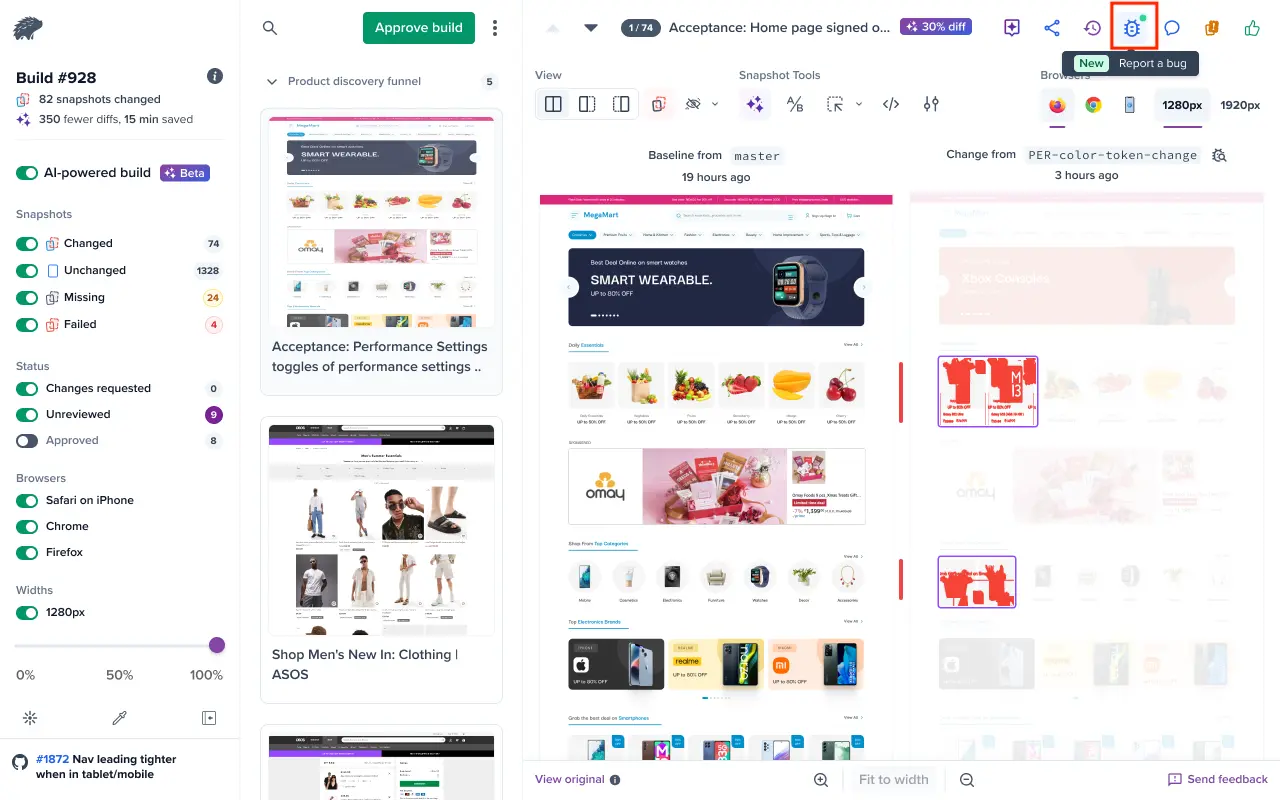
Step 1: Open the Percy build you want to review and click the Report a bug icon on the review screen.
Step 2: Choose one of the following authentication options (this is a one-time setup):
-
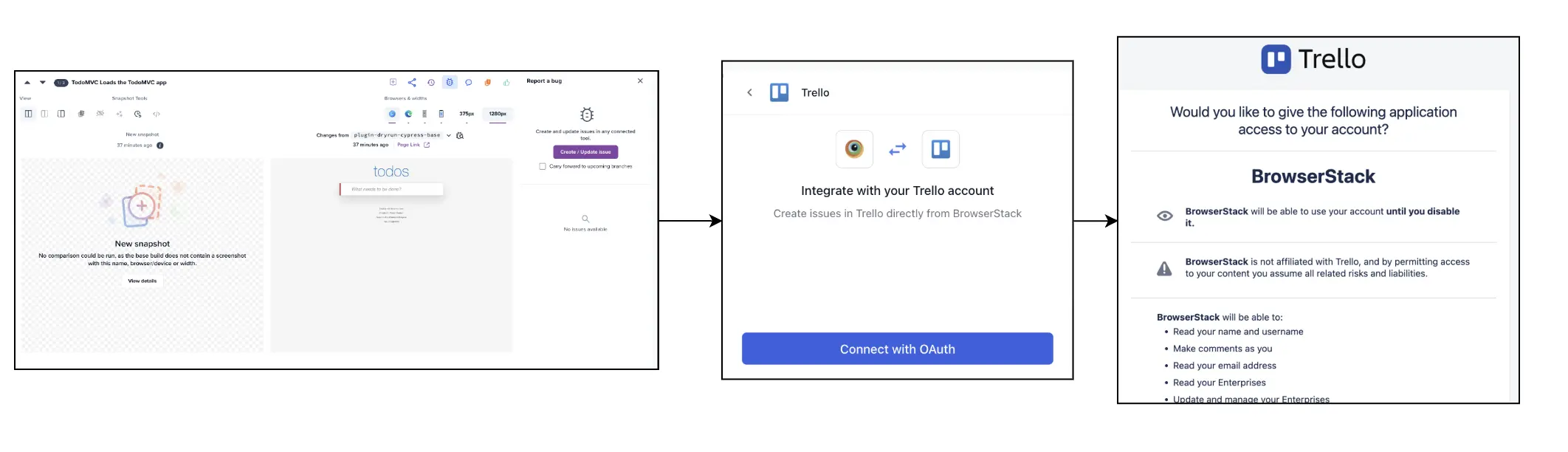
Option 1: Authenticate during card creation.
Click Report a bug, then authenticate via the BrowserStack Integrations consent screen to grant access to the Trello boards you want to file against. After successful authentication, Percy opens the Trello card form with mandatory fields such as Board, List, and Card name.
- Option 2: Enable group-level access
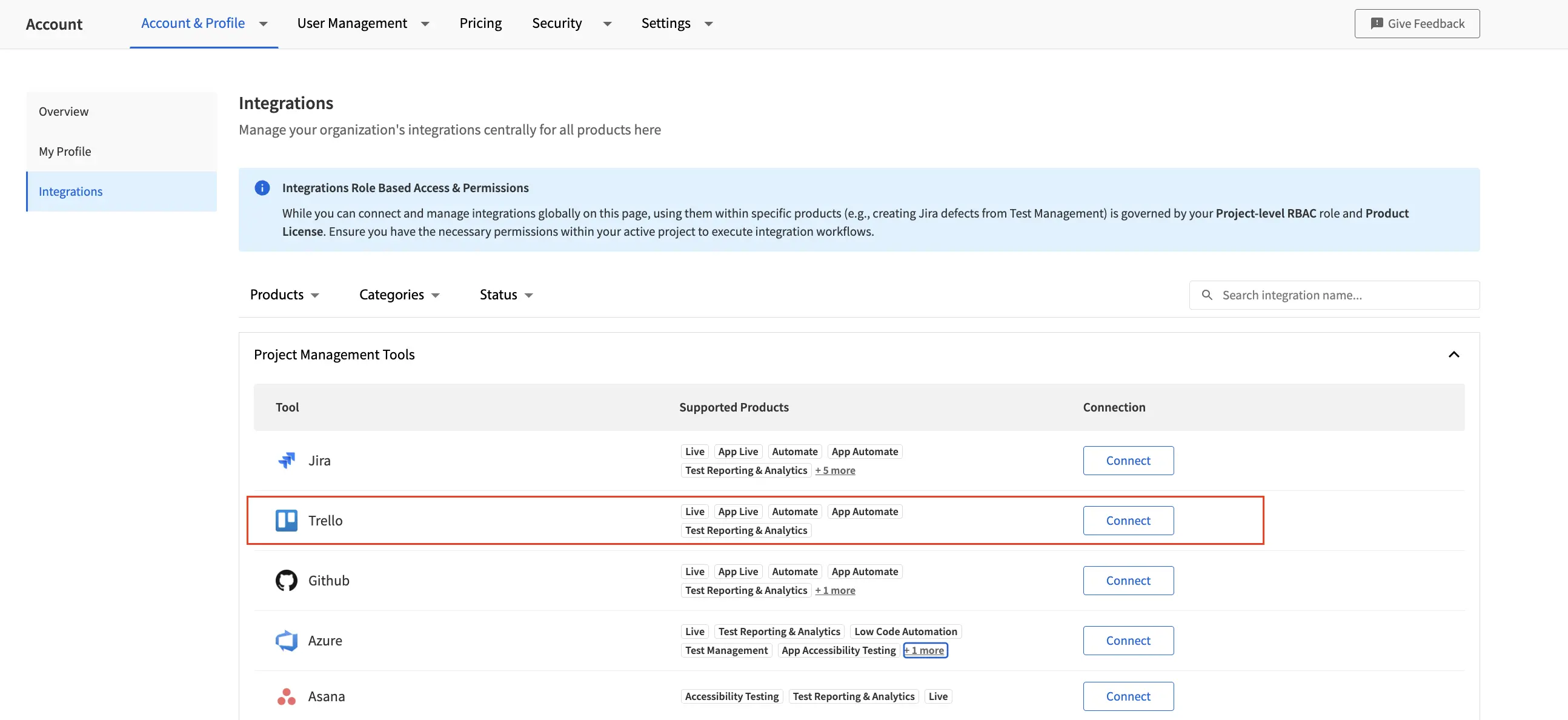
A Group Admin can enable group-level access for their team from the Accounts & Profile page. Locate Trello under Project Management Tools and click Connect.
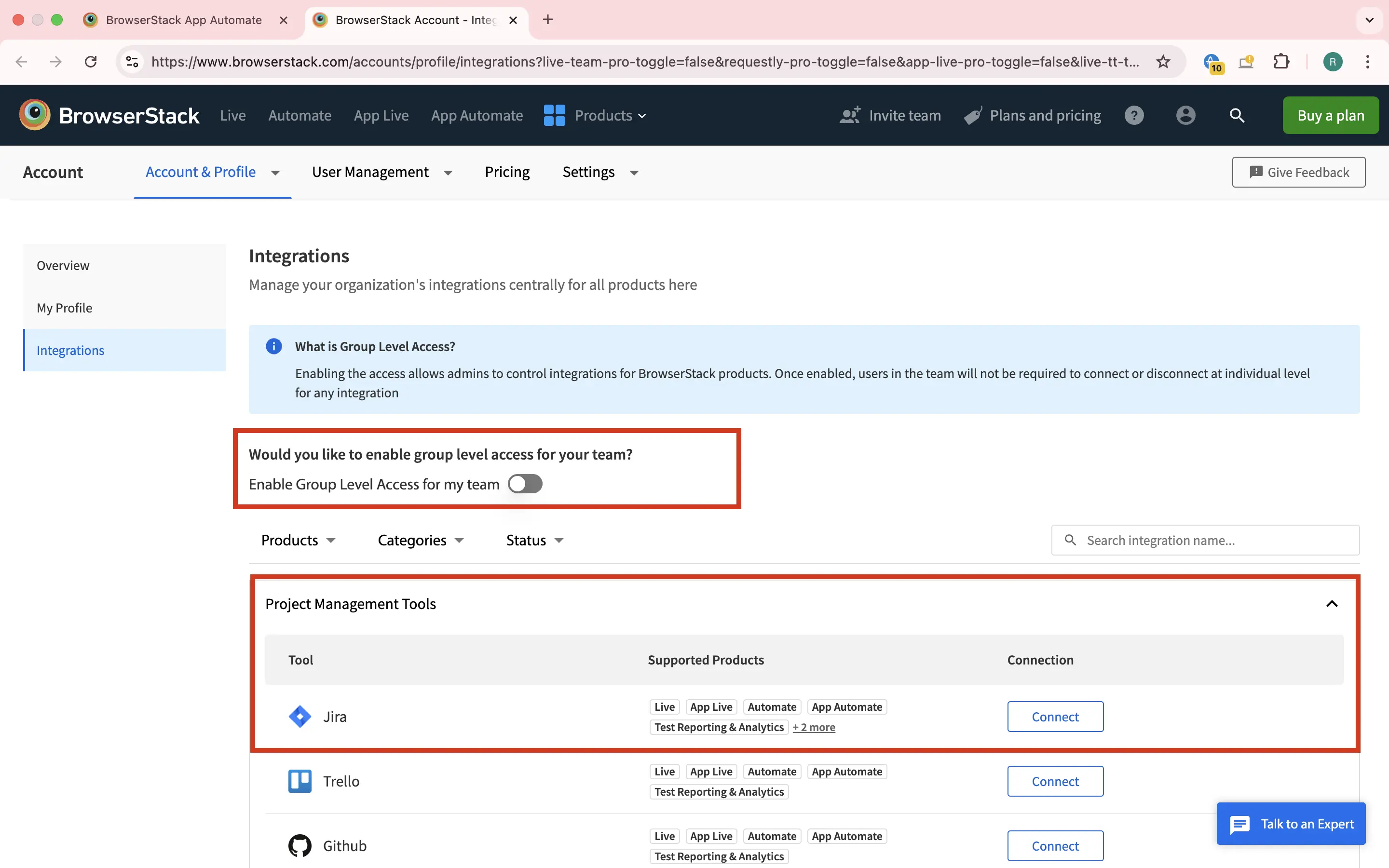
Then toggle the Enable Group Level Access for my team option. When you use this option, Percy creates all Trello cards using the Group Admin’s authenticated session.
Step 3: Enter the required Trello card details in the form.
- When you create a card for the first time, enter details such as the board, list type, members, and card name.
- For subsequent card creation, Percy automatically fills the board and list you used previously.
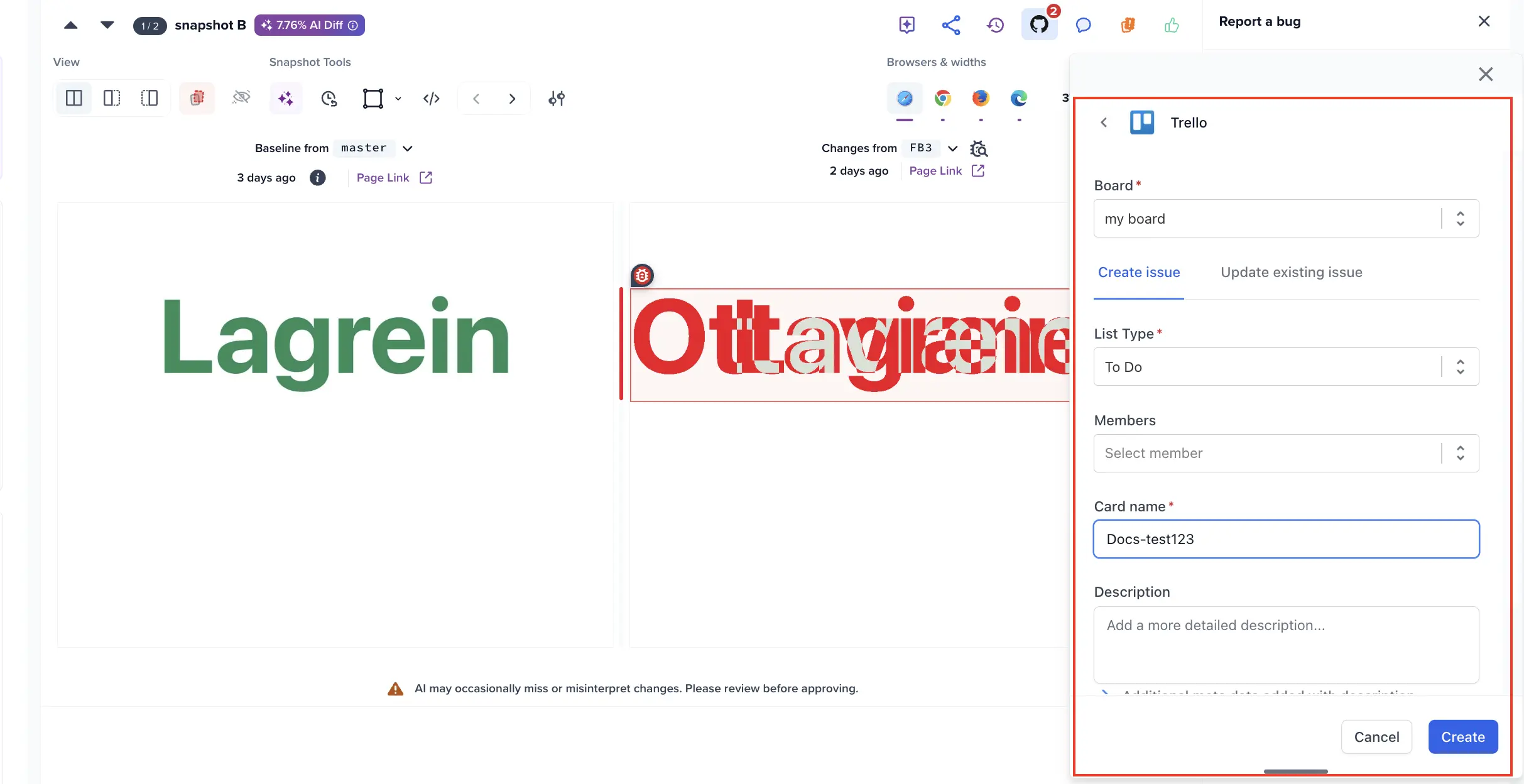
- When you update an existing card, select a card from the available list and update it as needed. Percy adds the latest snapshot details and screenshots to the card description.
Step 4: Click Create or Update.
Percy creates or updates the Trello card and links it to the selected snapshot.
How to check?
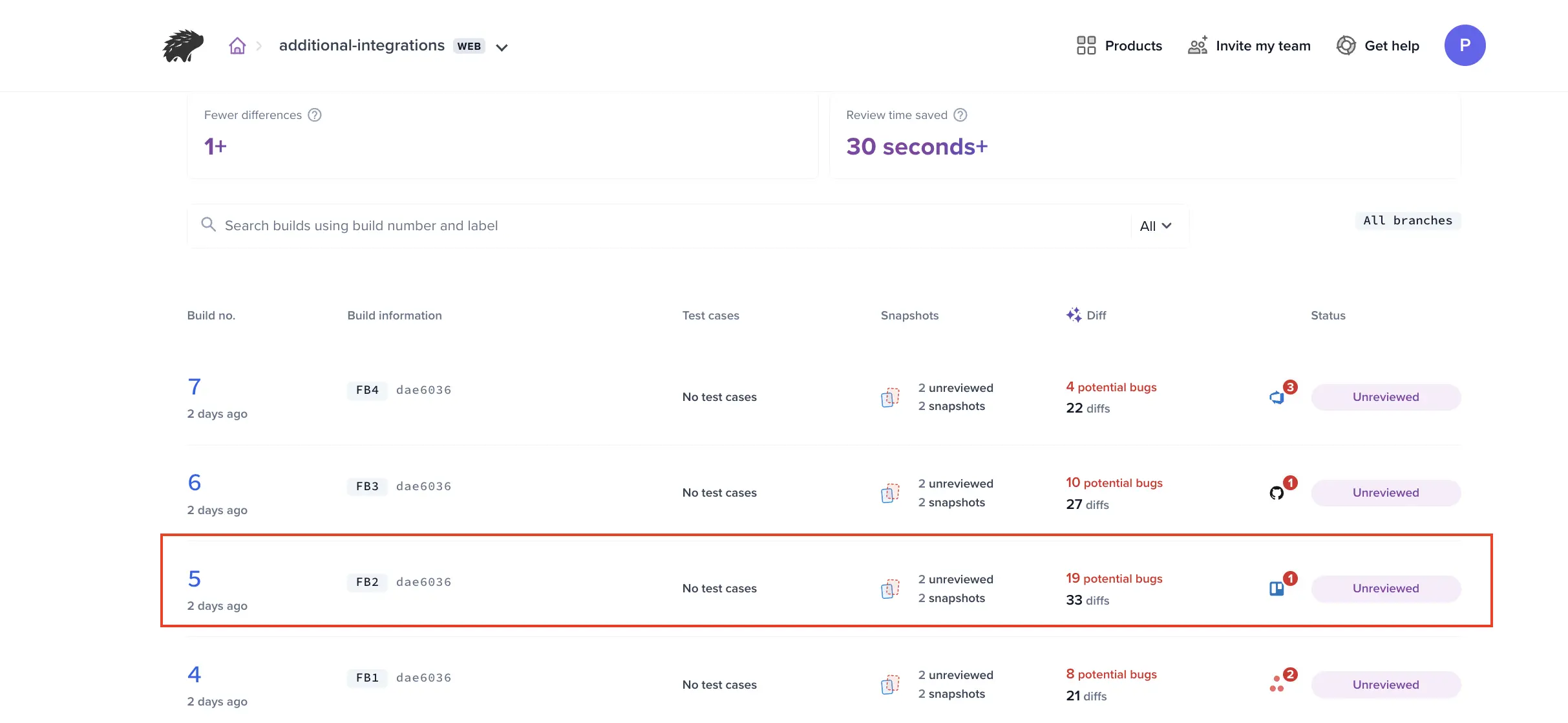
Percy creates Trello cards at the snapshot level. You can access created cards from multiple places in the Percy review experience:
- Build-level card count on the Percy build listing screen
- Snapshot thumbnail, which shows linked Trello cards
- Card count on the Report a bug icon
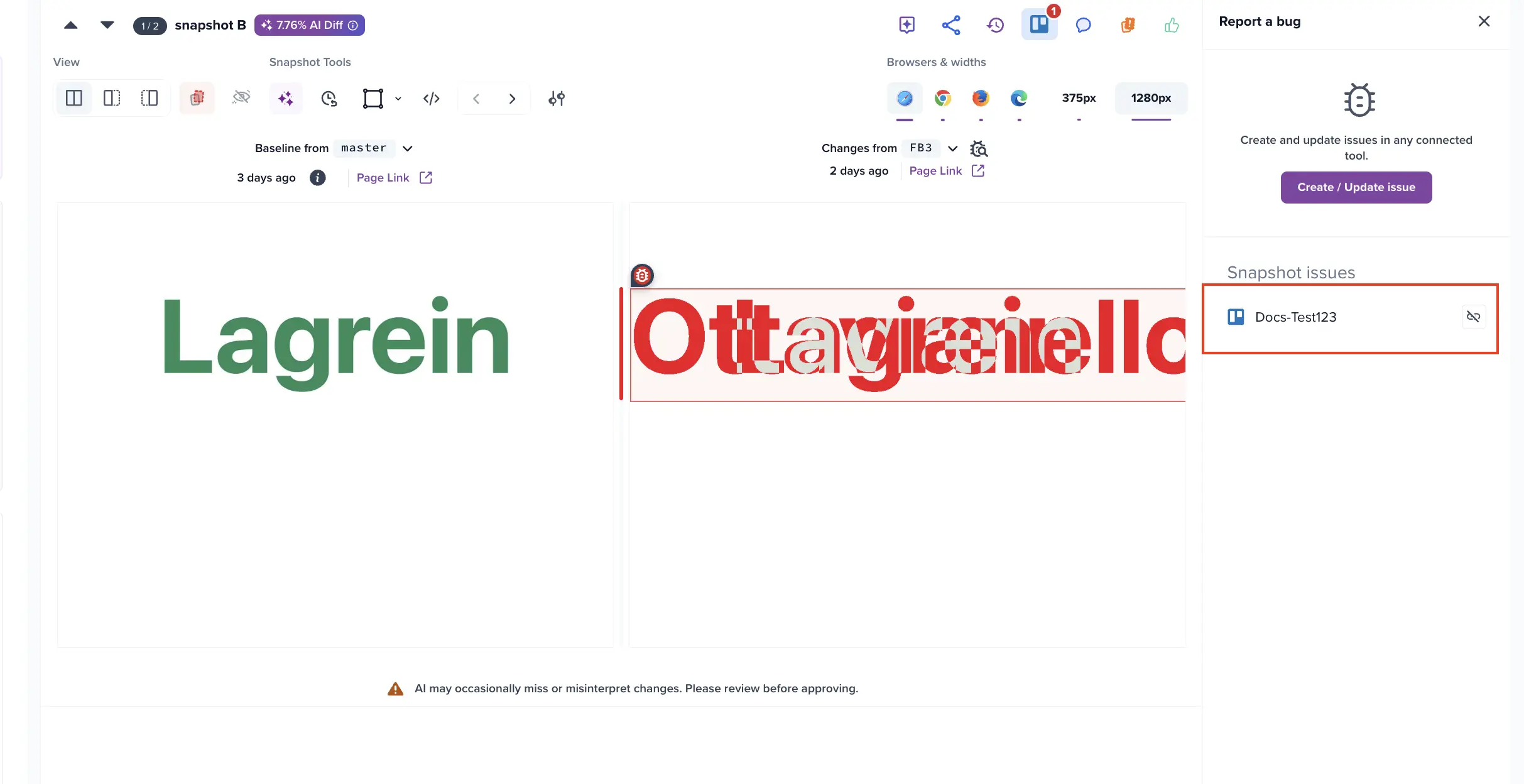
These indicators help you quickly identify which snapshots already have associated Trello cards.
How to open the card?
After Percy creates a Trello card:
- Open the Percy build review screen.
- Click the linked card from the snapshot or the Report a bug panel.
Percy opens the card in Trello in a new tab, where you can track status, add comments, or update fields.
How to de-link?
You can remove the association between a Trello card and a Percy snapshot if the link is no longer needed.
- Open the Percy build where the card is linked.
- Locate the linked card.
- Click Delink next to the card.
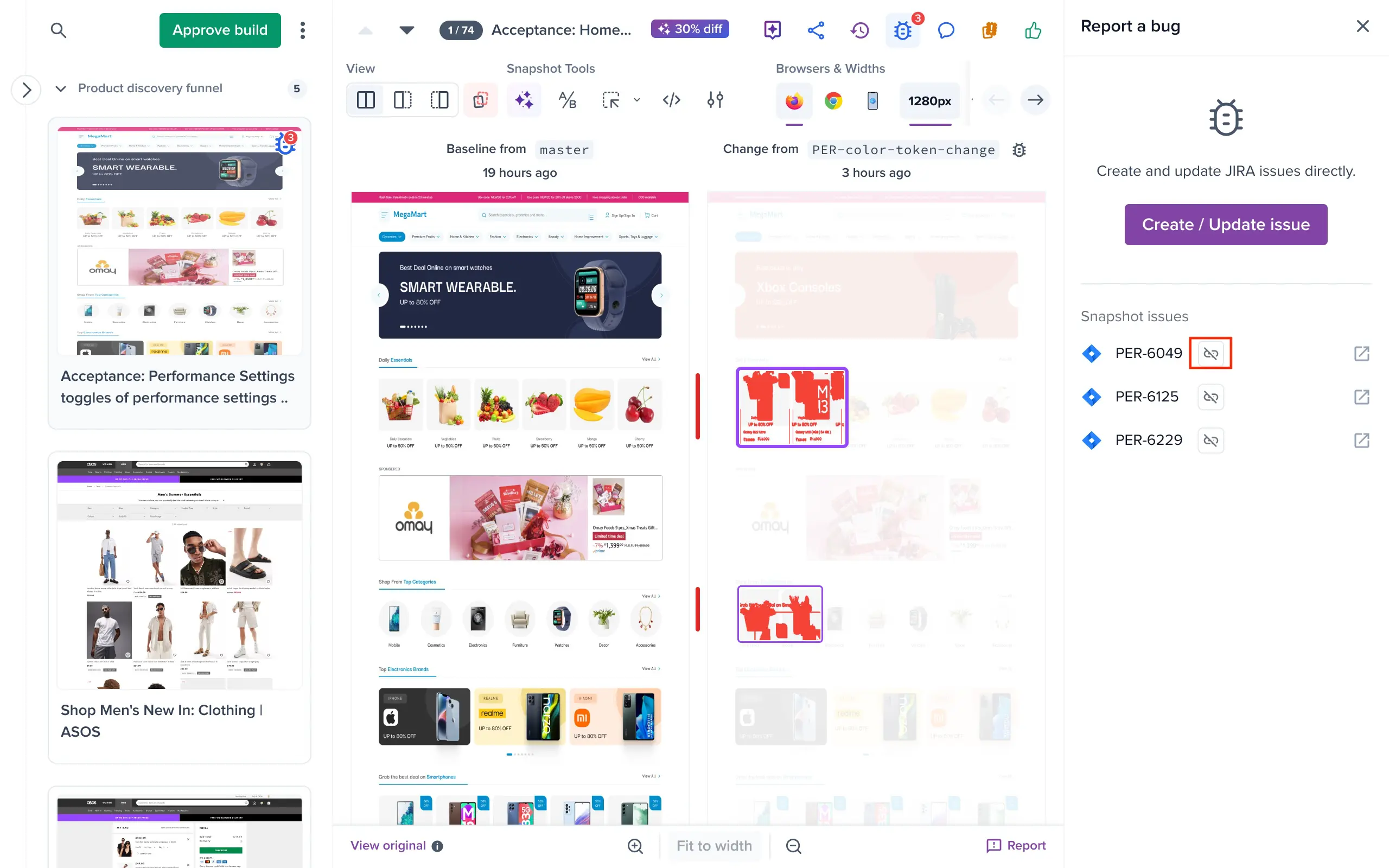
- Confirm the action.
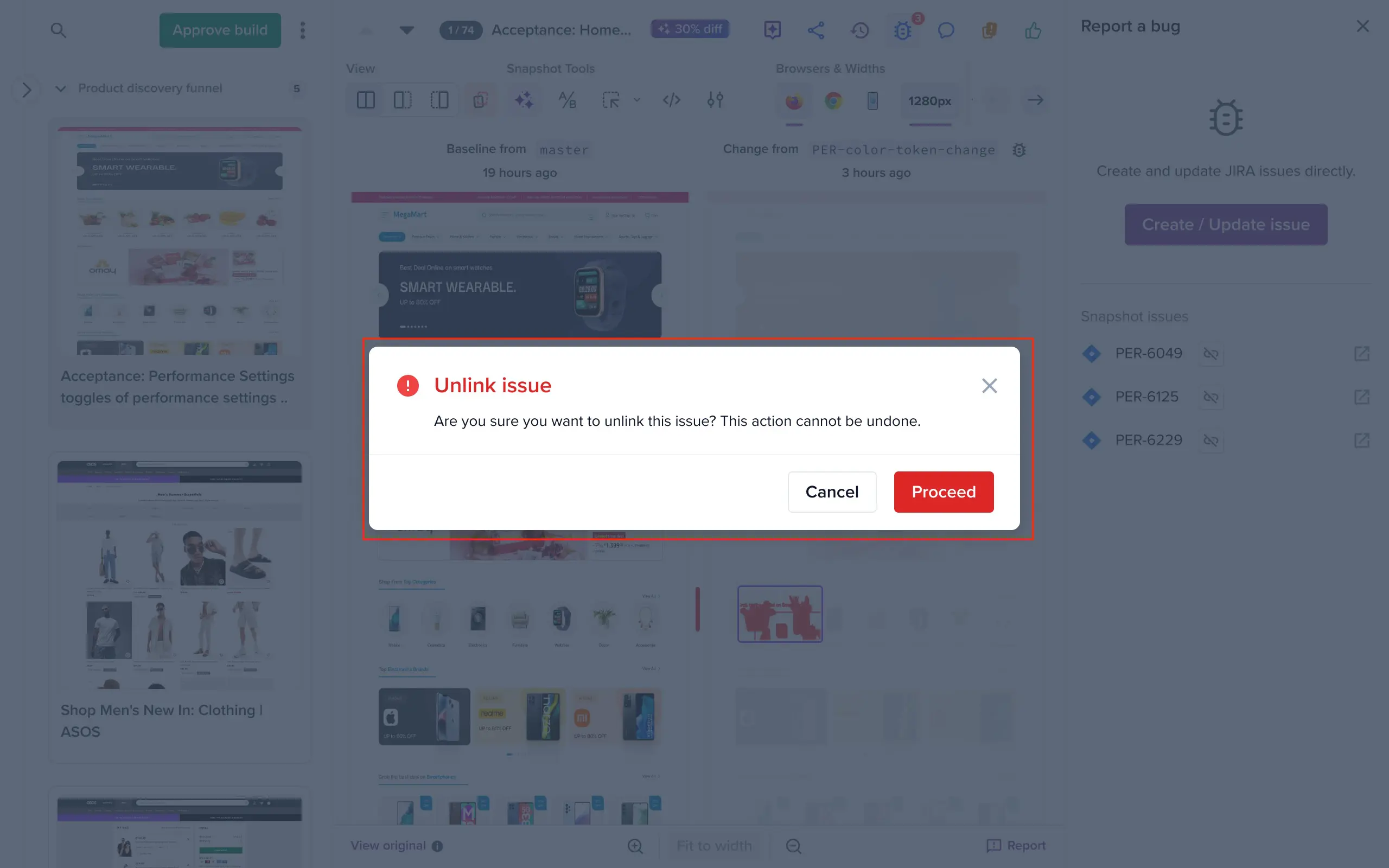
Percy removes the association between the Trello card and the snapshot. This action does not update or close the card.
Troubleshooting
- Trello Cloud only.
- Cards not visible: Verify that the Percy Project maps to the correct Trello board, and that the OAuth scope grants access to it.
- Authentication errors: Re-authenticate with Trello if the connection fails. Confirm your browser is allowing third-party cookies for browserstack.com.
- Board missing from the picker: Re-authenticate from Accounts & Profile > Integrations > Trello > Reconnect to grant the required scope.
Need more support? Contact BrowserStack.
We're sorry to hear that. Please share your feedback so we can do better
Contact our Support team for immediate help while we work on improving our docs.
We're continuously improving our docs. We'd love to know what you liked
We're sorry to hear that. Please share your feedback so we can do better
Contact our Support team for immediate help while we work on improving our docs.
We're continuously improving our docs. We'd love to know what you liked
Thank you for your valuable feedback!