
 Join our Discord
Integrate Tricentis Tosca with App Percy
Learn how to integrate Tricentis Tosca with App Percy to run visual tests on your mobile app.
App Percy works directly with Tricentis Tosca Commander, allowing you to add visual testing to your existing Tosca mobile test cases without creating or maintaining separate test suites.
This integration supports mobile app tests that run on BrowserStack App Automate. Tosca drives the app on a real device, and App Percy captures screenshots of that session.
You control the Percy CLI from your test case, using the StartPercyCLI and StopPercyCLI modules. You don’t start or stop the CLI from a terminal.
Testing a website instead of a mobile app? This page covers mobile app tests. To add visual testing to your Tosca web test cases, check Integrate Tricentis Tosca with Percy.
App Percy-Tosca integration workflow
The following diagram illustrates how App Percy integrates with Tosca to capture and process visual screenshots during test execution.

Getting started
App Percy’s Tosca integration is a DLL extension that adds three modules to Tosca Commander. Before you begin, ensure you have the following:
- Tosca Commander 24 with Mobile Engine 3.0 installed and its mobile server running.
- A mobile test case that runs on BrowserStack App Automate, with the
AppiumServertest configuration parameter pointing to the BrowserStack hub. - Node 14 or later.
-
@percy/cliversion 1.27.0 or later.
Tosca supports Windows environments only.
Steps
Follow these steps to set up the App Percy Tosca integration:
Step 1: Install or update the @percy/cli package using the following command:
npm install --global @percy/cli
Step 2: Download the AppPercyTosca.dll file from the latest release and copy it to the following location:
C:\Program Files (x86)\TRICENTIS\Tosca Testsuite\Percy
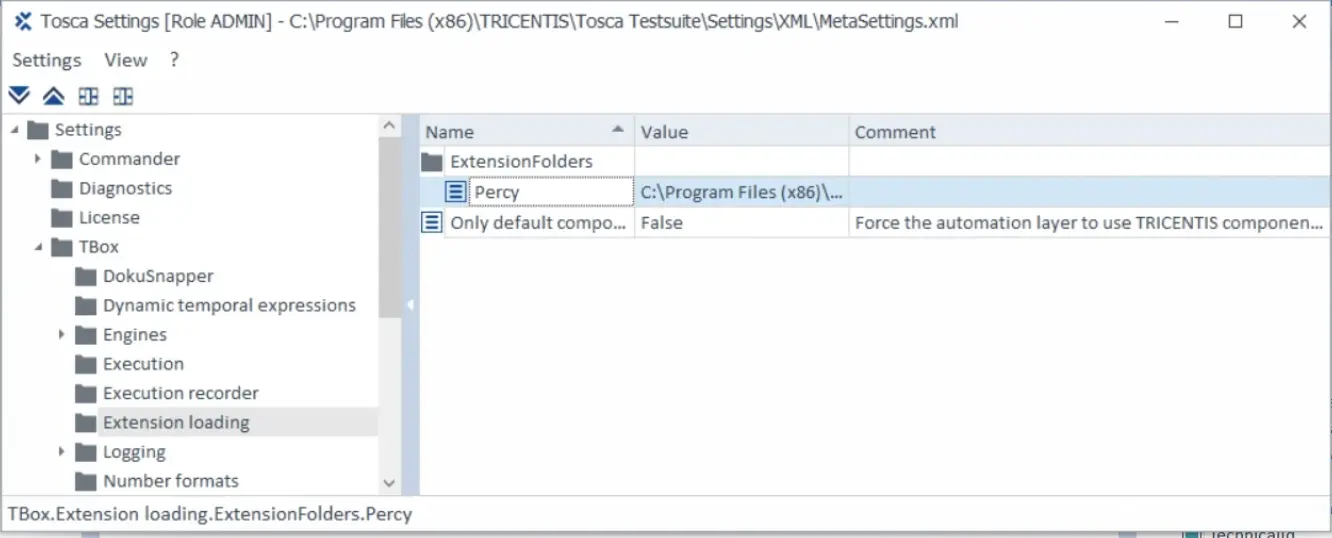
Step 3: In Tosca Commander, navigate to:
Project settings → TBox → Extension loading → Extensions Folders
Add the previously copied path to the Extensions list, then restart Tosca Commander.
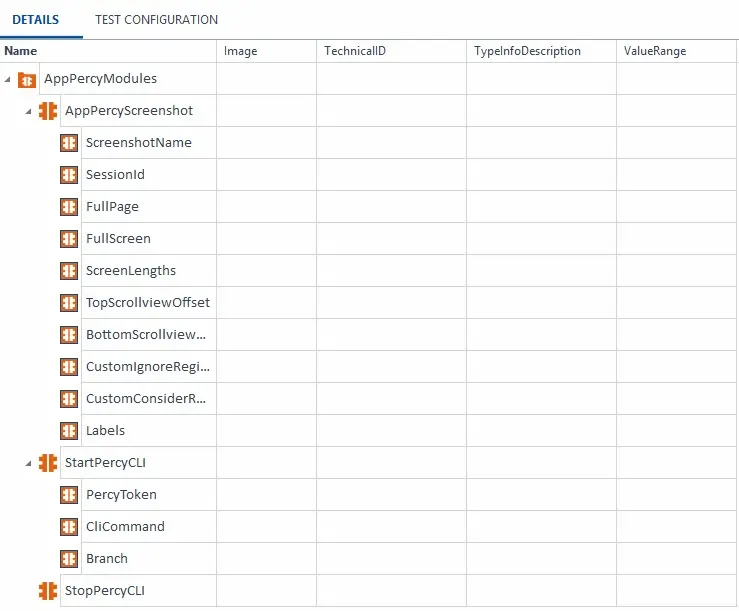
Step 4: Import the AppPercyScreenshot.tsu file from the same release. The import adds an AppPercyModules folder with all three modules already configured, so you don’t create any of them by hand:
| Module | What it does |
|---|---|
| StartPercyCLI | Starts the Percy CLI and waits until it’s ready. |
| AppPercyScreenshot | Captures one screenshot. |
| StopPercyCLI | Stops the CLI, which finalizes the build and reports the build link. |
Step 5: Add the StartPercyCLI module as the first App Percy step in your test case, and set the following values:
-
PercyToken: your App Percy project token. Sign in to App Percy and create a new App project. App Percy generates the token when the project is created. -
CliCommand: the full path to thepercyexecutable, such asC:\Users\<your-username>\AppData\Roaming\npm\percy. Set this only ifpercyisn’t on the path that Tosca uses. -
Branch: the branch name to group builds under, such asrelease-24.
App Percy groups builds into a history by branch, and the Percy CLI normally reads the branch from the git repository it runs in. A Tosca machine usually doesn’t have one, so set Branch to make sure your builds compare against each other. Set it on StartPercyCLI rather than on a screenshot module, because App Percy creates the build when the CLI starts.
Step 6: Add the built-in Get Appium Session Id module to your test case, after the step that opens your app and before the first screenshot:
- Find the module under Standard modules → Engines → Mobile.
- Set Buffer Name to
AppiumSessionId.
App Percy needs the Appium session ID to reach the device that App Automate allocated.
Step 7: Add the AppPercyScreenshot module wherever you want to capture a screen, and set the following values:
-
ScreenshotName(Required): a unique name for the screenshot, such asTest. -
SessionId(Required): the buffer you created in step 6, referenced as{B[AppiumSessionId]}.
The AppPercyScreenshot module supports the following parameters:
| Parameter | Description | Example |
|---|---|---|
ScreenshotName |
(String) (Required) Unique name for the screenshot. | Home |
SessionId |
(String) (Required) Appium session ID of the running session. Pass the buffer written by the Get Appium Session Id module. | {B[AppiumSessionId]} |
Labels |
(String) Comma-separated labels for the screenshot. | smoke,checkout |
FullScreen |
(Boolean) Set to true when the app runs in full-screen mode. (Default: false) |
true |
FullPage |
(Boolean) Capture the entire scrollable page. (Default: false) |
true |
ScreenLengths |
(Integer) Number of screens to capture for a full-page screenshot. | 4 |
TopScrollviewOffset |
(Integer) Pixels to trim from the top of each full-page tile before stitching. | 100 |
BottomScrollviewOffset |
(Integer) Pixels to trim from the bottom of each full-page tile. | 120 |
CustomIgnoreRegions |
(String) Areas to exclude from comparison, in pixels, as top,bottom,left,right. Separate regions with newlines if the value contains any, otherwise with semicolons. XPath and accessibility ID locators aren’t supported. |
0,100,0,1080; 2200,2340,0,1080 |
CustomConsiderRegions |
(String) Areas to include in comparison, in pixels, as top,bottom,left,right. Separate regions with newlines if the value contains any, otherwise with semicolons. XPath and accessibility ID locators aren’t supported. |
0,100,0,1080; 2200,2340,0,1080 |
You don’t set the device name, OS, version, screen size, or orientation. App Percy reads these from the App Automate session, which knows the device that was actually allocated.
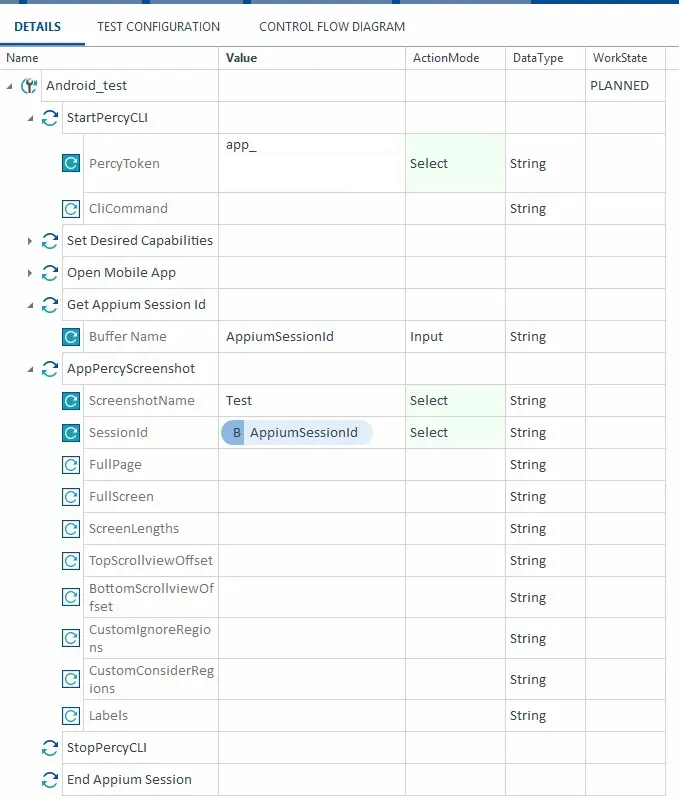
Step 8: Add the StopPercyCLI module as the last App Percy step, before you end the Appium session, then run your test case.
Step 9: A build link appears in the CLI output. Select the link to view your App Percy screenshots.
Once set up, Tosca test cases that include the App Percy modules capture and upload screenshots on every run. When you run another build with visual changes to your app, App Percy takes new screenshots and shows you the comparisons between the two runs on the new build.
A failed screenshot doesn’t fail the Tosca step, because a visual check that couldn’t run isn’t a functional regression. To fail the step instead, add a test configuration parameter named percy.ignoreErrors with the value false. To turn App Percy off without editing your test cases, add a test configuration parameter named percy.enabled with the value false.
Related topics
We're sorry to hear that. Please share your feedback so we can do better
Contact our Support team for immediate help while we work on improving our docs.
We're continuously improving our docs. We'd love to know what you liked
We're sorry to hear that. Please share your feedback so we can do better
Contact our Support team for immediate help while we work on improving our docs.
We're continuously improving our docs. We'd love to know what you liked
Thank you for your valuable feedback!