
 Join our Discord
Configure Figma designs
Compare your Figma designs against App Percy snapshots to catch visual differences.
Comparing Figma designs with App Percy lets you catch visual differences between what your team designed and what your application renders. The setup has two parts: you connect App Percy to Figma once, then import and map designs each time you want to compare them against a build.
After you import designs, App Percy triggers a Figma build and auto-approves the first one. When you trigger an implementation build from your code, the review page shows your Figma designs side by side with your application snapshots.
Prerequisites
- Confirm you can view the Figma files you want to compare.
- Decide how App Percy accesses your designs. Connecting your Figma account is the recommended option. Sharing individual files with App Percy’s Figma account is the legacy option.
- Create at least one successful build before you create a Figma build.
- Figma enforces API rate limits, which reduce the number of designs App Percy can fetch. These limits are especially restrictive for accounts with only View access and often cause errors or failed builds. The limits are the same whether you connect your Figma account or share files with App Percy’s Figma account.
- If you share files with App Percy’s Figma account, grant Dev or Full access to
percy.figma@browserstack.comfor critical builds to avoid rate limits and allow builds to complete.
Connect App Percy to Figma
App Percy needs permission to read the Figma files you want to compare. Grant this once by connecting your Figma account, or per file by sharing each one with App Percy’s Figma account.
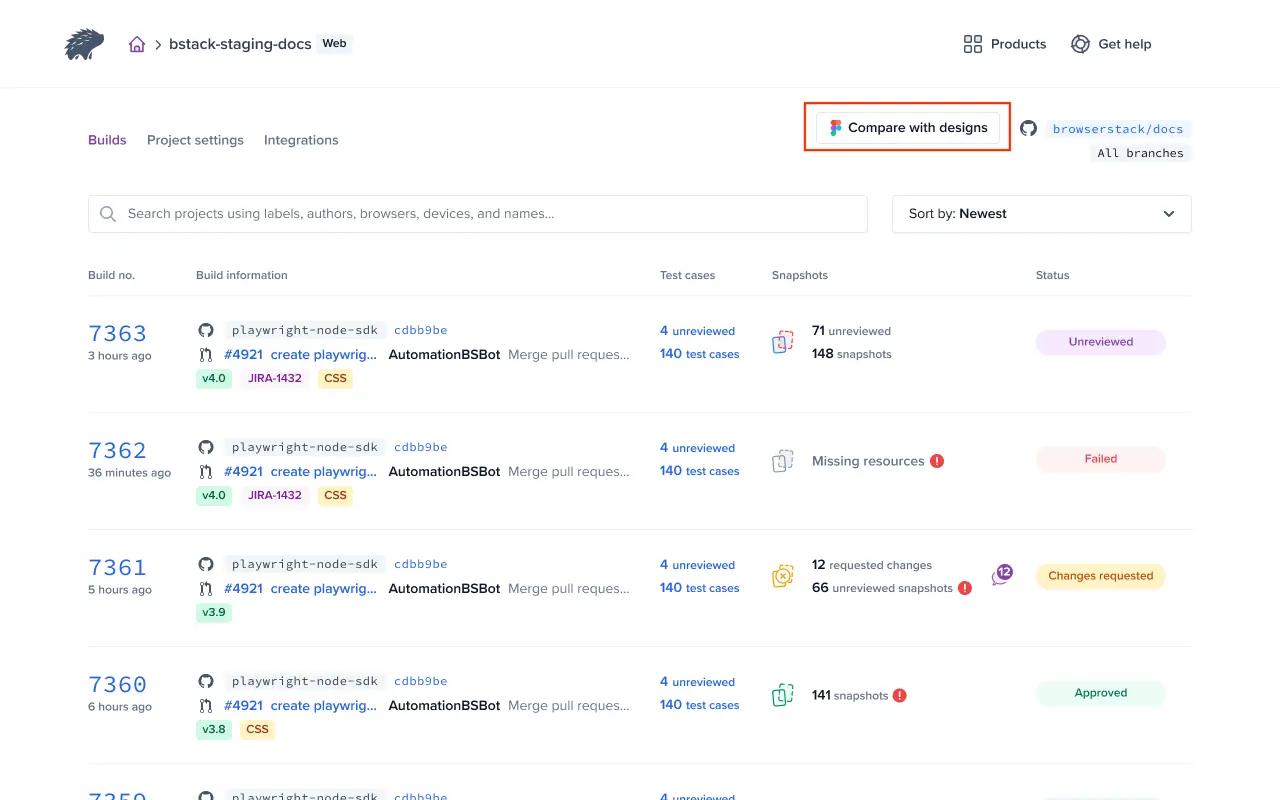
Go to your project build and click the Compare with designs icon.
The Connect Percy to Figma dialog presents both options. Select the one you want, then follow the steps in the matching tab.
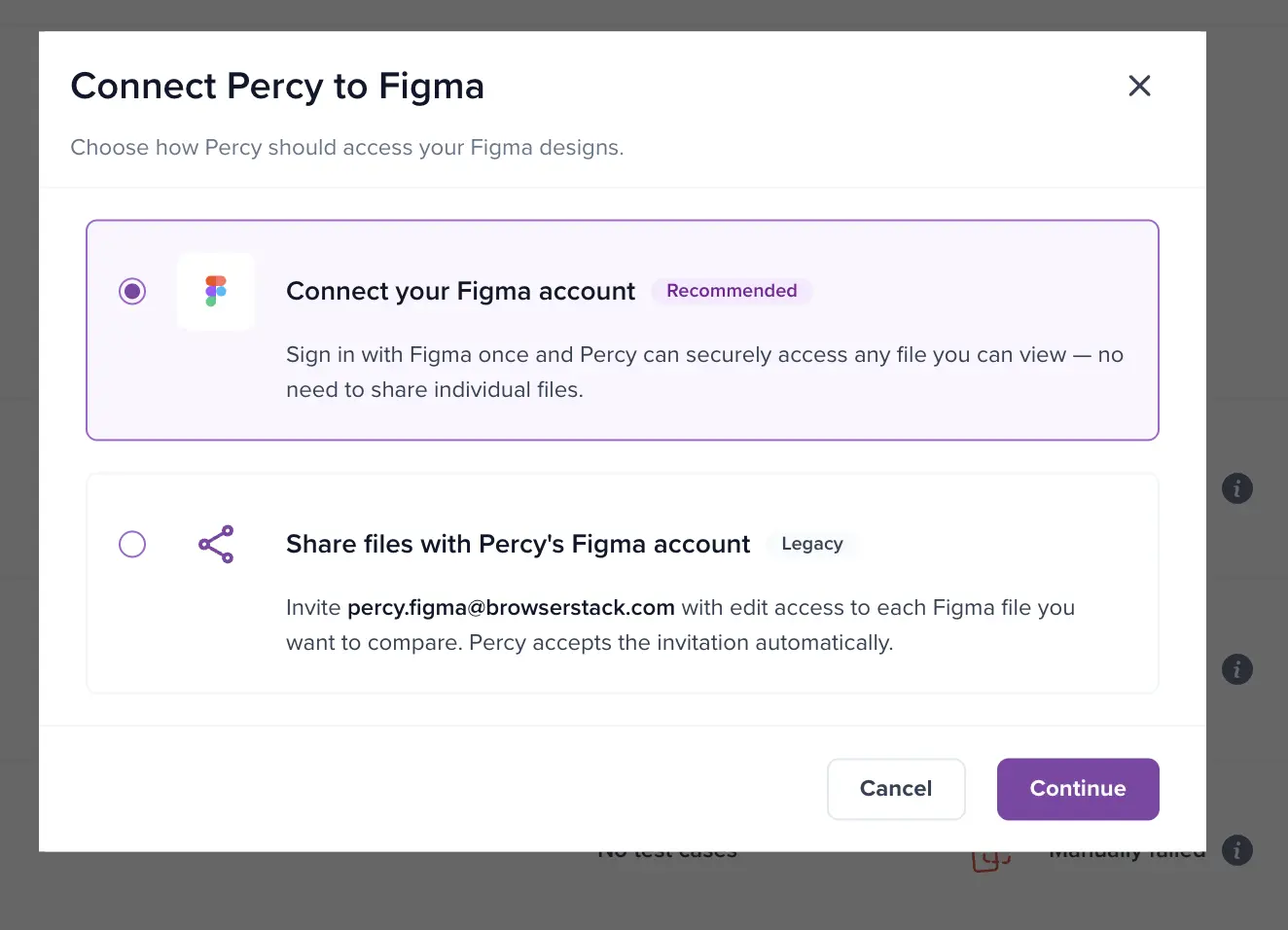
This is the recommended option. You sign in with Figma once, and App Percy can then access any file you can view, without sharing individual files.
- In the Connect Percy to Figma dialog, select Connect your Figma account and click Continue.
- In the Connect Figma dialog, choose how to authenticate:
- Connect with OAuth: The recommended option. Figma asks you to allow App Percy to read the contents of files you can access. Click Allow access.
- Continue with PAT: Enter a Figma personal access token. Use this option if your organization restricts OAuth apps. To create a token, click Get your Personal Access Token, or expand Need help generating PAT? for the steps. Paste the token and click Continue.
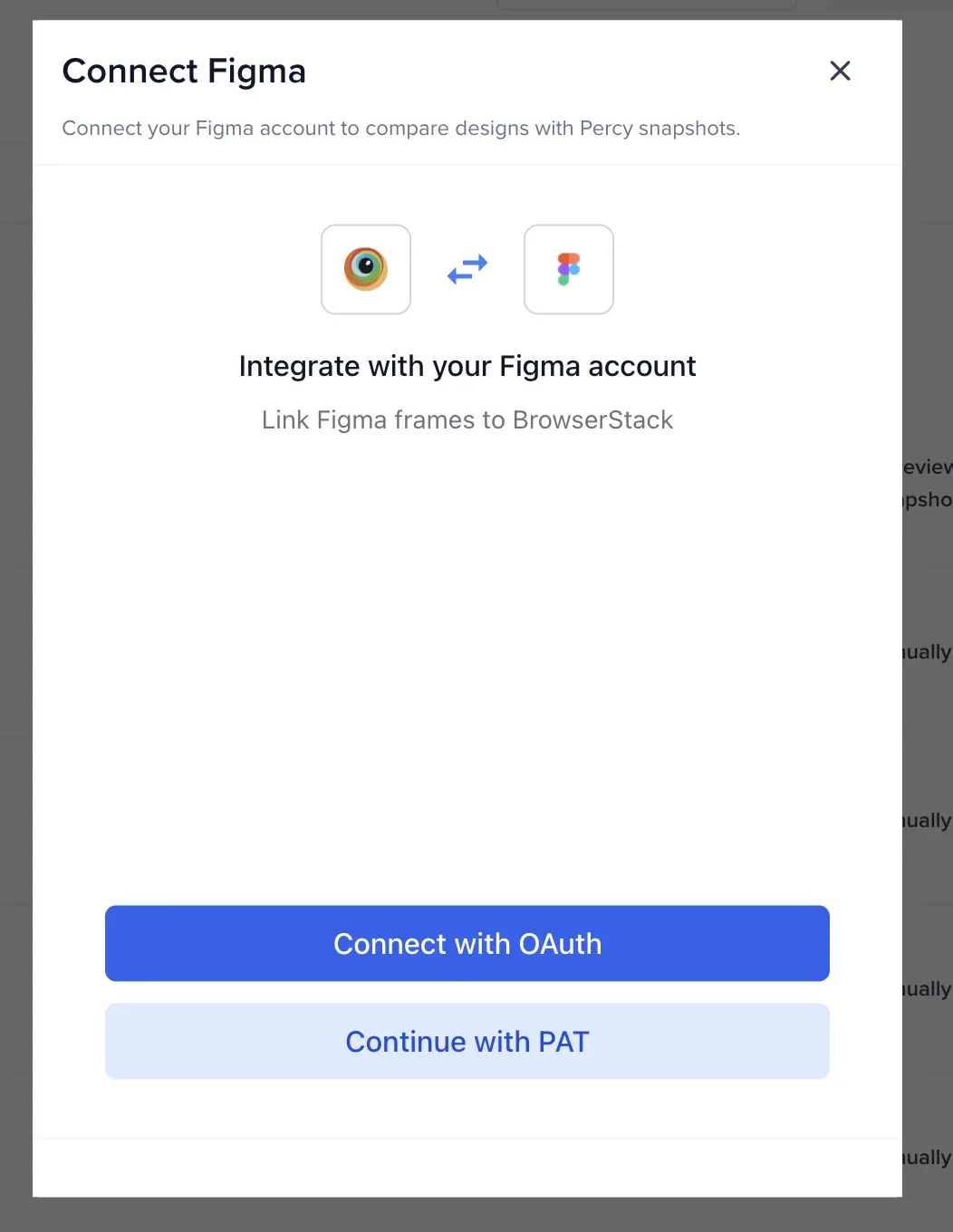
After you authenticate, App Percy returns you to the import form.
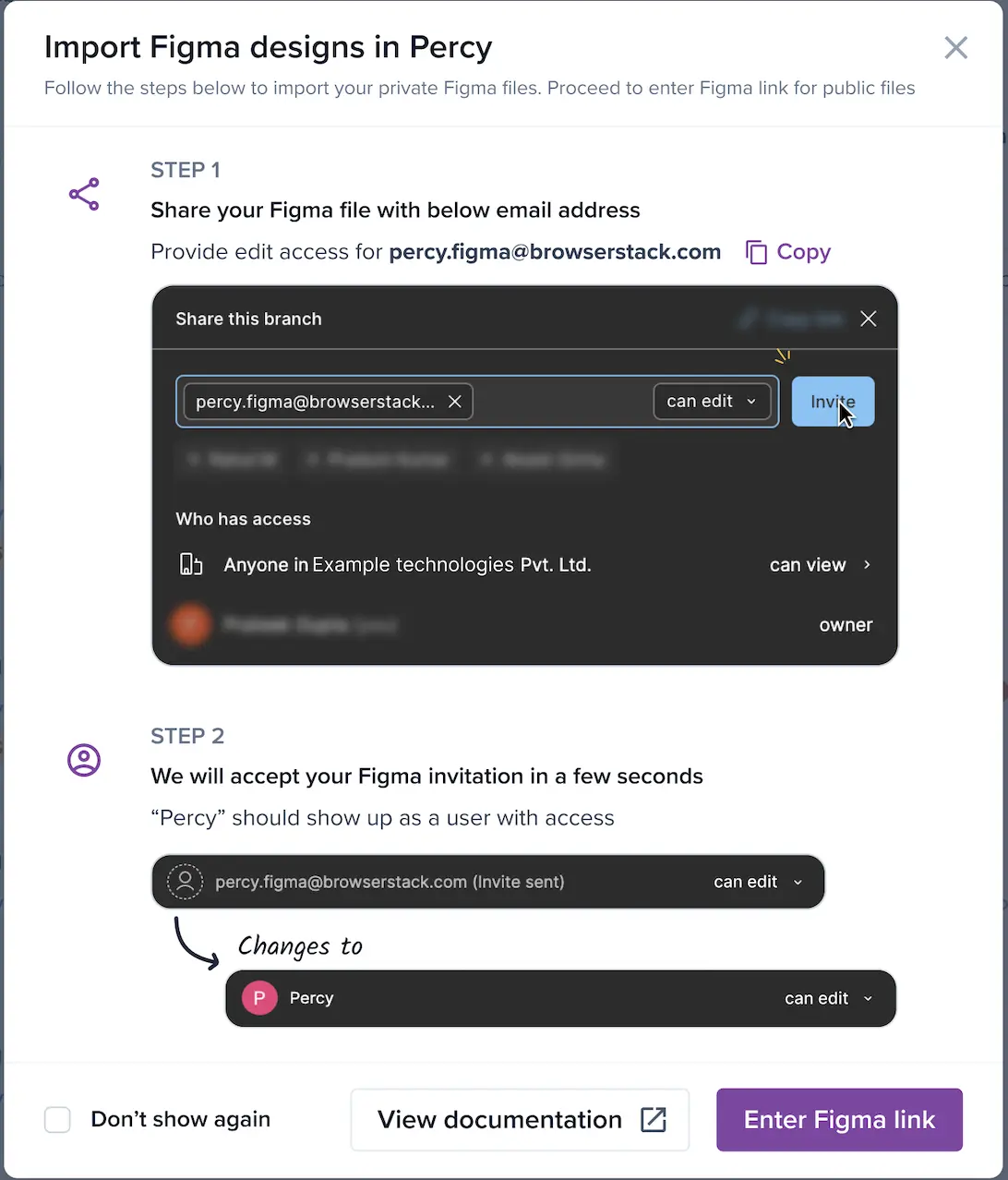
If you have already connected your Figma account, this dialog doesn’t appear and App Percy takes you directly to the import form.
Troubleshoot the Figma connection
If the connection step doesn’t behave as you expect, check the following:
| Condition | What to check |
|---|---|
| The Connect Percy to Figma dialog doesn’t appear. | Your Figma account is already connected. Continue to the import form. |
| App Percy briefly shows a loader after you click Compare with designs. | App Percy is checking your Figma connection. The check completes in a moment. |
| The shared-email steps appear even though your account is connected. | App Percy couldn’t confirm your connection status and fell back to the legacy flow instead of blocking you. Retry, or follow the steps in the Share files tab. |
The invite to percy.figma@browserstack.com stays grayed out in Figma. |
App Percy hasn’t accepted the invite yet. This applies to the legacy option only. To avoid per-file invites, connect your Figma account instead. |
Import and map your designs
After App Percy can access your Figma files, import the designs and map them to snapshots:
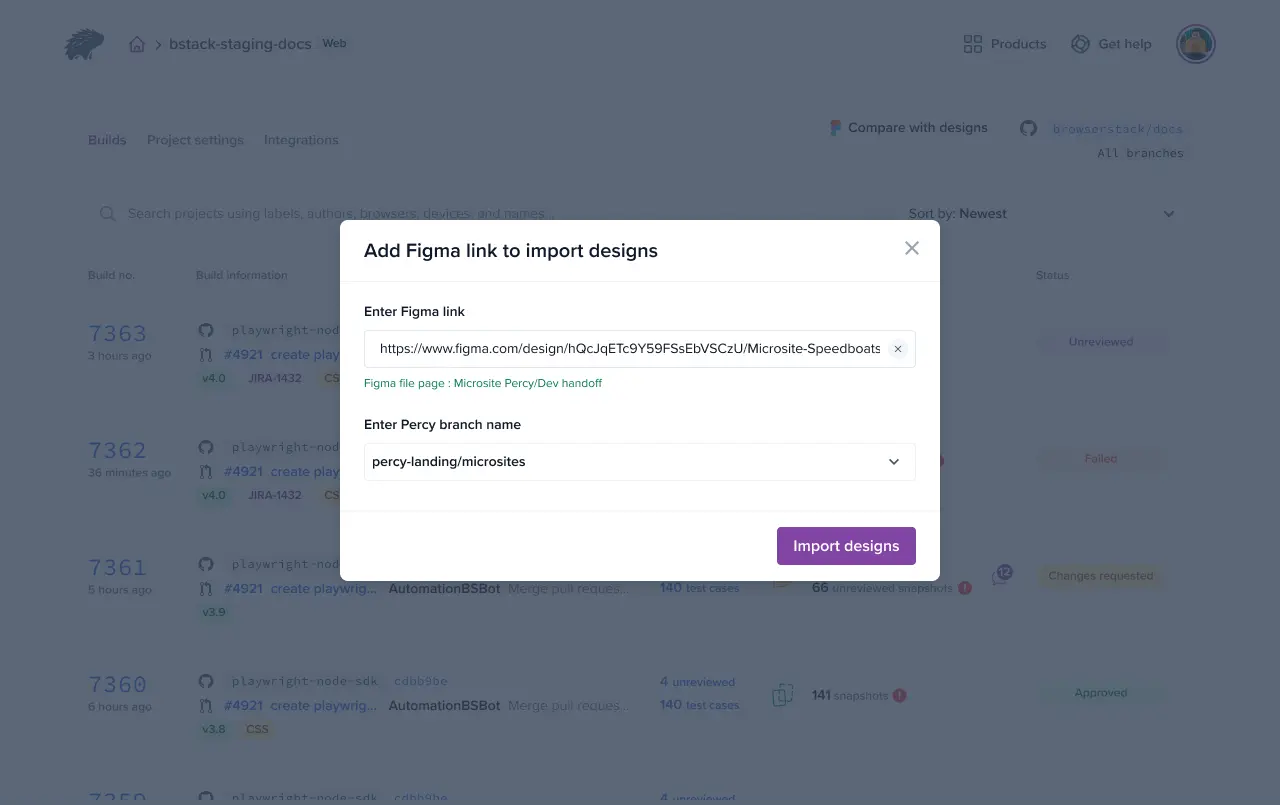
Enter the Figma design or site link to import your designs, then enter a App Percy branch name. You can select an existing branch from the drop-down or create a new one.
- The default base branch on App Percy cannot be selected as the target branch for Figma builds.
- Figma retrieves device, browser, and width details from the last successful build on the specified branch. If no baseline build exists, it falls back to the last successful build on the default base branch. If that build doesn’t exist either, it uses the most recent successful build.
- You do not require a branch for your Figma designs inside the Figma tool.
- Share the Figma file directly. Do not invite App Percy to the project.
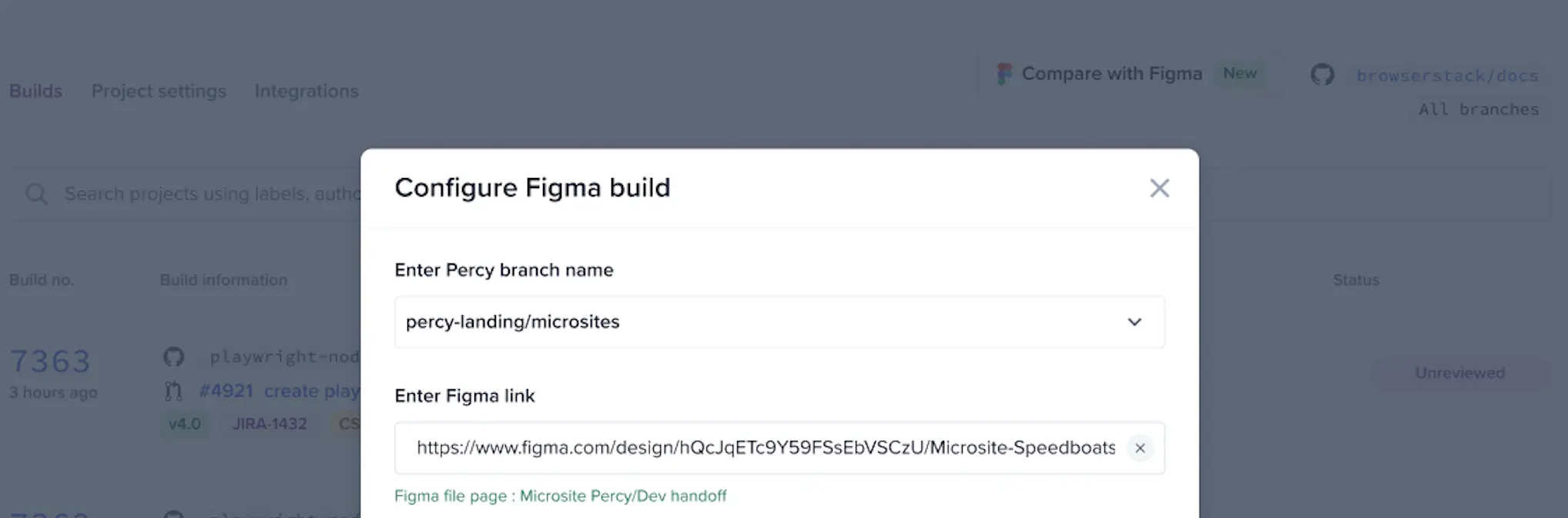
Click Import designs. Your Figma designs load.
Select the designs you want to compare. By default, App Percy pre-selects the first 50 imported designs.
You can import up to 50 designs per build.
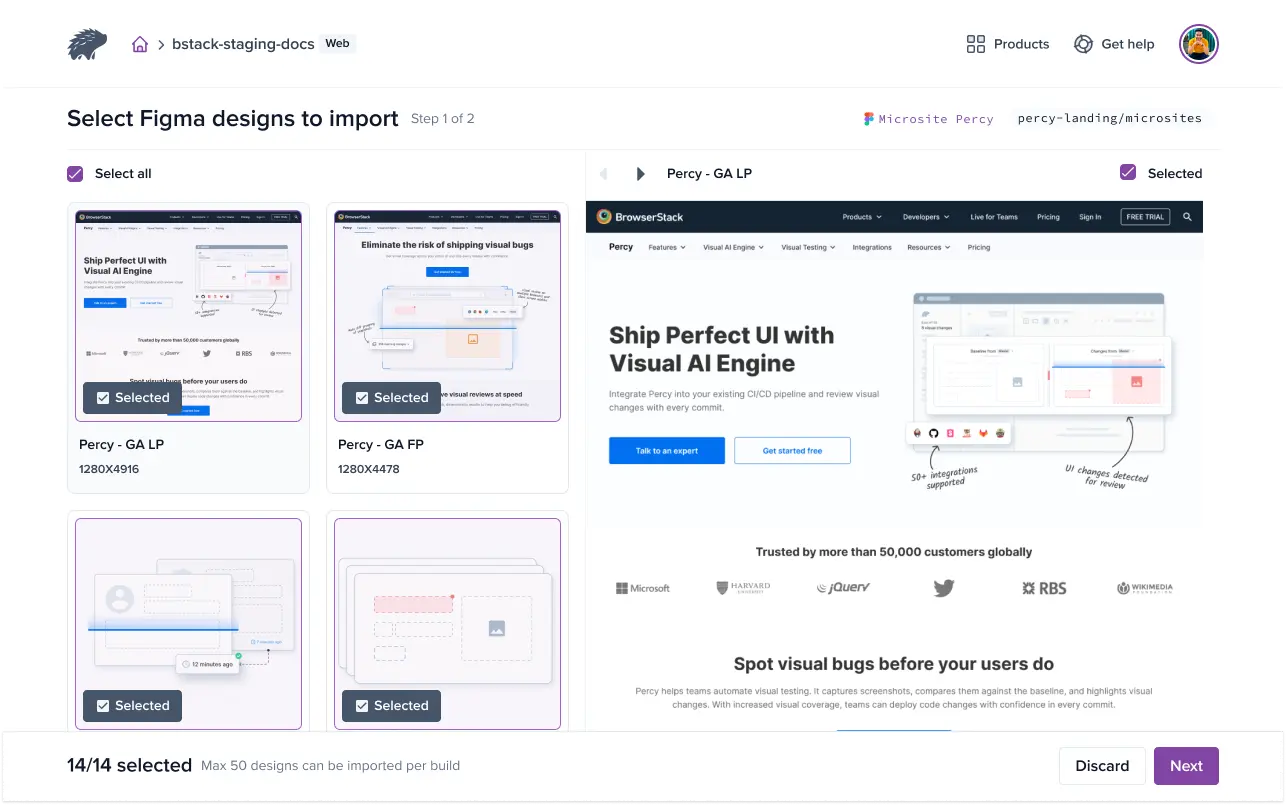
Click Next to continue.
Map each design to a snapshot name for comparison. Select an existing snapshot name from the list or enter a new one. To map snapshots automatically, select the Use design name as snapshot name checkbox. If you don’t provide a snapshot name, App Percy uses the design name as the snapshot name.
App Percy suggests a snapshot match for each design, so you review and confirm the mappings instead of selecting every name manually. For more information, see AI-suggested snapshot mapping.
- App Percy does not allow multiple designs with the same dimensions to be mapped to the same snapshot.
- Unmapped designs use the design name as the snapshot name.
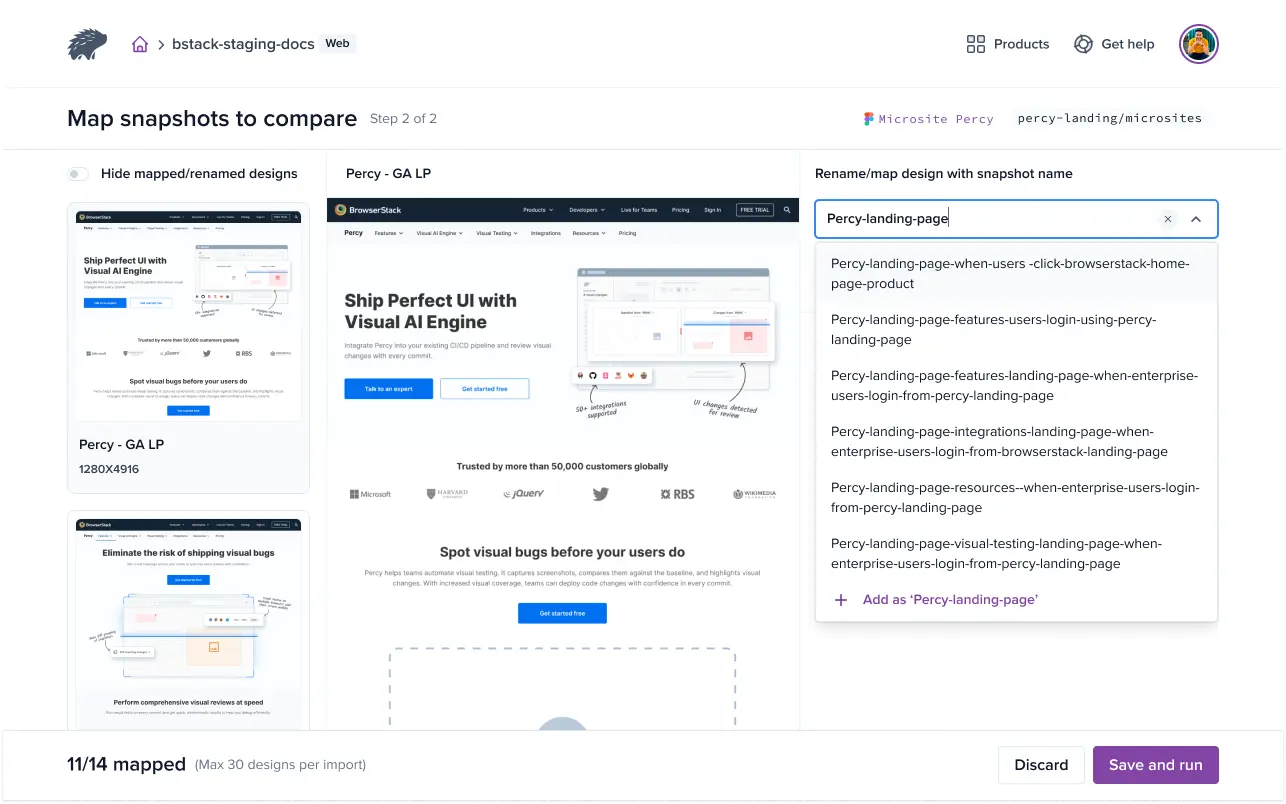
To map a test case name to your design, see Map test cases.
Click Save and run to complete the process.
AI-suggested snapshot mapping
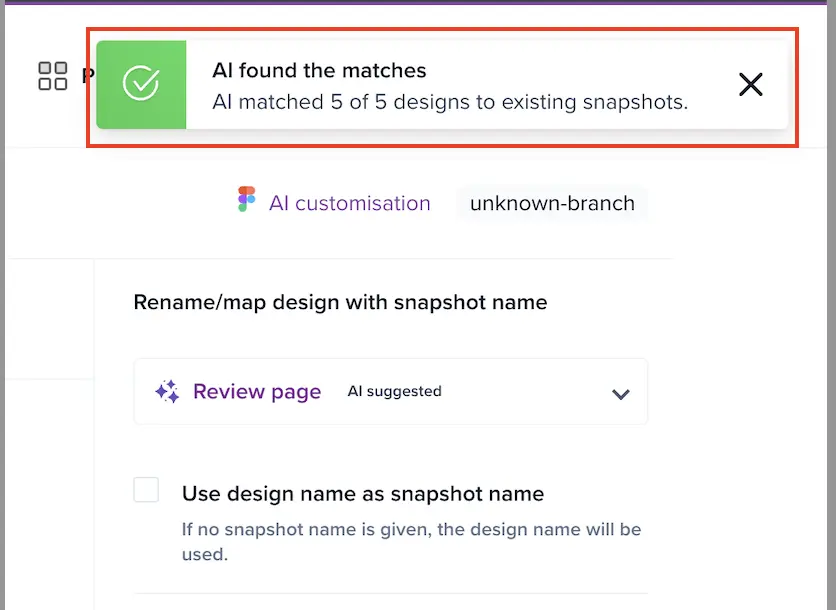
App Percy suggests a snapshot match for each design during the mapping step, so you review and confirm each mapping instead of selecting every snapshot name manually. A sparkle icon marks each design thumbnail, and the snapshot-name drop-down shows the suggestion status.
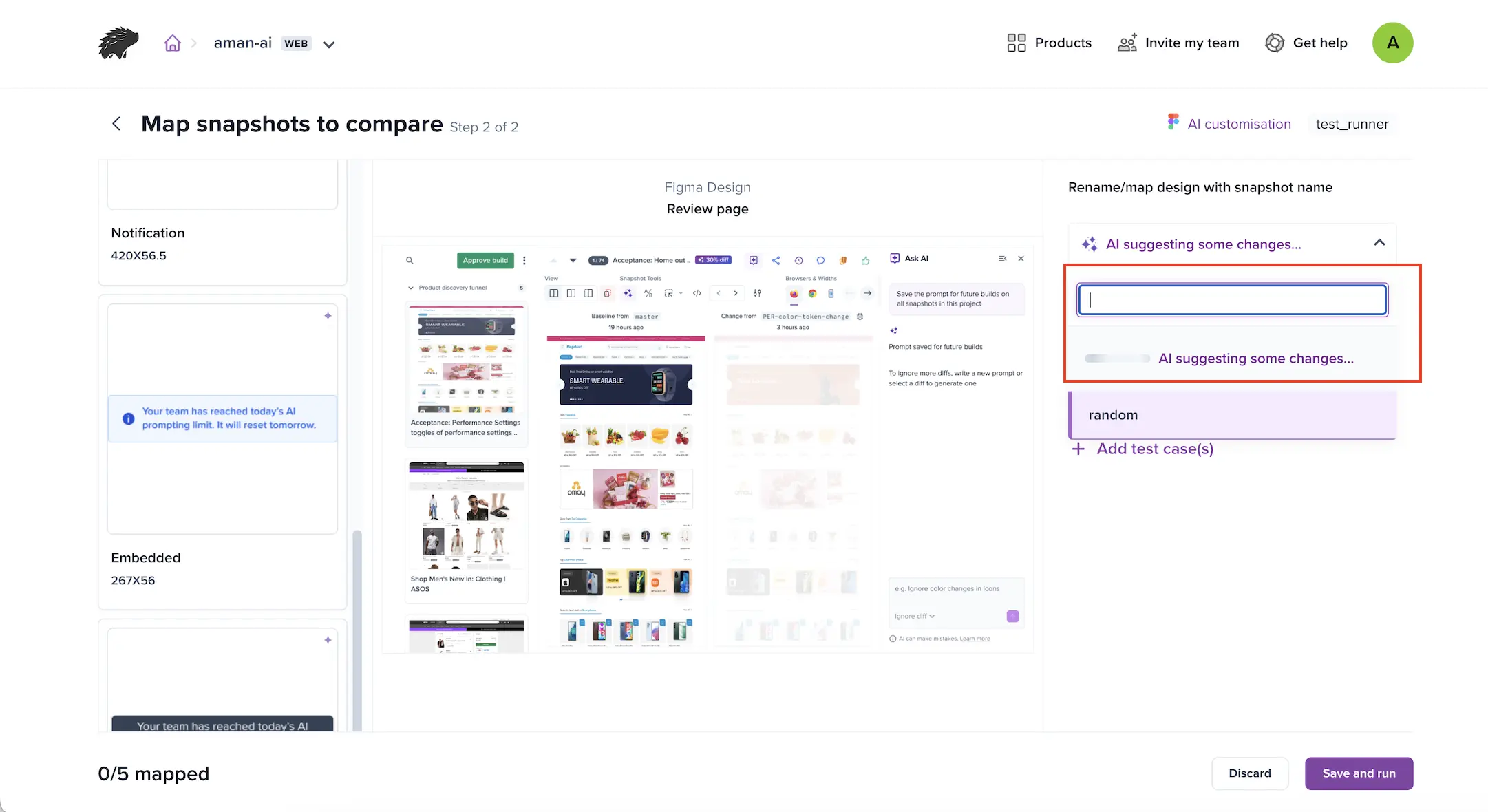
When App Percy finishes, an AI found the matches message shows how many designs it matched, for example, AI matched 5 of 5 designs to existing snapshots. Review the suggested matches and adjust any that look wrong. App Percy does not change a mapping after you edit it.
Keep the following in mind:
- A suggestion never blocks the mapping step. If App Percy cannot suggest a match, map the design manually and the build still runs.
- App Percy draws suggestions only from snapshots on your project’s base branch. A design with no comparable snapshot on that branch gets no suggestion.
- Your team has a daily AI usage limit. When you reach this limit, suggestions pause and resume the next day. In the meantime, you can map designs manually.
Preview a design against its snapshot
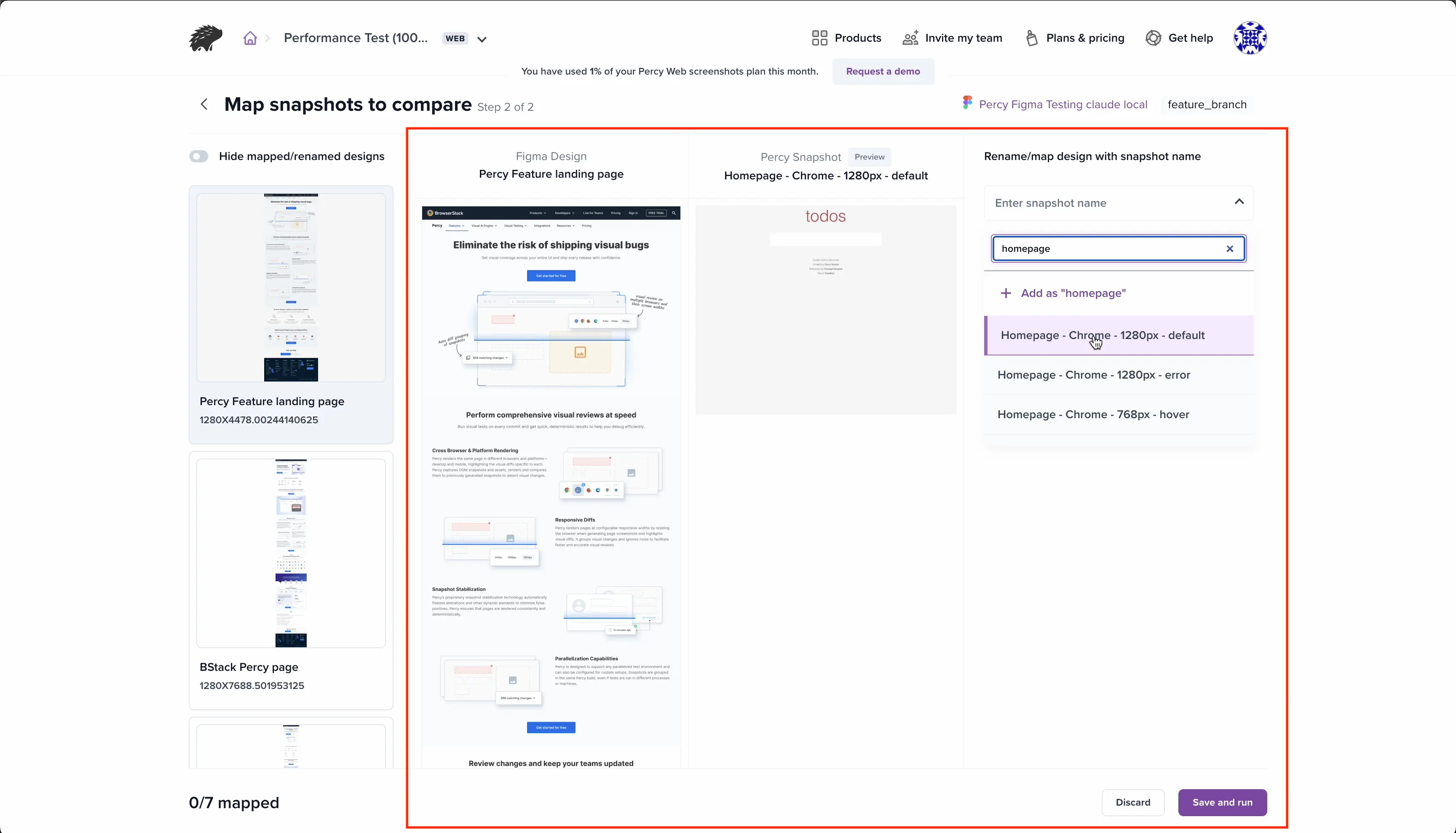
As you map, hover over or select a snapshot name to see a side-by-side preview: the Figma design on the left and the closest matching App Percy snapshot on the right. This preview is a likely match, not a confirmed one. It helps you check whether the design is mapped to the right snapshot before you run the build. App Percy matches the snapshot to the design’s width, so you can compare the two. Use the Up and Down arrow keys to move between designs.
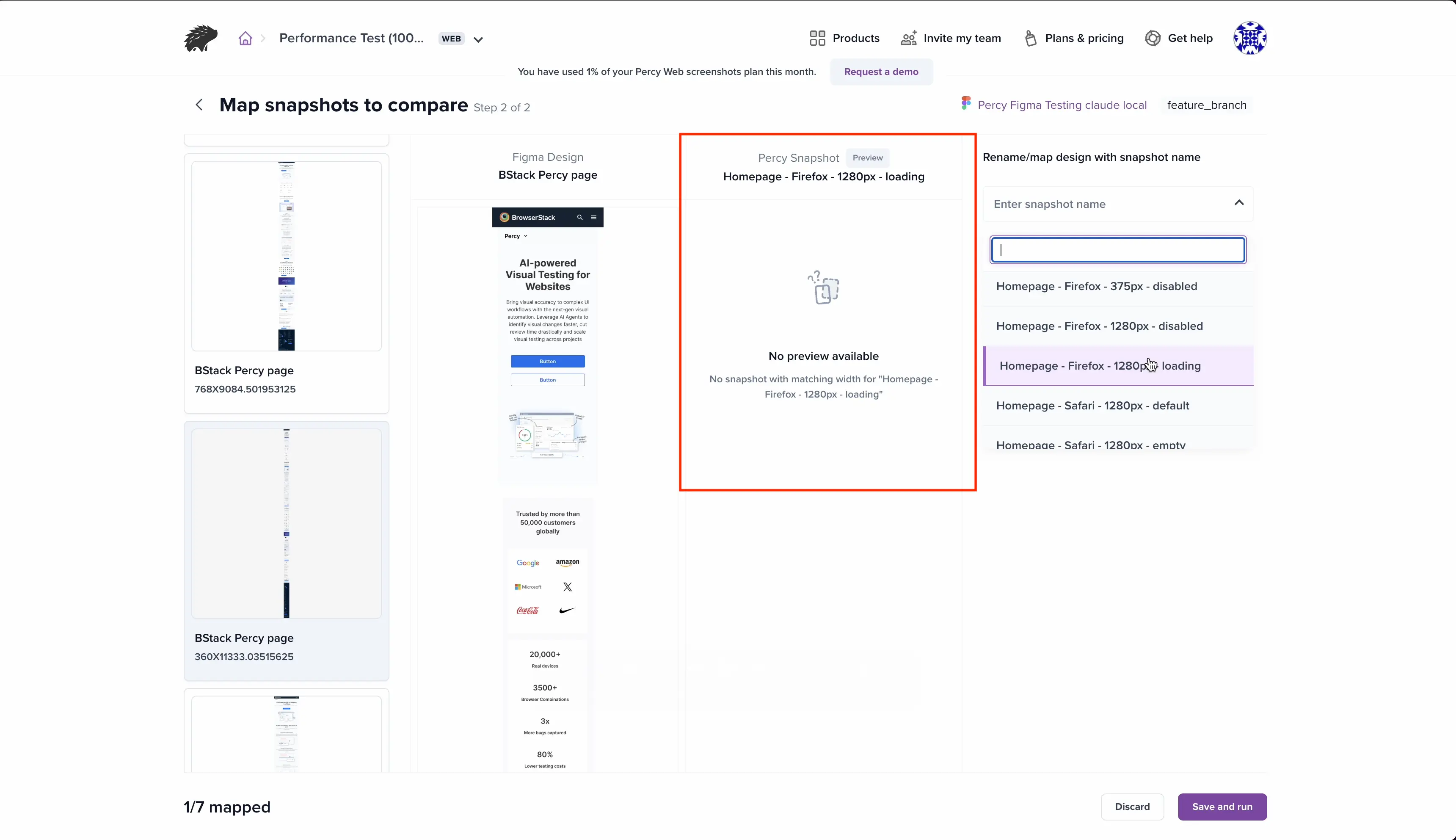
If a matching snapshot is not available, the preview column shows No preview available with the reason: either no snapshot matches the design’s width, or no snapshot with that name exists on the branch.
Manage Figma design updates
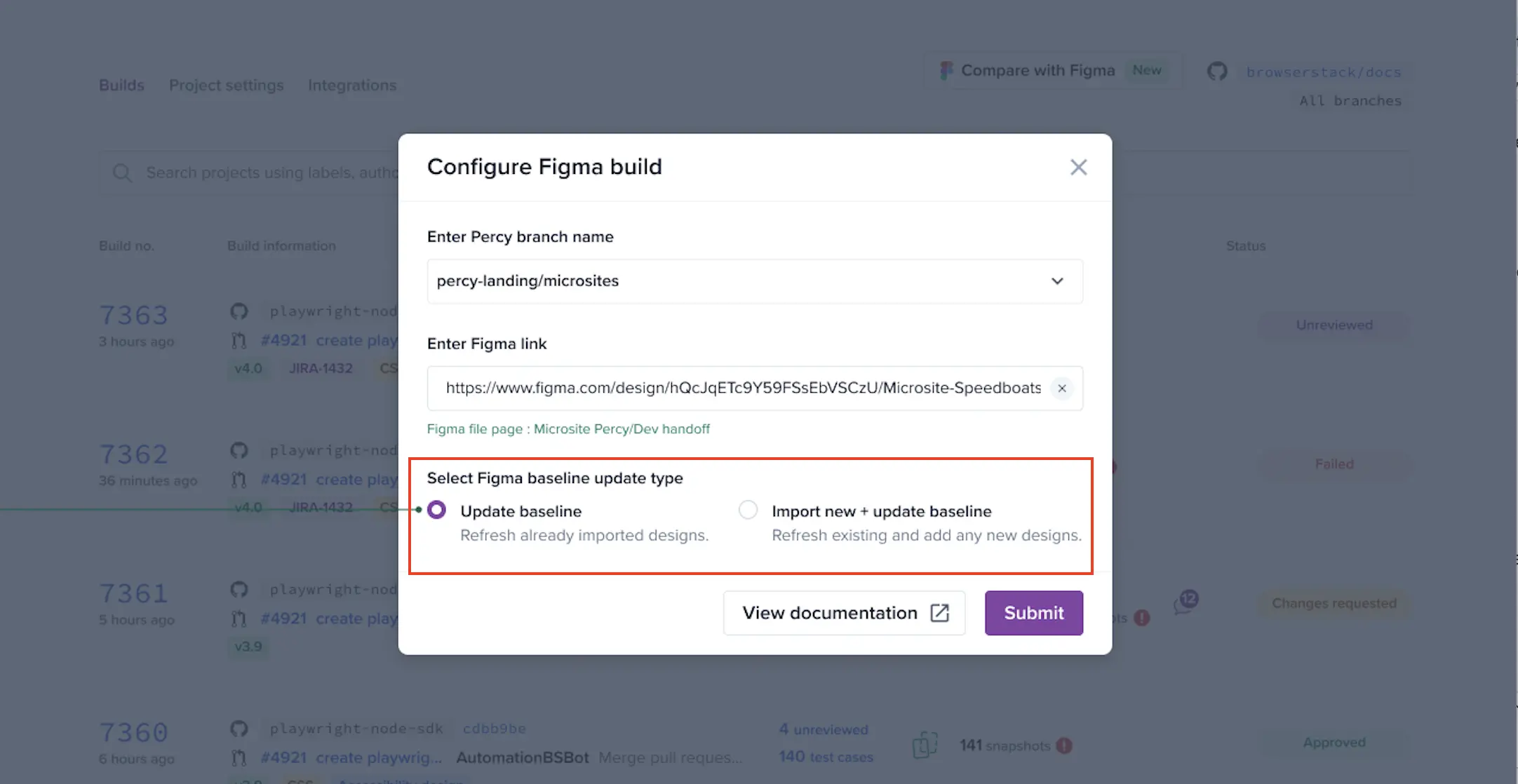
When your Figma designs change, keep your App Percy snapshots in sync using the Figma baseline update options. These options appear only when you select a branch that already has Figma designs configured:
- Update baseline: Refresh existing imported designs.
- Import new + update baseline: Refresh existing designs and import new designs from your Figma file.
When you remove frames from your Figma file, App Percy removes them from future builds during a baseline update.
Related topics
We're sorry to hear that. Please share your feedback so we can do better
Contact our Support team for immediate help while we work on improving our docs.
We're continuously improving our docs. We'd love to know what you liked
We're sorry to hear that. Please share your feedback so we can do better
Contact our Support team for immediate help while we work on improving our docs.
We're continuously improving our docs. We'd love to know what you liked
Thank you for your valuable feedback!