

Low Code Automation Reference API
Use the Low Code Automation Reference API to discover your Low Code Automation projects, tests, and builds, and to act on test results from your pipeline.
The Low Code Automation Reference API lets you list projects and tests, read build results, download artifacts, rerun failed tests, and file bugs. Every call uses your BrowserStack username and access key. To trigger a test suite run, use the Execute tests API.
Resources
The endpoints are grouped across four resources:
| Resource | Description |
|---|---|
| Projects and test assets API | Projects, test suites, folders, tests, and modules. |
| Data configuration API | Environments, global variables, datasets, and database connections. |
| Builds and reports API | Builds, build details, test run details, artifacts, and reruns. |
| Bugs API | Bugs filed from a failed test run. |
Authentication
Every endpoint uses HTTP basic authentication with your BrowserStack username and access key:
curl -u "$BROWSERSTACK_USERNAME:$BROWSERSTACK_ACCESS_KEY" \
  -X GET "https://lcnc-api.browserstack.com/api/v1/public/projects" \
  -H "accept: application/json"
Copy your username and access key from your account profile. All endpoints use the base URL https://lcnc-api.browserstack.com/api/v1/public.
Note: For scheduled runs and pipeline jobs, authenticate with a service account instead of an individual user’s access key.
Every request is scoped to the group that owns the access key.
Note: A project, build, or test that belongs to another group returns
404, never403. The API doesn’t confirm that a resource you can’t access exists, so a404doesn’t always mean the identifier is wrong.
If a request returns 403, contact your group admin about a missing role permission. Contact your BrowserStack account team about a missing plan entitlement. For more information about roles, see Role-based access control.
Find your identifiers
Most endpoints need a Project Key, and the build endpoints also need a Build ID. Use the following table to locate each one:
| Identifier | Location |
|---|---|
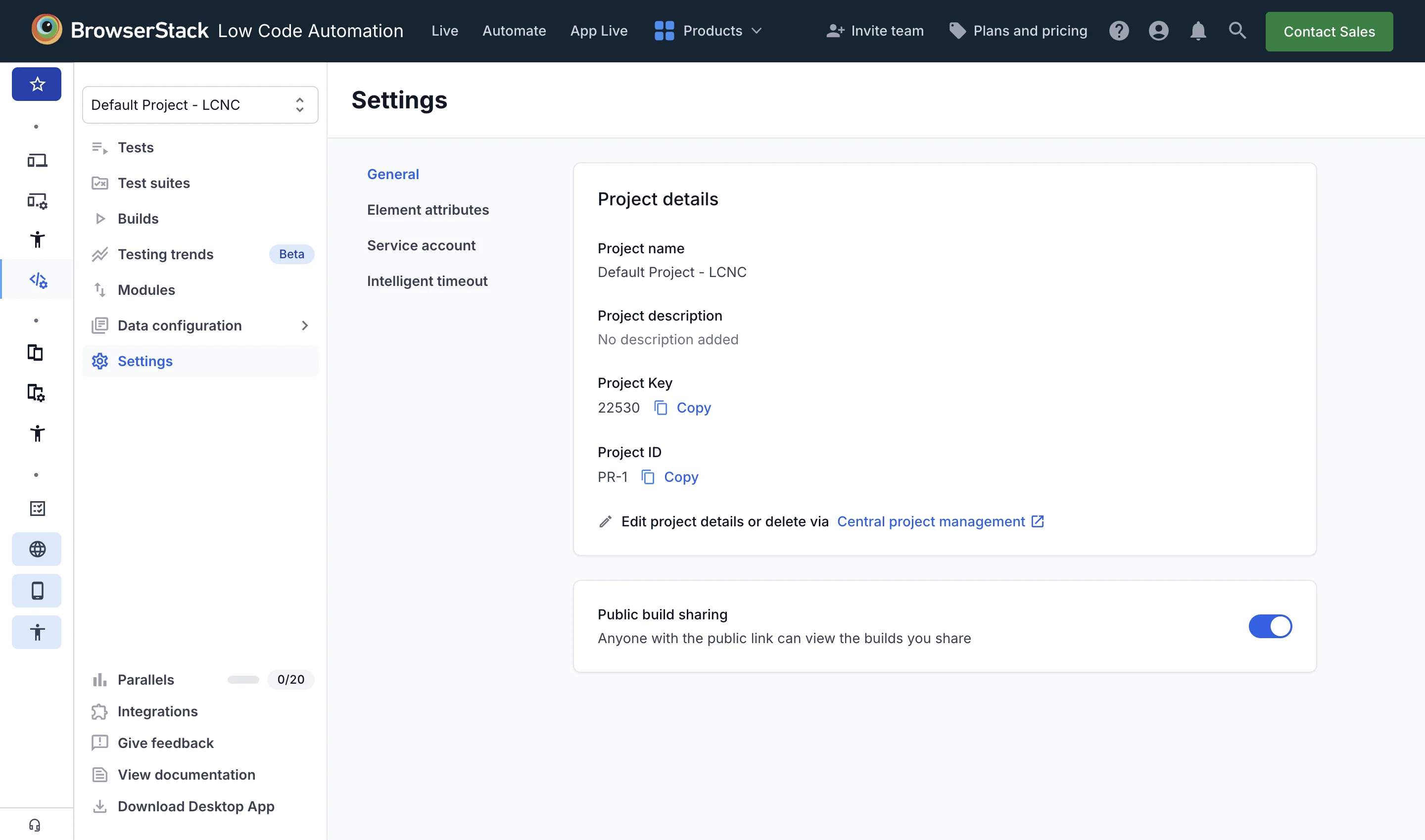
| Project Key | In your project, click Settings, then General, and copy the value from Project Key in the Project details. |
| Project ID | In your project, click Settings, then General, and copy the value from Project ID in the Project details. |
| Test suite ID | Open the test suite, click View metadata, then copy the Test suite ID. |
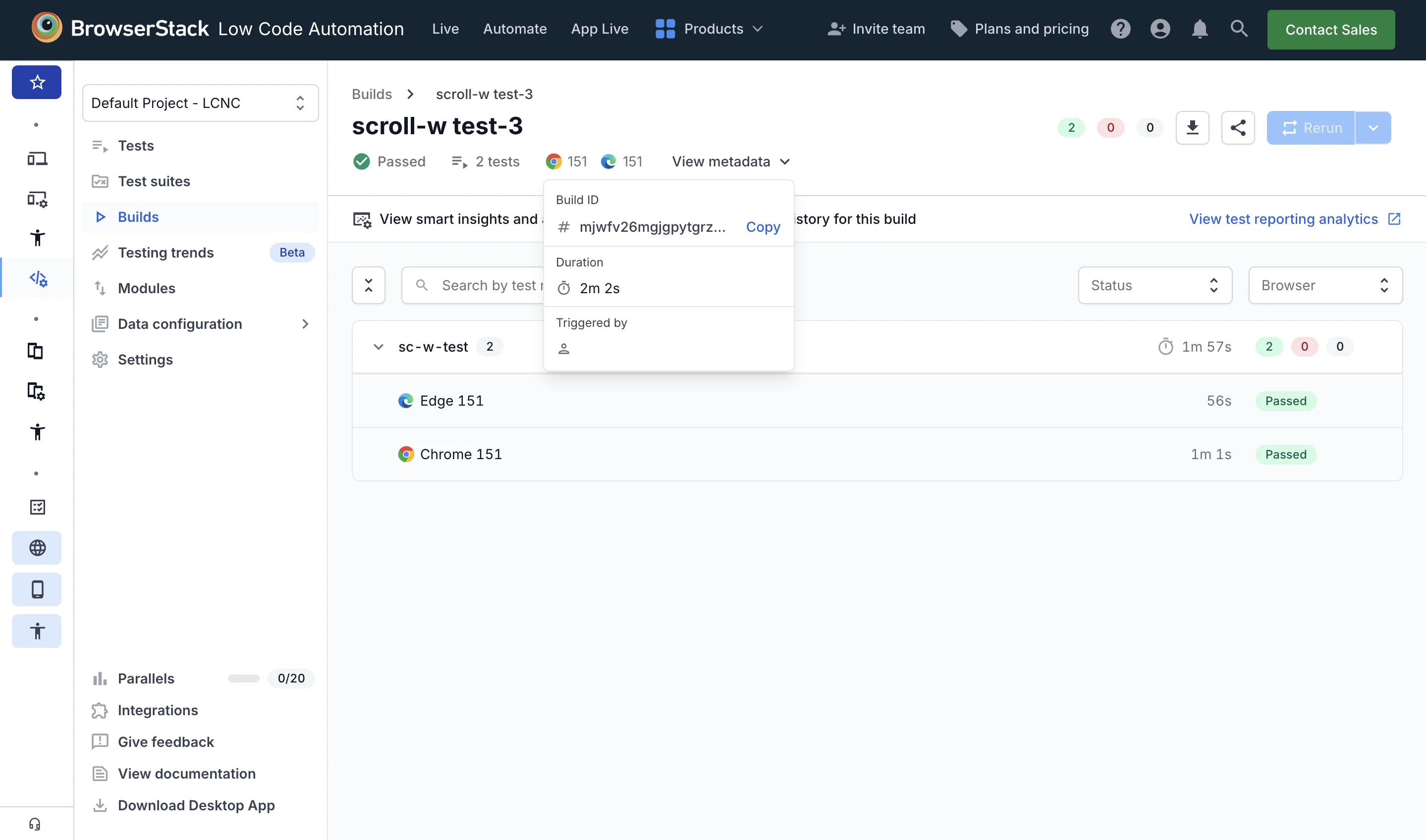
| Build ID | Open the build, click View metadata, then copy the Build ID. |
| Module ID | Call the List modules endpoint and copy the id of the module from the response. |
| Test run ID | Call the Get build details endpoint and copy the id of the run from the test_runs array in the response. |
| Test ID | Open the test, then click Copy test ID under the Configurations section. Also returned by the List tests endpoint. |
| Folder ID | Call the List folders endpoint and copy the id of the folder from the response. |
The Project Key and Project ID appear in the Project details panel of your project settings:
The Build ID appears in the View metadata popover of a build:
Wherever an endpoint URL includes {project_id}, you can use either the Project Key, such as 22530, or the Project ID, such as PR-1. For example, /projects/22530/builds and /projects/PR-1/builds return the same builds.
Related topics
- Execute tests using REST APIs
- Export tests via REST API
- Service accounts for Low Code Automation
- Role-based access control
We're sorry to hear that. Please share your feedback so we can do better
Contact our Support team for immediate help while we work on improving our docs.