
 Join our Discord
Configure the App Accessibility rule engine
Learn how to set the accessibility standard, select rules and categories, and toggle rulesets across your organization.
Configure the App Accessibility rule engine to enforce an accessibility standard, standardize which rules and categories apply, and toggle best practices and experimental rulesets across your organization.
For more details, see the scope, options, and impact of rule engine configuration.
Prerequisites
- You must have Owner or Admin access to your BrowserStack account.
Configure the rule engine
To configure the rule engine:
- Log in to the App Accessibility dashboard.
- Click Settings.
- Under Rule engine configuration, turn on the Enable custom rule engine configuration toggle.
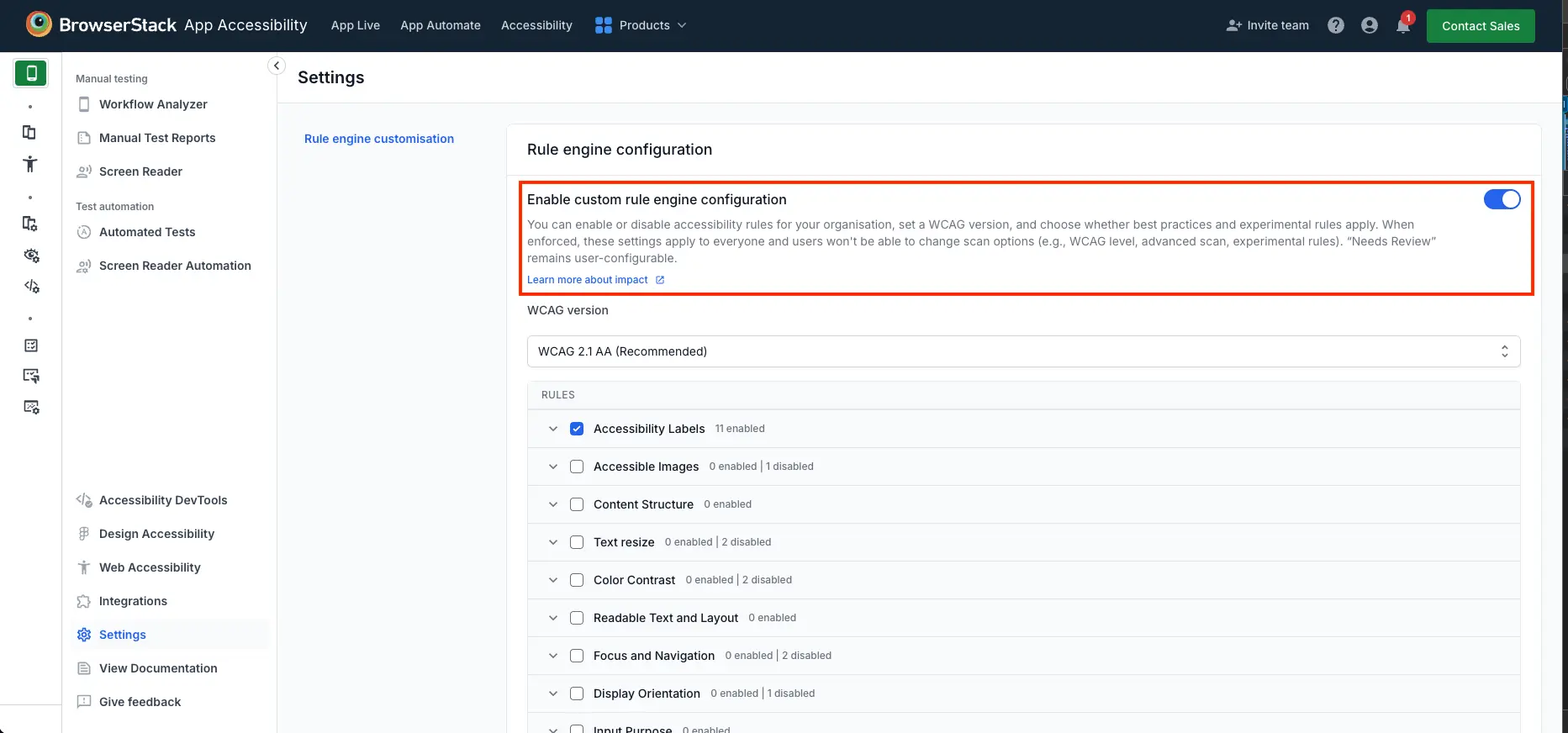
- From the Accessibility Standard dropdown menu, select the standard to enforce, for example, WCAG 2.2 AA.
- Under RULES, select an entire rule category by selecting the checkbox next to it, or expand a rule category to select individual rules within that category.
- Turn on Include Best Practices Issues to count Best Practice findings as issues.
- Turn on Include Experimental Rules to count Experimental rule findings as issues.
- Click Save Settings to enforce the configuration across your organization.
To discard your changes, click Reset to default.
After you save your settings, a confirmation banner indicates that the scan settings are now enforced for all users in the organization.
Implementation details
After you save the configuration, the following changes are implemented in your test sessions:
- The rule configuration is enforced across the organization for both Workflow Analyzer and App Accessibility automated test runs.
- The following changes apply in the Scan settings menu during a Workflow Analyzer test session:
- The Accessibility Standard dropdown menu, the Include Best Practices Issues toggle, and the Include Experimental Rules toggle become read-only.
- In the Rules dropdown menu, the rules disabled by your admin are grayed out and can’t be selected. A note at the top of the Scan settings menu indicates that certain rules are enforced by the admin configuration.
- For automated tests, the organization-level configuration overrides the
wcagVersion,bestPractice,experimentalRules,excludeRule, andexcludeRuleCategorykeys set in the user-levelaccessibilityOptions. Automated test reports explicitly list the rules excluded by the admin configuration. - The Include Needs Review Issues toggle remains user-controlled in each Workflow Analyzer session, and the
needsReviewkey continues to apply in automated test runs.
Roll back configuration changes
If a saved configuration introduces noise or hides critical issues, roll back the changes using the following steps:
- Log in to the App Accessibility dashboard.
- Click Settings.
- Under Rule engine configuration, restore the accessibility standard, rule selections, and rule-set toggles to your previous configuration.
- Click Save Settings to apply the changes.
The reverted settings apply only to sessions and automated test runs that start after you save the changes.
Related links
We're sorry to hear that. Please share your feedback so we can do better
Contact our Support team for immediate help while we work on improving our docs.
We're continuously improving our docs. We'd love to know what you liked
We're sorry to hear that. Please share your feedback so we can do better
Contact our Support team for immediate help while we work on improving our docs.
We're continuously improving our docs. We'd love to know what you liked
Thank you for your valuable feedback!