
 Join our Discord
AI visual change summaries
Understand how Percy summarizes visual changes using AI and how to review them efficiently.
Percy’s AI Visual Changes feature automatically analyzes your build screenshots and summarizes key visual updates. Using advanced machine learning, it identifies layout shifts, text and color changes, and asset modifications, helping you quickly understand the impact of each change and speed up your review process.
Benefits
AI visual summaries help you:
- Understand diffs quickly and speed up your visual review process.
- Spot regressions faster without reviewing all snapshots.
- Prioritize reviewing the most relevant or high-impact changes.
- See related visual changes grouped together in the summary for faster understanding.
Prerequisites
Before using AI visual change summaries:
- Set up App percy and ensure baseline screenshots exist.
- Enable the Visual Review Agent AI toggle for the build; summaries appear only when this toggle is on.
The Visual Review Agent is available on paid Percy plans. For details, see the Visual Review Agent page.
AI summary
Percy generates an AI-driven summary at the top of the build review page, above the snapshot thumbnails. This summary provides a quick, high-level view of the visual updates detected in the build without opening individual diffs. By default, the following applies:
- The summary appears collapsed with a callout indicating that an AI summary is available.
- Each summary item includes a number in brackets, which indicates how many snapshots are affected by that specific change.
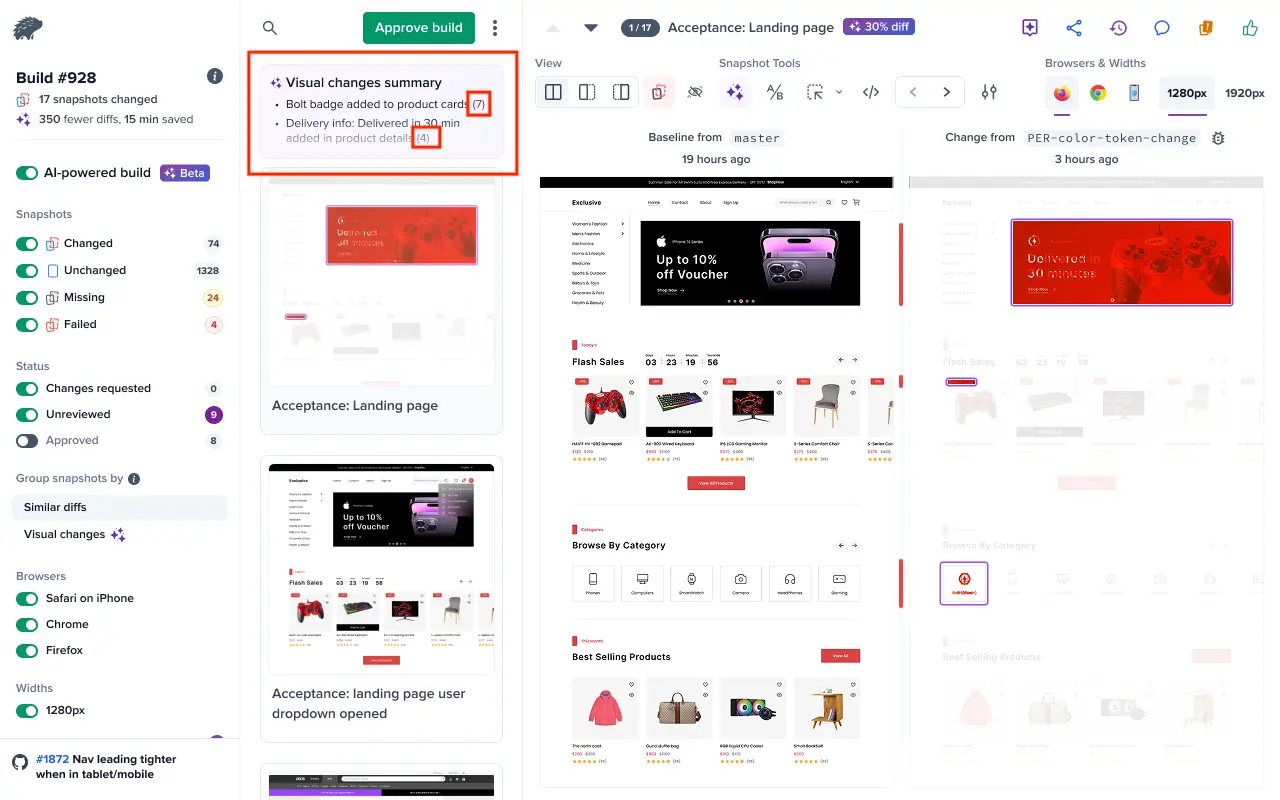
Group by visual changes
To group snapshots based on AI-detected visual changes, use the Group by visual changes option. Open the AI summary and click Show More to access this grouping control.
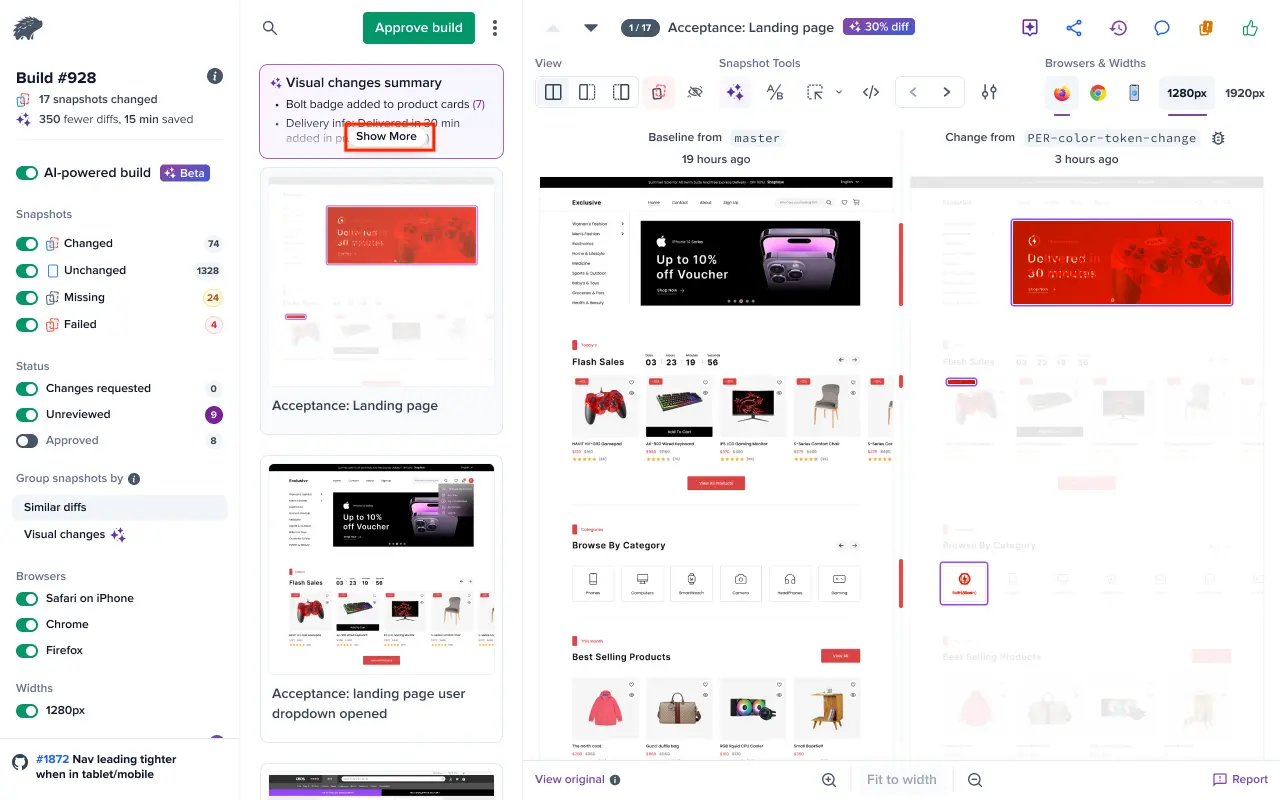
Expand it to view grouped changes and access the Group by visual changes option.
You can open the grouped view either from the expanded AI summary using Group by visual changes or from the left navigation under the Group snapshots by section.
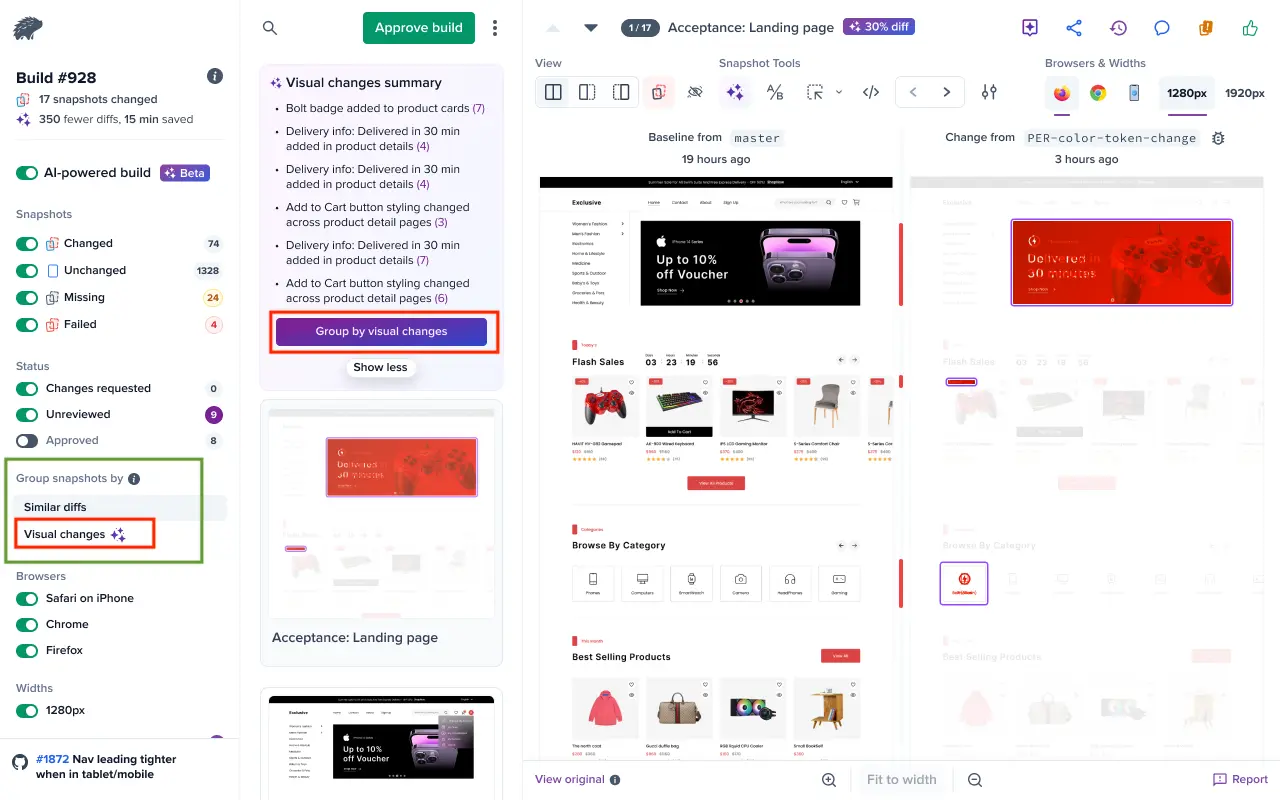
When you enable grouping, Percy hides the summary to:
- Maximize review space and reorganizes snapshots under AI-generated headers such as “Your rewards section added.”
- Adds an Unchanged snapshots group at the end.
To exit the grouped view, clear the grouping to return to the standard snapshot list.
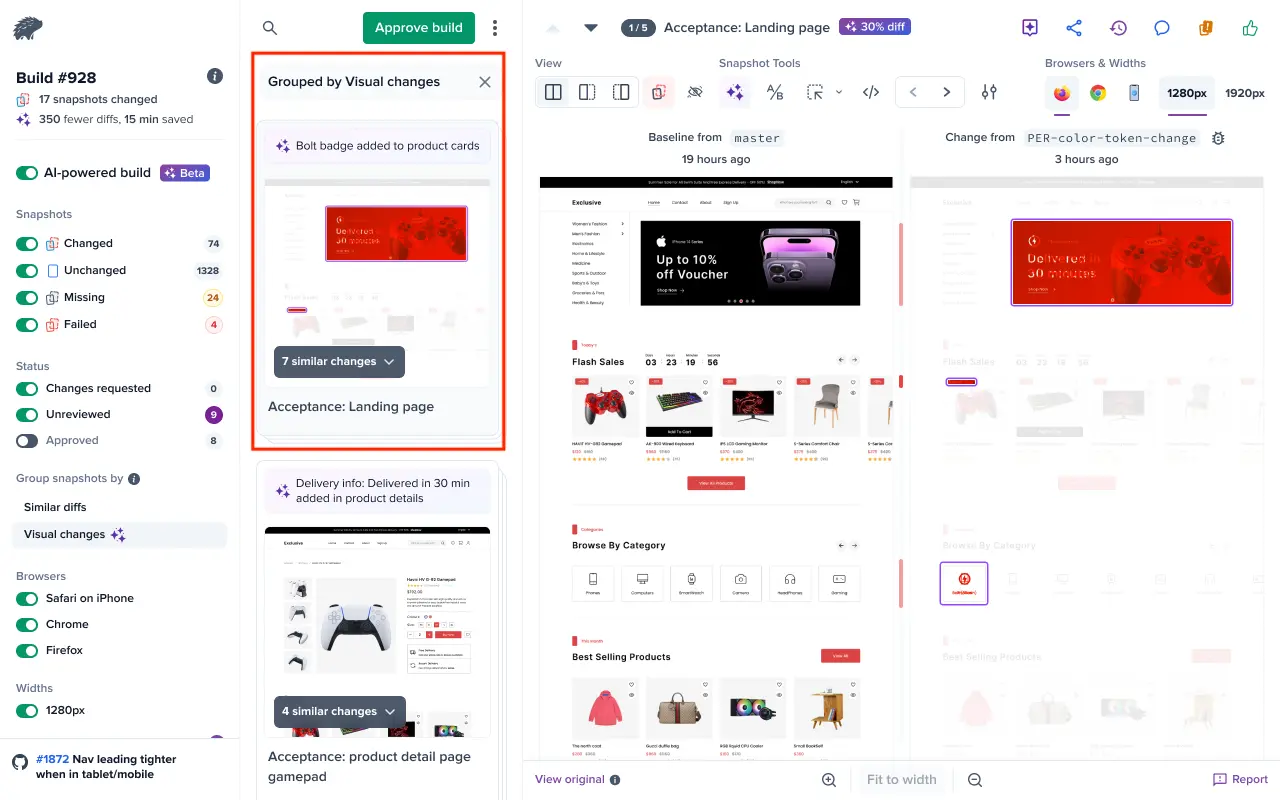
AI summary notifications
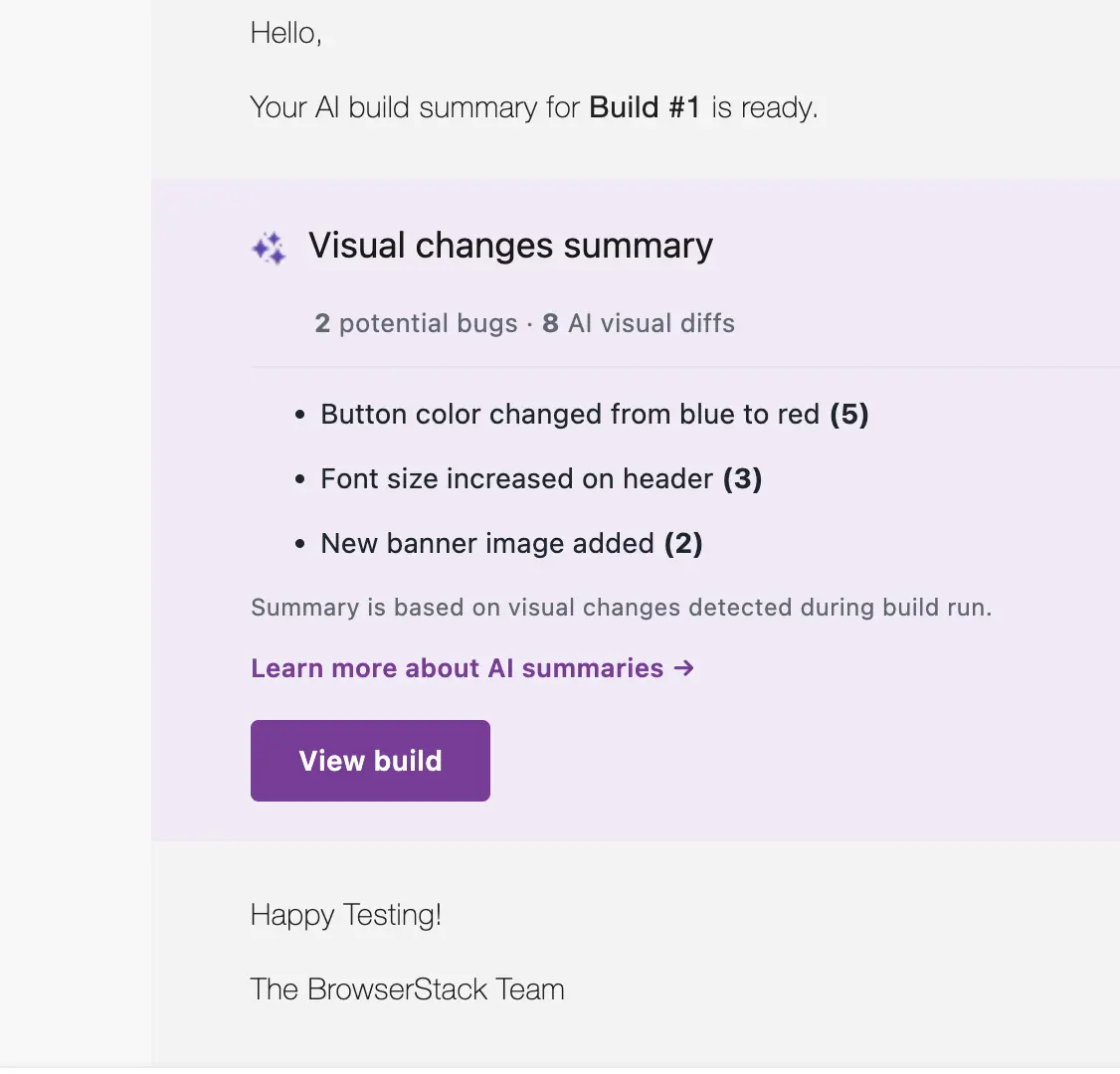
You can receive AI-generated build summaries and bug counts directly in your communication channels. This helps you quickly spot unintended visual changes, understand Percy build outcomes, and share them with your team without opening the Percy dashboard.
Available channels
Percy sends AI summary notifications to the following channels:
- Slack
- Microsoft Teams
Each notification includes:
- An AI-generated summary of visual changes
- Total bug count for the build
- Bug count for each identified change
Enable AI summary notifications
To enable AI summary notifications for a project:
- Email notifications are sent automatically when AI build summary notifications are available for your project.
- To send notifications to Slack or Microsoft Teams:
- Go to your project’s Integrations page.
- Open the Slack or Microsoft Teams integration.
- Under Notifications, select the AI Build Summary checkbox.
- Save your changes.
You’ll receive a notification in the available channel when the AI build summary is ready for review.
Availability
AI summary notifications are available only when:
- Your account has AI features enabled.
- Your project has AI build summaries available.
- The build contains eligible changes with AI-generated summaries.
If your project doesn’t meet these requirements, the AI summary section won’t appear in your notifications.
Things to know
Review these constraints and states before relying on the summary:
- Percy does not generate a summary if a build has more than 50 comparisons with differences.
- A summary appears only when AI diff is available for all comparisons with differences in the build. If the AI diff is not available, refer to the Visual Review Agent documentation for possible reasons.
- The summary and its groups remain tied to the diffs detected during the build run. Any actions taken afterward such as adding or ignoring regions, applying AI prompts, or switching A/B variants do not update or regenerate the summary.
For more information, check Visual Review Agent documentation page.
Related topics
We're sorry to hear that. Please share your feedback so we can do better
Contact our Support team for immediate help while we work on improving our docs.
We're continuously improving our docs. We'd love to know what you liked
We're sorry to hear that. Please share your feedback so we can do better
Contact our Support team for immediate help while we work on improving our docs.
We're continuously improving our docs. We'd love to know what you liked
Thank you for your valuable feedback!