
 Join our Discord
Global search
Search across projects and builds from any BrowserStack dashboard. Learn how to use global search to quickly find the right project or build run.
Global search helps you navigate large test suites quickly. Use keywords to search across projects and build runs directly from the top navigation bar, then open results to analyze or debug.
Benefits
- Single entry point: Search projects and builds from one place.
- Faster navigation: Jump to the exact project or build without browsing.
- Cross-entity search: Find results across multiple entities using simple keywords.
- Shareable links: Copy the URL to share a specific result or filtered view.
Use global search
Follow these steps to run a global search across BrowserStack dashboards:
- Locate the Search bar in the top navigation.
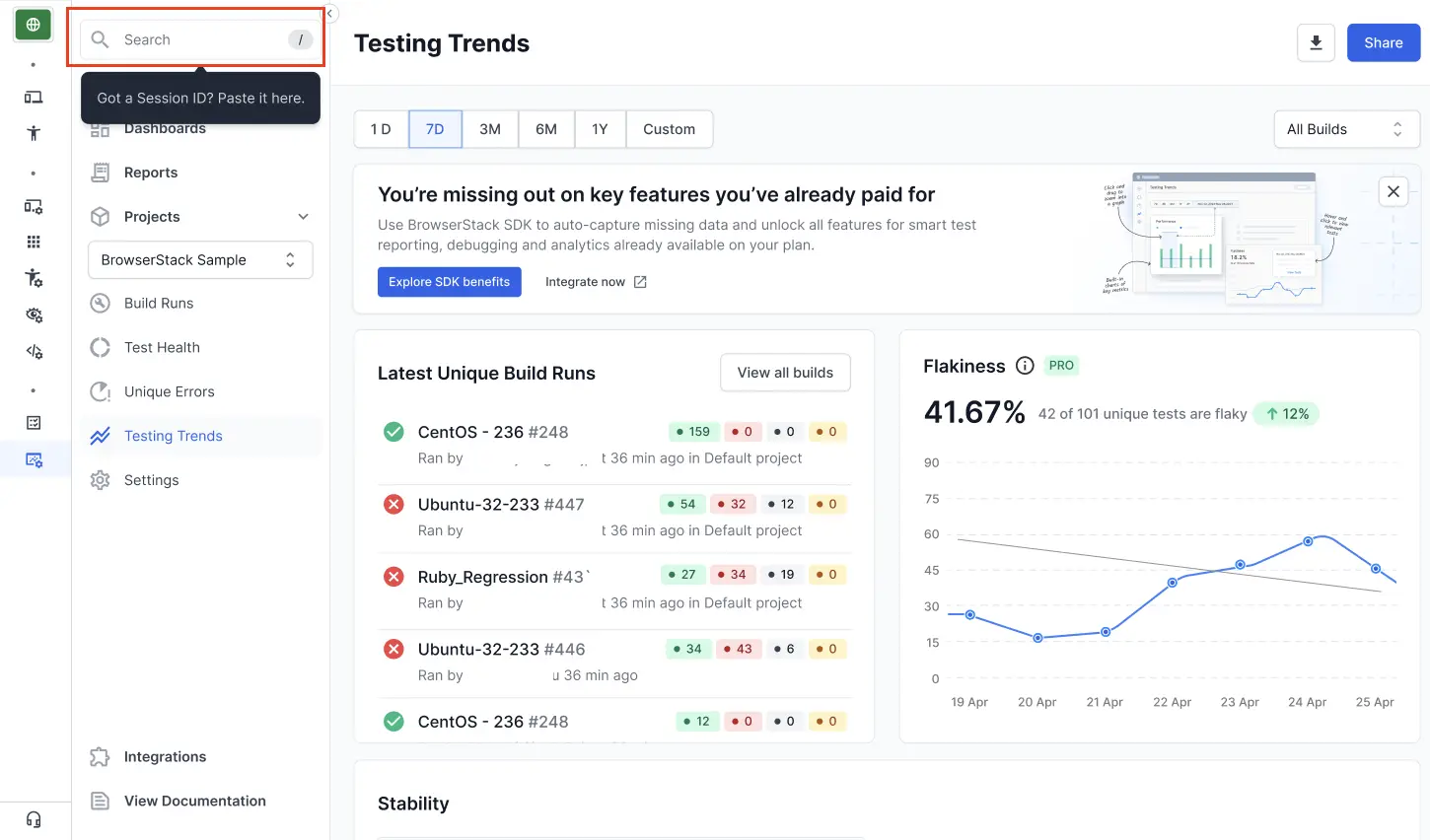
- Enter a keyword to match project names, build names/IDs, and tag.
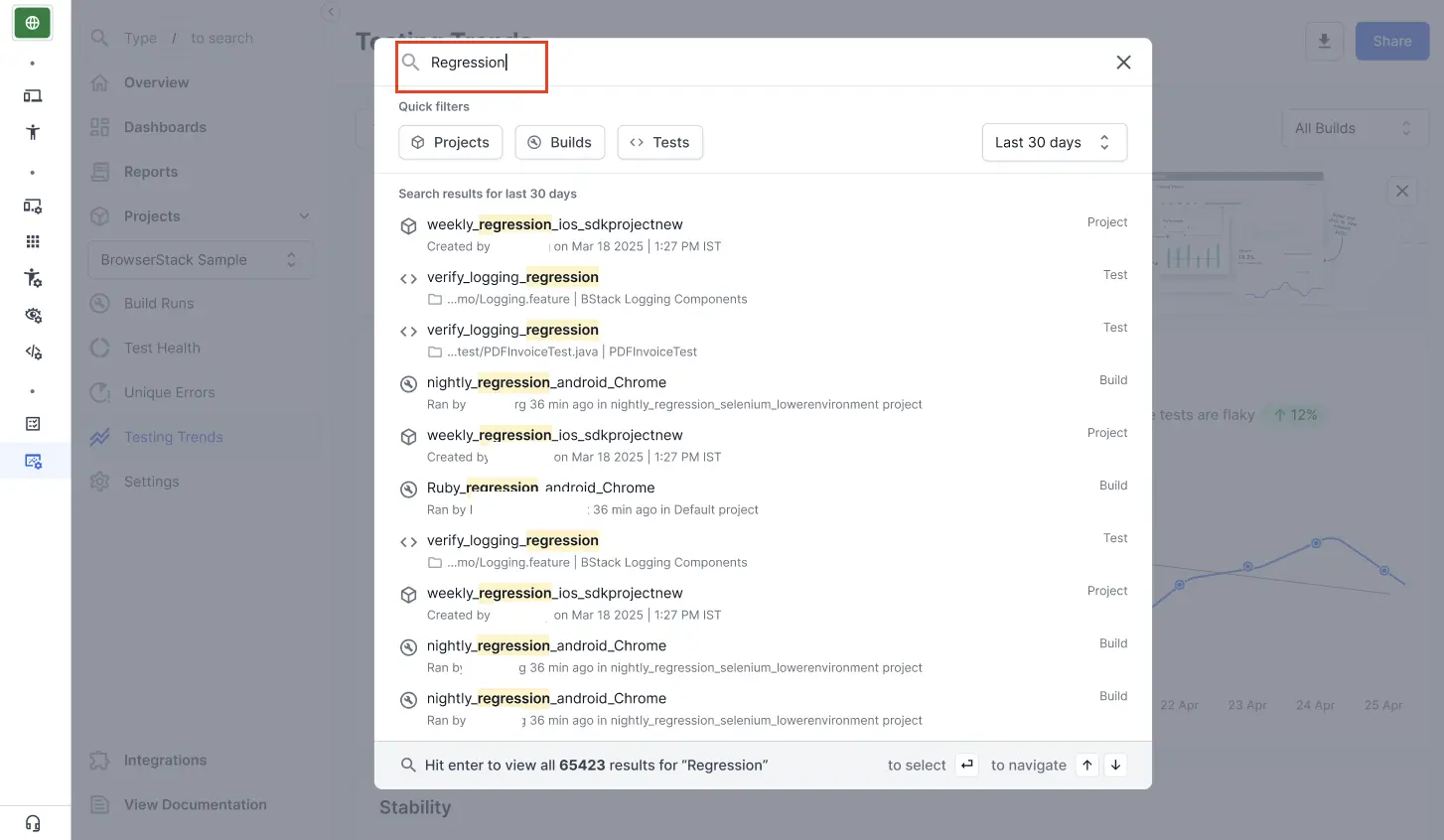
- Review the suggested results grouped by entity type (Projects, Build runs).
- Select a result to open the corresponding page.
Results appear instantly and help you view the exact context.
View and filter results
If many results match your keywords, refine the results:
- Narrow by entity type: choose Projects, Builds, or Tests in the suggestions.
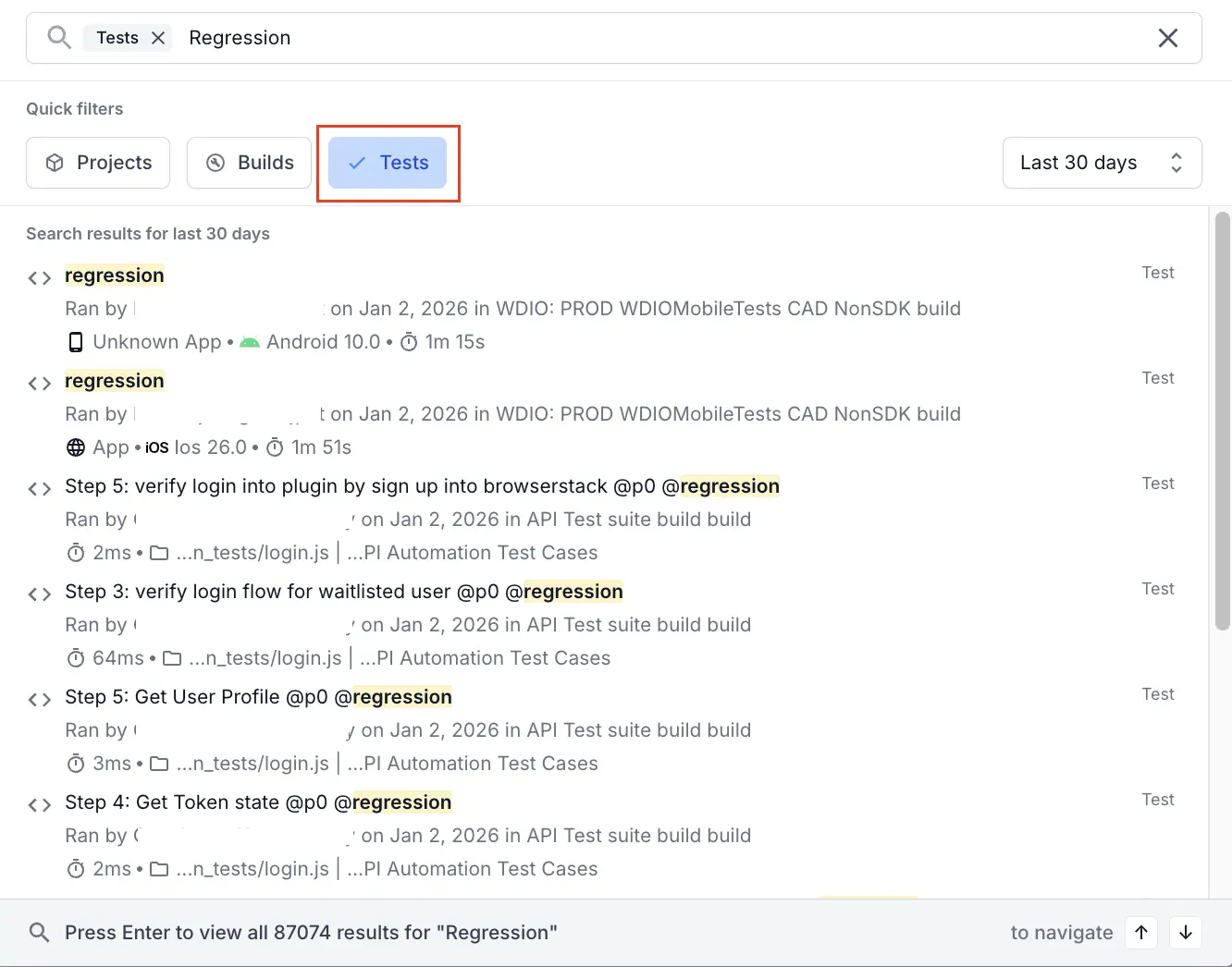
- Narrow by time frame: select a time window from the available filters. By default, the results of last 30 days are shown.
- Add more specific keywords: include a project name, build identifier, framework, or tag.
- Press Enter to view results in a dedicated page and use available filters.
Share results
- Copy the page URL to share your current search. The URL preserves your query and any filters so teammates see the same results.
Search results reflect your organization’s data and your permissions. You can view only the projects, builds, and sessions you have access to. If you don’t see an expected item, check your access level.
Related links
We're sorry to hear that. Please share your feedback so we can do better
Contact our Support team for immediate help while we work on improving our docs.
We're continuously improving our docs. We'd love to know what you liked
We're sorry to hear that. Please share your feedback so we can do better
Contact our Support team for immediate help while we work on improving our docs.
We're continuously improving our docs. We'd love to know what you liked
Thank you for your valuable feedback!