
 Join our Discord
Mask secrets in your test logs
Learn how to mask sensitive data such as API keys, tokens, and passwords from your test logs using regex-based rules.
Your tests and responses might contain secrets such as Bearer tokens, API keys, and session credentials. These sensitive values should not be visible in your logs. Log Masking lets you define custom regular expression rules that automatically remove matching values from logs.
This platform feature is available with Automate, App Automate, Test Management, Test Reporting & Analytics, and Automate TurboScale.
How Log Masking works
When you upload a test report, BrowserStack scans the text logs against your active masking rules. BrowserStack replaces any substring that matches a rule’s regex pattern with a redacted placeholder, ********. The rest of the log line stays unchanged.
For example, the pattern (?<=sensitive_key=)[^&\n]+ matches only the value after sensitive_key=. The resulting log entry becomes:
sensitive_key=********
Masking rules are applied at the project level. You can toggle each rule on or off independently.
Add a masking rule
-
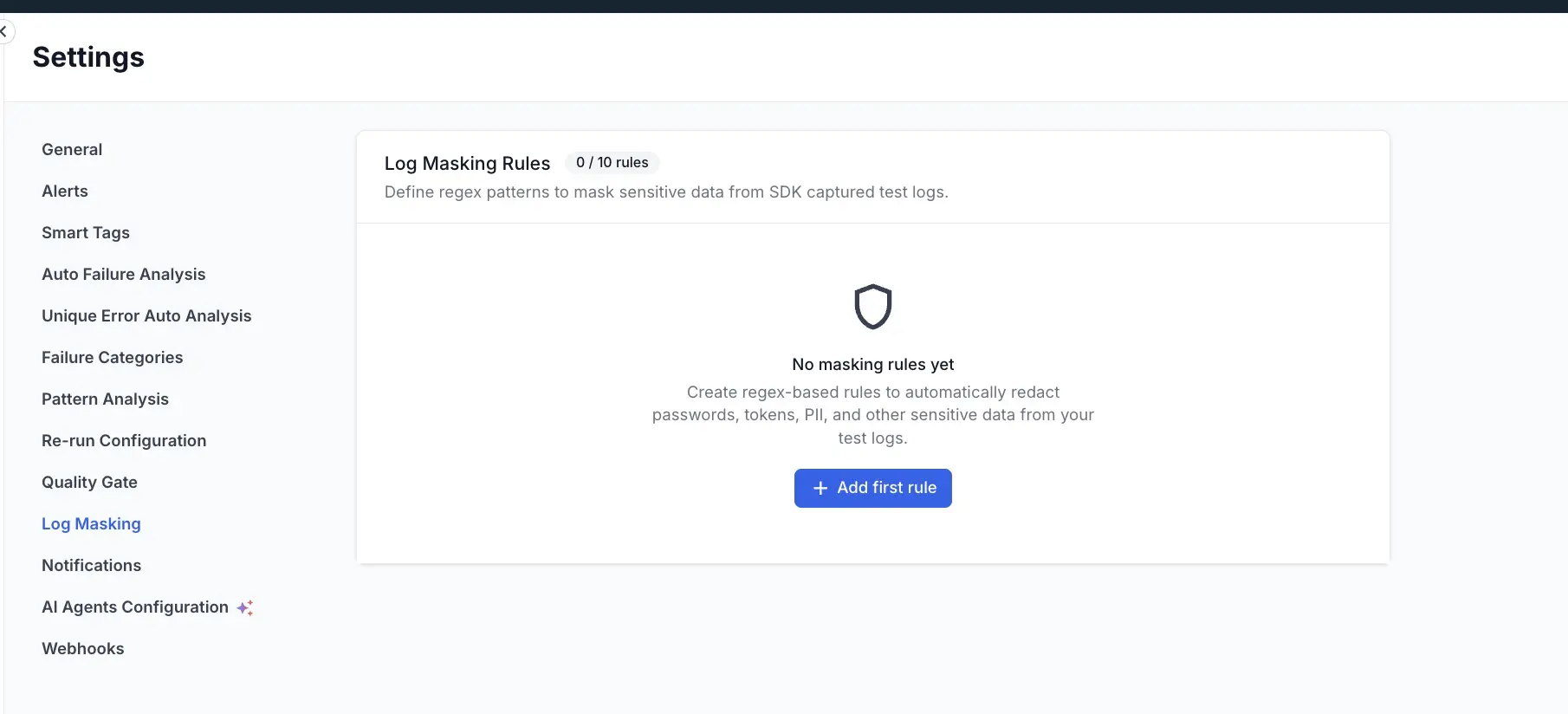
Go to Settings > Log Masking in your project.
-
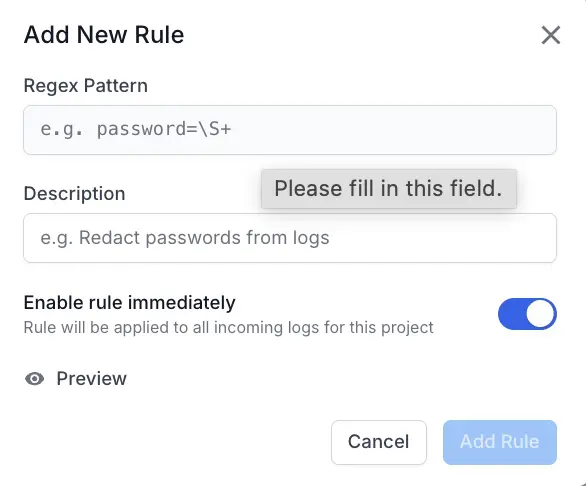
Click + Add first rule (or + Add rule if rules already exist). The Add New Rule dialog appears.
-
In the Regex Pattern field, enter the regular expression that matches the secret value you want to redact. Use a lookahead or lookbehind to capture only the secret value, not the surrounding key or context. For example, **
(?<=sensitive_key=)[^&\n]+matches everything aftersensitive_key=up to an ampersand or newline, leavingsensitive_key=visible in the output. -
In the Description field, add a short label for the rule. This label helps you identify the rule later. For example, ‘Redact API keys from logs’ is a short descriptive label that can help you identify the rule.
-
The Enable rule immediately toggle is on by default. Leave it on to apply the rule to all incoming logs. Turn it off to save the rule without activating it.
-
Optionally, click Preview to test your pattern before saving. Paste a sample log line into the preview input and verify the redacted output.
-
Click Add Rule.
Manage existing rules
After you add rules, they appear as a list on the Log Masking settings page.
For each rule you can:
- Enable or disable the rule using the toggle. Disabled rules are stored but not applied to incoming logs.
- Delete the rule to remove it permanently.
Changes take effect on new logs after you save the rule. Adding or removing a rule does not retroactively update previously stored logs.
Test your regex before saving
Before saving a rule, use the built-in preview tool to confirm it behaves as expected:
- In the Add New Rule dialog, click Preview.
- Paste a representative log line into the Paste a sample log line here… input.
- Review the output. Confirm that the secret value is masked and the surrounding context is intact.
- If the output is incorrect, adjust the pattern and preview again until the output is correct.
Testing your pattern first helps you avoid two common problems:
- Overly broad patterns that accidentally redact non-sensitive data you need for debugging.
- Extremely narrow patterns that might leave secrets visible.
We're sorry to hear that. Please share your feedback so we can do better
Contact our Support team for immediate help while we work on improving our docs.
We're continuously improving our docs. We'd love to know what you liked
We're sorry to hear that. Please share your feedback so we can do better
Contact our Support team for immediate help while we work on improving our docs.
We're continuously improving our docs. We'd love to know what you liked
Thank you for your valuable feedback!