
 Join our Discord
Pattern-based failure analysis
Automatically assign failure categories to failed tests by matching their stack traces against regex or string patterns.
Pattern-based failure analysis allows you define rules that scan error messages and stack traces for specific strings or regex patterns. When a match is found, BrowserStack Test Reporting & Analytics automatically assigns the corresponding failure category to the test. Tests assigned this way are labeled Pattern-matched in the test view.
This platform feature is available with Automate, App Automate, Test Management, Test Reporting & Analytics, and Automate TurboScale.
Prerequisite
- This feature is available only on paid plans.
Enable pattern analysis
Follow these steps to enable pattern-based failure analysis:
- In the left sidebar, go to Settings.
- Select Pattern Analysis.
- Turn on the Pattern Analysis toggle.
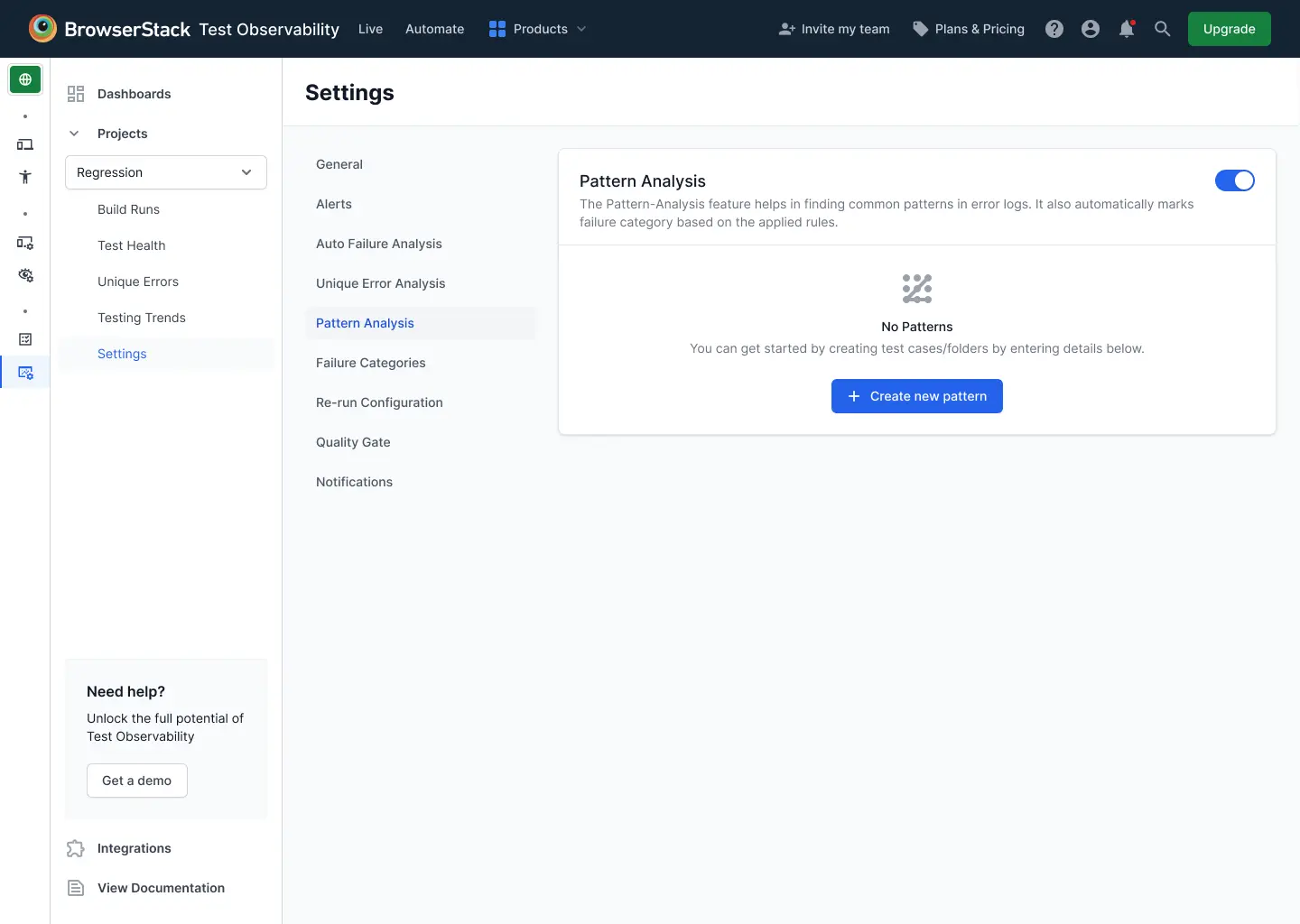
Create a pattern rule
Follow these steps to create a pattern rule:
- Click Settings on left sidebar.
- Click Pattern Analysis.
- Click Create.
- Enter a regex or string pattern in the Pattern field. The system supports standard regex syntax.
- Select a failure category from the Failure category dropdown.
- In the First N lines field, enter the number of lines of the error message and stack trace to analyze. The default is
5. - Click Save.
The new rule appears in the Pattern Rules table with the status Enabled.
Pattern rules are evaluated in priority order. Assign a lower priority number to rules that should take precedence when multiple rules match the same stack trace.
Manage pattern rules
You can edit, enable, disable, or delete rules in pattern analysis.
Edit a rule
Follow these steps to edit a rule:
- Click the options menu (⋮) next to a rule .
- Select Edit.
- Update the fields.
- Click Save.
Enable or disable a rule
Follow these steps to enable or disable a rule:
- Click the options menu next to a rule.
- Select Enable or Disable.
Disabled rules are skipped during pattern matching.
Delete a rule
Follow these steps to delete a rule:
- Click the options menu next to a rule.
- Select Delete.
Deleted rules can’t be recovered.
How pattern matching works
When a test fails, BrowserStack Test Reporting & Analytics evaluates each enabled pattern rule against the test’s error message and stack trace in priority order:
- Rules are checked from highest priority (1) to lowest.
- The failure category from the first matching rule is assigned to the test.
- Pattern-based matching takes precedence over AI-based failure category assignment. If a pattern rule matches, Automatic Failure Analysis is not applied to that test.
- If no pattern rule matches, the system falls back to Automatic Failure Analysis if it’s enabled.
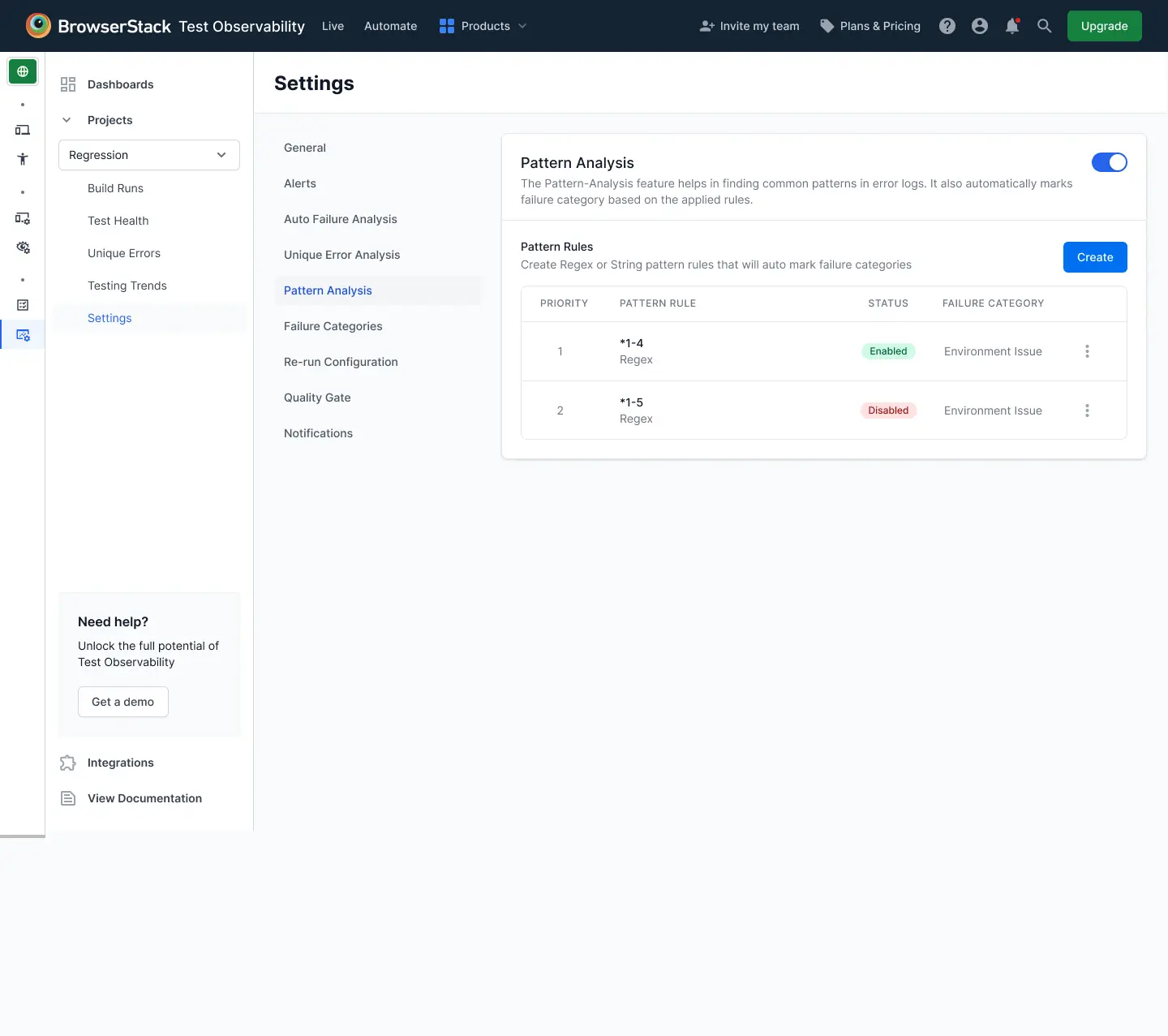
The First N lines setting limits the portion of the stack trace scanned by each rule. Analyzing fewer lines improves performance and reduces noise from deeply nested trace entries. Increase this value if the error you’re matching appears further down the stack trace.
We're sorry to hear that. Please share your feedback so we can do better
Contact our Support team for immediate help while we work on improving our docs.
We're continuously improving our docs. We'd love to know what you liked
We're sorry to hear that. Please share your feedback so we can do better
Contact our Support team for immediate help while we work on improving our docs.
We're continuously improving our docs. We'd love to know what you liked
Thank you for your valuable feedback!