
 Join our Discord
Share public links
Share public links to builds, dashboards, and test results with external users, including those outside the BrowserStack network.
Public links enable you to share builds, dashboards, and test results with individuals outside your team. With public links, you can share these artifacts with clients, vendors, or other stakeholders without adding them to your BrowserStack account.
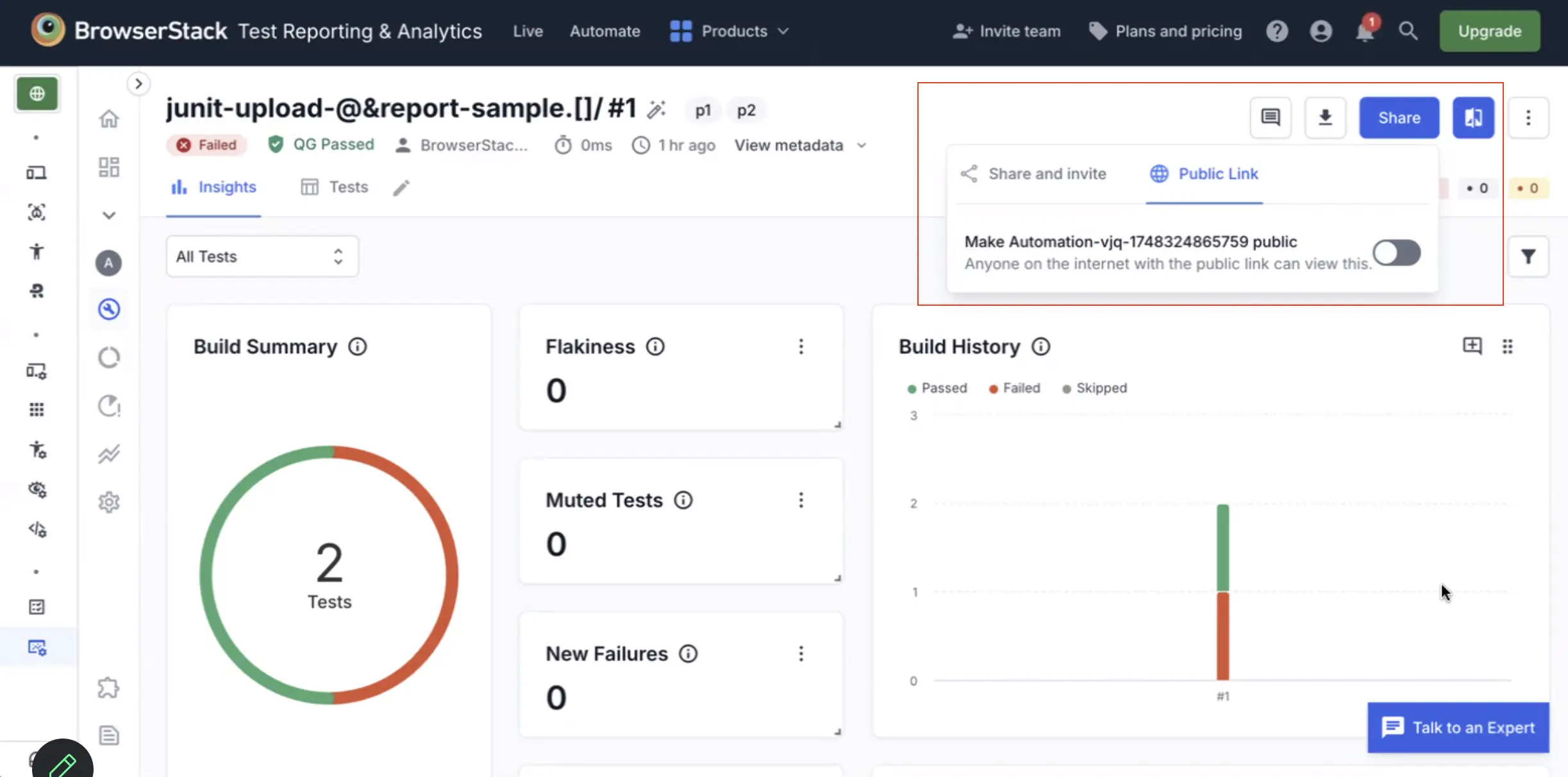
How to create a public link
Follow these steps to share a public link:
- Go to any dashboard, build, or test screen.
- Click the Share button.
- Click Copy Public Link.
- Share the link with anyone.
Types of sharing with public links
You can share public links in two ways:
- *Project screens: When you share a project screen (Build Runs, Test Health, etc.), visitors can see the entire project and navigate between all screens like Build Runs, Test Health, and Testing Trends.
- Custom dashboards: When you share a custom dashboard, visitors only see that specific dashboard. They can’t access your project screens.
Visitor experience of public links
Visitors see a banner saying “You have read-only access as you are visiting via a shared link” with a Sign Up button.
What visitors can do
Visitors can perform the following actions with a public link:
- View all shared content like builds, tests, and logs.
- Apply filters and search.
- Download PDFs.
- Interact with charts and widgets.
Visitors cannot perform the following actions even if they have a public link:
- Edit, save, or modify anything (e.g. Mute tests, archive builds, add comments.)
- Access Settings.
- See private views.
Manage public links
Do not share confidential data using public links. Test Reporting & Analytics provides secure access controls to manage public links.
Who can control public links
You need to be both an IAM Admin or Owner, and a Product Admin on Test Reporting & Analytics to enable public links.
Project settings
Project-level public sharing is disabled by default. It is automatically enabled when an individual build report is publicly shared, and is automatically disabled again when no individual report remains public.

Initial state
Initially, as no build reports are shared, the project-level toggle is disabled by default.
If you try to manually switch this toggle ON (enabled), the setting will not persist and will revert to OFF (disabled). The project-level setting is controlled by individual reports.
Trigger to enable
When you share at least one individual build report publicly, the project-level toggle automatically switches to ON (enabled).
Impact of disabling the project setting
If you manually disable the project-level setting, all existing public URLs for build reports immediately become inaccessible.
Disabling this setting does not remove the individual public sharing status from the reports. It blocks access only at the project level.
Impact of re-enabling the project setting
If you re-enable the project-level setting, all build reports that were previously set to public instantly become accessible again via their original URLs.
This means that you do not have to individually change each build report public from second time onwards.
Who can enable or disable public sharing
Only owners can enable and disable public sharing for each project under Settings.
You can check your roles at manage user settings or on the permissions page.
We're sorry to hear that. Please share your feedback so we can do better
Contact our Support team for immediate help while we work on improving our docs.
We're continuously improving our docs. We'd love to know what you liked
We're sorry to hear that. Please share your feedback so we can do better
Contact our Support team for immediate help while we work on improving our docs.
We're continuously improving our docs. We'd love to know what you liked
Thank you for your valuable feedback!