
 Join our Discord
Enable continuous scanning for enterprise-signed apps
Learn how to enable continuous scanning for iOS apps signed with an enterprise certificate.
BrowserStack’s Continuous Scanning feature automatically scans your app as you navigate to identify accessibility issues in real time. However, if you are using an enterprise-signed iOS app, you need to ensure that the app is properly configured to work with continuous scanning.
Currently, Continuous Scanning does not support the following accessibility rules:
- Screen Reader Focus for Interactive Elements
- Meaningful Reading Order
As a workaround, you can use Workflow Analyzer and manually scan the app to check for issues covered by these rules. For more information, see Workflow Analyzer.
Prerequisites
- Ensure you have a BrowserStack Username and Access Key. Obtain your
userNameandaccessKeyfrom the Account & Profile section on the dashboard. - An enterprise-signed iOS app (
.ipafile).
Procedure
To enable continuous scanning on your enterprise-signed iOS app:
Convert your unsigned app to an instrumented app, sign it with your enterprise certificate, and upload your app to BrowserStack. For detailed instructions, see iOS app patching.
Enable custom iOS entitlements for your app. For step-by-step instructions, refer to Test using custom iOS entitlements.
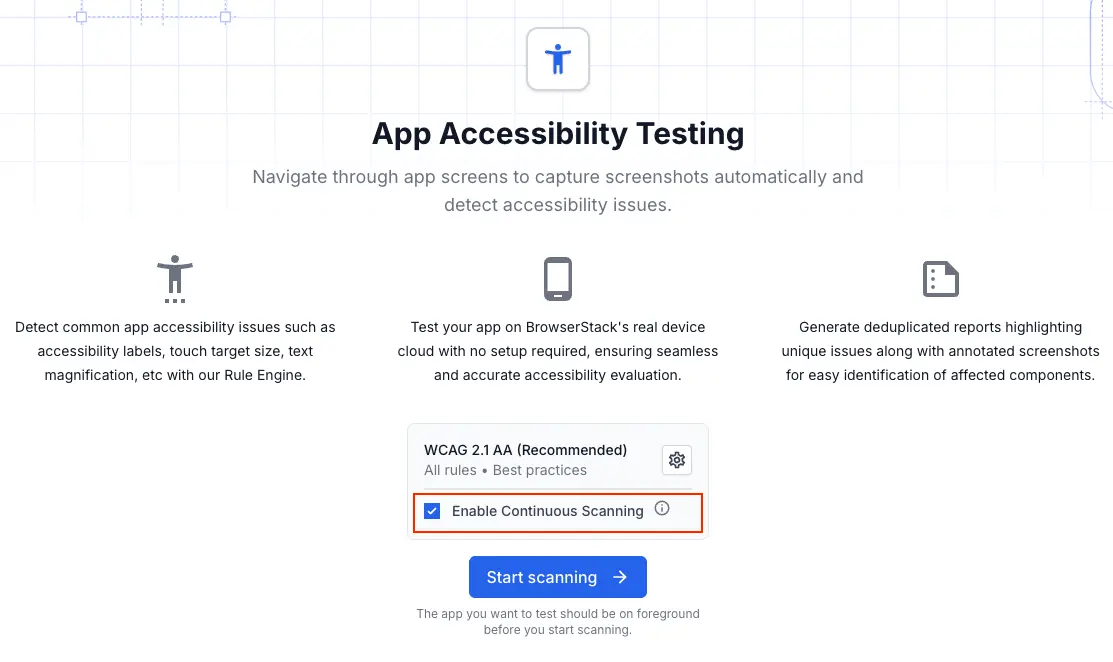
Select the Enable continuous scanning checkbox in the pre-session configuration window.
If the custom entitlements are not active when you launch an App Accessibility testing session after enabling iOS entitlements, stop the session and relaunch it to ensure the entitlements are correctly applied.
Next steps
- For step-by-step instructions to launch an App Accessibility test session, see Run Workflow Analyzer.
- For more information on configuring session settings, see Configure settings.
We're sorry to hear that. Please share your feedback so we can do better
Contact our Support team for immediate help while we work on improving our docs.
We're continuously improving our docs. We'd love to know what you liked
We're sorry to hear that. Please share your feedback so we can do better
Contact our Support team for immediate help while we work on improving our docs.
We're continuously improving our docs. We'd love to know what you liked
Thank you for your valuable feedback!