
 Join our Discord
Percy Chrome extension
Simplify visual testing with the Percy Chrome extension. Capture snapshots, perform regression testing, and generate detailed visual reports effortlessly.
The Percy Chrome extension is a Chrome extension that simplifies visual testing and regression testing for your web applications. You can use it to perform visual testing without extensive automation setups, making it ideal for manual QA testers who want to streamline their visual regression testing processes.
Prerequisites
Before you use the Percy browser extension, ensure you have the following:
- Percy Desktop App installed and running on your system. To install the Percy Desktop App, select the appropriate link for your operating system:
- A Percy project and Percy token
- Google Chrome browser
Install Percy Desktop App
The Percy Desktop App is an Electron application that enables Percy local servers on your system. It works alongside the Percy browser extension to send captured DOM snapshots to the cloud via percy-cli for rendering across different browsers and resolutions.
For more information about the Percy Desktop App, see the Percy Desktop App documentation.
Alternative: Use percy-cli
If you encounter difficulties launching the Percy server using the desktop app, you can use the npm percy-cli package instead:
- Install percy-cli:
npm install --save-dev @percy/cli - Set the Percy token:
export PERCY_TOKEN=[Your Project token] - Start the Percy server:
npx percy exec:start
Install the Percy browser extension
Integrate the Percy browser extension into your Chrome browser to streamline visual testing.
Click Add to Chrome, then confirm by selecting Add extension in the dialog box.
Percy browser extension UI
Explore the intuitive interface of the Percy browser extension designed to simplify visual testing workflows.
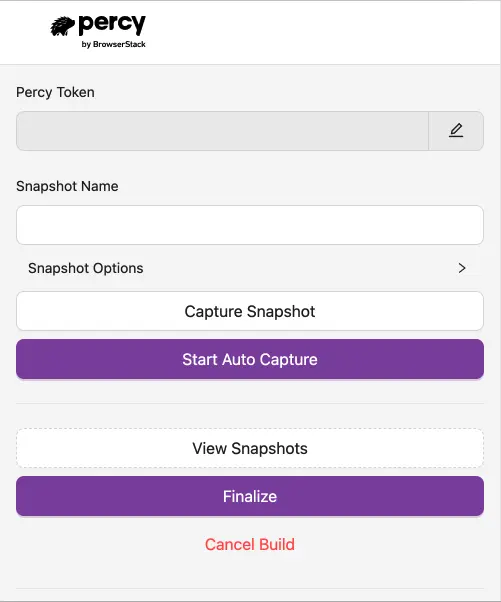
| Feature | Description |
|---|---|
| Percy token | A write-only API key unique to each project. Find it on the Project Settings page. |
| Snapshot name | Identifies a snapshot in a Percy build. Defaults to the web page title if not specified. |
| Snapshot options | Customize visual testing with options like widths, Percy CSS, scope, and JS toggle. - Widths: Test responsive designs across different viewport widths - Percy CSS: Apply custom styling to snapshots - Scope: Capture specific elements on the page - JS toggle: Control JavaScript execution during snapshot capture |
| Capture snapshot | Captures the current DOM of your active webpage as a visual representation. |
| Start autocapture | Automatically captures snapshots during end-to-end test runs when DOM changes are detected. |
| View snapshots | Review, edit, or delete snapshots before finalizing the build. |
| Finalize build | Completes your test and sends snapshots to Percy, redirecting you to the Percy Dashboard. |
| Cancel build | Cancels the entire build and removes all captured snapshots. |
Use the Percy browser extension
You can perform functions in the Percy browser extension in three ways:
Chrome extension UI
You can access functions directly from the extension interface.
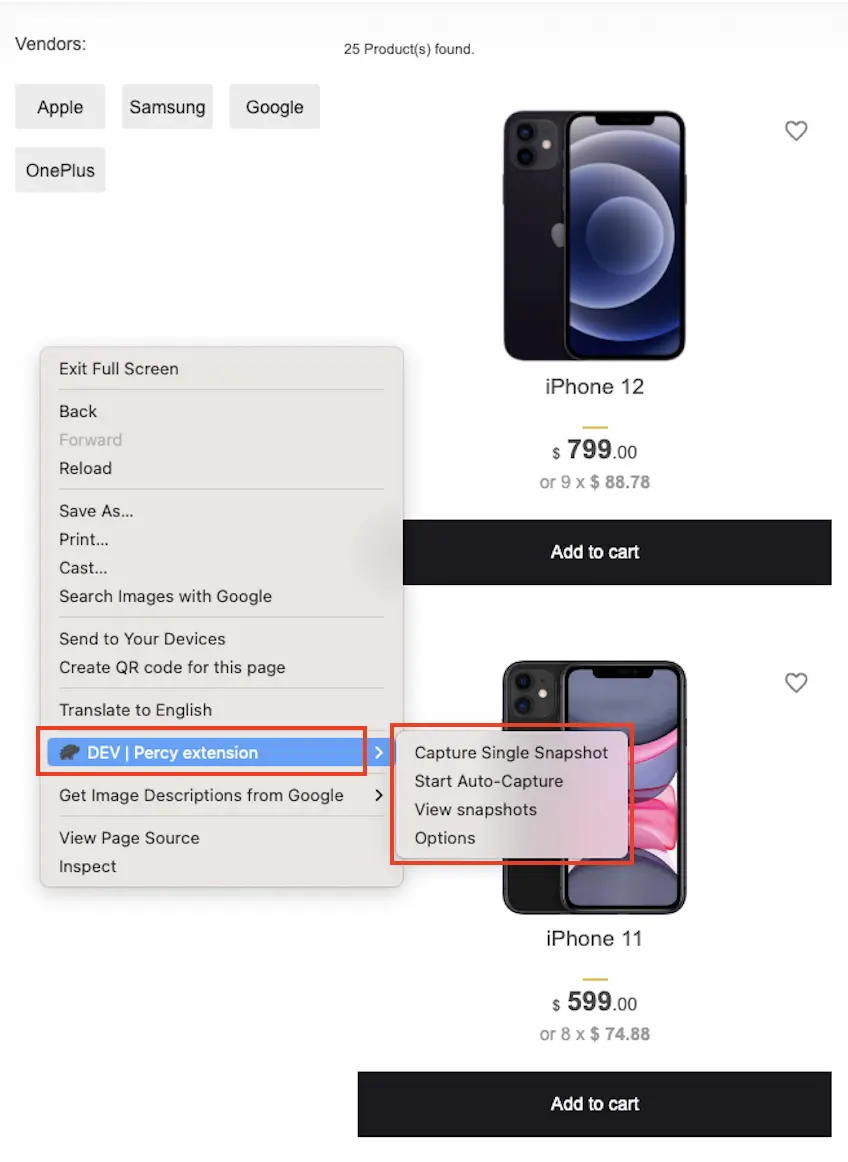
Context menu
You can right-click on a web page to access Percy functions from the context menu
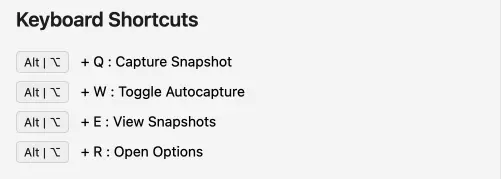
Keyboard shortcuts
Use keyboard shortcuts to trigger functions quickly.
Get started with visual testing using Percy browser extension
Follow these steps to start using the Percy browser extension:
- Install the Percy browser extension.
- Install the Percy Desktop App.
- Enable both the browser extension and desktop app.
- Go to the website or web application you want to test.
- Capture snapshots using one of the following methods:
- Click Capture Snapshot to capture individual pages manually.
- Click Start Autocapture to automatically capture all web pages during your end-to-end iteration.
- Click View Snapshots to review and manage your captured snapshots.
- Click Finalize to send your snapshots to Percy and view the results in the Percy Dashboard.
Use cases
Discover how the Percy browser extension can enhance your visual testing workflows for various scenarios.
Users without automation setup
If you don’t have advanced automation setups but need to perform visual testing on pages protected by authentication, you can use the Percy browser extension to access secured pages using basic authentication or static cookies. You don’t need to rely on developers for cookie provisioning.
Manual QA testers
Manual QA testers can use the Percy browser extension to perform visual regression testing efficiently. You can add URLs directly in the extension and integrate visual testing into your manual workflows without configuring complex .yml or .json files.
Manual QA workflows
While many companies transition to automation, some users prefer or require manual workflows. The Percy browser extension fits seamlessly into manual QA processes, making it accessible to maintain web application visual integrity without automation expertise.
We're sorry to hear that. Please share your feedback so we can do better
Contact our Support team for immediate help while we work on improving our docs.
We're continuously improving our docs. We'd love to know what you liked
We're sorry to hear that. Please share your feedback so we can do better
Contact our Support team for immediate help while we work on improving our docs.
We're continuously improving our docs. We'd love to know what you liked
Thank you for your valuable feedback!