
 Join our Discord
Storybook Addon
Learn how to use the Percy Storybook addon to capture visual snapshots and detect UI changes directly from your Storybook interface.
The Percy Storybook addon integrates visual testing capabilities into your Storybook development workflow. You can authenticate with BrowserStack, configure projects, and run visual tests without leaving the Storybook interface.
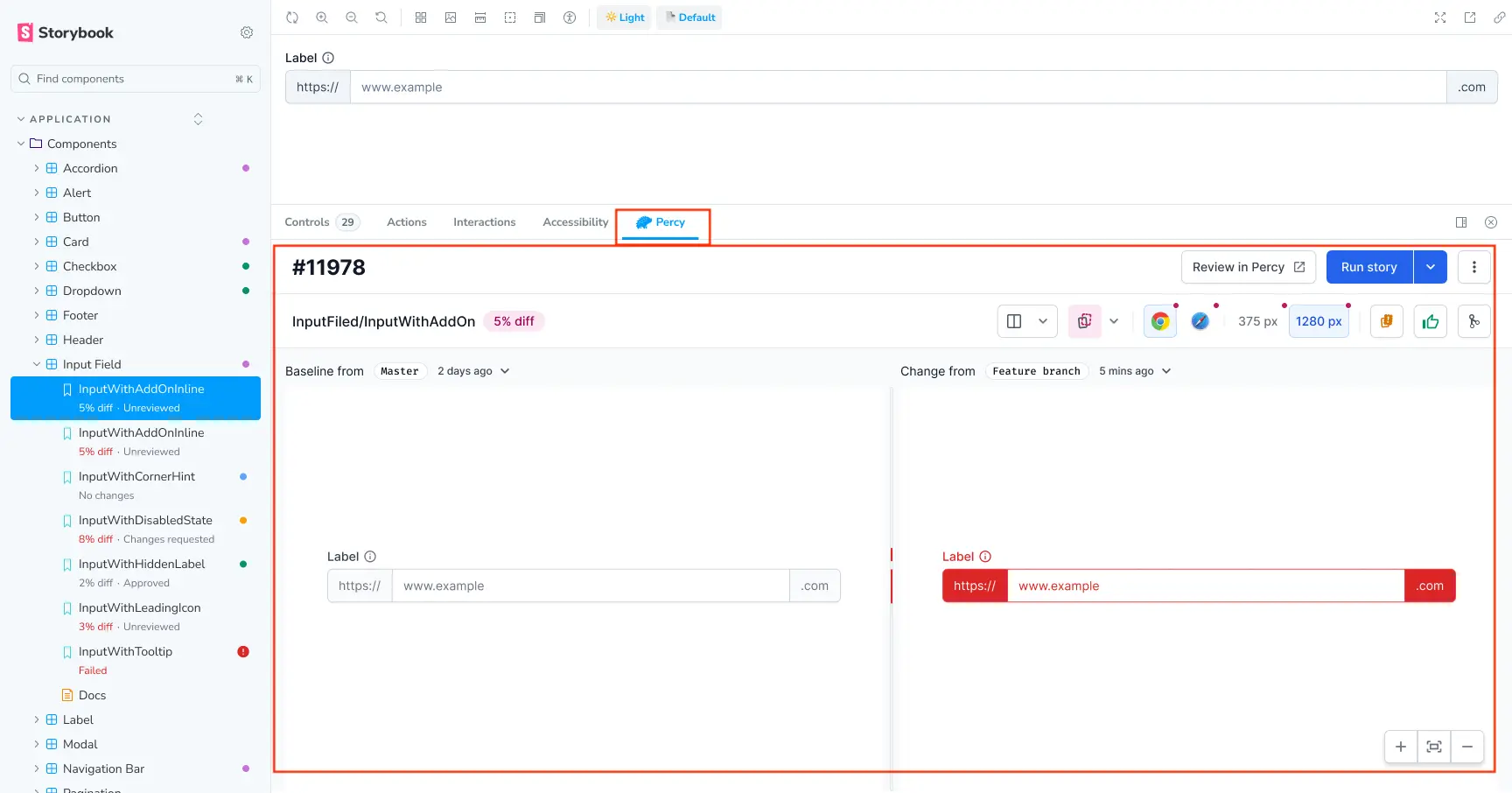
Prerequisites
Before you begin, ensure you have:
- An active BrowserStack Percy account
- Storybook installed and configured in your project
- Your BrowserStack username and access key from your BrowserStack profile page
Install the addon
To finish the setup, register the addon with Storybook using any one of the following options:
Option 1: Automatic (recommended)
Run the following command in your project root:
Option 2: Manual
Install the required packages:
Open your Storybook config (usually .storybook/main.js or .storybook/main.ts) and add @percy/storybook to the addons array:
Then, open the Percy tab in Storybook to run visual tests from the UI.
Authenticate with BrowserStack
After you install the addon and open the Storybook interface:
-
Navigate to the Percy tab in the Storybook interface. You can start Storybook the same way you currently do, using
npm run storybook.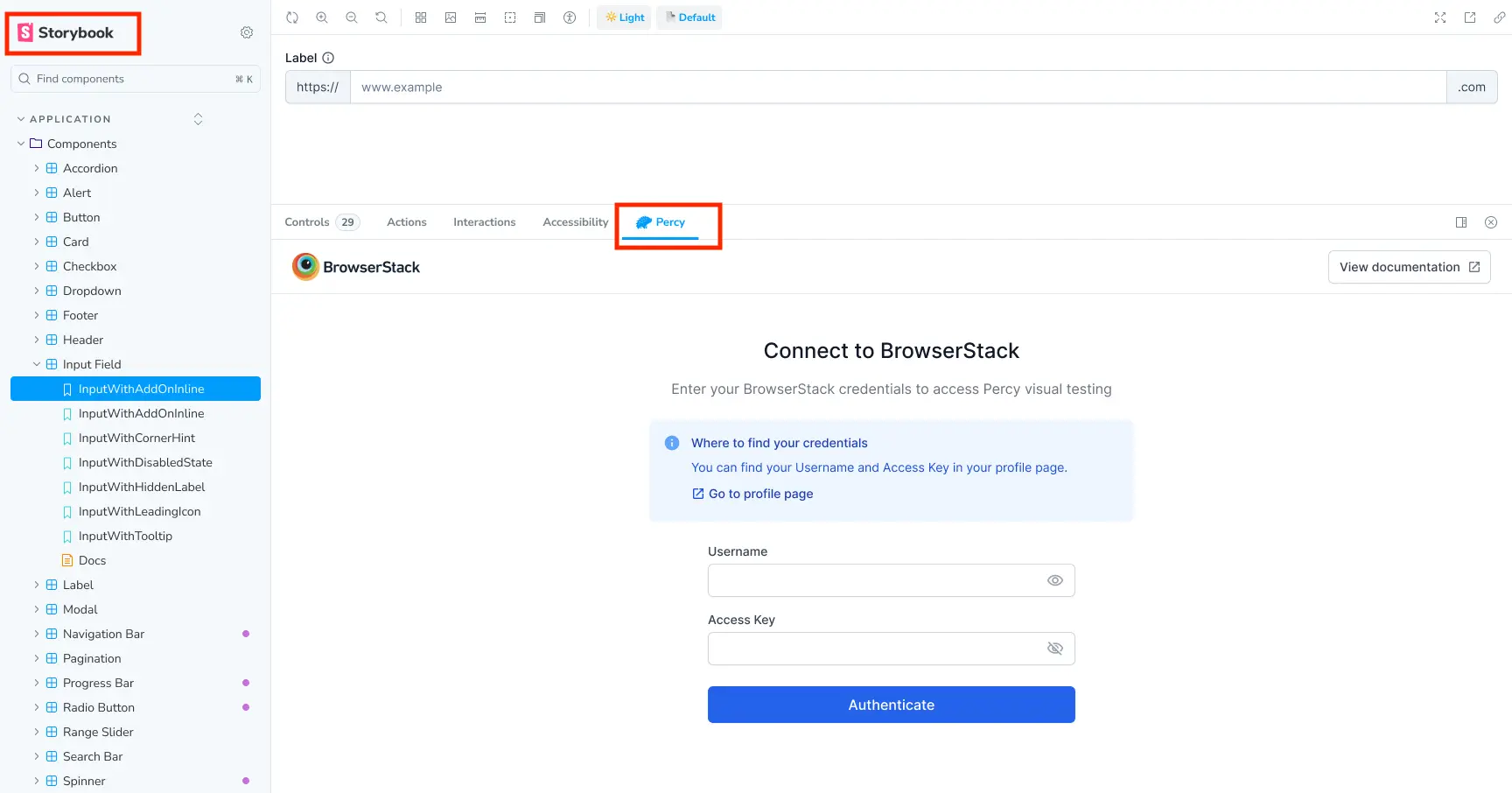
-
In the Connect to BrowserStack dialog, enter your BrowserStack username and access key from your BrowserStack profile page.
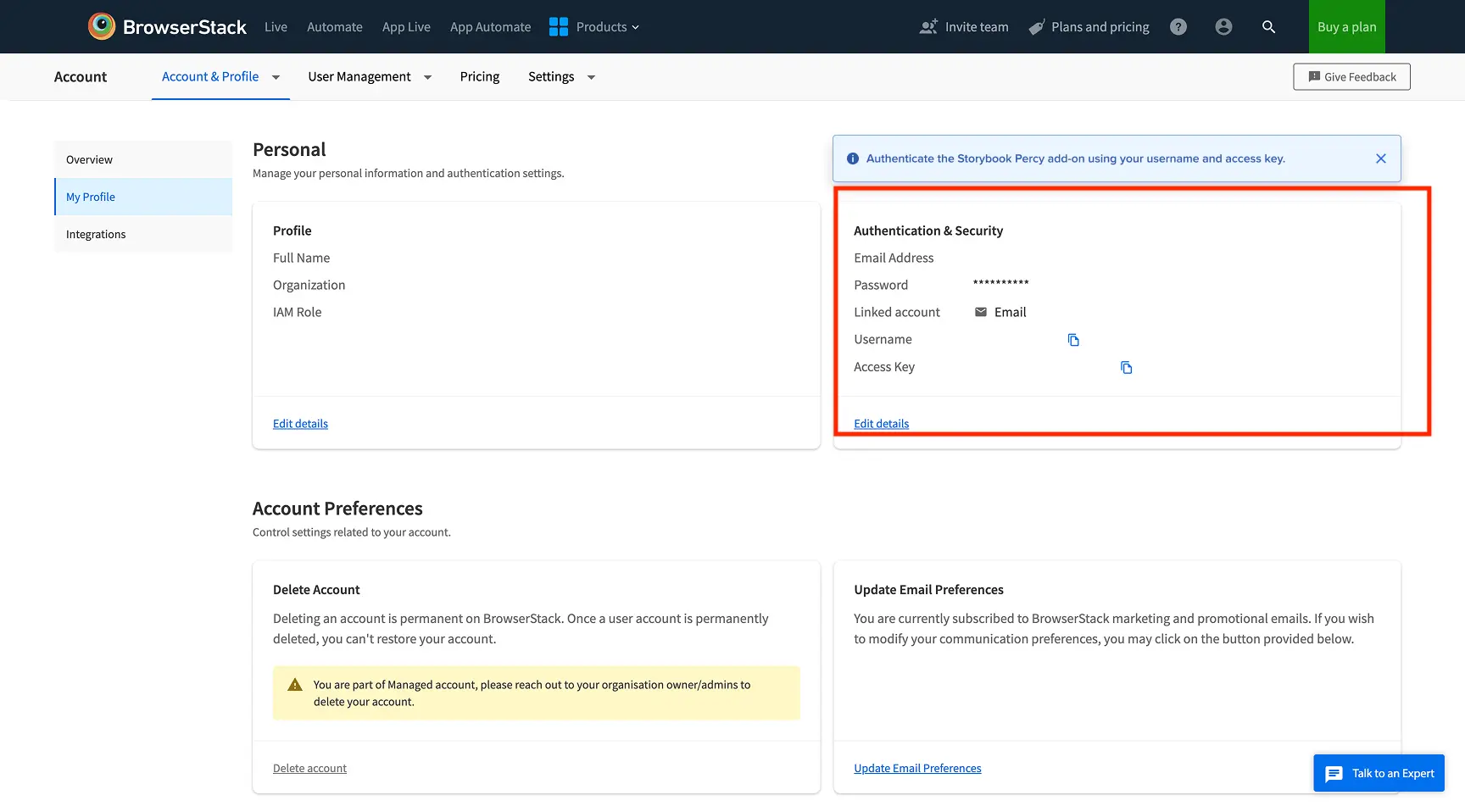
-
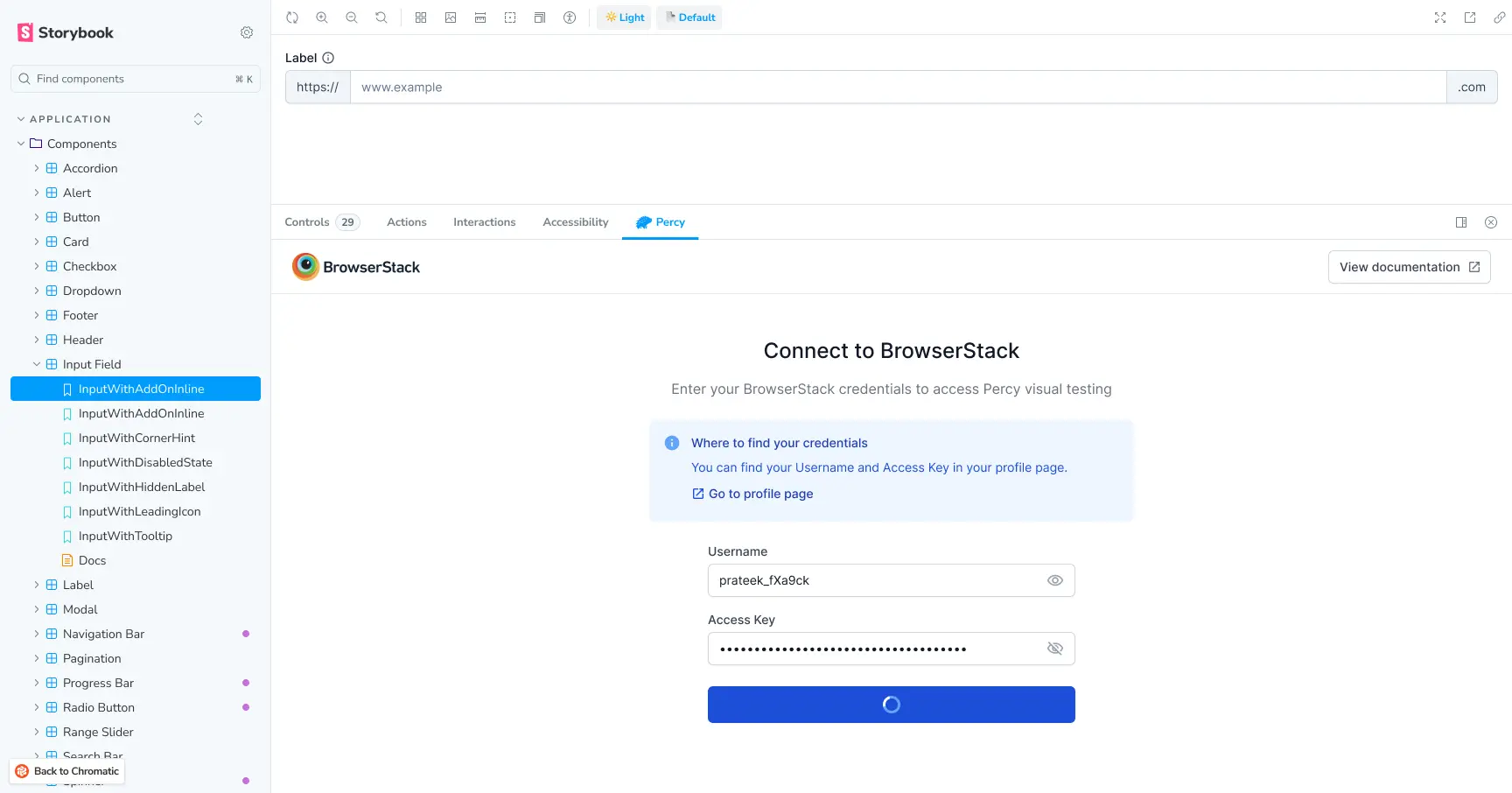
Click Authenticate.
The addon connects to your BrowserStack account.
Set up your project
Configure your Percy project to start capturing visual snapshots:
-
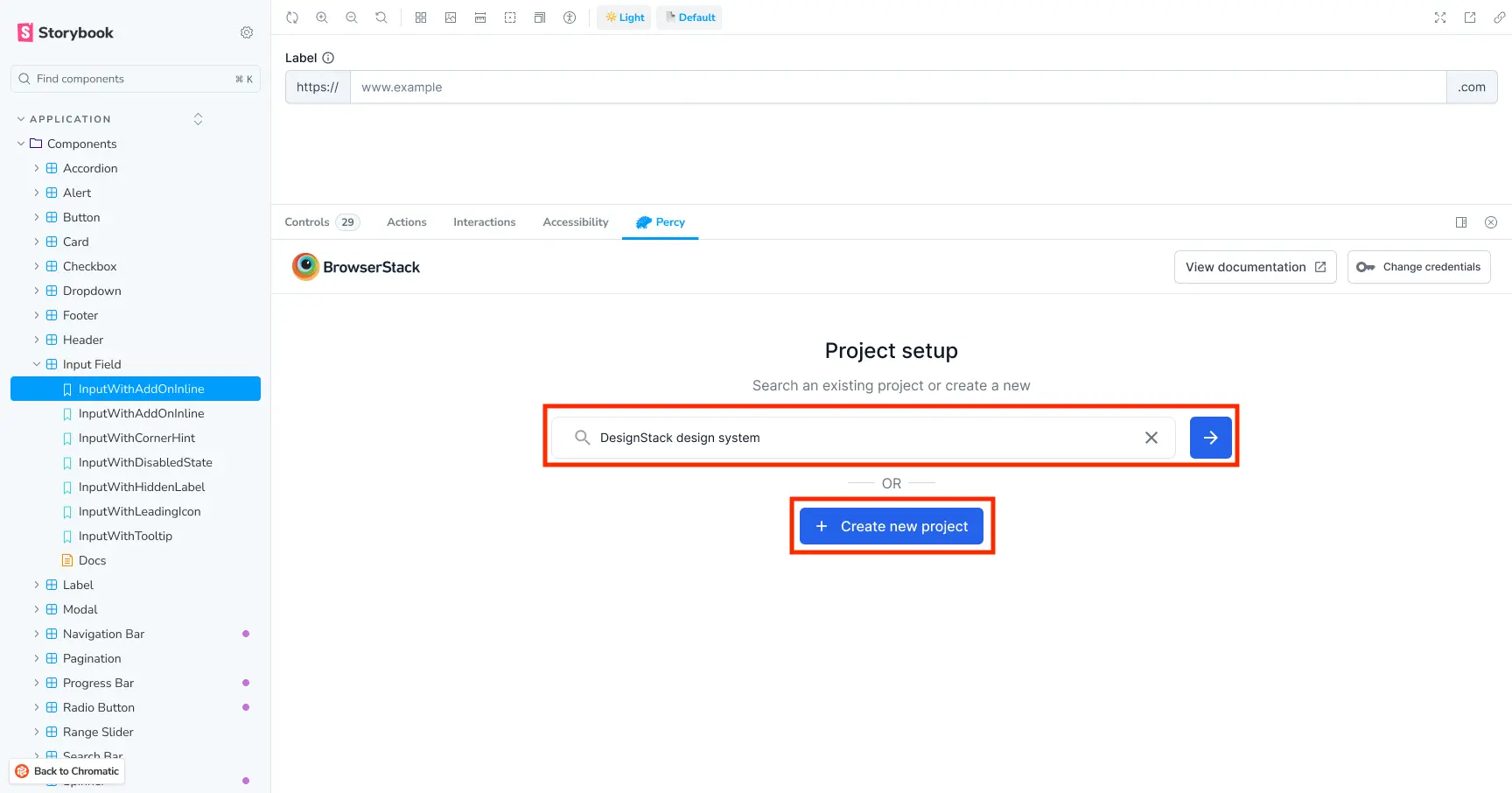
In the Percy tab, search for an existing project or create a new project.
-
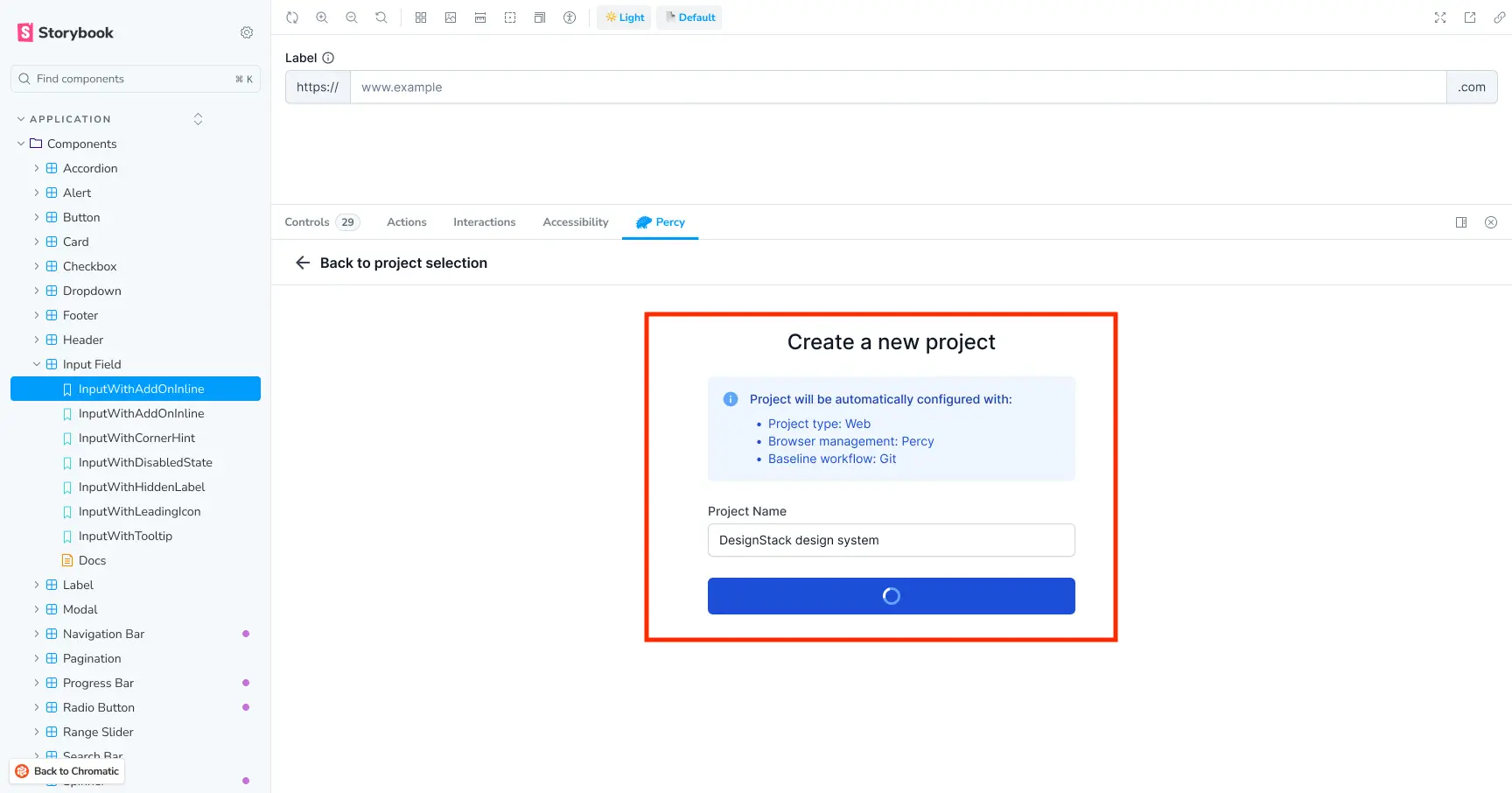
If you create a new project, Percy automatically configures the following settings:
- Project type: Web
- Browser management: Percy
- Baseline workflow: Git
Manage configuration files
When you use the Percy Storybook addon, it automatically creates the following configuration files in your project root if they don’t already exist:
-
.envfile: Stores your BrowserStack credentials securely -
.percy.ymlfile: Contains your Percy project configuration and settings
Add the .env file to your .gitignore to prevent committing sensitive credentials to your repository:
- Open or create a
.gitignorefile in your project root. -
Add the following line:
.env - Save the file.
Your credentials and project configuration are now excluded from version control.
Run visual tests
Capture visual snapshots of your Storybook stories to detect UI changes:
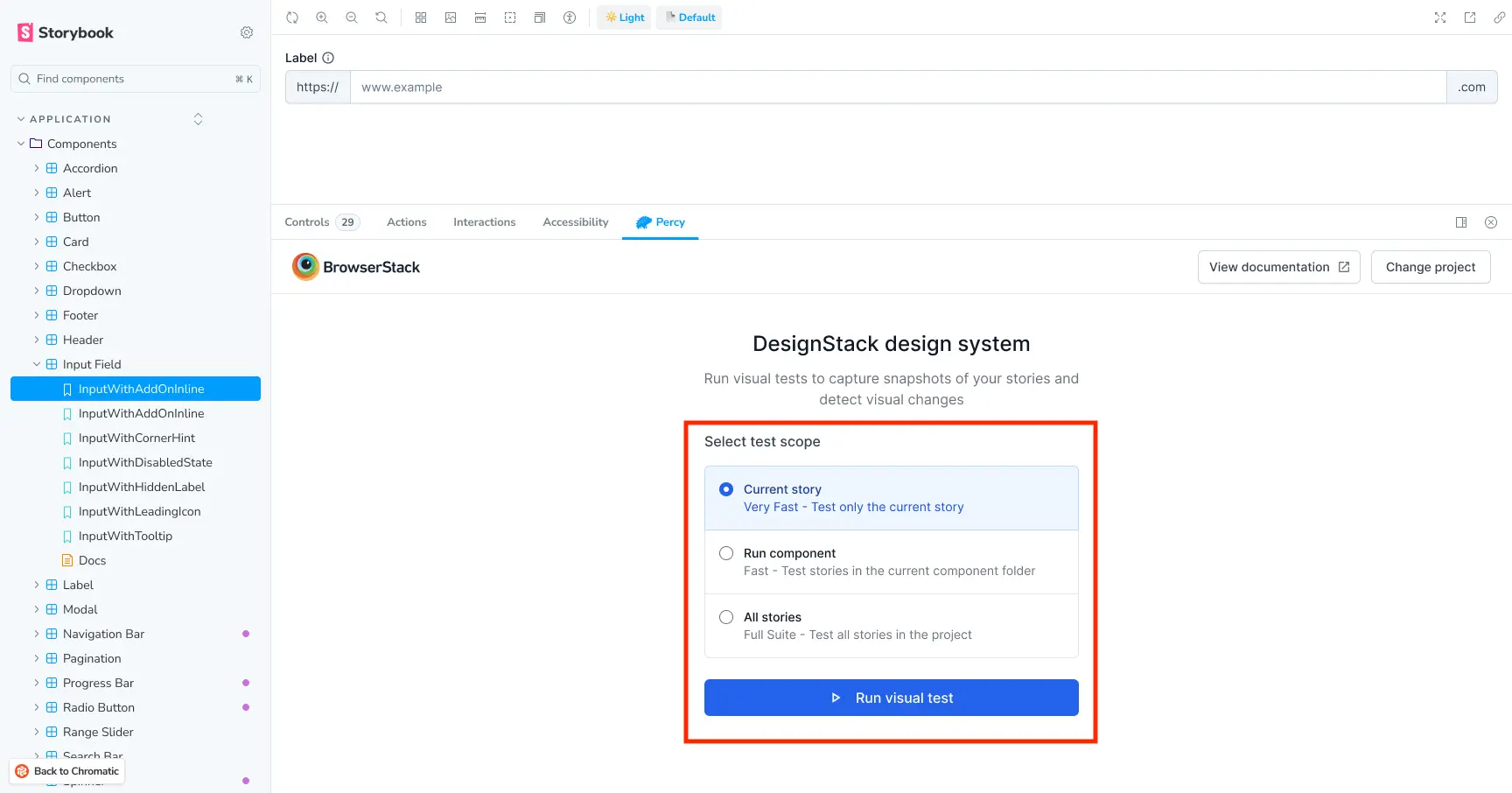
- In the Percy tab, select your test scope from the following options:
- Current story: Captures a snapshot of the currently active story
- Run component: Captures snapshots of all variations of the current component
- All stories: Captures snapshots of all stories in your Storybook
-
Click Run visual test.
Percy captures snapshots based on your selected scope and uploads them for comparison.
Review your build
After the build completes, review the visual changes:
- In the Percy tab, view the captured snapshots.
- Switch between all enabled browsers. To enable or disable browsers, visit your Percy project settings.
-
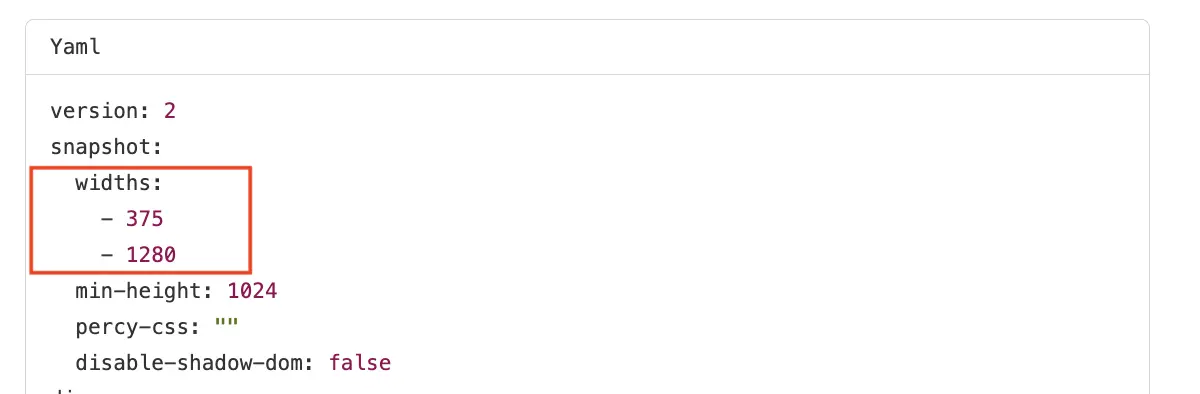
View snapshots at different viewport widths (375px and 1280px). You can configure widths in the Percy YAML file.
- For each snapshot, approve or reject the changes as needed.
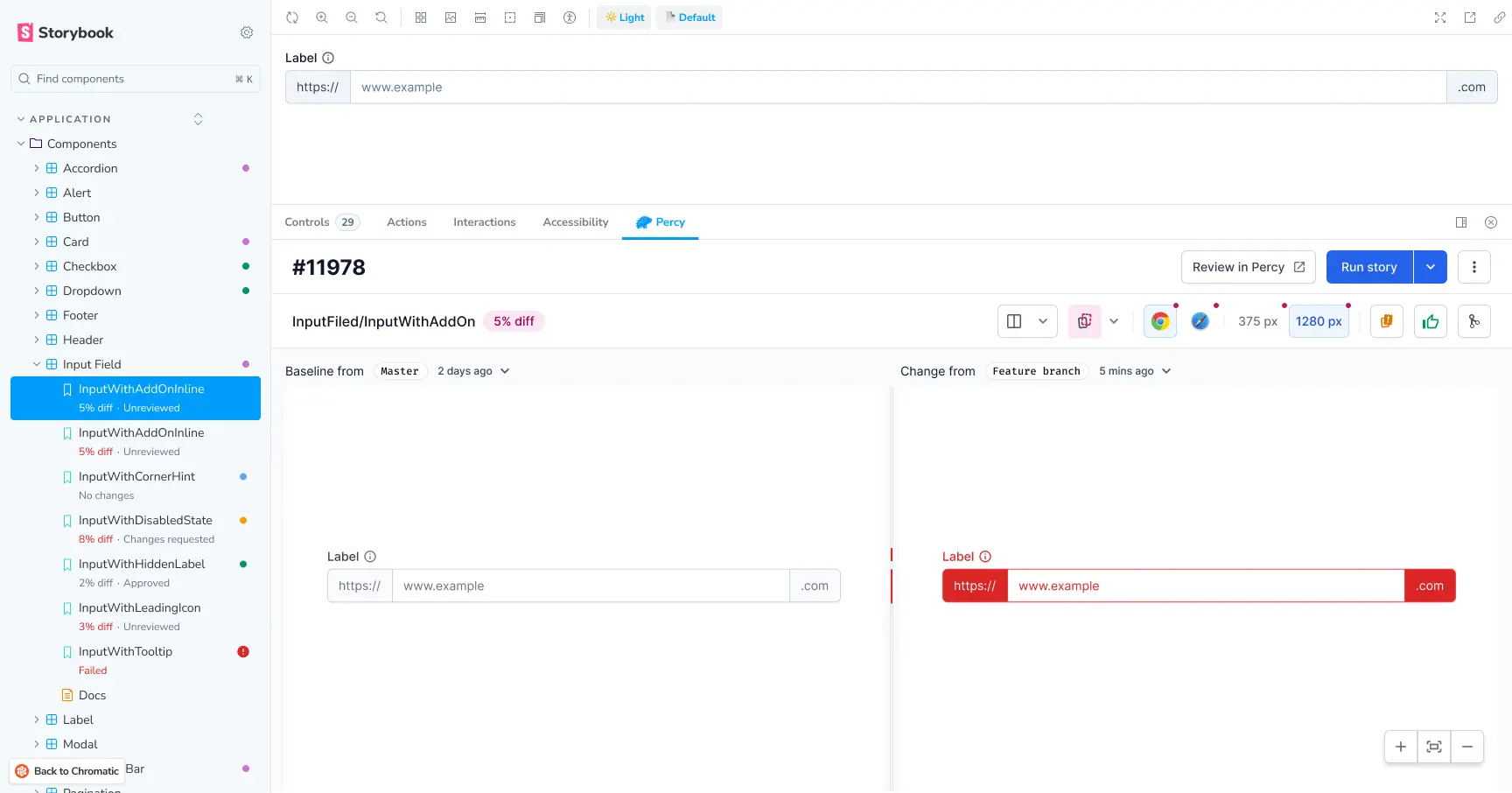
Additional build options
The Percy Storybook addon provides the following options:
- Review in Percy: Open the build in the Percy dashboard to analyze changes in detail and collaborate with your team. AI-powered features are available within the Percy UI.
- Re-run build: Use the dropdown menu to run the same build on a component or all stories without reconfiguring.
- Manage builds: Access project settings, download logs, reject a build, or delete a build using the build options menu.
Troubleshoot
Use the following solutions to resolve common issues with the Percy Storybook addon:
Authentication fails
If you cannot authenticate with BrowserStack:
- Verify that your username and access key are correct on your BrowserStack profile page.
- Check that your network allows connections to BrowserStack services.
- Clear your browser cache and try authenticating again.
Build processing takes too long
If your builds are slow to process:
- Select a more focused test scope, such as Current story or Run component, instead of All stories.
- Check your network connection stability.
- Review your Storybook stories for performance issues.
Related topic
We're sorry to hear that. Please share your feedback so we can do better
Contact our Support team for immediate help while we work on improving our docs.
We're continuously improving our docs. We'd love to know what you liked
We're sorry to hear that. Please share your feedback so we can do better
Contact our Support team for immediate help while we work on improving our docs.
We're continuously improving our docs. We'd love to know what you liked
Thank you for your valuable feedback!