AI agents are now live in Website Scanner! Enter your URL and fix website issues 3x faster with AI. Explore now!
No Result Found
Connect and get help from 7,000+ developers on our Discord community. Ask the CommunityAsk the Community

Integrate your Selenium Robot Framework tests with Percy

A guide to integrating your Selenium Robot Framework tests with BrowserStack Percy. Catch visual differences in your web application on time.

Percy SDK offers the following integrations for your Robot Framework tests:

  • Percy Web
  • Percy with Automate

To establish this integration, choose the appropriate variant and refer to the following section accordingly:

Follow these steps to integrate Percy with your Robot Framework test suite to run visual tests:

Step 1 - Create a Percy project

  1. Sign in to percy.io.
  2. Create a new project or open an existing one.
  3. Copy your PERCY_TOKEN from Project Settings > Integrations.

Step 2 - Install the latest Percy CLI

Install the Percy CLI, which wraps your test run and uploads snapshots to Percy:

Copy icon Copy

Step 3 - Install Robot Framework dependencies

Install the Percy Selenium SDK along with Robot Framework and SeleniumLibrary:

Copy icon Copy

percy-selenium 2.2.0 and above ships the Robot Framework library, so no additional package is required.

Step 4 - Set your Percy token

Export the Percy token to your environment:

Copy icon Copy
Copy icon Copy
Copy icon Copy

Step 5 - Update your test script

Import PercyLibrary alongside SeleniumLibrary, and then call the Percy Snapshot keyword wherever you want to capture a visual snapshot:

Copy icon Copy

The snapshot keyword arguments are:

Copy icon Copy
  • name (required) - The snapshot name; must be unique to each snapshot.
  • **named - Named arguments for snapshot options (for example, widths, min_height, percy_css, scope, enable_javascript, enable_layout, labels, sync). See per-snapshot configuration options.

For example, to capture the homepage at multiple widths:

Copy icon Copy

To learn more about snapshot configuration, visit Percy snapshot.

Step 6 - Run the build

Wrap your Robot Framework test run with the Percy CLI:

Copy icon Copy

Percy collects snapshots from the wrapped run and uploads them for visual comparison.

Congratulations

You have successfully created your first build on Percy. To see the build with snapshots of your application, visit your project in Percy.

When you run another build with visual changes to your application, Percy takes new snapshots. You can then see the comparisons between the two runs on the new build.
Follow these steps to integrate Percy on Automate with your Robot Framework test suite to run visual tests:

Step 1 - Create a Percy project

  1. Sign in to percy.io.
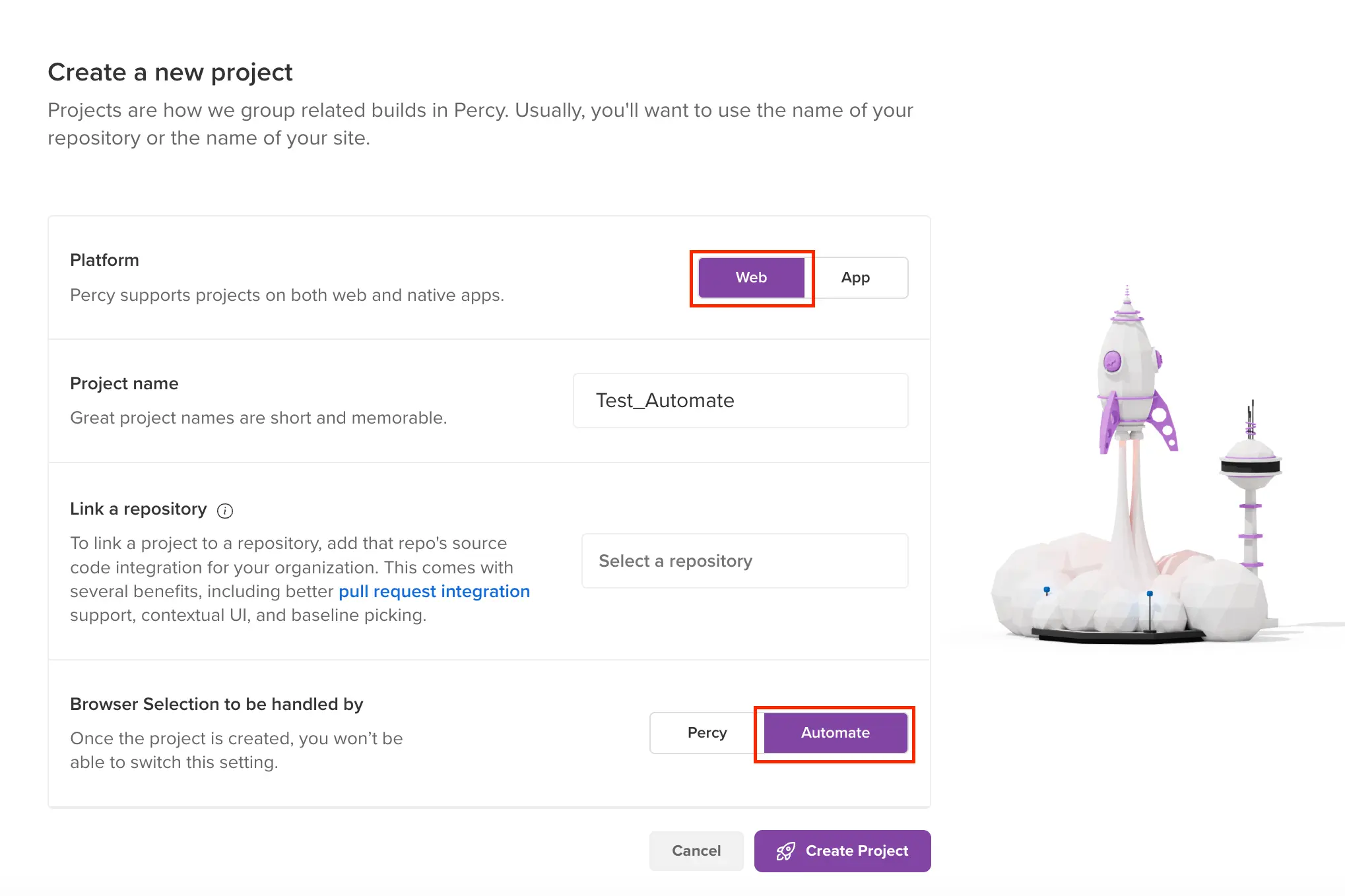
  2. On the Percy dashboard, make the following selections:
    • Select Web as the platform.
    • Select Automate to handle browser selection.
    • Click Create Project.
  3. Copy your PERCY_TOKEN from Project Settings > Integrations.

The Percy dashboard New Project window with Web platform and Automate browser-selection options highlighted.

Step 2 - Install the latest Percy CLI

Install the Percy CLI, which wraps your test run and uploads screenshots to Percy:

Copy icon Copy

Step 3 - Install Robot Framework dependencies

Install the Percy Selenium SDK along with Robot Framework and SeleniumLibrary:

Copy icon Copy

percy-selenium 2.2.0 and above ships the Robot Framework library, so no additional package is required.

Step 4 - Set your Percy token

Export the Percy token to your environment:

Copy icon Copy
Copy icon Copy
Copy icon Copy

Step 5 - Update your Automate test script

Import PercyLibrary alongside SeleniumLibrary, and then call the Percy Screenshot keyword wherever you want to capture a screenshot during your Automate session:

Copy icon Copy

The screenshot keyword arguments are:

Copy icon Copy
  • name (required) - The screenshot name; must be unique to each screenshot.
  • **named - Named arguments for screenshot options (for example, options, ignore_region_selenium_elements, consider_region_selenium_elements). See Percy on Automate options.

Robot Framework passes complex named arguments differently from Python. Build dictionaries with Create Dictionary and lists with Create List, then pass them by reference:

Copy icon Copy

Step 6 - Run the build

Wrap your Robot Framework test run with the Percy CLI:

Copy icon Copy

Percy collects screenshots from the wrapped run and uploads them for visual comparison.

Congratulations

You have successfully created your first build on Percy. To see the build with screenshots of your application, visit your project in Percy.

When you run another build with visual changes to your application, Percy takes new screenshots. You can then see the comparisons between the two runs on the new build.

We're sorry to hear that. Please share your feedback so we can do better

Contact our Support team for immediate help while we work on improving our docs.

We're continuously improving our docs. We'd love to know what you liked


Thank you for your valuable feedback

Is this page helping you?

Yes
No

We're sorry to hear that. Please share your feedback so we can do better

Contact our Support team for immediate help while we work on improving our docs.

We're continuously improving our docs. We'd love to know what you liked


Thank you for your valuable feedback!

Talk to an Expert
Download Copy Check Circle