
 Join our Discord
Select the app development framework
Select the development framework for your app before you start scanning in Workflow Analyzer.
When scanning your app using Workflow Analyzer, BrowserStack App Accessibility applies dedicated checks based on your app’s development framework, such as Flutter or React Native. BrowserStack App Accessibility automatically detects the app framework when you upload your app. You can confirm the detected framework or select a different one before you start scanning.
BrowserStack App Accessibility detects your app’s development framework, not the testing framework you use to run automated tests. You can select the development framework only for manual scans in Workflow Analyzer.
Framework labels
After BrowserStack installs your app, the label next to the Framework dropdown in the App Accessibility Testing window shows one of the following states:
| Label | What the label means | What to do |
|---|---|---|
| Auto-detected | BrowserStack detected the framework from your app. | Check that the detected framework is correct. If the framework is wrong, select the correct one from the dropdown. |
| Not detected | BrowserStack couldn’t detect the framework. The dropdown shows Select framework and opens automatically. | Select your app’s framework. Start scanning stays disabled until you select a framework. |
| Selected | You manually selected the framework from the dropdown. | No action needed. To change the framework, select another option from the dropdown. |
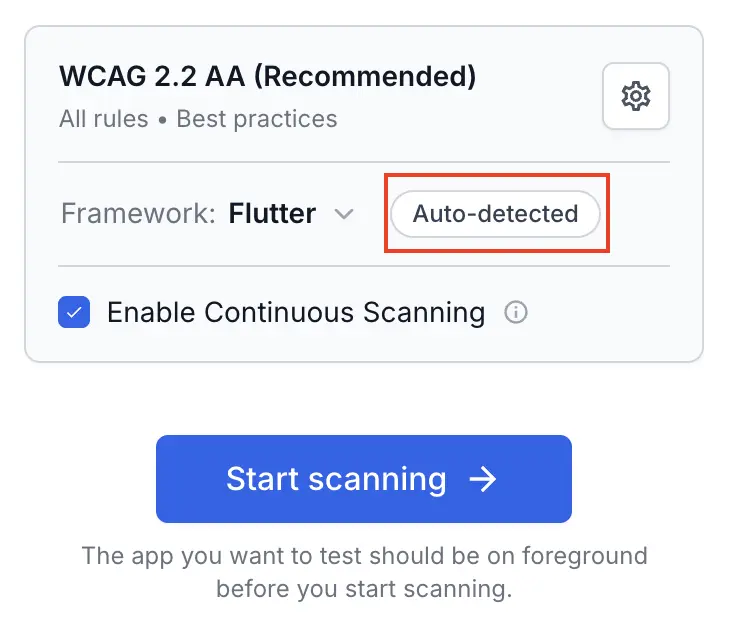
For apps installed from App Store or TestFlight, BrowserStack can’t detect the framework, so the label shows Not detected.
Select or change the development framework
To select or change the framework:
Start a Workflow Analyzer session and install your app. For details, see Run Workflow Analyzer.
Optional: Configure the scan settings. For details, see Configuration options for Workflow Analyzer.
In the App Accessibility Testing window, click the Framework dropdown.
Select your app’s development framework. If your app’s framework isn’t in the list, select Other. If you’re not sure which framework your app uses, ask your app’s developers.
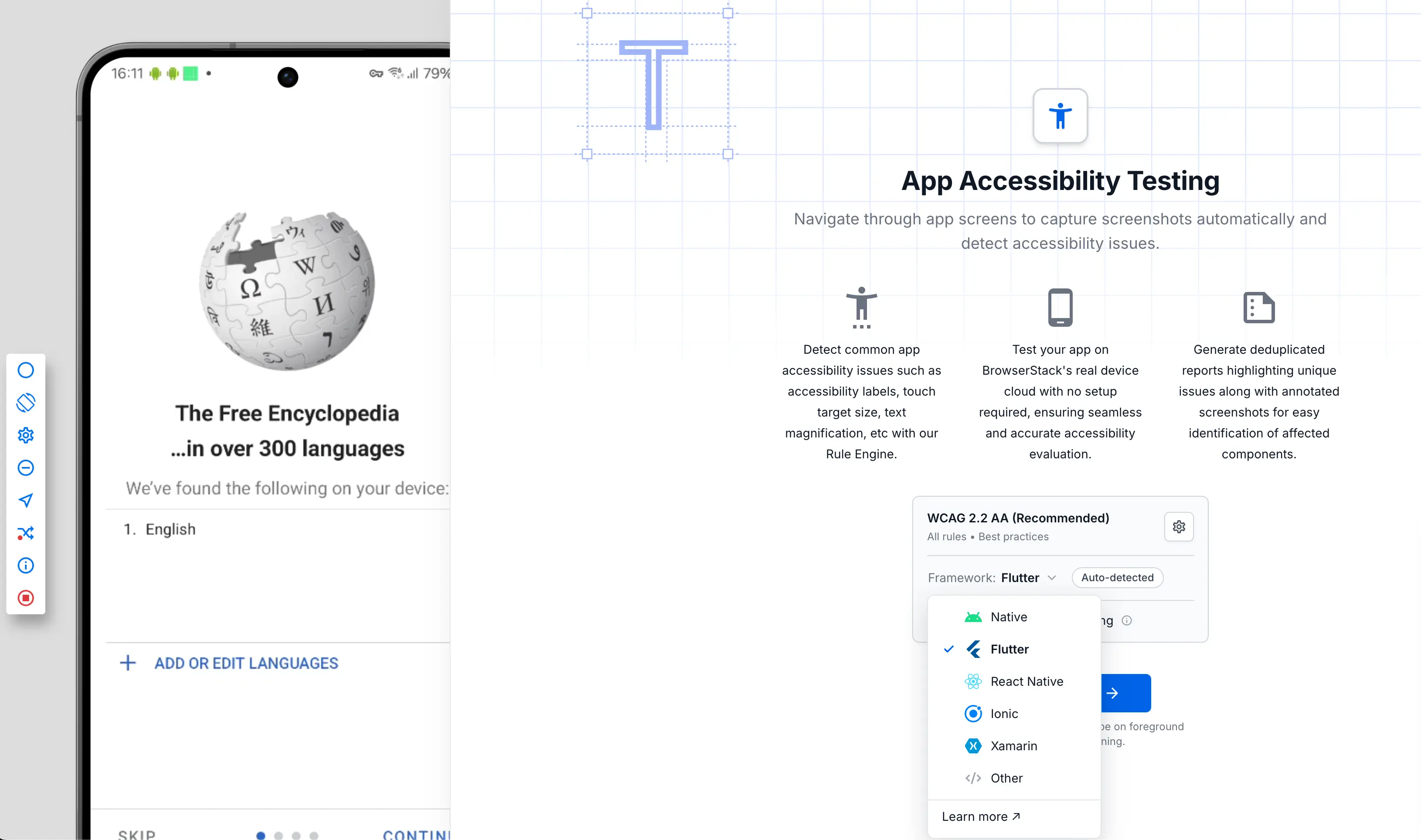
Click Start scanning.
View the development framework of a scan
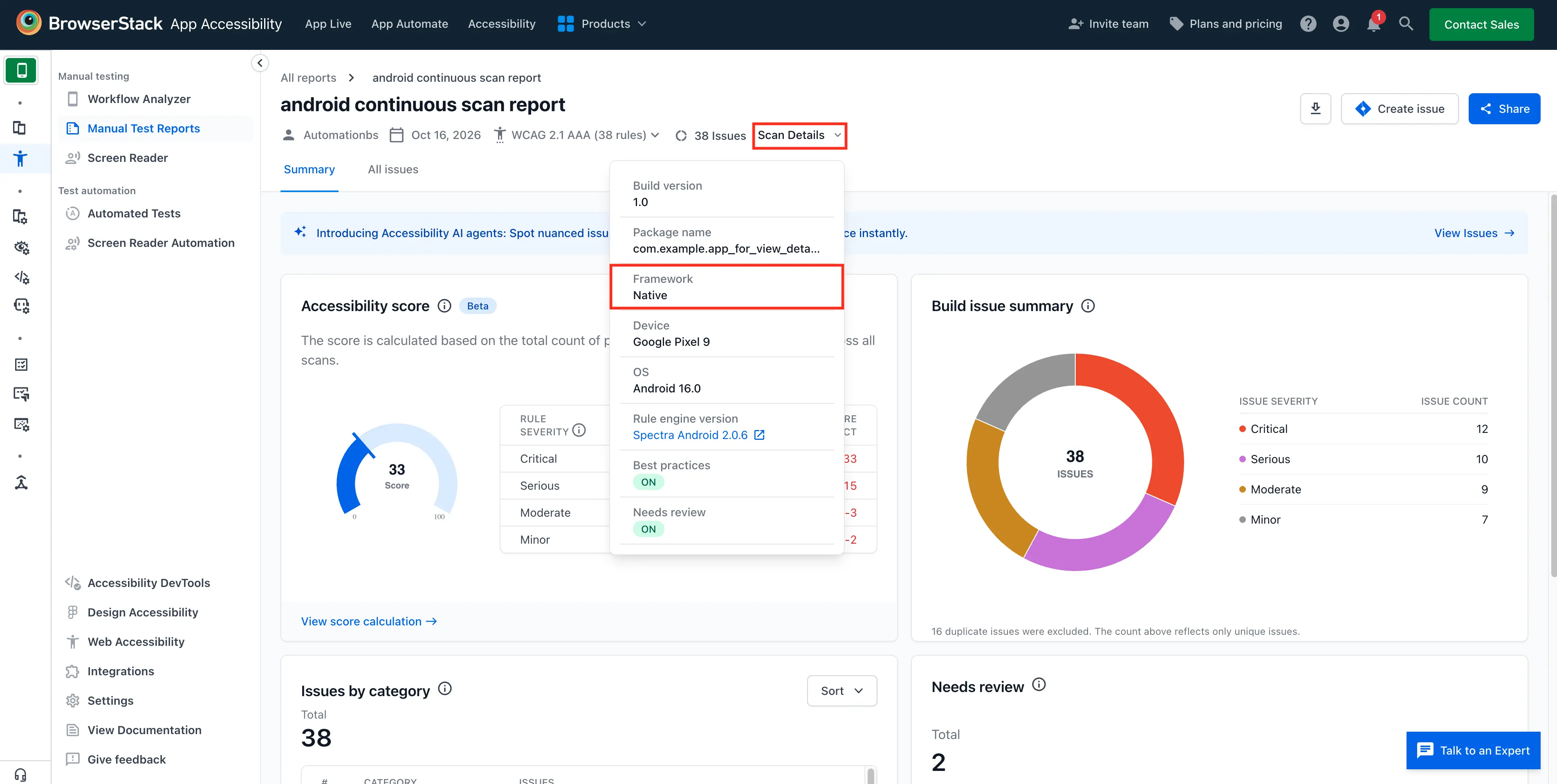
The Scan Details dropdown in the header of a generated report shows the framework that the scan used. The dropdown also shows details about the app, the device, and the rule engine. For details, see View scan details.
Related topics
- Run Workflow Analyzer
- Configuration options for Workflow Analyzer
- View App Accessibility Testing reports
We're sorry to hear that. Please share your feedback so we can do better
Contact our Support team for immediate help while we work on improving our docs.
We're continuously improving our docs. We'd love to know what you liked
We're sorry to hear that. Please share your feedback so we can do better
Contact our Support team for immediate help while we work on improving our docs.
We're continuously improving our docs. We'd love to know what you liked
Thank you for your valuable feedback!