
 Join our Discord
Git
Use Git when your team works with pull requests and branches.
Percy uses your Git commit history to find the right base build for each build, so the diff shows only the changes you introduced. If you are still choosing a strategy, see how to choose between Git and Visual Git.
How Git baseline selection works
Percy picks the base build based on the type of build:
- Pull request builds: Compared against the merge base, which is the common ancestor commit between your branch and the target branch.
-
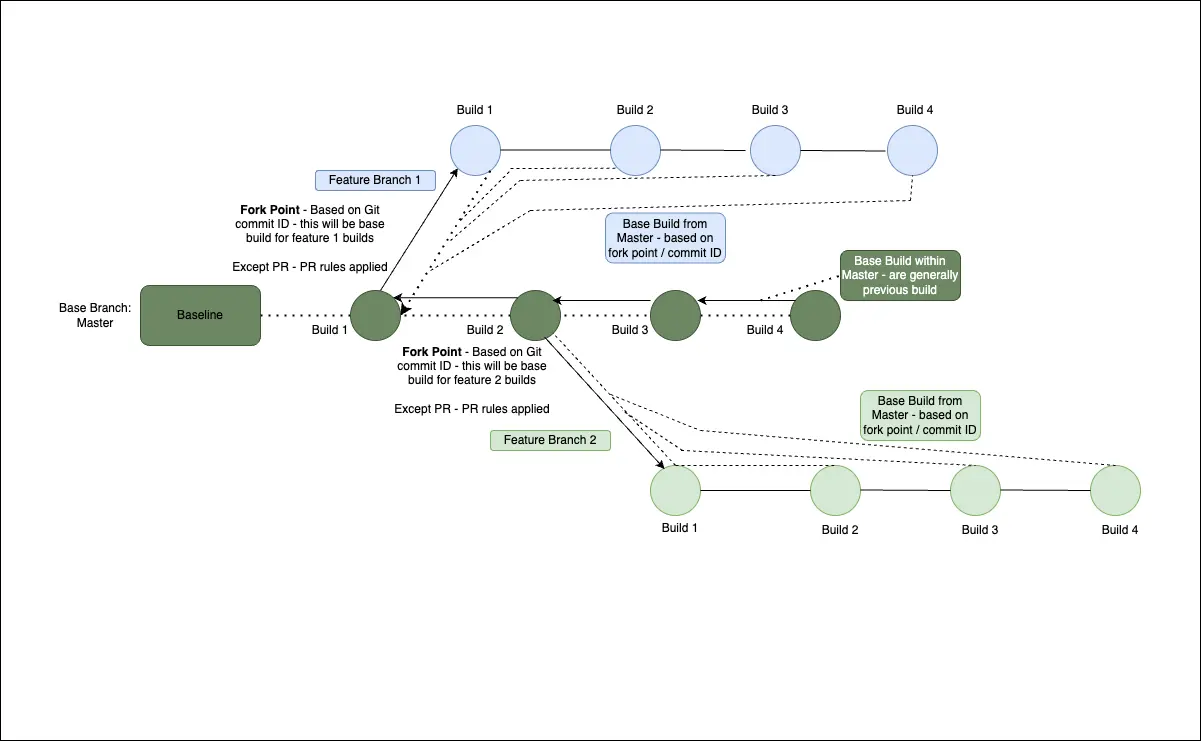
Feature branch builds: Compared against the latest build on the default base branch, usually
master. - Default base branch builds: Compared against the previous build on the same branch.
For example, your feature branch forks off master at the third master build. When you run a build on the feature branch, Percy uses that third master build as the base build, so the diff shows only your changes and not the work others merged afterwards.
The base build for a particular build in Git-based branching comparisons in Percy is the build forked from that branch.
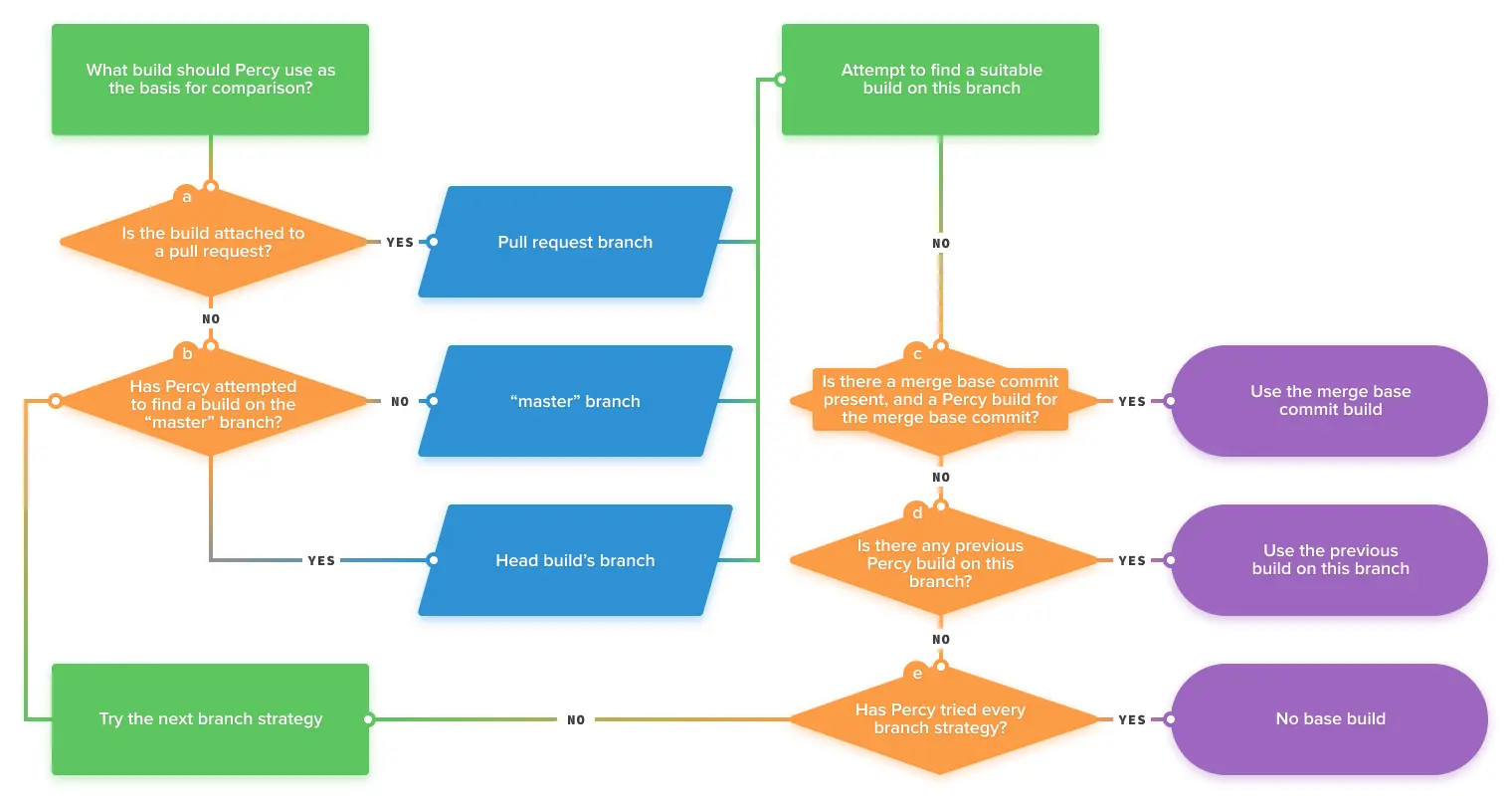
Base build selection order
Percy looks for a base build in this order:
- Merge base build: For builds attached to a pull request, the build at the common ancestor commit between your branch and the target branch.
- Latest build on the default base branch: Used when no merge base build exists, and for feature branch builds that are not attached to a pull request.
- Previous build on the same branch: Used when the default base branch has no builds. Builds on the default base branch itself also use this path, comparing against the previous build on that branch.
- No base build: If none of the above exist, all snapshots are marked as new. This is expected on your first build, and can also happen when the default base branch is misconfigured.
The following diagram shows this selection flow:
For the full decision logic, including every fallback, see the base build tutorial for Git.
Configure Git settings
Go to Project settings > Baseline management to adjust the following settings:
-
Default base branch: The branch that Percy treats as your main branch and uses as the baseline for feature branches. This is
masterby default. If your main branch isdevelop, set it todevelopso that feature branches compare against it. -
Auto-approved branches: Builds on these branches are approved automatically, so they are always available as baselines. Use this for a branch that is already reviewed before code lands, such as
master, where a second visual review adds no value. - Approval required branches: Builds on these branches use only the most recently approved build on the same branch as their baseline, and automatic base build selection is turned off for them. Use this for isolated branches, such as a QA branch where every visual change must be signed off before it becomes the reference.
Use the PERCY_TARGET_BRANCH environment variable in CI if you need to override the base branch for a single build.
Pick the setup that matches your goal
The following table maps common goals to the settings you need:
| Goal | Default base branch | Auto-approved branches | Approval required branches |
|---|---|---|---|
| See visual diffs without an approval workflow, comparing each build to the previous one | master |
None | None |
Compare feature branches against master without reviewing master builds separately (recommended) |
master |
master |
None |
Require every master build to be signed off before it becomes the baseline for later master builds |
master |
None | master |
Compare against a different main branch, such as develop
|
develop |
develop |
None |
For more complex setups, such as mixed approval rules across branches, see the base build tutorial for Git.
Troubleshooting
If the baseline is not what you expected, open the build and check the Baseline details panel. It shows which build was selected, the reason it was selected, and the project configuration that applied when the build ran. For more information, see Understand the selected baseline.
Also check the following:
- The default base branch in Project settings > Project details matches your main branch.
-
PERCY_TARGET_BRANCHis not set to an unexpected branch in your CI environment. - A finished build exists on the branch you expect to compare against.
Related topics
We're sorry to hear that. Please share your feedback so we can do better
Contact our Support team for immediate help while we work on improving our docs.
We're continuously improving our docs. We'd love to know what you liked
We're sorry to hear that. Please share your feedback so we can do better
Contact our Support team for immediate help while we work on improving our docs.
We're continuously improving our docs. We'd love to know what you liked
Thank you for your valuable feedback!