Get your setup working faster. Join our Discord for optimisation tips from elite testers.Join our Discord
Run Appium tests using Katalon Studio
Run your automated app tests on Appium using Katalon Studio. Execute automated tests on thousands of real iOS and Android devices offered by BrowserStack.
Katalon Studio allows you to set up, create, and manage automated mobile tests. With BrowserStack and Katalon, you can execute your automated tests on a range of real devices offered by BrowserStack.
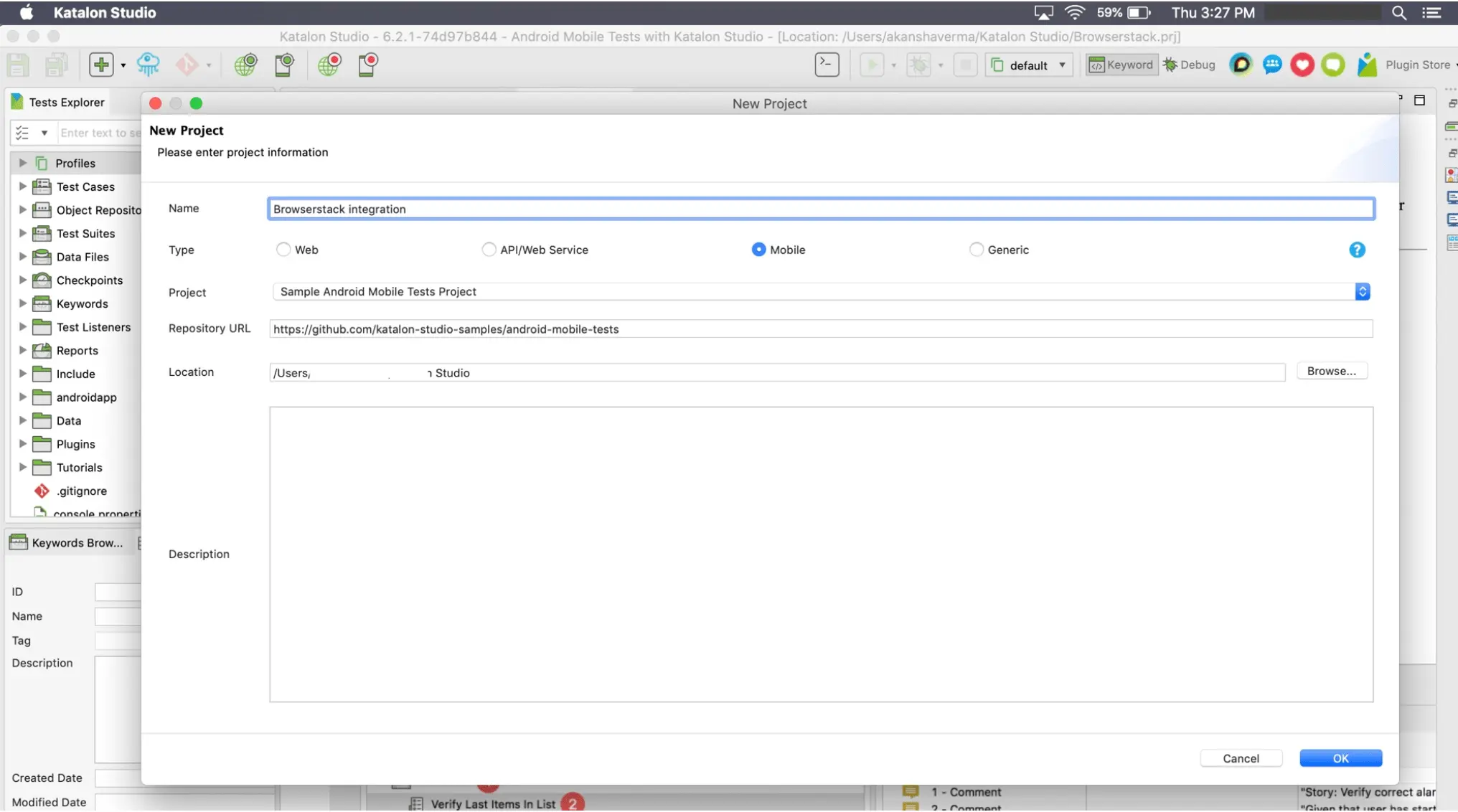
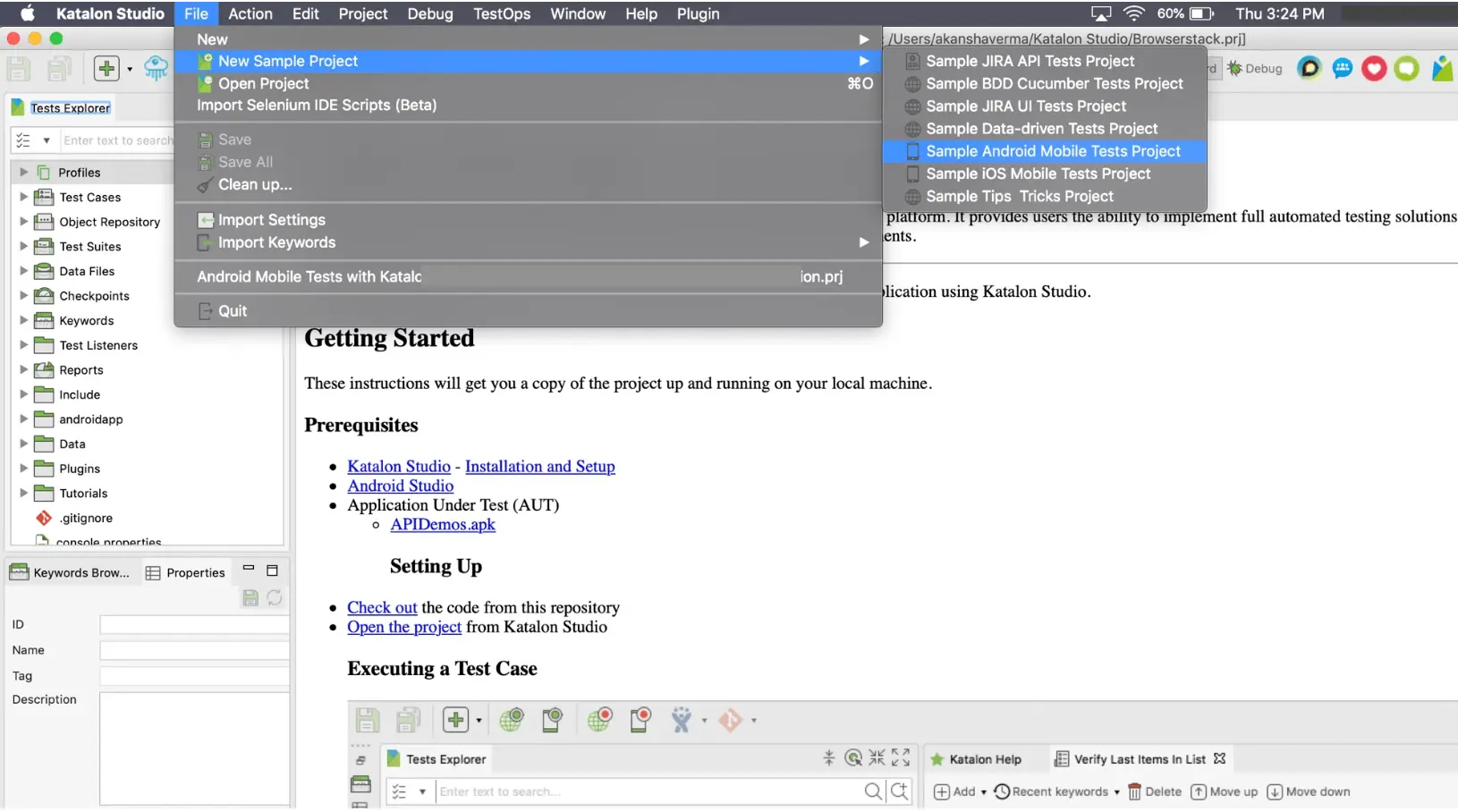
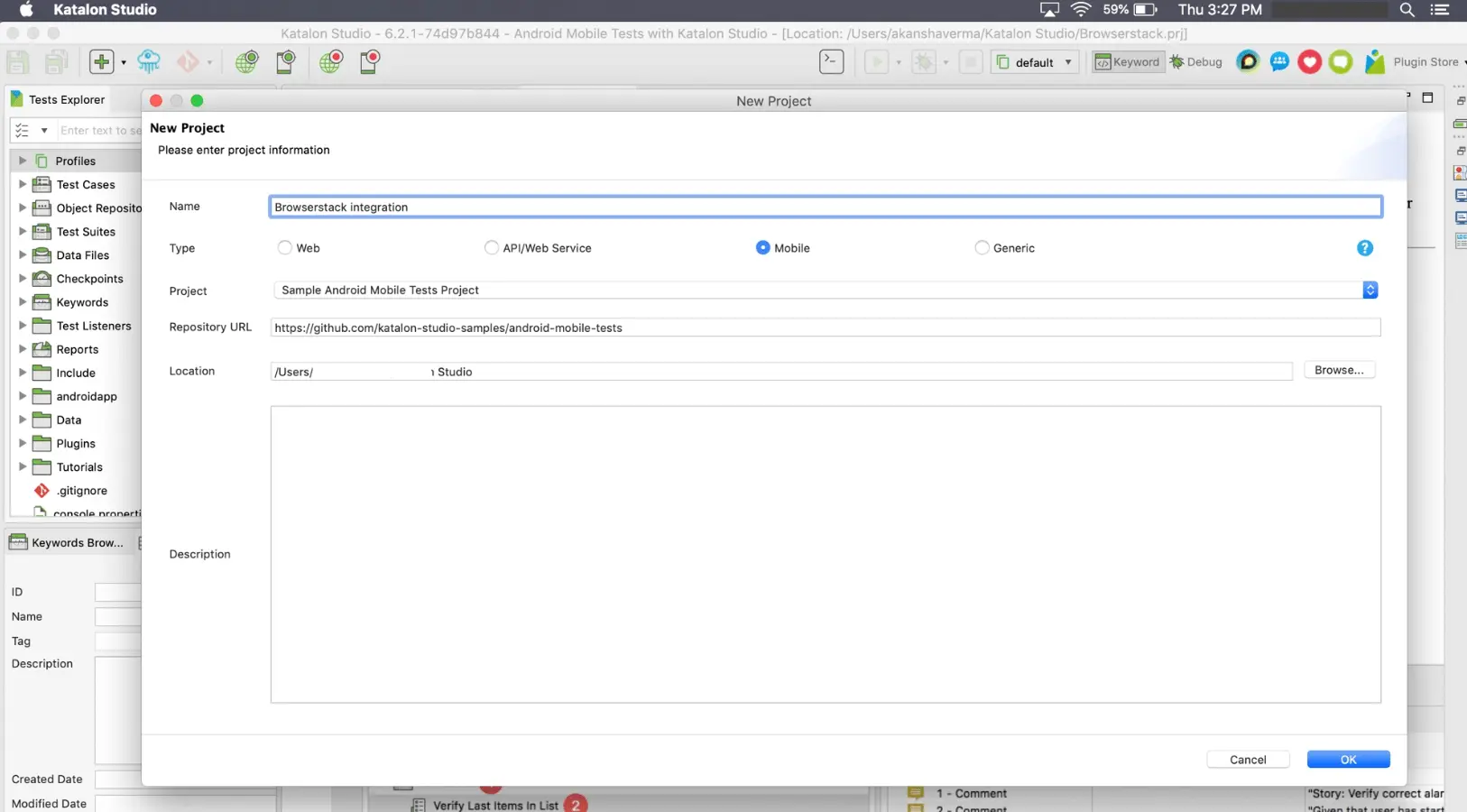
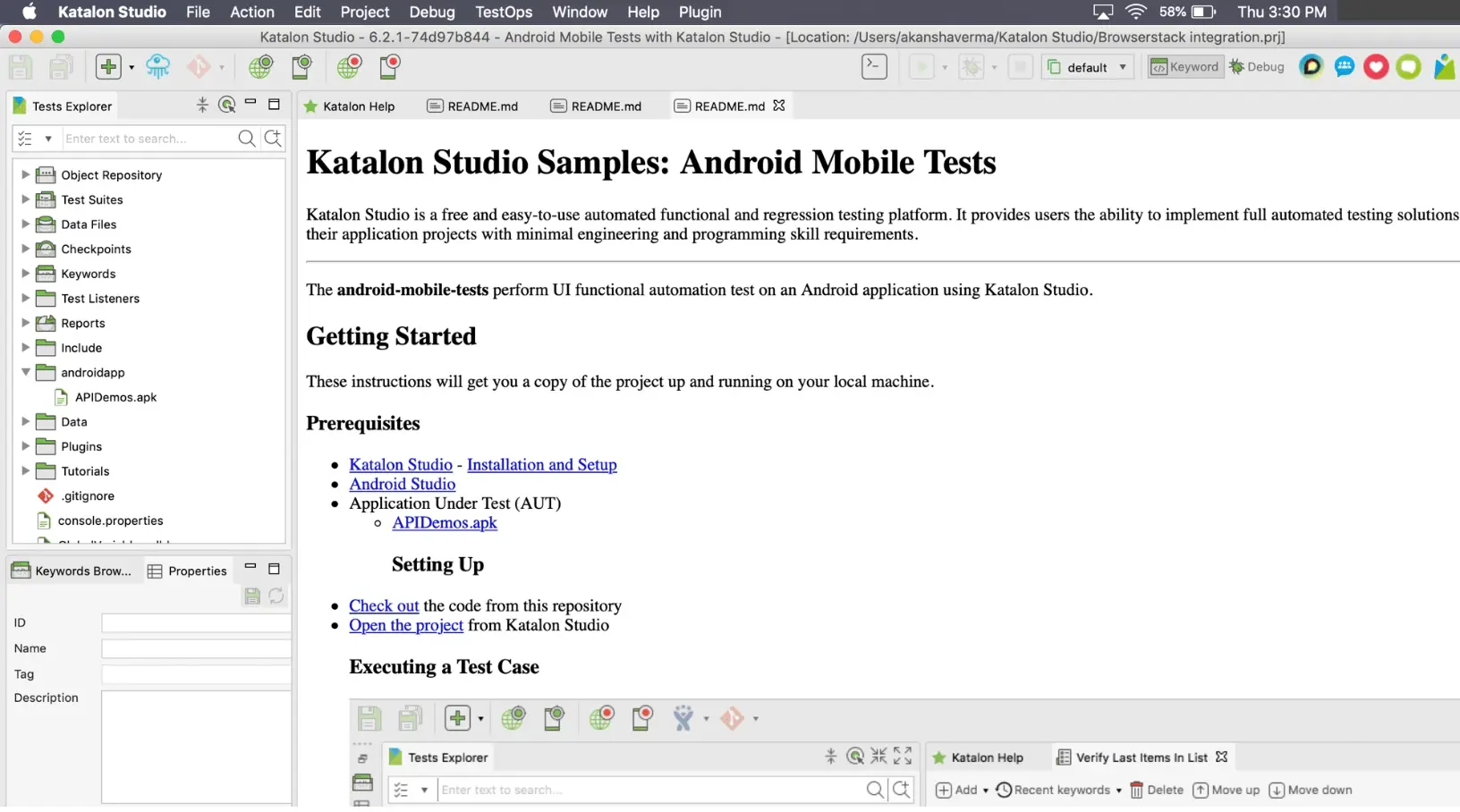
Download Katalon Studio by signing up for a free account at Katalon’s website. After installation, log in to Katalon Studio using your account credentials and create a new Sample Android Mobile Tests Project. This process uses the sample app and test cases provided by Katalon. You can replace them with your own app and test cases.
Set the project name in the Name field and click OK.
In the Tests Explorer window, go to the folder androidapp → APIDemos.apk. This is the application that will be tested on BrowserStack.
Upload app on the BrowserStack server
To learn how to upload your apps to BrowserStack devices and manage them, refer to the upload and manage apps section.
For example, to upload APIDemos.apk to BrowserStack with the REST API using your account credentials:
After the app uploads successfully, BrowserStack returns an app_url. This is the unique hashed ID of your uploaded app.
Configure the tests
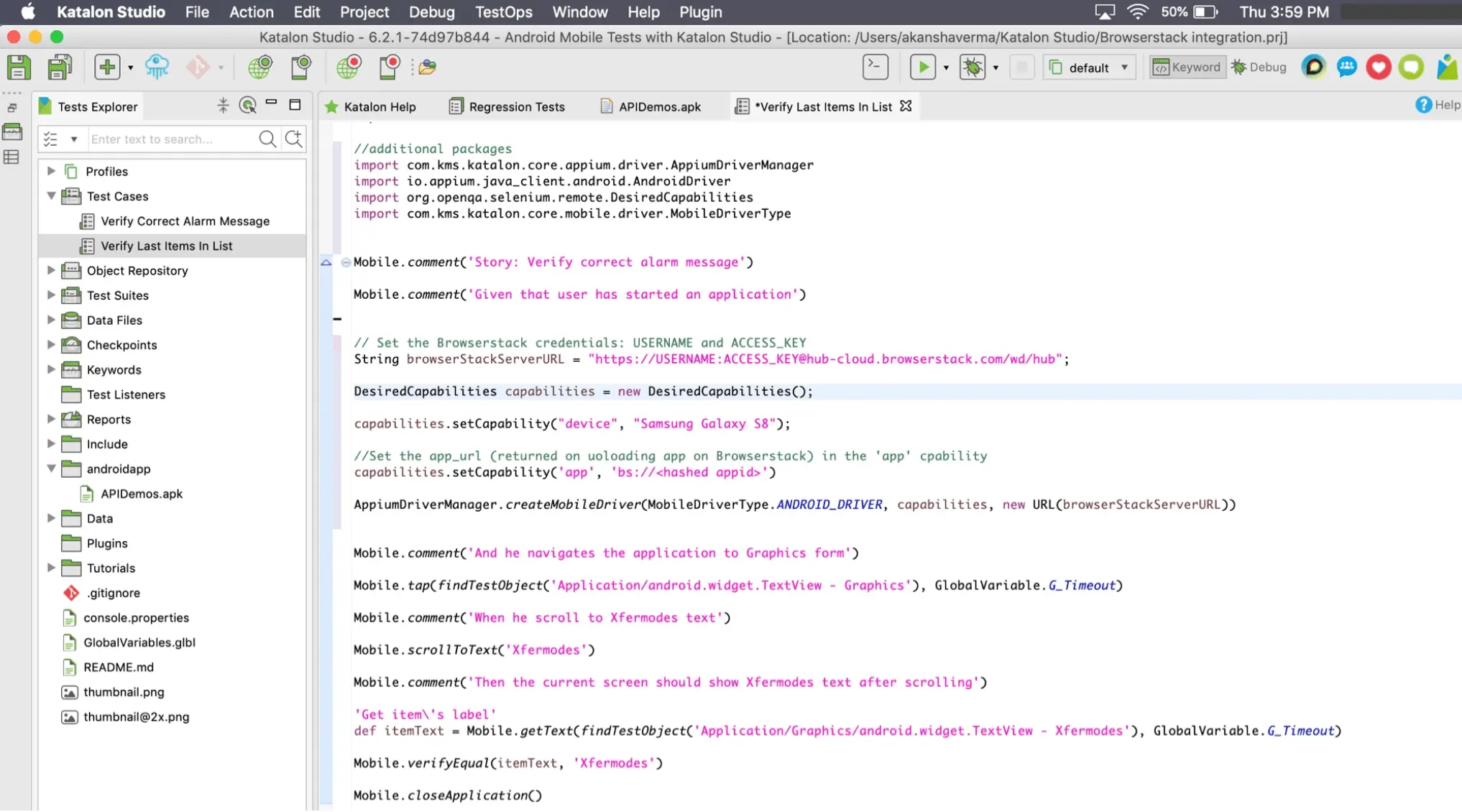
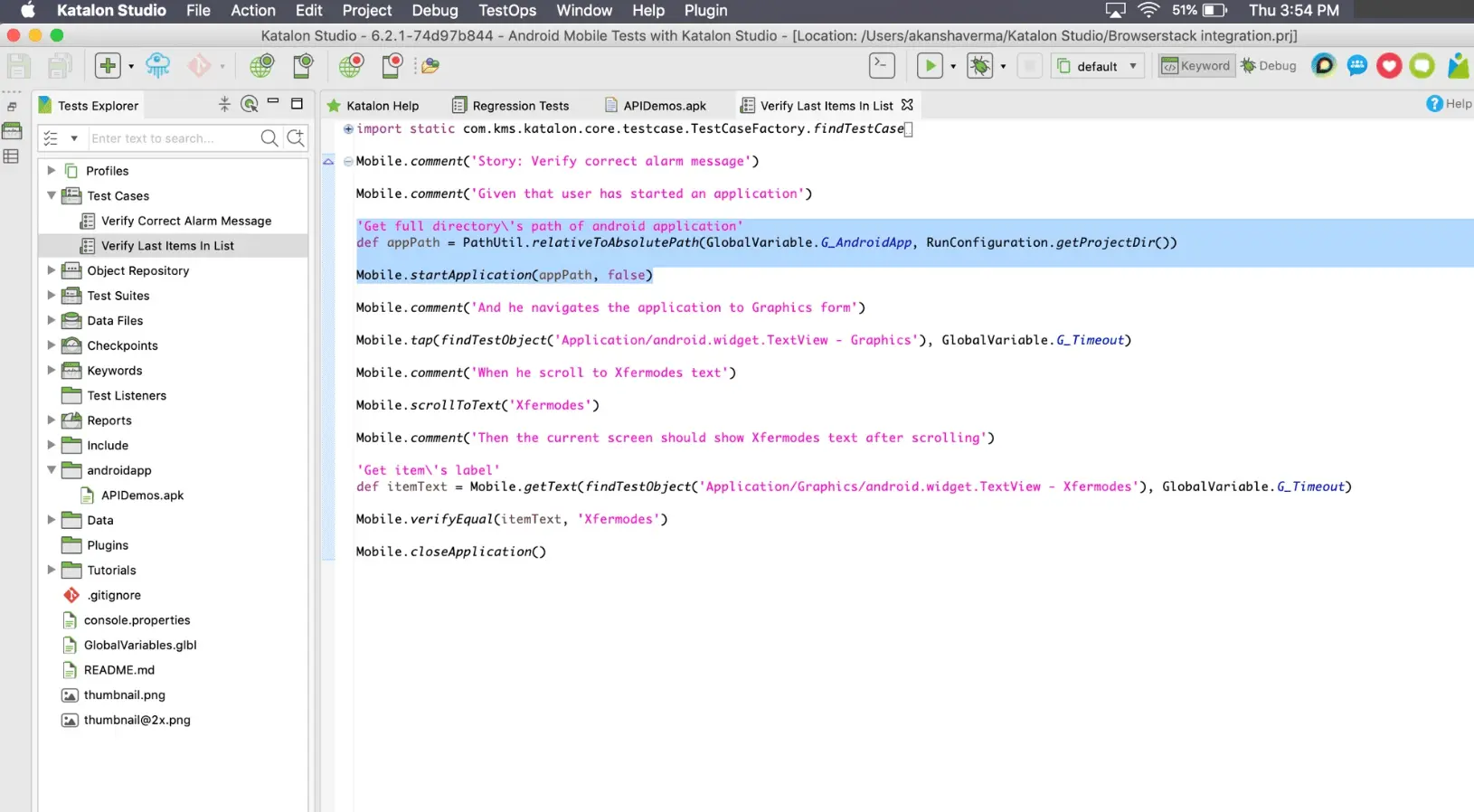
In the Tests Explorer section in Katalon Studio, go to Test Cases and open the test case named Verify Last Items In List in the script view. Replace the highlighted portion of the code as shown below:
Make the following changes to the code:
Replace this code:
```java
// Get full directory path of android application
def appPath = PathUtil.relativeToAbsolutePath(GlobalVariable.G_AndroidApp,RunConfiguration.getProjectDir())
Mobile.startApplication(appPath, false)
```
```java
// Set the BrowserStack credentials: USERNAME and ACCESS_KEY
String browserStackServerURL = "https://YOUR_USERNAME:YOUR_ACCESS_KEY@hub-cloud.browserstack.com/wd/hub";
DesiredCapabilities capabilities = new DesiredCapabilities();
capabilities.setCapability("device", "Samsung Galaxy S8");
//Set the app_url (returned on uploading app on BrowserStack) in the 'app' capability
capabilities.setCapability('app', '<app_url>');
AppiumDriverManager.createMobileDriver(MobileDriverType.ANDROID_DRIVER, capabilities, new URL(browserStackServerURL));
```
You can also replace the existing code in Verify Last Items In List with the sample test script and execute it. Update the following details in the script:
Add your USERNAME and ACCESS_KEY.
Add the app_url (bs://<hashed-id>) returned for the uploaded Android app.
Execute the test by clicking the play icon and visit the App Automate Dashboard to see your session running on BrowserStack.
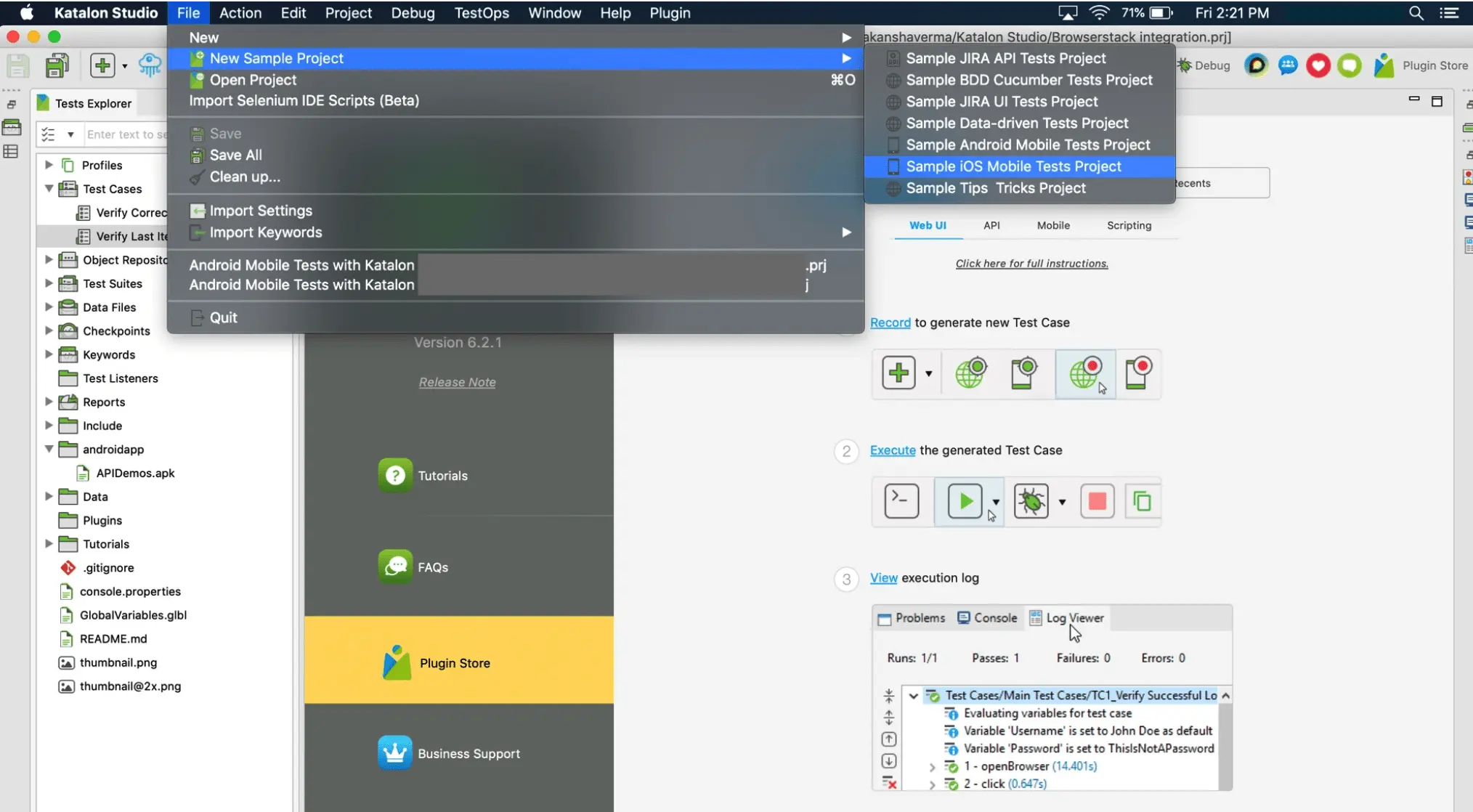
Download Katalon Studio by signing up for a free account at Katalon’s website. After installation, log in to Katalon Studio using your account credentials and create a new Sample iOS Mobile Tests Project. This process uses the sample app and test cases provided by Katalon. You can replace them with your own app and test cases.
Set the project name in the Name field and click OK.
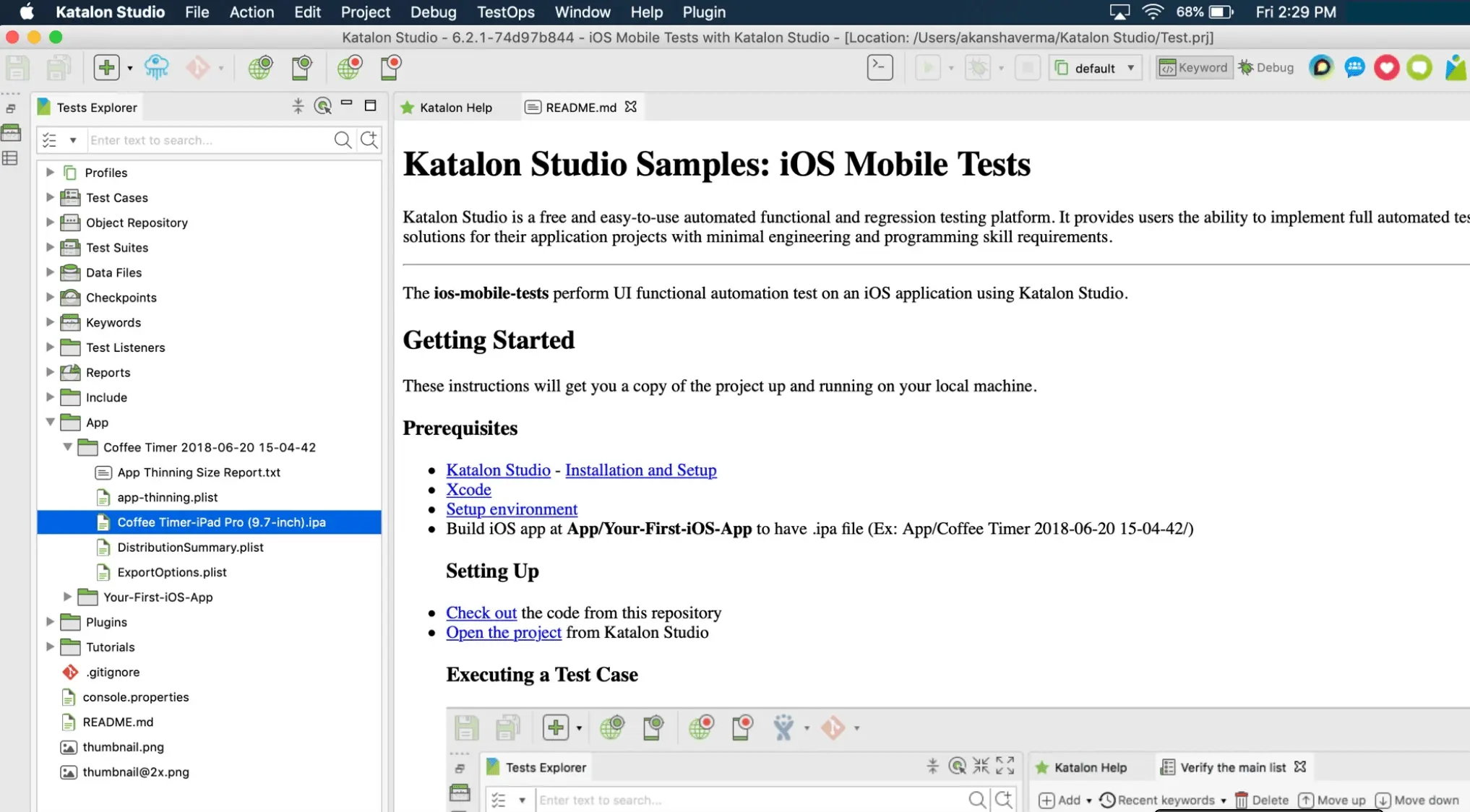
In the Tests Explorer window, go to the folder App → Coffee Timer-iPad Pro (9.7-inch).ipa. This is the application that will be tested on BrowserStack.
Upload app on the BrowserStack server
To learn how to upload your apps to BrowserStack devices and manage them, refer to the upload and manage apps section. For example, to upload Coffee Timer-iPad Pro (9.7-inch).ipa to BrowserStack with the REST API using your account credentials:
After the app uploads successfully, BrowserStack returns an app_url. This is the unique hashed ID of your uploaded app.
Configure the tests
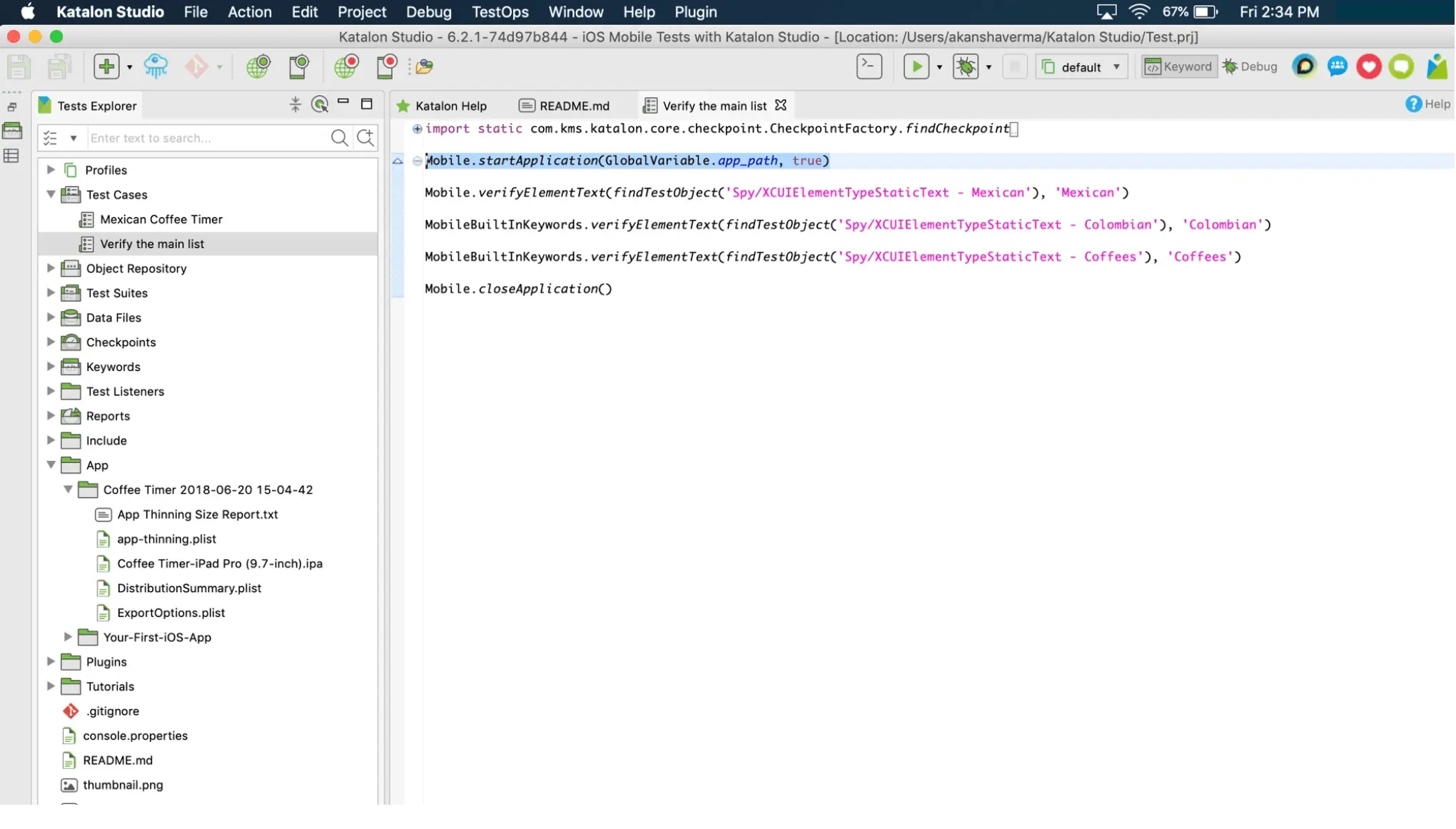
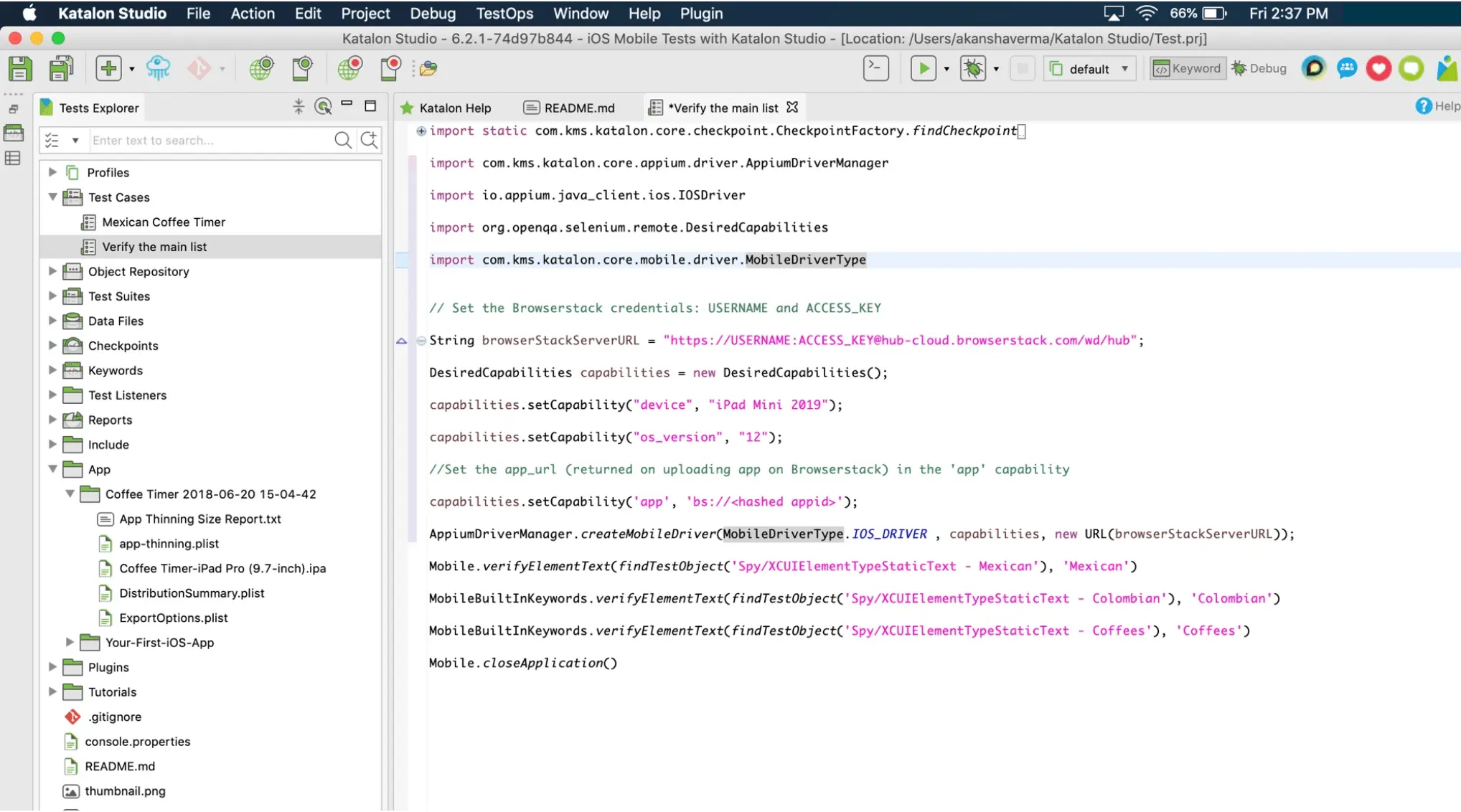
In the Tests Explorer section in Katalon Studio, go to Test Cases and open the file named Verify the main list in the script view. Replace the highlighted portion of the code as shown below:
```java
// Set the BrowserStack credentials: USERNAME and ACCESS_KEY
String browserStackServerURL = "https://YOUR_USERNAME:YOUR_ACCESS_KEY@hub-cloud.browserstack.com/wd/hub";
DesiredCapabilities capabilities = new DesiredCapabilities();
capabilities.setCapability("device", "iPad Mini 2019");
capabilities.setCapability("os_version", "12");
//Set the app_url (returned on uploading app on BrowserStack) in the 'app' capability
capabilities.setCapability('app', '<app_url>');
AppiumDriverManager.createMobileDriver(MobileDriverType.IOS_DRIVER , capabilities, new URL(browserStackServerURL));
```
You can also replace the existing code in the Verify the main list with the sample test script and execute it. Update the following details in the script:
Add your USERNAME and ACCESS_KEY.
Add the app_url (bs://<hashed-id>) returned for the uploaded iOS app.
Execute the test by clicking the play icon and visit the App Automate Dashboard to see your session running on BrowserStack.
Set session and build names
By default, BrowserStack labels each session and build automatically. You can set your own names to organize your tests on the App Automate dashboard. Choose one of the following approaches based on when the names are known.
Set names when you create the driver
If the session and build names are known before the test runs, set them as capabilities in the same block where you create the driver:
```java
capabilities.setCapability("sessionName", "Verify last items in list");
capabilities.setCapability("buildName", "Katalon Android build");
```
To name a session after the test case that produced it, you need the test case name and status at runtime. A Test Suite Listener exposes these through the TestCaseContext object, but the naming must happen after the session exists.
In Katalon Studio, the Appium driver is created only when a driver-starting step runs inside the test case body, such as AppiumDriverManager.createMobileDriver() or Mobile.startApplication(). Calling MobileDriverFactory.getDriver() inside the @BeforeTestCase method of a Test Suite Listener runs before the driver exists and fails with StepFailedException: No application is started yet. Read the driver from @AfterTestCase instead, after the test case has started the session.
Implement the listener in one of the following two ways. Both read the driver in @AfterTestCase, so register only one of them.
The first approach updates the session from the @AfterTestCase method using the BrowserStack REST API. At this point the test case has already started the session, so you can read its ID from the driver and send the runtime name and status:
```groovy
import com.kms.katalon.core.annotation.AfterTestCase
import com.kms.katalon.core.context.TestCaseContext
import com.kms.katalon.core.mobile.keyword.internal.MobileDriverFactory
import io.appium.java_client.AppiumDriver
import groovy.json.JsonOutput
class BrowserstackListener {
@AfterTestCase
def afterTestCase(TestCaseContext testCaseContext) {
try {
// Read the active session created during the test case
AppiumDriver driver = MobileDriverFactory.getDriver()
String sessionId = driver.getSessionId().toString()
// Read the test case name and status from Katalon
String testCaseName = testCaseContext.getTestCaseId()
String katalonStatus = testCaseContext.getTestCaseStatus()
// BrowserStack accepts only "passed" or "failed" for status
String status = katalonStatus == "PASSED" ? "passed" : "failed"
// Update the session on BrowserStack
String username = "YOUR_USERNAME"
String accessKey = "YOUR_ACCESS_KEY"
String auth = Base64.getEncoder().encodeToString((username + ":" + accessKey).getBytes())
URL url = new URL("https://api-cloud.browserstack.com/app-automate/sessions/" + sessionId + ".json")
HttpURLConnection connection = (HttpURLConnection) url.openConnection()
connection.setRequestMethod("PUT")
connection.setRequestProperty("Authorization", "Basic " + auth)
connection.setRequestProperty("Content-Type", "application/json")
connection.setDoOutput(true)
Map body = [name: testCaseName, status: status]
connection.getOutputStream().write(JsonOutput.toJson(body).getBytes("UTF-8"))
println("BrowserStack session update returned: " + connection.getResponseCode())
} catch (Exception e) {
println("Could not update the BrowserStack session: " + e.getMessage())
}
}
}
```
The second approach updates the session with the browserstack_executor JavaScript executor instead of the REST API. Because the session is still active when @AfterTestCase runs, this keeps your username and access key out of the listener:
```groovy
import com.kms.katalon.core.annotation.AfterTestCase
import com.kms.katalon.core.context.TestCaseContext
import com.kms.katalon.core.mobile.keyword.internal.MobileDriverFactory
import io.appium.java_client.AppiumDriver
import org.openqa.selenium.JavascriptExecutor
import groovy.json.JsonOutput
class BrowserstackListener {
@AfterTestCase
def afterTestCase(TestCaseContext testCaseContext) {
try {
// Read the active session created during the test case
AppiumDriver driver = MobileDriverFactory.getDriver()
JavascriptExecutor jse = (JavascriptExecutor) driver
// Read the test case name and status from Katalon
String testCaseName = testCaseContext.getTestCaseId()
String katalonStatus = testCaseContext.getTestCaseStatus()
// BrowserStack accepts only "passed" or "failed" for status
String status = katalonStatus == "PASSED" ? "passed" : "failed"
// Set the session name
Map namePayload = [action: "setSessionName", arguments: [name: testCaseName]]
jse.executeScript("browserstack_executor: " + JsonOutput.toJson(namePayload))
// Set the session status
Map statusPayload = [action: "setSessionStatus", arguments: [status: status, reason: katalonStatus]]
jse.executeScript("browserstack_executor: " + JsonOutput.toJson(statusPayload))
} catch (Exception e) {
println("Could not update the BrowserStack session: " + e.getMessage())
}
}
}
```
Ensure the test case does not close the app as its final step:
If the last step is Mobile.closeApplication(), which Katalon sample tests often use, the driver is already quit by the time @AfterTestCase runs.
MobileDriverFactory.getDriver() then throws the same StepFailedException, and the update silently falls into the catch block.
Remove the closing step from the test case body, as Katalon tears down the driver after listeners run anyway.
Register the listener in your project so that it runs for every test case. Katalon runs @AfterTestCase once per test case, so each session is named after the test case that created it.
Did this page help you?
We're sorry to hear that. Please share your feedback so we can do better
Contact our Support team for immediate help while we work on improving our docs.
We're continuously improving our docs. We'd love to know what you liked
Thank you for your valuable feedback
Is this page helping you?
Yes
No
We're sorry to hear that. Please share your feedback so we can do better
Contact our Support team for immediate help while we work on improving our docs.
We're continuously improving our docs. We'd love to know what you liked

 Join our Discord
 Make the following changes to the code: