
Get your setup working faster. Join our Discord for optimisation tips from elite testers.
 Join our Discord
Join our Discord
Fix with one click
Fix repeated accessibility issues in a frame or component with one click.
One click fix helps designers remediate detected issues in Figma with a single action. When a fix is available for an issue, you can apply it to selected layers or components, preview the change, and keep your design accessible without manual edits.
Prerequisites
- Installed the Accessibility Design Toolkit Figma plugin for your account.
- Signed in to the plugin with your BrowserStack credentials.
- Opened a Figma file and run a layout scan.
Benefits
- Faster remediation: Fix common issues with a single action.
- Reduced rework: Avoid repeated manual edits to fix the same issue.
- Consistent outcomes: Apply changes uniformly across files.
How to fix with one click
Follow these steps to fix eligible issues with one click:
- Open your Figma file and run a layout scan using the Accessibility Design Toolkit plugin.
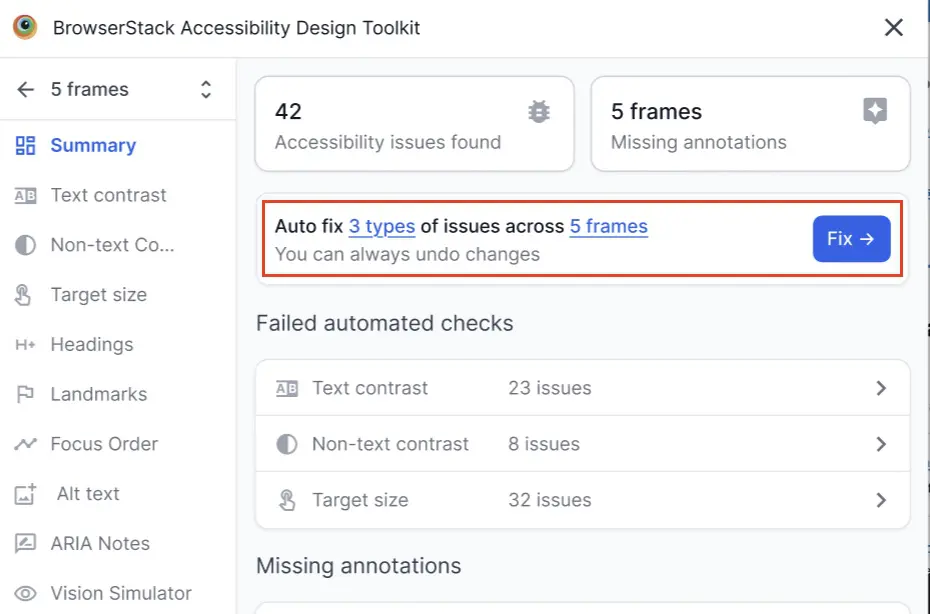
- In the results panel, click Fix next to an issue that supports one click fix. You can identify such issues when you see text like Auto fix 3 types of issues across 5 frames. The numbers change based on how many issue types and frames the plugin detects. If a fix is not available, the Fix button is disabled and the issue includes guidance to remediate manually.
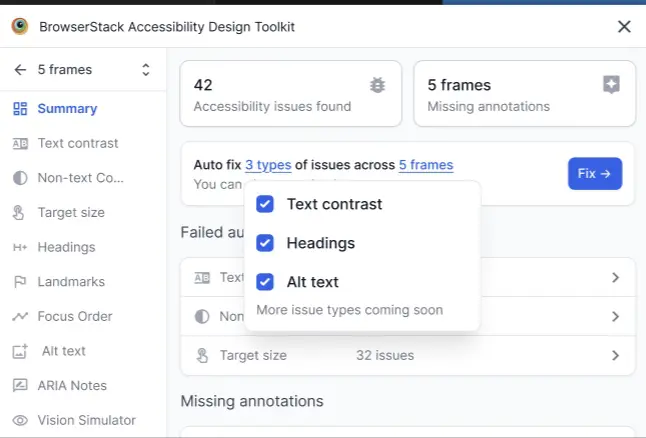
- Click the issue types link (for example, 3 types of issues). Select the types of issues you want to fix.
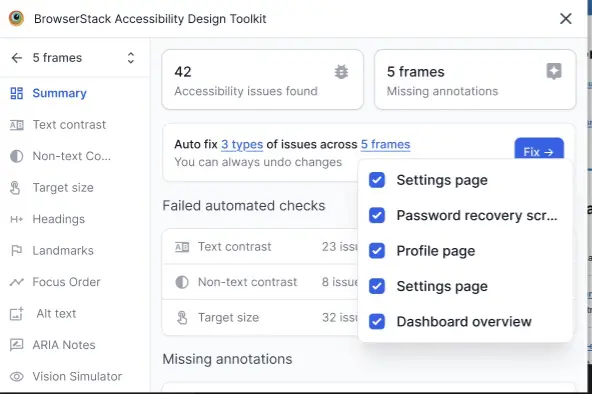
- Click the frames link (for example, 5 frames). Select the frames across which you want to make the same fix.
- Click Fix.
- You can see all the accessibility issues fixed with one click. Click the expander to view the individual issues fixed under each issue type.
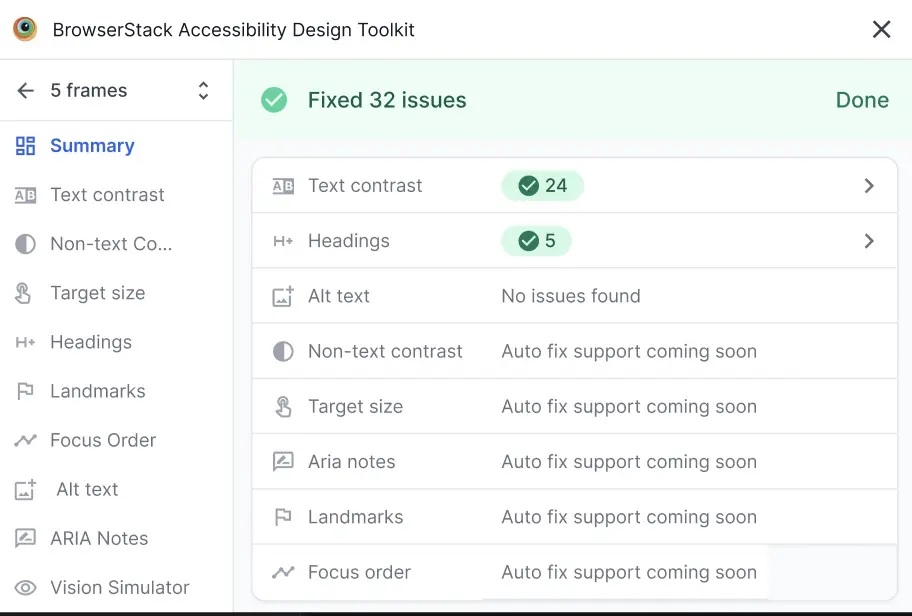
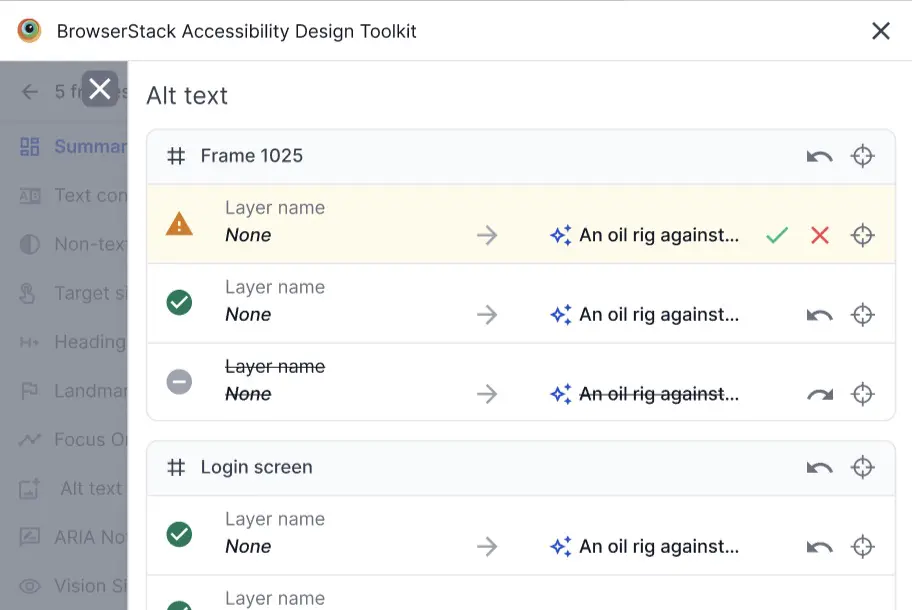
- You can view the individual fixes, accept or reject them individually, or undo fixes by clicking the corresponding buttons against each issue.
Troubleshooting
- If Fix is disabled, the issue type may not be supported. See supported fixes.
- If changes do not appear, confirm plugin permissions and that layers/components are editable.
Related links
We're sorry to hear that. Please share your feedback so we can do better
Contact our Support team for immediate help while we work on improving our docs.
We're continuously improving our docs. We'd love to know what you liked
We're sorry to hear that. Please share your feedback so we can do better
Contact our Support team for immediate help while we work on improving our docs.
We're continuously improving our docs. We'd love to know what you liked
Thank you for your valuable feedback!