
 Join our Discord
Get started with JetBrains IDEs
Install the BrowserStack plugin for JetBrains IDEs to run accessibility scans while you code.
You can use the BrowserStack plugin in JetBrains IDEs (IntelliJ, WebStorm, Android Studio and others) to identify and fix accessibility issues as you develop your applications.
Prerequisites
Ensure you have the latest JetBrains IDE installed and a BrowserStack account. IDEs with version 2022.3 and higher support accessibility features. If you do not have a BrowserStack account, you can sign up for free.
Install the plugin
To install the Accessibility DevTools plugin, follow these steps:
- Open your JetBrains IDE (for example, IntelliJ IDEA or WebStorm).
- Click the settings icon at the top right to open Settings/Preferences.
- Click Plugins and go to the Marketplace tab.
- Search for
BrowserStackor get it from the JetBrains Marketplace. - Click Install.
- Restart the IDE when prompted. After restart, BrowserStack appears in the Installed plugins list.
Set up the extension
Set your BrowserStack credentials so the plugin can authenticate:
- Log in to your BrowserStack account or sign up if you don’t have one.
- Find your Username and Access Key in the Account & Profile page.
- In your JetBrains IDE, open Settings and click BrowserStack.
-
Enter your Username and Access Key (from Step 2) in the respective fields.
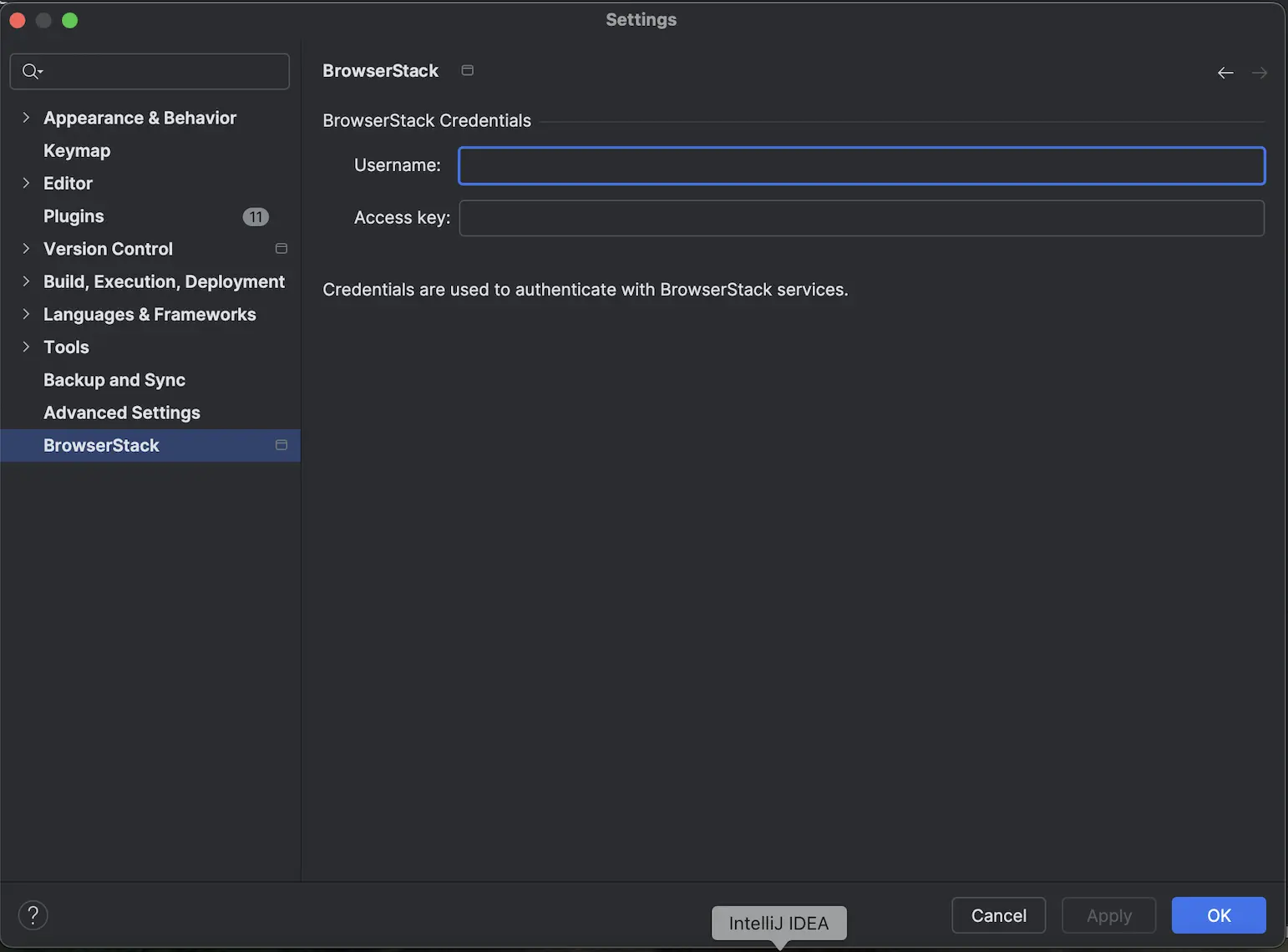
- Click Apply then OK. The plugin validates the credentials.
Restart the IDE to load the updated environment.
Run accessibility scans
To run an accessibility scan while coding, follow these steps:
- Open a supported code file in your JetBrains IDE. As you write or edit code, accessibility issues are automatically detected and highlighted inline.
- Hover over the highlighted code to view detailed information about the accessibility problem.
- You can also fix the issue using AI. Click the lightbulb icon, then choose the Fix with AI option. To do this, you must enable AI chat in your IDE. For more information, see Fix errors with AI.
- Review the suggested fix. Apply it or modify the code manually.
- Continue editing until no issues remain. After resolving all the issues, commit your changes to keep accessibility fixes incremental.
We're sorry to hear that. Please share your feedback so we can do better
Contact our Support team for immediate help while we work on improving our docs.
We're continuously improving our docs. We'd love to know what you liked
We're sorry to hear that. Please share your feedback so we can do better
Contact our Support team for immediate help while we work on improving our docs.
We're continuously improving our docs. We'd love to know what you liked
Thank you for your valuable feedback!