
 Join our Discord
Add collaborators to Accessibility reports
Provide access to review, hide, and unhide issues in Accessibility reports.
In BrowserStack Accessibility Testing, you can grant collaborators access through the Manage Issues permission in Roles & Permissions. Assign this permission to a custom RBAC role, and each user with that specific role can collaborate with report authors.
Level of collaboration
A user with the Manage Issues permission can perform the following actions:
| Action | Description |
|---|---|
| Confirm Potential Issue | Mark a Potential Issue as a genuine issue. |
| Dismiss Potential Issue | Mark a Potential Issue as not an issue. |
| Undo Potential Issue decision | Return a confirmed issue to Potential Issue. |
| Hide issue | Remove an issue from the report view. |
| Unhide issue | Restore a hidden issue. |
| Bulk actions | Hide, unhide, and review issues in bulk from the table view. |
Access by role
Access to the permission varies by role:
| Role | Access to collaborate |
|---|---|
| Owner | Has the access by default. No setup needed. |
| Admin | Has the access by default. Can also grant it to a custom role. |
| User | Doesn’t have the access by default. Can ask an Owner or Admin to grant it through a custom role. |
| Custom role | This is the only way an Owner or Admin can grant the access to collaborate by enabling the permission for the specific custom role. Doesn’t have the access by default. |
Custom roles are available only on the Enterprise plan.
Grant the Manage Issues permission
Only Admins and Owners can grant this permission. Follow these steps:
- Go to Settings > Roles & Permissions.
- Select RBAC roles in the Role type list.
-
Create a custom role. a. Select User role and click Duplicate role.
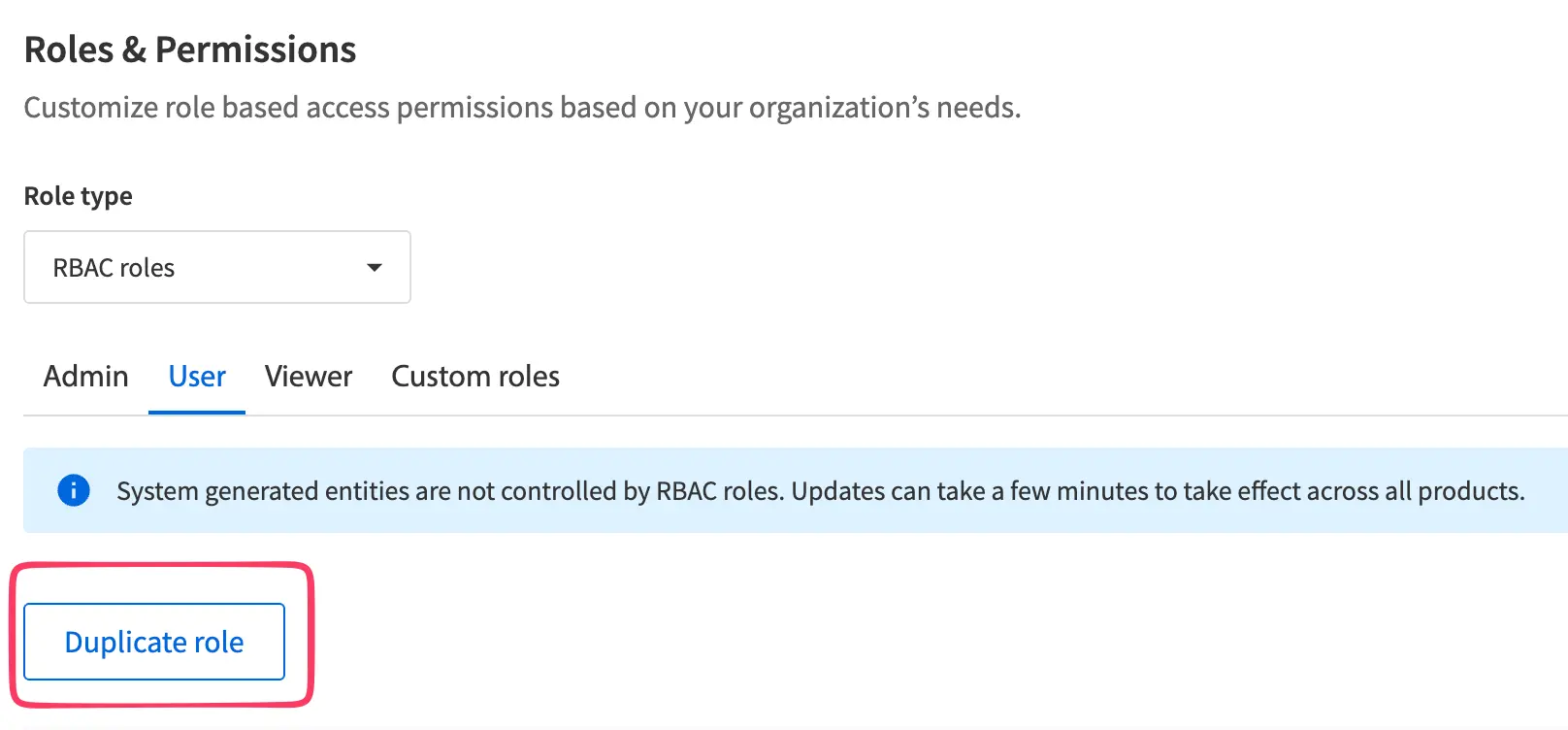
b. Enter a name for the custom role and click Create.
- Find the Builds row in the newly created custom role and click Advanced.
- In the Additional permissions for Builds dialog, select the checkbox next to Manage Issues.
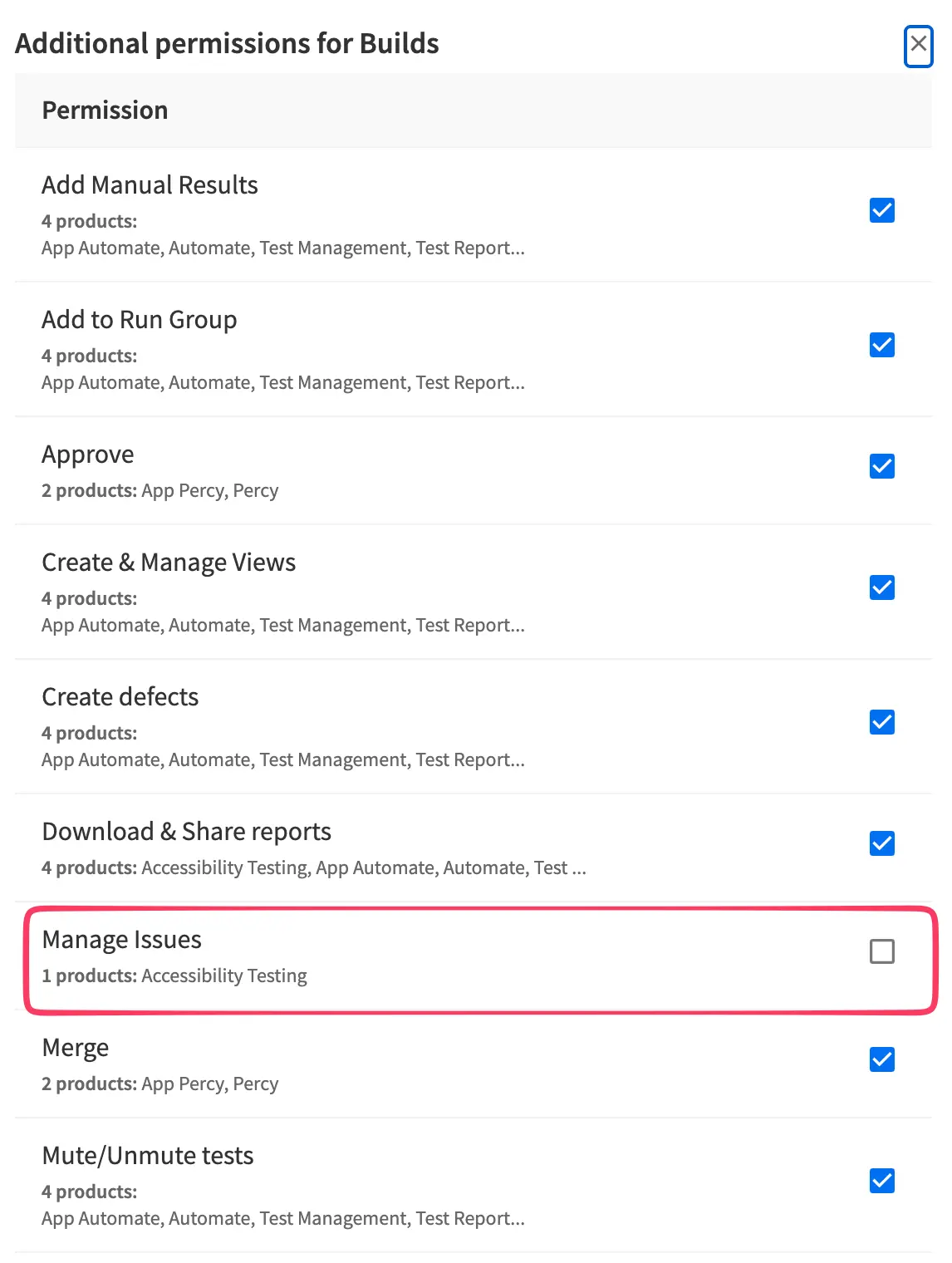
- Click Done, then click Save changes.
Assign the custom role to a user
Follow these steps to assign a role with the Manage Issues permission to a user:
- Go to User Management > Users.
- Search and find the user.
- Edit the user’s RBAC Role and assign the custom role with the Manage Issues permission.
The role takes a few minutes to take effect. BrowserStack then applies the updated access across every Accessibility report in the user’s group.
To learn about creating and updating custom roles, see Manage custom roles.
Revoke access
To revoke access for a specific user, remove the user from the custom role. To remove collaboration access for all users, clear the Manage Issues checkbox for that custom role in Roles & Permissions.
We're sorry to hear that. Please share your feedback so we can do better
Contact our Support team for immediate help while we work on improving our docs.
We're continuously improving our docs. We'd love to know what you liked
We're sorry to hear that. Please share your feedback so we can do better
Contact our Support team for immediate help while we work on improving our docs.
We're continuously improving our docs. We'd love to know what you liked
Thank you for your valuable feedback!