
 Join our Discord
Access Workflow Analyzer reports on the dashboard
View a visual summary and a detailed report of each Workflow Analyzer test run.
After each Workflow Analyzer run, an accessibility report is generated. The accessibility report contains details such as the issue summary, affected components and pages, and the categories of the issues. You can also view the issue type, violated WCAG guidelines, and recommendations on how to fix the issues.
You can view the reports in two ways:
- Individual test report: View the report of a Workflow Analyzer test run.
- Consolidated test report: Combine multiple test reports to view a consolidated test report. To know how to create a consolidated report, see Create a consolidated report.
View Workflow Analyzer test report
To view an individual accessibility test report:
- Launch the Accessibility Testing dashboard.
- In the navigation menu, click Workflow Analyzer.
The Workflow Analyzer page lists all the accessibility test reports run using Workflow Analyzer.
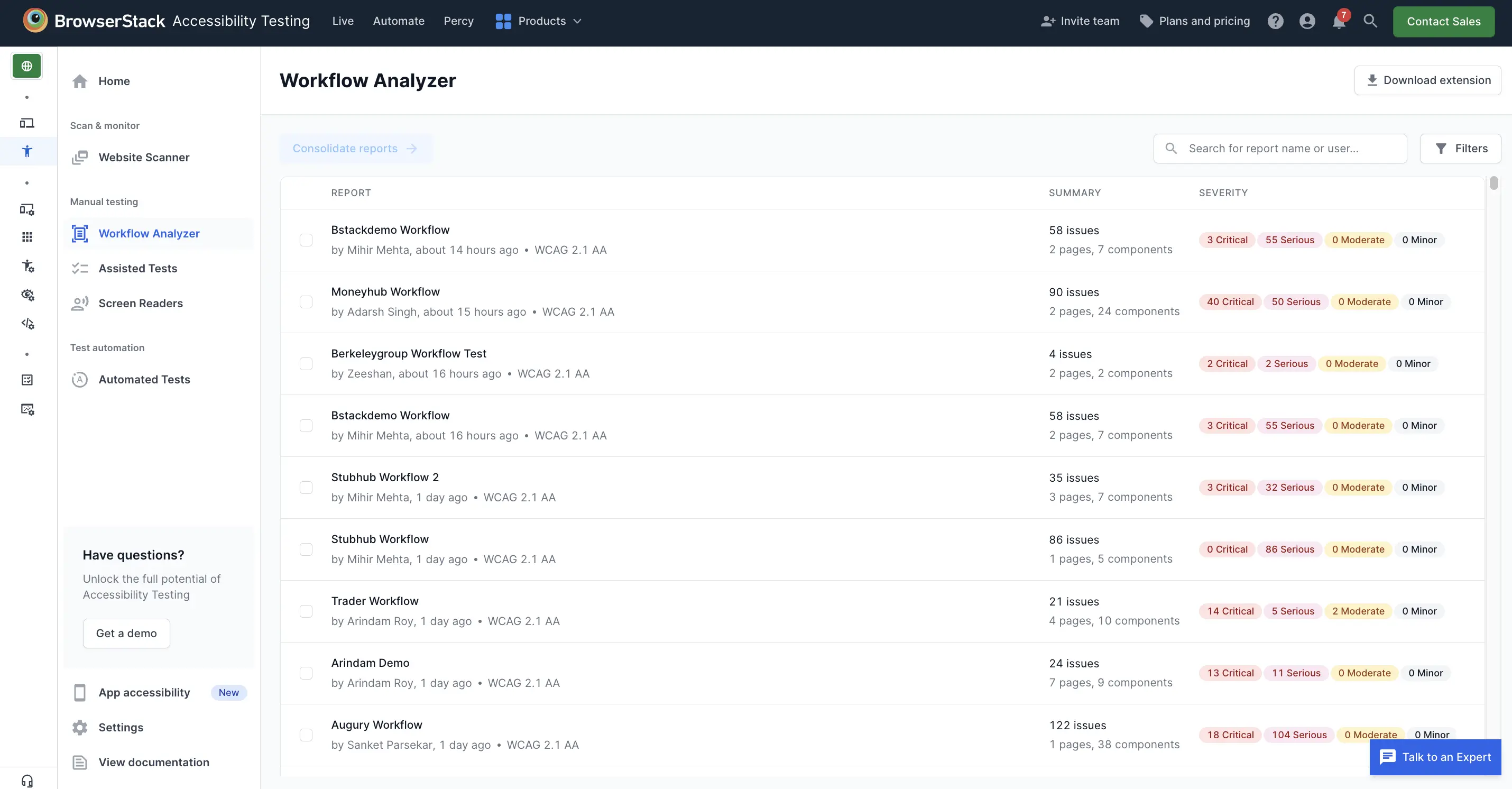
- In the list of reports, find the test report you want to view.
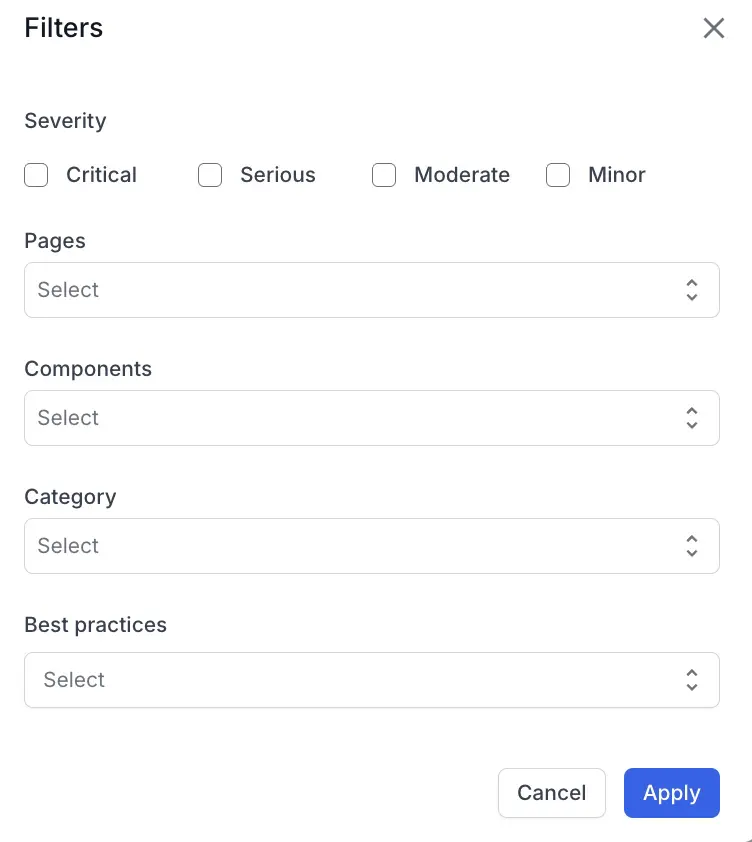
You can search for a report by its name or the user who generated the report. You can also filter the list by the time of creation, user or team.
- Click the report you want to view.
The report contains two tabs: Summary and All issues.-
Summary: It shows a visual summary of the accessibility test. You can view the issues identified broken down based on their severity, the affected components and pages, issue category, conformance summary, issues that need review, and issues that are hidden.
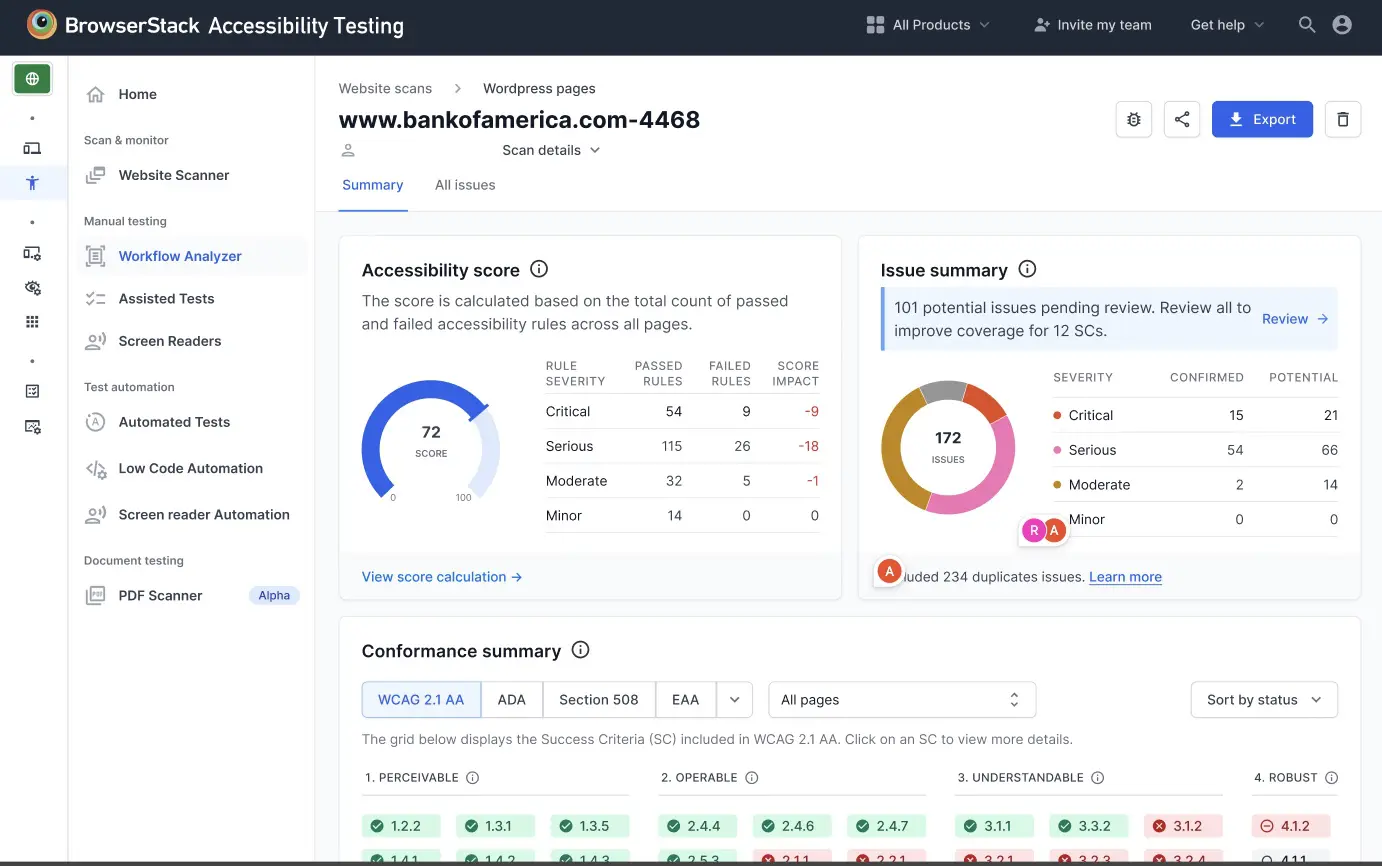 The Conformance summary widget helps you understand the level of conformance of your website on a particular report against Web Content Accessibility Guidelines(WCAG), Americans with Disabilities Act (ADA), Section 508, European Accessibility Act (EAA), and RGAA (Référentiel Général d’Amélioration de l’Accessibilité) guidelines. You can switch between the tabs to view conformance according to each guideline.
 -
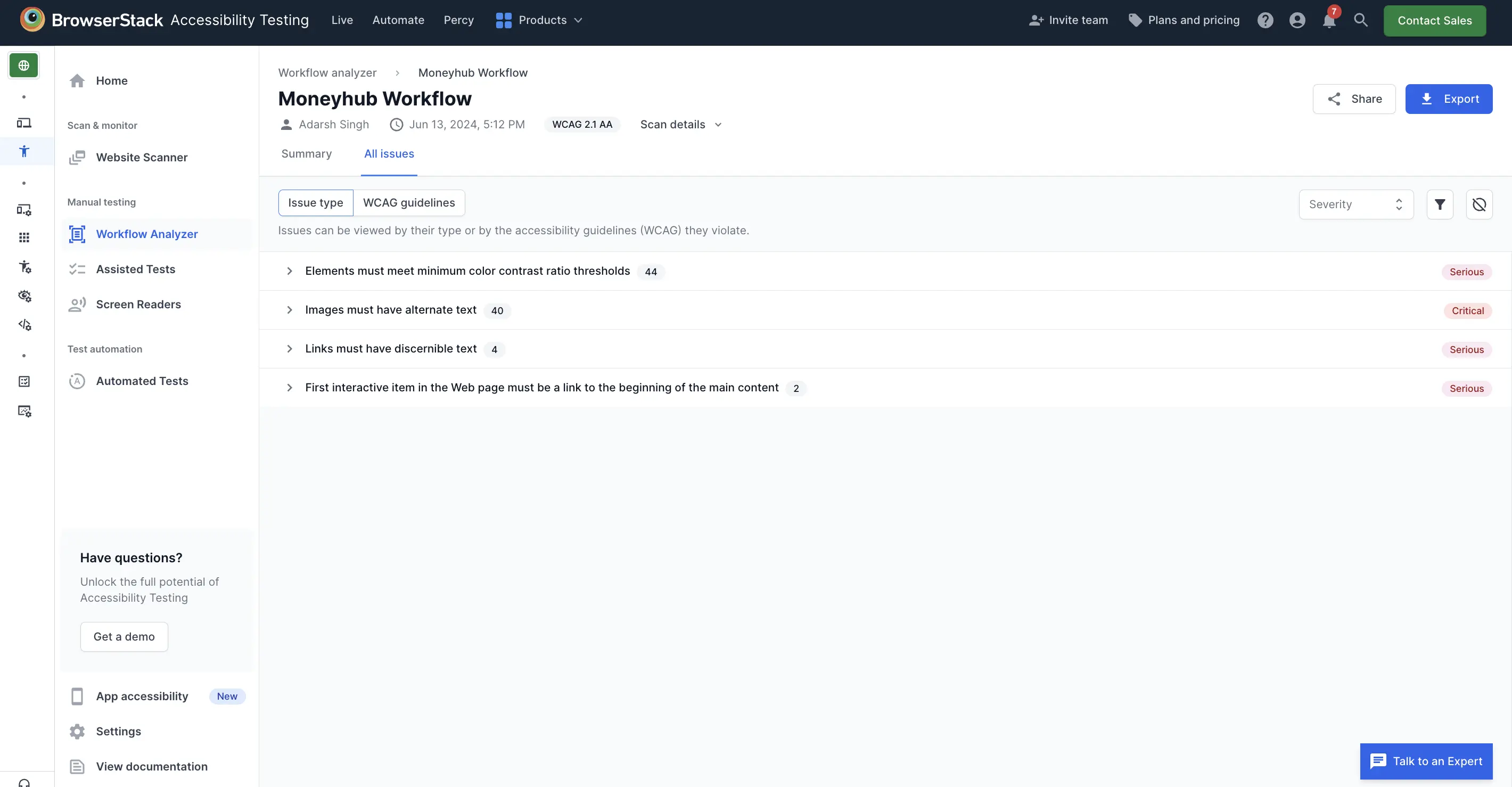
All issues: It shows a list of issues grouped into components, along with the details that you can use to further analyze an issue.
The All issues tab has two subtabs: Issue type and WCAG guidelines.
You can view issues by the type of issues or according to WCAG guidelines. Viewing issues by WCAG guidelines can be helpful in creating a VPAT (Voluntary Product Accessibility Template) report.
The All issues tab also has a split view and a table view. For more information, refer to Table view and split view.
The Issue type tab groups accessibility issues under Confirmed issues and Potential issues. Confirmed issues are accessibility issues that BrowserStack Accessibility Testing can detect with 100% confidence.
Potential issues are more complicated cases in which case-specific nuances make it difficult for the tool to have 100% confidence in declaring it as an issue. Accessibility Testing assigns a confidence level to every potential issue. Move the Confidence slider to show potential issues above a chosen confidence level.
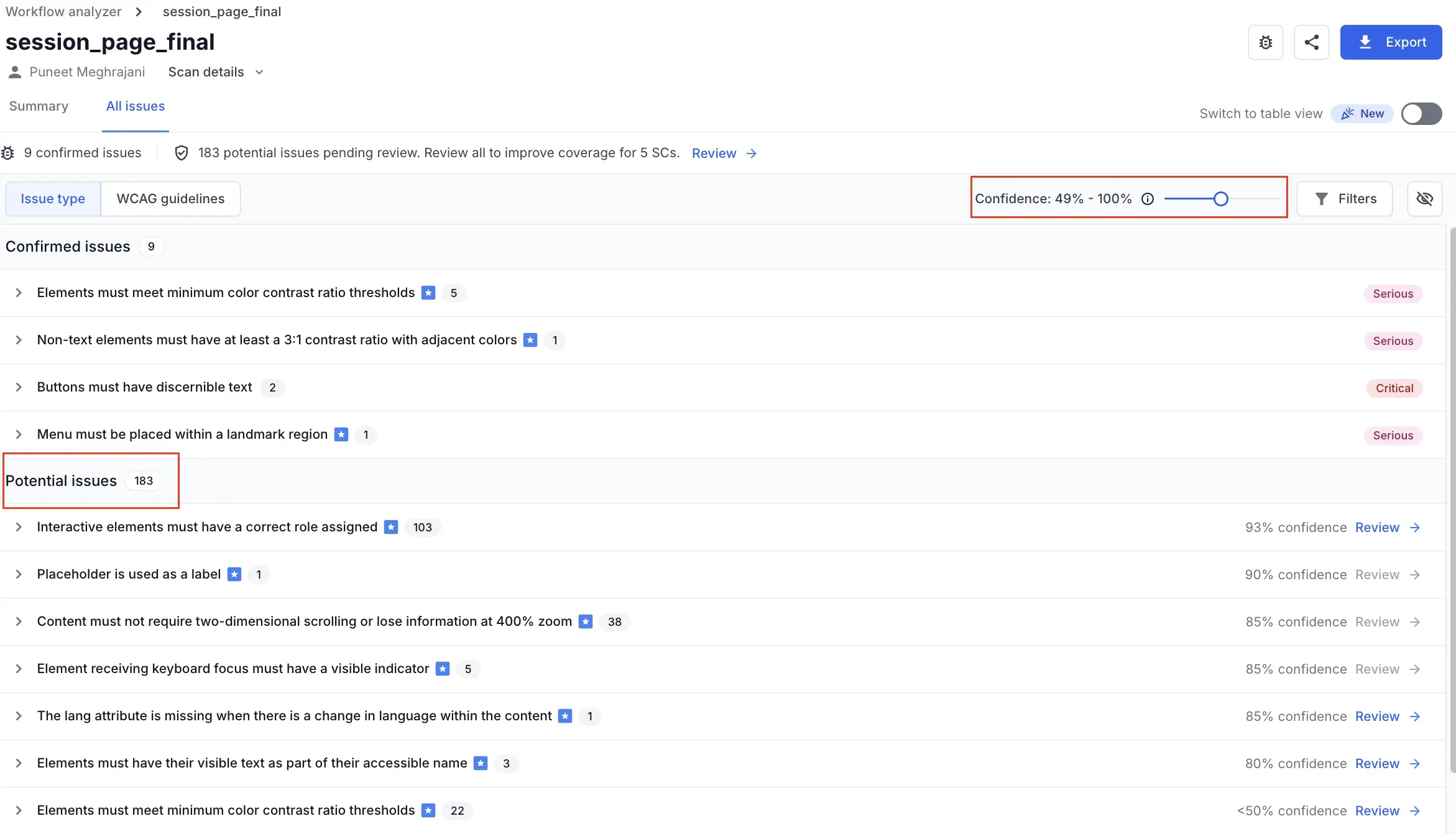
The issues classified under Confirmed issues also include a severity classification. You can expand a confirmed issue to further investigate and resolve the components with accessibility violations. The issues tab also lists the number of confirmed issues and the number of potential issues right on top so you can track them.
-
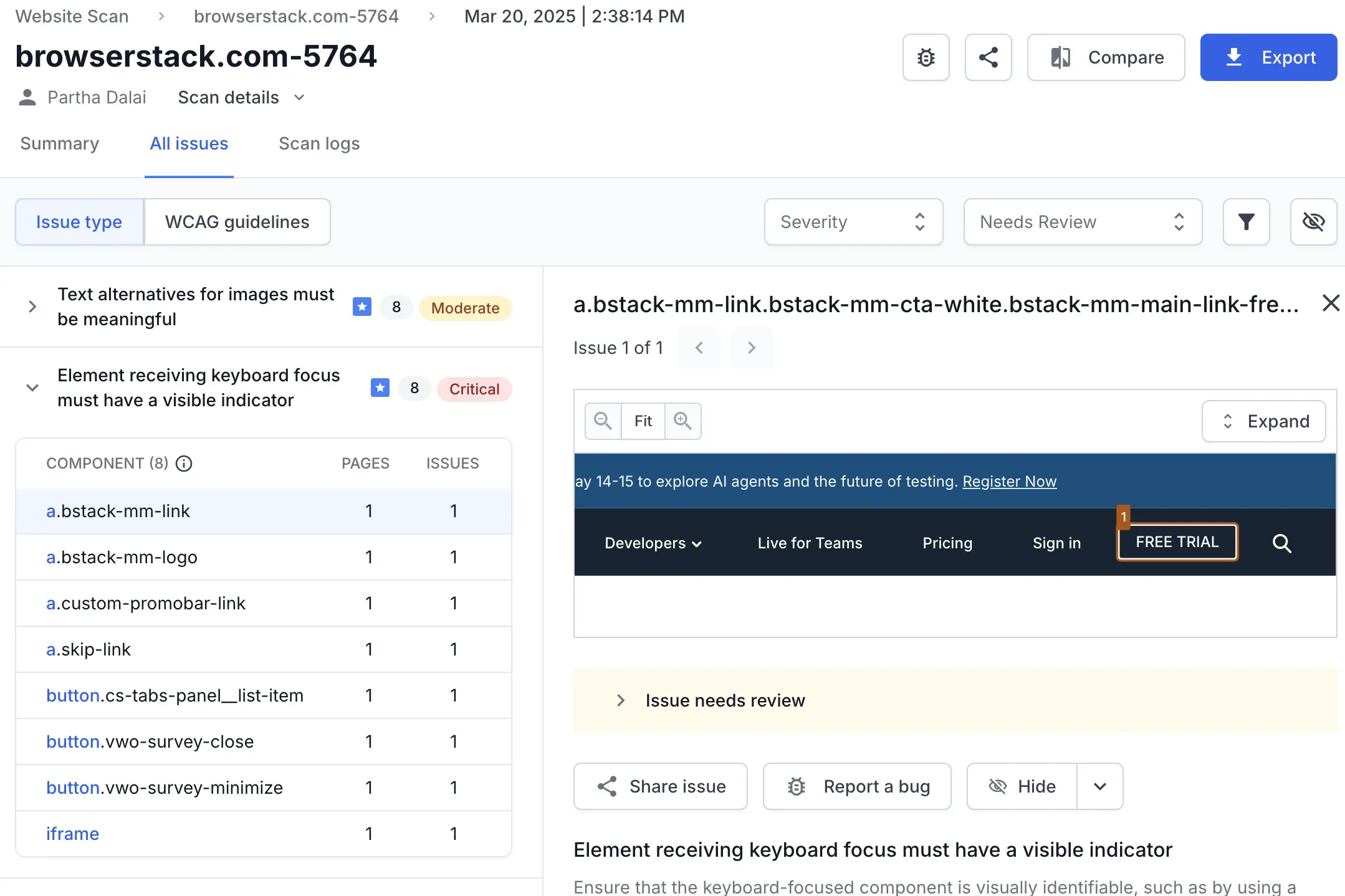
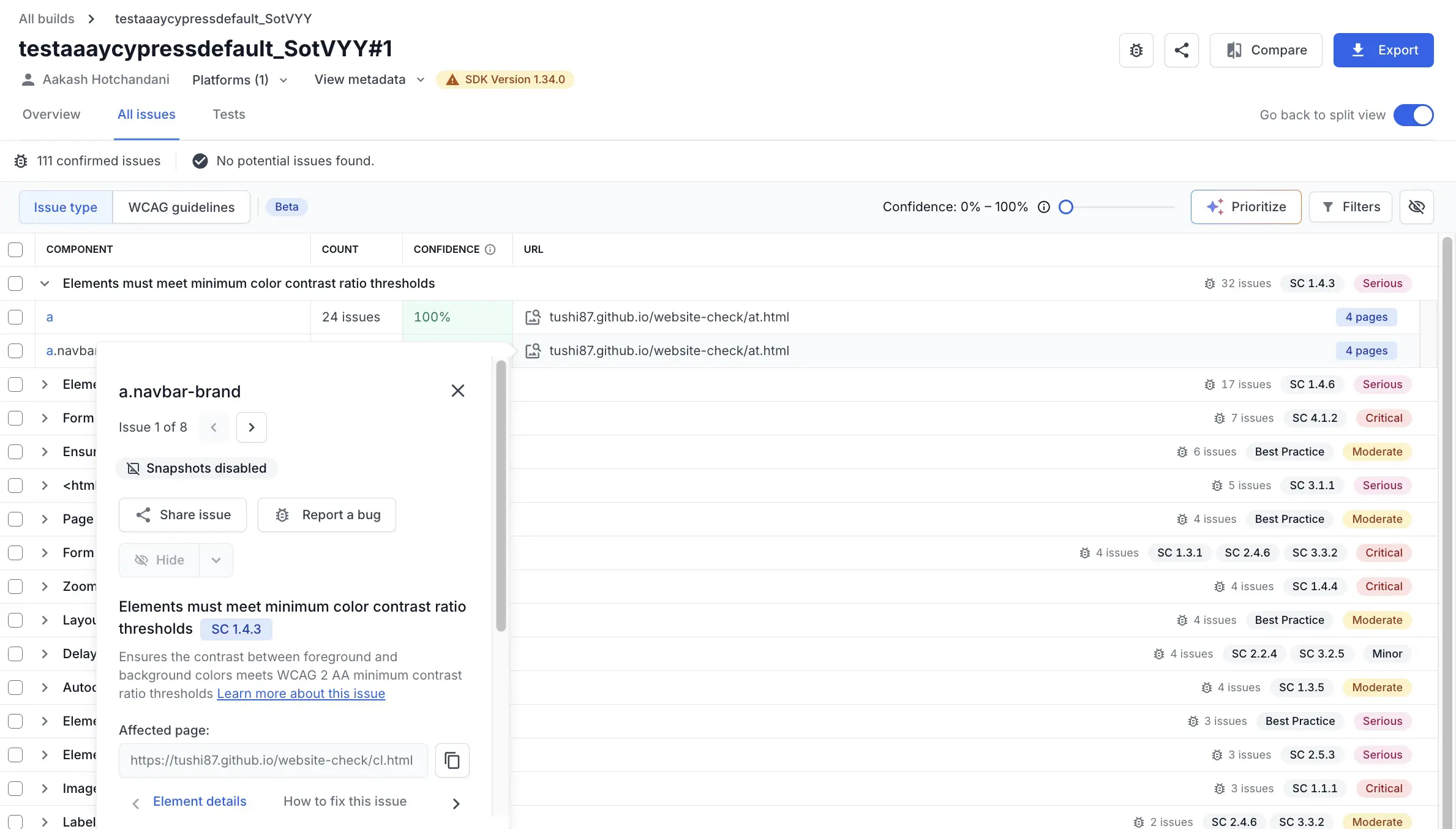
- When you encounter an accessibility violation, click the issue to view more details. Click the specific component that has the accessibility issue to view additional information, including a snapshot of the webpage where the problematic component is clearly highlighted for easier identification.
 You can:
- Hide or unhide specific issues.
- Decide if items marked Potential issue are valid. When you make a decision, you can also choose to save it for future reports. See Bulk review potential issues to learn how to review potential issues in bulk.
You can also save these preferences for future use. If you do, BrowserStack Accessibility Testing automatically hides or unhides issues in the same component or related to the same rule in the future. It also determines whether to mark similar issues under Potential issue as issues.
BrowserStack groups issues only after generating the report. The issue count might change between the generation phase and the final report.
Issue screenshots are available only in paid plans and the free trial.
You must enable advanced scans to view screenshots of the component with the accessibility issue.
Table view and split view
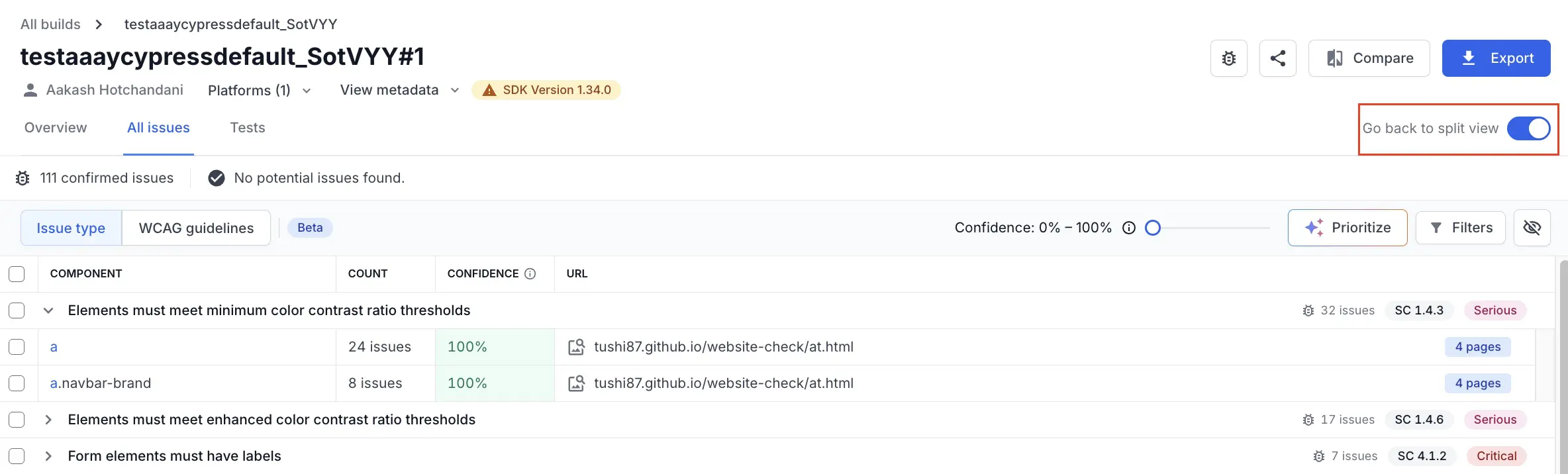
The All issues tab has two views. You can click the toggle Switch to table view or Go back to split view to alternate between the two views.
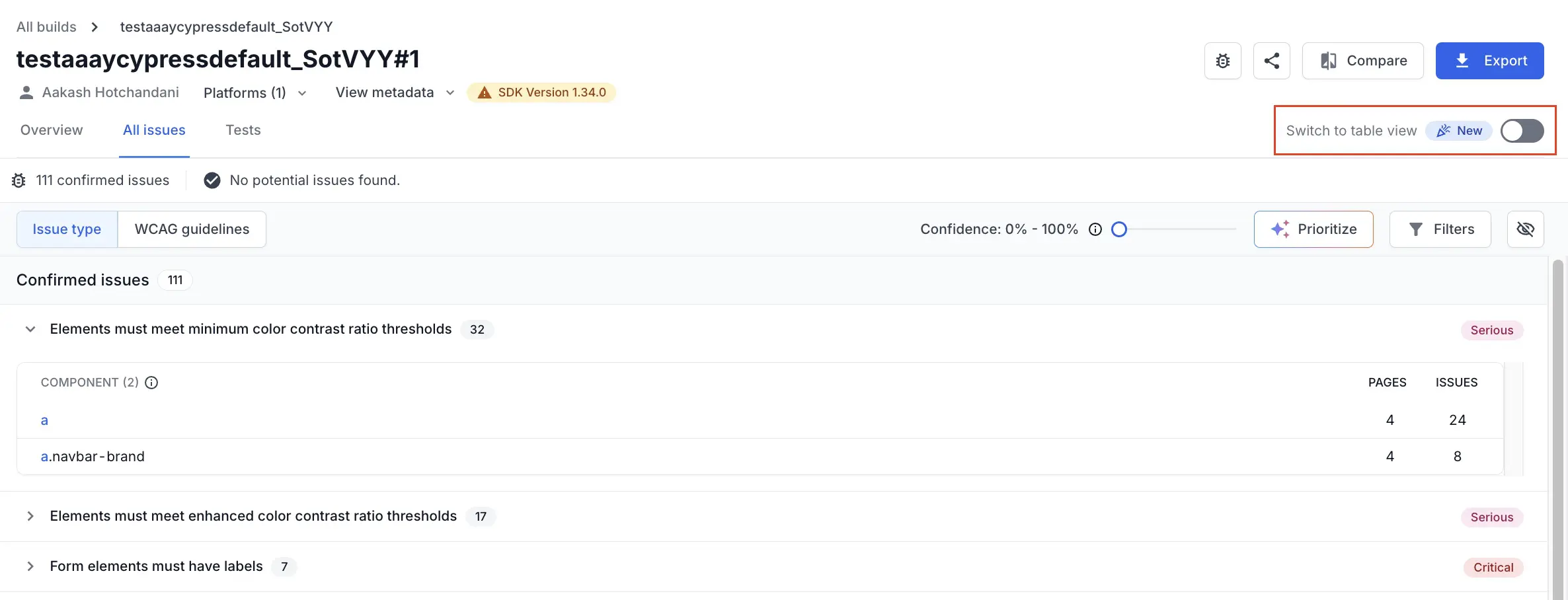
The split view lists all issues under Confirmed issues and Potential issues.
The table view lists all issues in a table with the following columns:
- Component: The component for which the accessibility issue was detected.
- Count: The number of accessibility issues identified for the component.
- Confidence: The confidence level of the issue detection.
- URL: A URL to the page with the issue.
Multiselect actions in table view
In the table view, you can select multiple issues and perform bulk actions.
To do this, select the checkboxes next to the issues you want to act on, and then click the action button.
The following multiselect functions are available:
- Export: Downloads a CSV report of the selected issues to your system.
- Hide: Hides the issues. Users can hide issues in their own reports. Admins and Owners can also hide issues in reports created by other users.
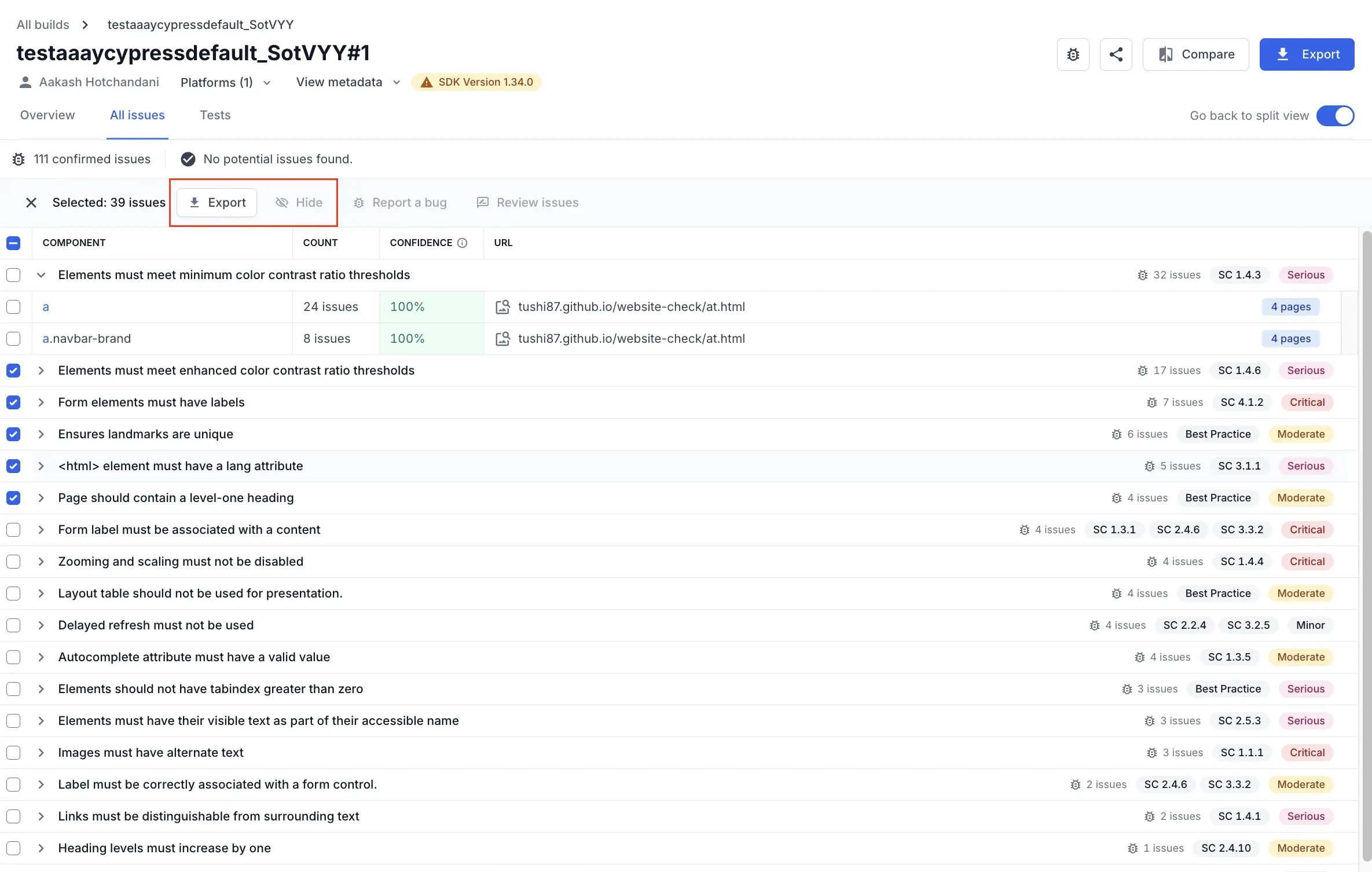
The Report a bug and Review issues features will be available in multiselect actions soon.
View issue details in table view
You can view more information about an issue by expanding it. These details include the component name, count of issues, the confidence level of the issue detection, and URLs of the page with the issue. Click the URL to view more details about the issue in the same table view.
Share Workflow Analyzer reports
To share the report, click Share link. A two-tab window appears.
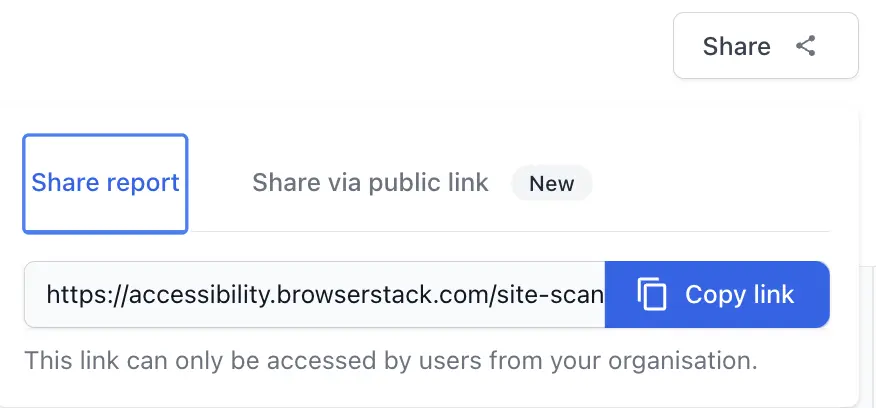
To share the report internally with users who have a BrowserStack account, click Copy link on the Share report tab, and share the link as appropriate.
To share the report externally with users who do not have a BrowserStack account, enable public link on the Share via public link tab.
Related topics
We're sorry to hear that. Please share your feedback so we can do better
Contact our Support team for immediate help while we work on improving our docs.
We're continuously improving our docs. We'd love to know what you liked
We're sorry to hear that. Please share your feedback so we can do better
Contact our Support team for immediate help while we work on improving our docs.
We're continuously improving our docs. We'd love to know what you liked
Thank you for your valuable feedback!