
 Join our Discord
Generate VPAT reports on custom dashboards
Generate a Voluntary Product Accessibility Template (VPAT) draft as a .docx file from the scan reports in a custom dashboard.
A Voluntary Product Accessibility Template (VPAT) report documents how your product or website conforms to accessibility standards such as WCAG. Procurement teams, legal teams, and customers often ask for one before they buy or deploy a product. Instead of creating this document from scratch, you can generate a draft directly from a custom dashboard, which consolidates the scan reports for your digital assets.
Prerequisites
Before you generate a VPAT report, ensure you have the following:
- An Accessibility Ultimate or Accessibility Automate plan. Custom dashboards are available only on these plans.
- A custom dashboard that contains at least two scan reports. To create one, see Custom dashboards for Accessibility Testing.
- A dashboard with tests that cover your full product or website. A dashboard limited to a few pages produces a narrower report.
Generate a VPAT report
To generate a VPAT draft from a custom dashboard:
- Navigate to Accessibility Testing → Custom Dashboards.
- Open the dashboard you want to base the VPAT report on.
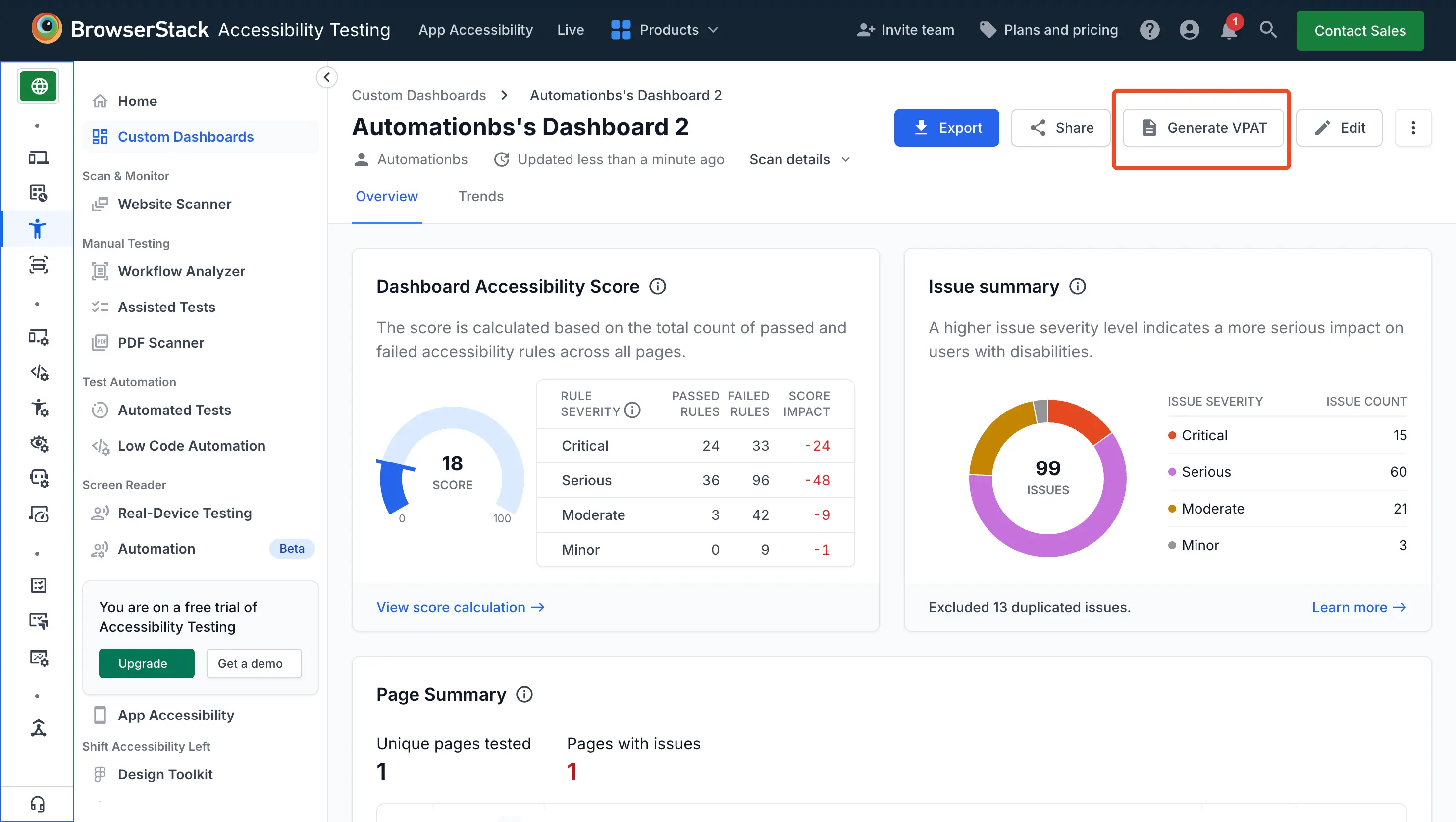
- Click Generate VPAT on the top-right of the dashboard.
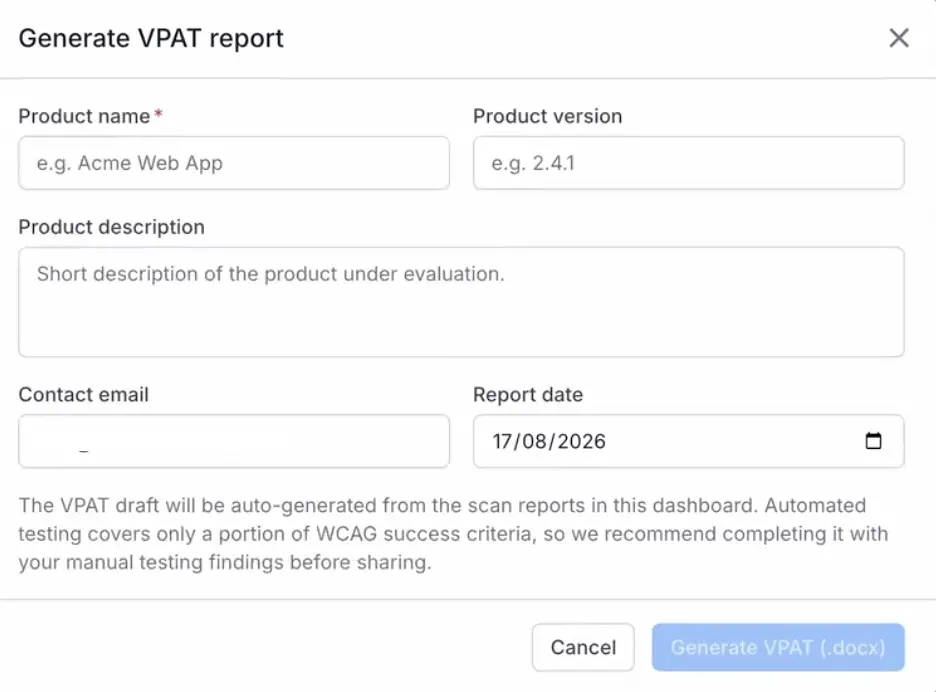
The Generate VPAT report window appears. - Enter the details of the product or website that you are evaluating. Product name is the only mandatory field. To view details on the non-mandatory fields, refer to the report fields table.
- Click Generate VPAT (.docx).
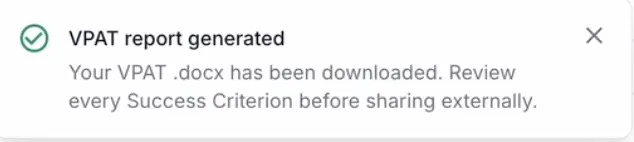
The VPAT draft is built from the scan reports in the dashboard and downloaded to your device as a .docx file.
Report fields
The Generate VPAT report window collects the following details, which appear in the product information section of the generated document:
| Field | Description |
|---|---|
| Product name | Name of the product under evaluation, for example, Acme Web App. This field is mandatory. |
| Product version | Version of the product that the scan reports cover, for example, 2.4.1. |
| Product description | A short description of the product under evaluation. |
| Contact email | The address that report recipients can use to follow up on the evaluation. |
| Report date | The date shown on the report. It defaults to the current date, and you can change it. |
Complete the draft before you share it
Automated tests cover only a portion of the WCAG success criteria, so the generated report is a draft based on the data your custom dashboard holds. To make it more complete, you need to modify the downloaded word document with insights from manual testing. Also, ensure that the dashboard covers your full product or website rather than a few pages. Review every success criterion and result manually before sharing the report externally.
Open the downloaded .docx file in your word processor and do the following before you send the report to anyone outside your organization:
- Review every success criterion in the draft and confirm that the conformance details match what you know about the product.
- Add the results of your manual and assistive-technology testing for the criteria that automated scans cannot evaluate.
- Correct the product details if the name, version, or description has changed since you generated the draft.
To refresh the report after new scans run, generate it again from the same dashboard. Each generation creates a new file and does not change the files that you downloaded earlier.
Related topics
- Custom dashboards for Accessibility Testing
- What is Accessibility Testing Dashboard?
- Create a consolidated accessibility test report
We're sorry to hear that. Please share your feedback so we can do better
Contact our Support team for immediate help while we work on improving our docs.
We're continuously improving our docs. We'd love to know what you liked
We're sorry to hear that. Please share your feedback so we can do better
Contact our Support team for immediate help while we work on improving our docs.
We're continuously improving our docs. We'd love to know what you liked
Thank you for your valuable feedback!