
 Join our Discord
Screen Reader Experience Agent
Test user journeys using real screen readers with AI-powered navigation and natural language prompts.
A website can be difficult to use for screen-reader users even if they pass WCAG checks. Automated accessibility scanners don’t check the real expereince of screen reader users and if they can complete a task using a screen reader without facing hurdles. The Screen Reader Experience Agent automatically navigates your website using a real screen reader to test user journeys and discover barriers to complete a task.
The Screen Reader Experience Agent is currently in beta. View the steps to request access.
How the Screen Reader Experience Agent works
The Screen Reader Experience Agent works in the following steps:
- Enter your URL and explain the user flow in natural language. For example, “Search for mobile phones, click the first result, add it to the cart.”
- The AI engine translates your task into contextual navigation decisions, driving NVDA, a real screen reader, on a real device.
- The agent targets to find all critical flaws such as focus traps, unreachable controls, missing labels, and broken state announcements, that a real screen reader user might face.
- Get a comprehensive report with severity-ranked issues, audio logs, screenshots, and video replays.
What the agent checks
The agent runs 12 checks across the workflow. While every check references a WCAG success criterion, the focus is on real barriers a screen reader user hits while completing the workflow.
| Check | What it verifies | WCAG criteria |
|---|---|---|
| Every page must have a descriptive title | Every page has a descriptive title that identifies the page and distinguishes it from other tabs. Generic titles such as “Untitled” or “Home” are flagged. | 2.4.2 Page Titled (A) |
| Focus must start logically on load and after pop-ups. | Focus lands at a sensible starting point on page load. | 2.4.3 Focus Order (A) |
| Working skip-to-content link must be available | A working skip-to-content link is available among the first focusable elements so that you can jump past repeated navigation. | 2.4.1 Bypass Blocks (A) |
| Every control must have a meaningful accessible name | Every focusable control has a meaningful accessible name. Controls announced as empty or with only a generic role such as “button” or “link” are flagged. | 4.1.2 Name, Role, Value (A) |
| Every control must have a unique accessible name | Within a landmark region, no two different controls share the exact same announced name. Duplicate names make it difficult to distinguish one control from another. | 2.4.6 Headings and Labels (AA) |
| Tab order must follow a logical sequence | The tab sequence follows a logical order that matches the page’s visual and semantic meaning. Focus that jumps unexpectedly is flagged. | 2.4.3 Focus Order (A) |
| All controls must be keyboard reachable | Every control required to complete the task is reachable by keyboard. | 2.1.1 Keyboard (A) |
| Keyboard focus must never get stuck | Keyboard focus never gets stuck cycling through the same small set of elements. | 2.1.2 No Keyboard Trap (A) |
| Controls must respond to the keyboard | Controls recognized as input fields accept typed keyboard input. | 2.1.1 Keyboard (A) |
| Focus must move sensibly after an action | After you activate a control, the screen reader provides feedback such as new content, a state change, or focus movement. Silence after activation is flagged. | 2.4.3 Focus Order (A) |
| Dialogs must contain focus and be dismissible | Dialogs announce themselves, receive focus, keep focus contained until closed, and can be dismissed with the Escape key. | 2.1.2 No Keyboard Trap (A) |
| Form errors must be announced | After a form submission fails, an error message is announced through a live region or by moving focus to the error summary. | 3.3.1 Error Identification (A) |
The agent checks only the path your task follows, not the entire page. This means findings are relevant to the workflow you defined.
Request access to the beta
The Screen Reader Experience Agent is currently in beta. Follow these steps to request access:
- Log in to BrowserStack Accessibility Testing.
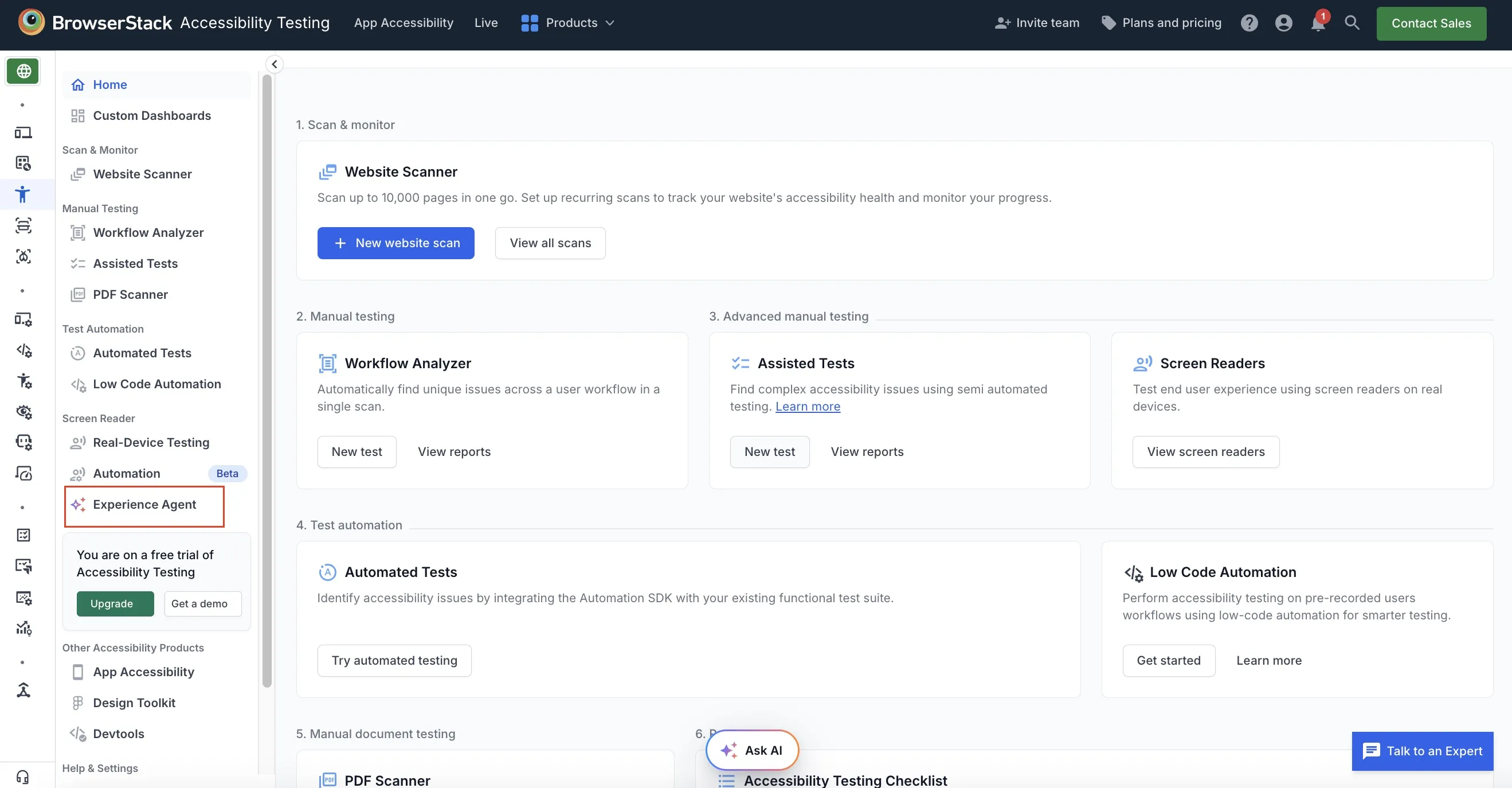
- In the sidebar, under Screen Reader, click Experience Agent.
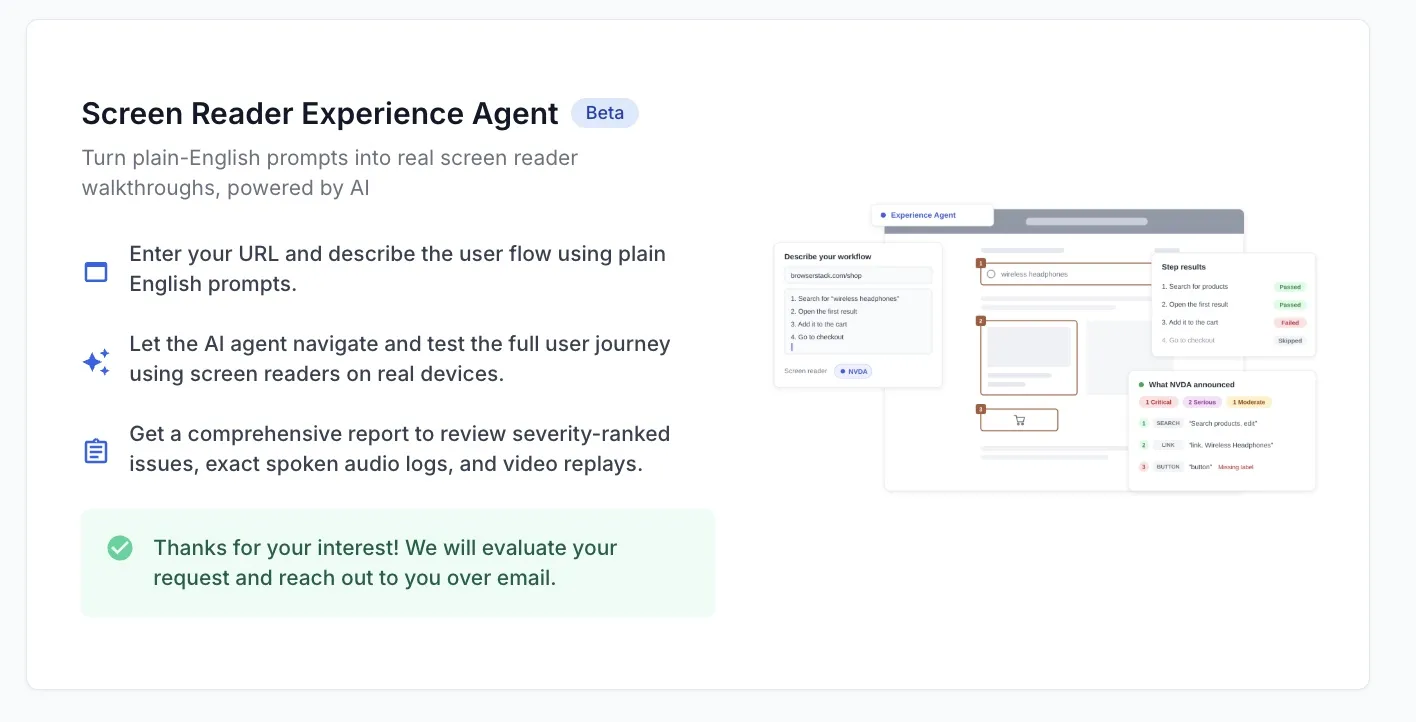
- On the Screen Reader Experience Agent page, you get a confirmation message that your request is being processed.
We're sorry to hear that. Please share your feedback so we can do better
Contact our Support team for immediate help while we work on improving our docs.
We're continuously improving our docs. We'd love to know what you liked
We're sorry to hear that. Please share your feedback so we can do better
Contact our Support team for immediate help while we work on improving our docs.
We're continuously improving our docs. We'd love to know what you liked
Thank you for your valuable feedback!