Get your setup working faster. Join our Discord for optimisation tips from elite testers.Join our Discord
View network logs for your tests
Access network logs for your test executions on BrowserStack App Automate. Capture data such as network traffic, latency, HTTP requests & more.
You are currently viewing the documentation for the old dashboard. We’ve revamped the dashboard experience. Explore the new dashboard now!
Network Logs capture performance data such as network traffic, latency, HTTP requests and responses in the HAR (HTTP Archive) format. You can leverage network logs to get a clear picture of all the network requests (e.g. REST API calls) originating from your app, and the time taken for each of these requests. It can help you identify performance bottlenecks or debug failed REST API responses. You can visualize HAR files using the HAR Viewer.
Network logs are available on the BrowserStack dashboard for 30 days. These logs are deleted after 30 days from the day they are generated.
Enable Network Logs
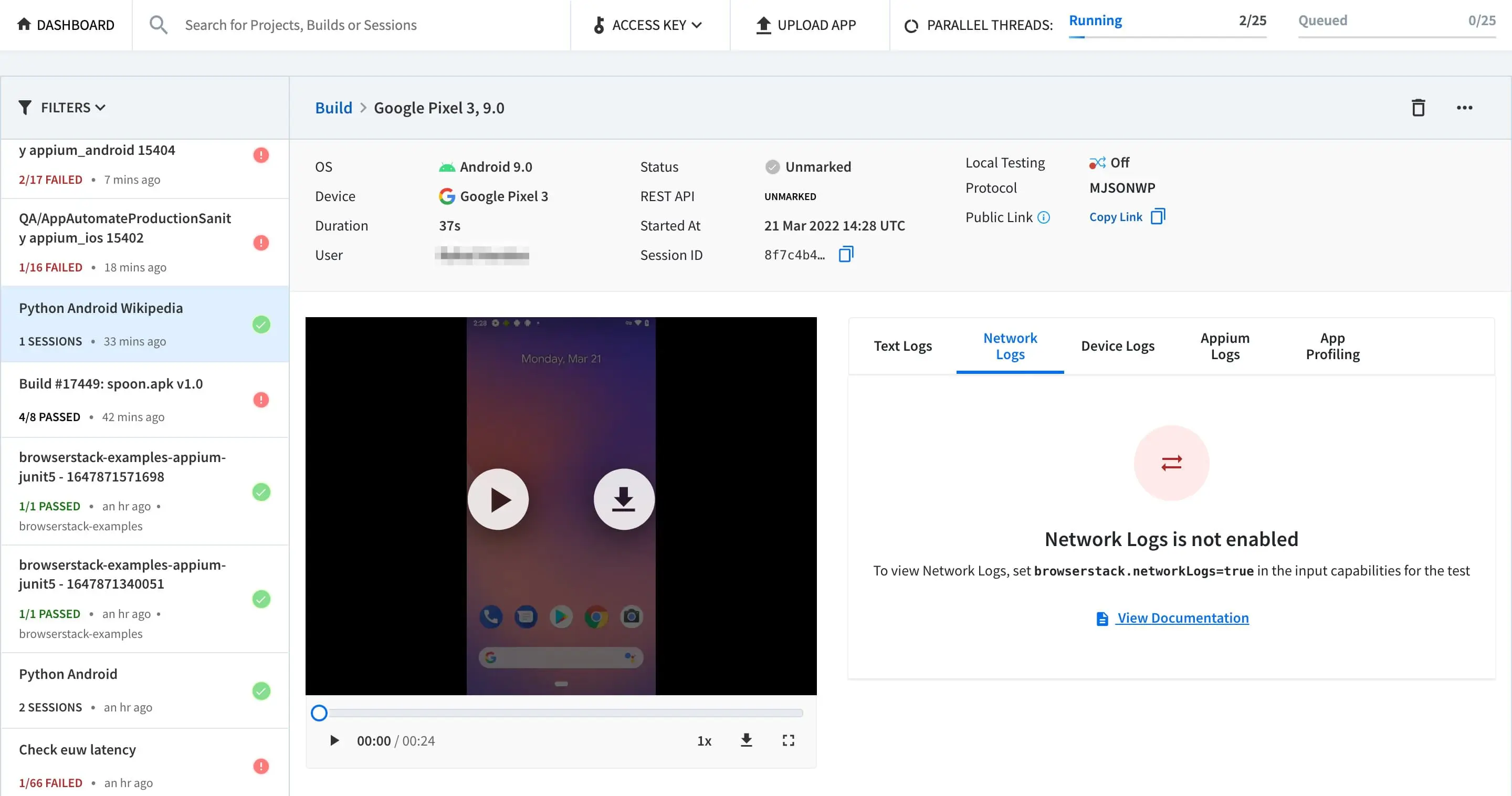
When you run a test without the Network log settings, the Network Logs tab on the dashboard shows the following message:
To enable Network logs, use the capability as shown below.
Free trial users do not have access to the network logs feature for app testing. To subscribe to a paid plan, visit the pricing page.
Network Logs feature is supported on all devices except the devices listed in the App Automate capabilities reference under the Capabilities Reference section.
Network Logs feature is not supported for proxy-unaware apps.
Network Log configurations
The following table provides information about the capability:
Capability
Configuration
Value
networkLogsOptions
captureContent
true, false Default:false (no content under Response tab)
Use the following example code snippet to set the network log configurations:
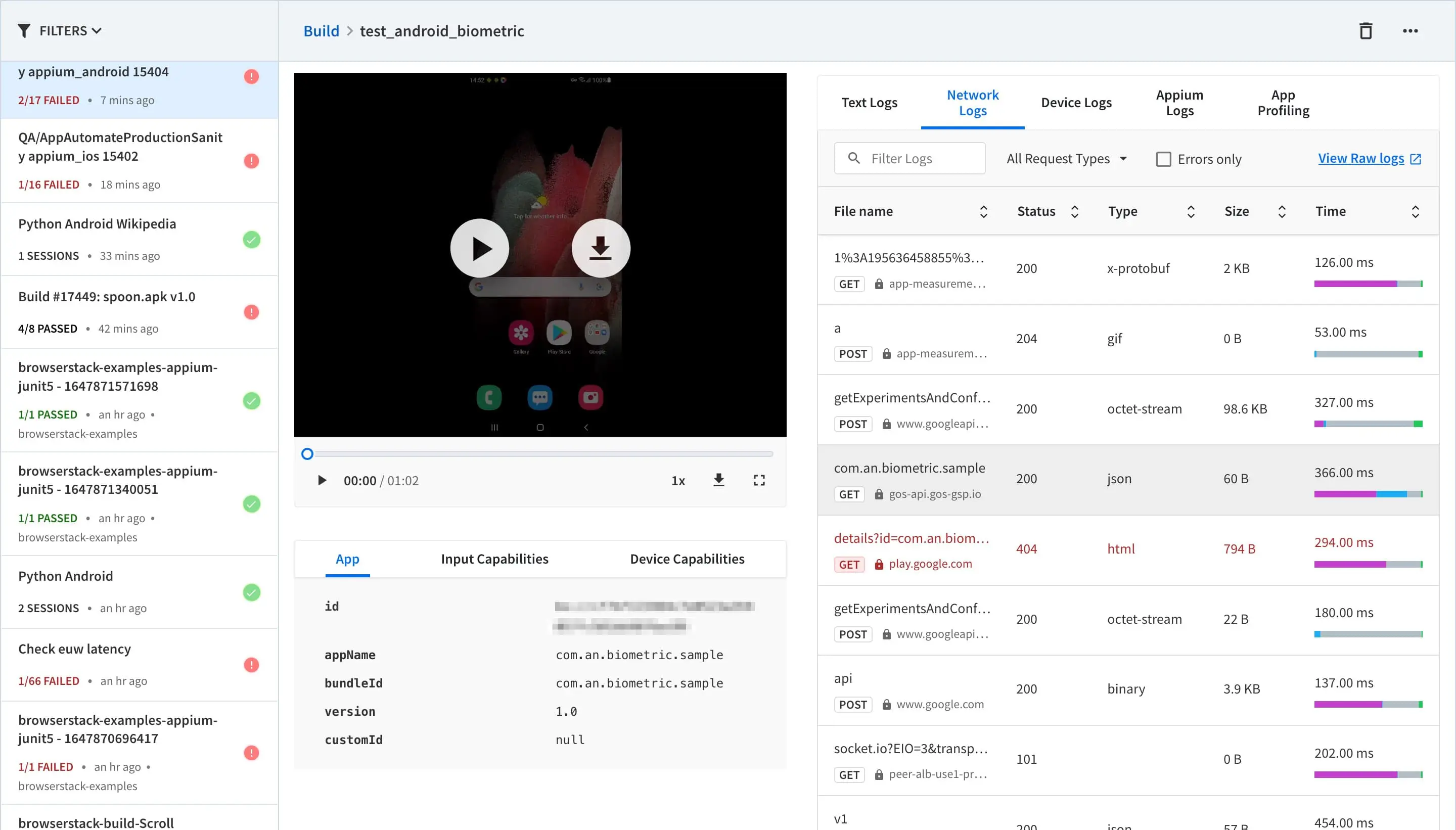
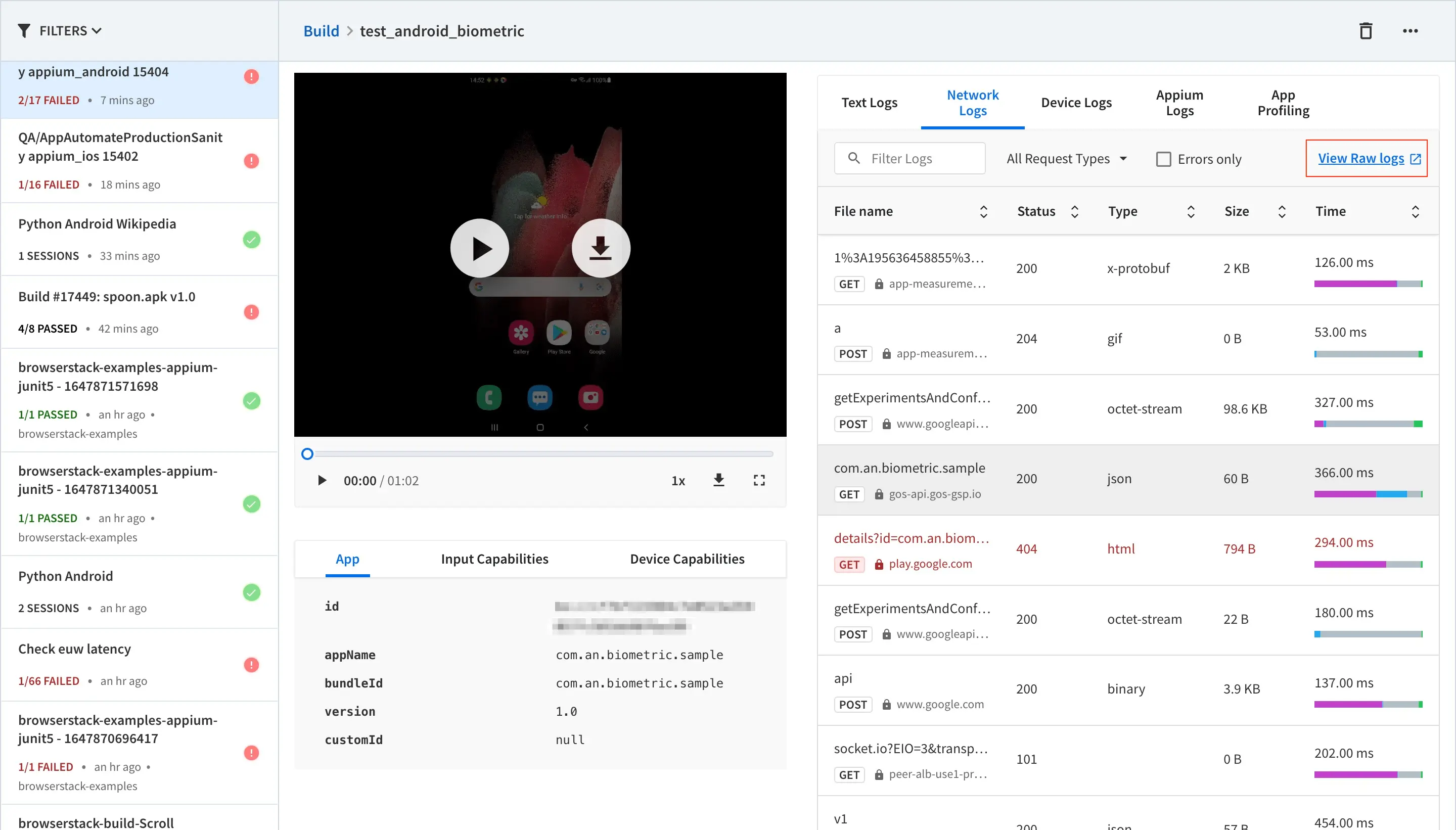
The network logs can be viewed from the test sessions details page on the App Automate Dashboard. You can view or download network logs using the Raw Network Logs**.
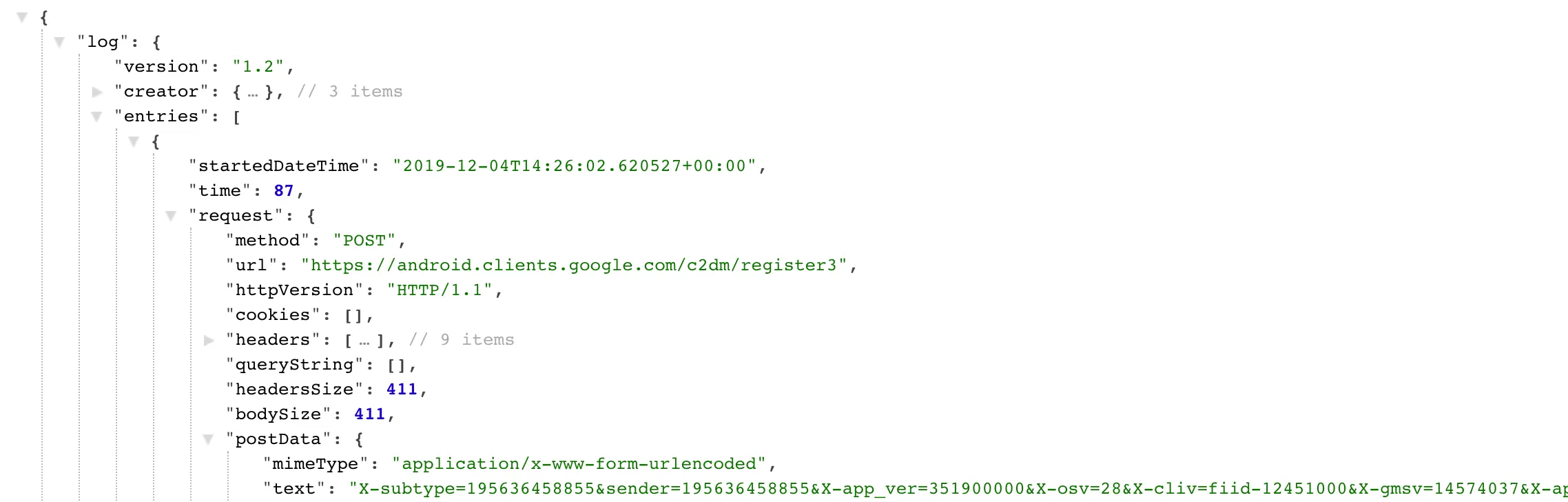
Example network logs:
Import network logs using REST API
You can import the network logs from your test session using REST API:
curl -u"YOUR_USERNAME:YOUR_ACCESS_KEY"\-X GET "https://api-cloud.browserstack.com/app-automate/builds/<build-id>/sessions/<session-id>/networklogs"
Handling certificate pinning issues
App developers may use certificate pinning techniques to prevent man-in-the-middle attacks and thus enhance the app’s security. Using certificate pinning, the app developer can associate (or “pin”) a remote host or service with its certificate or public keys at the time of development. When the app makes a network request to a remote host, it compares the pinned certificate with the remote server’s certificate to verify its identity.
However, on BrowserStack, if you have enabled network logs, your tests could fail if your app uses certificate pinning. This is because BrowserStack uses a MITM proxy to capture the network logs, causing network requests between the app and pinned hosts to fail.
BrowserStack provides you additional capabilities to fix certificate pinning errors. Using these capabilities, you can bypass BrowserStack’s MITM proxy while making requests to certificate-pinned remote hosts.
networkLogsExcludeHosts
For example, this will exclude capturing of logs for any requests made to google.com:
Capability
Description
Value
networkLogsExcludeHosts
Use this capability to specify a list of certificate pinned hosts that should bypass BrowserStack MITM proxy while capturing network logs. By doing so, your tests can execute successfully while still capturing network logs for all other remaining hosts.
List of certificate pinned hosts (Array) or regex value (String)
Only HTTPS URLs will be ignored for the specified hosts
networkLogsIncludeHosts
For example, this will capture logs only for network requests made to google.com
Capability
Description
Value
networkLogsIncludeHosts
Use this capability if you wish to capture network logs only for specific hosts. Traffic for all other remaining hosts will bypass BrowserStack MITM proxy and won’t be captured in network logs.
Both HTTP and HTTPS URLs will be captured for the specified hosts
BrowserStack SDK is a plug-n-play solution that takes care of all the integration steps for you. Using the BrowserStack SDK is the recommended integration method for your project. To know more, visit the SDK core concepts page.
Use the following code snippet to set the Network logs capability to true:
After you set the browserstack.networkLogs capability to true, the Network Logs tab on the dashboard shows the following result:
Free trial users do not have access to the network logs feature for app testing. To subscribe to a paid plan, visit the pricing page.
Network Logs feature is supported on all devices except the devices listed in the App Automate capabilities reference under the Capabilities Reference section.
Network Logs feature is not supported for proxy-unaware apps.
Network Log configurations
The following table provides information about the capability:
Capability
Configuration
Value
browserstack.networkLogsOptions
captureContent
true, false Default: false (no content under Response tab)
Use the following example code snippet to set the network log configurations:
The network logs can be viewed from the test sessions details page on the App Automate Dashboard. You can view or download network logs using the Raw Network Logs**.
Example network logs:
Import network logs using REST API
You can import the network logs from your test session using REST API:
curl -u"YOUR_USERNAME:YOUR_ACCESS_KEY"\-X GET "https://api-cloud.browserstack.com/app-automate/builds/<build-id>/sessions/<session-id>/networklogs"
Handling certificate pinning issues
App developers may use certificate pinning techniques to prevent man-in-the-middle attacks and thus enhance the app’s security. Using certificate pinning, the app developer can associate (or “pin”) a remote host or service with its certificate or public keys at the time of development. When the app makes a network request to a remote host, it compares the pinned certificate with the remote server’s certificate to verify its identity.
However, on BrowserStack, if you have enabled network logs, your tests could fail if your app uses certificate pinning. This is because BrowserStack uses a MITM proxy to capture the network logs, causing network requests between the app and pinned hosts to fail.
BrowserStack provides you additional capabilities to fix certificate pinning errors. Using these capabilities, you can bypass BrowserStack’s MITM proxy while making requests to certificate-pinned remote hosts.
Use this capability to specify a list of certificate pinned hosts that should bypass BrowserStack MITM proxy while capturing network logs. By doing so, your tests can execute successfully while still capturing network logs for all other remaining hosts.
List of certificate pinned hosts (Array) or regex value (String)
For example, this will exclude capturing of logs for any requests made to api.example.com and google.com:
Instead of using an array, you can also pass a regex value as a string to dynamically match a list of hosts. For example, this will exclude capturing of logs for any requests made to example.com and its subdomains.
Use this capability to specify a list of certificate pinned hosts that should bypass BrowserStack MITM proxy while capturing network logs. By doing so, your tests can execute successfully while still capturing network logs for all other remaining hosts.
List of certificate pinned hosts (Array) or regex value (String)
For example, this will exclude capturing of logs for any requests made to api.example.com and google.com:
Instead of using an array, you can also pass a regex value as a string to dynamically match a list of hosts. For example, this will exclude capturing of logs for any requests made to example.com and its subdomains.
Use this capability if you wish to capture network logs only for specific hosts. Traffic for all other remaining hosts will bypass BrowserStack MITM proxy and won’t be captured in network logs.
List of hosts (Array) or regex value (String)
For example, this will capture logs only for network requests made to api.example.com and google.com
Instead of using an array, you can also pass a regex value as a string to dynamically match a list of hosts. For example, this will capture logs for any network requests made to example.com and its subdomains.
Use this capability if you wish to capture network logs only for specific hosts. Traffic for all other remaining hosts will bypass BrowserStack MITM proxy and won’t be captured in network logs.
List of hosts (Array) or regex value (String)
For example, this will capture logs only for network requests made to api.example.com and google.com
Instead of using an array, you can also pass a regex value as a string to dynamically match a list of hosts. For example, this will capture logs for any network requests made to example.com and its subdomains.

 Join our Discord