
 Join our Discord
Integrate BrowserStack App Automate with Testim
A step-by-step guide to running Testim mobile app tests with BrowserStack App Automate
Testim is a platform that lets you record and playback automated tests in minutes. Testim helps you capture detailed step-by-step bug scenarios. It significantly reduces the maintenance and rewriting of tests.
Testim supports mobile app testing through Appium integration, allowing you to test your mobile applications on BrowserStack’s real device cloud.
Prerequisites
Before you begin, ensure you have:
- A Testim account with mobile app testing capabilities.
- You have access to the BrowserStack account credentials, namely Access Key and Username.
- Your mobile application (APK for Android or IPA for iOS).
Integration steps
Follow the steps below to integrate Testim with BrowserStack App Automate:
Upload your app to Testim
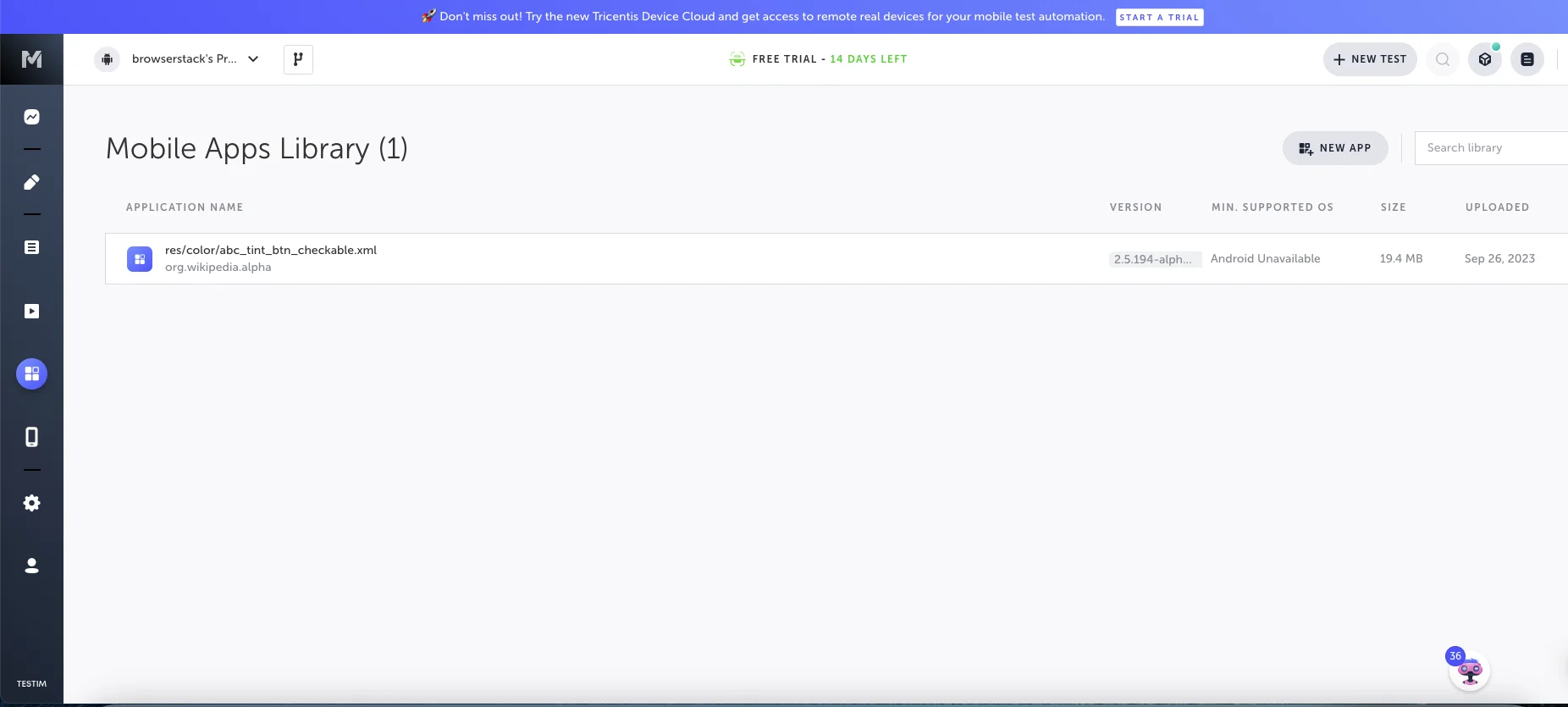
- Navigate to the Mobile Apps Library in Testim.
- Click + NEW APP button.
- Upload your application file (APK or IPA).
- Wait for the upload to complete. Your app will appear in the library with its version and details.
Add BrowserStack grid in Testim
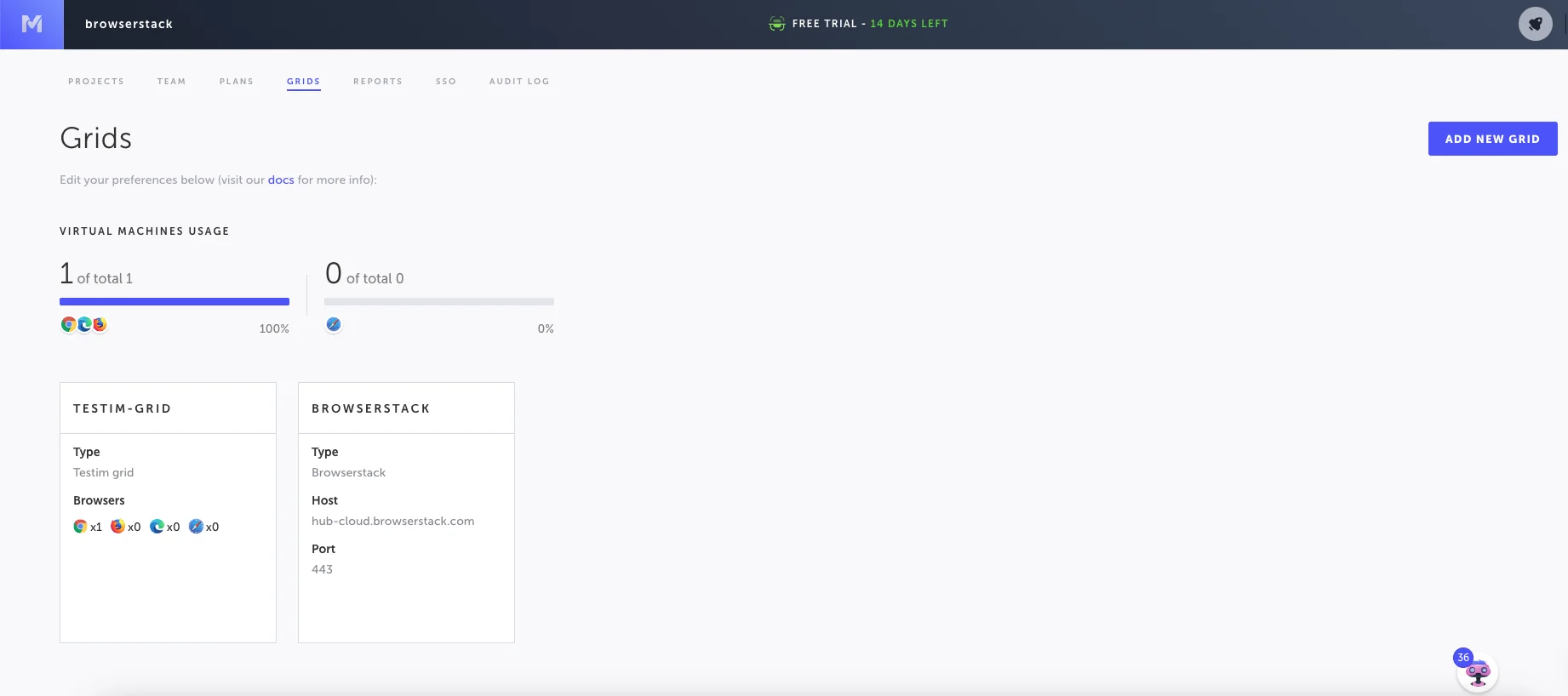
- Navigate to the Grids section in Testim.
- Click + ADD NEW GRID button.
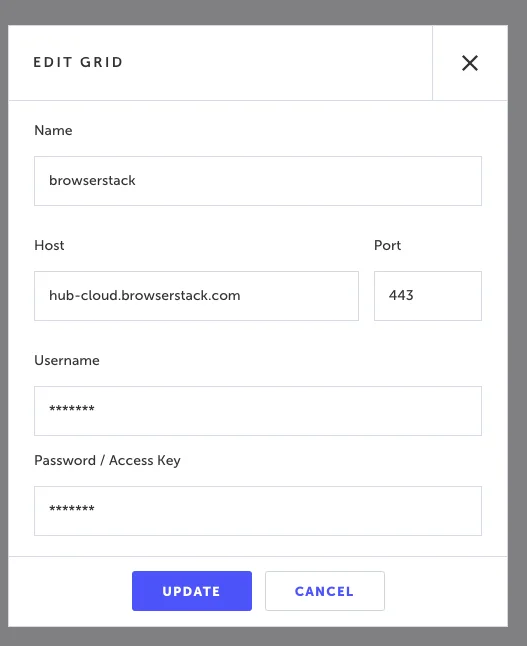
- Enter a name for your grid (for example, “browserstack”).
- In the Host field, enter
hub-cloud.browserstack.com. - In the Port field, enter
443. - Enter your BrowserStack Username and then Access Key.
- Click UPDATE to save the grid configuration.
Create a configuration for BrowserStack
- In the Testim Editor, open your recorded test.
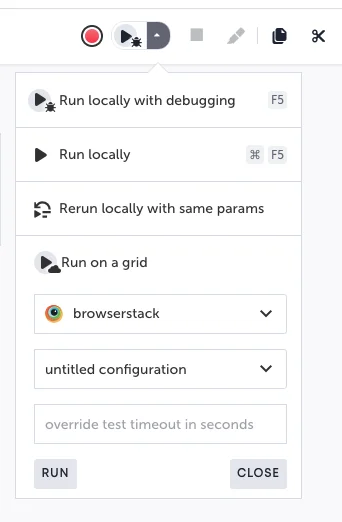
- Click the dropdown icon next to the Run button.
- Select Run on a grid.
- Select your BrowserStack grid from the dropdown.
- If no configuration exists, you’ll see an untitled configuration option. Click the edit button next to it.
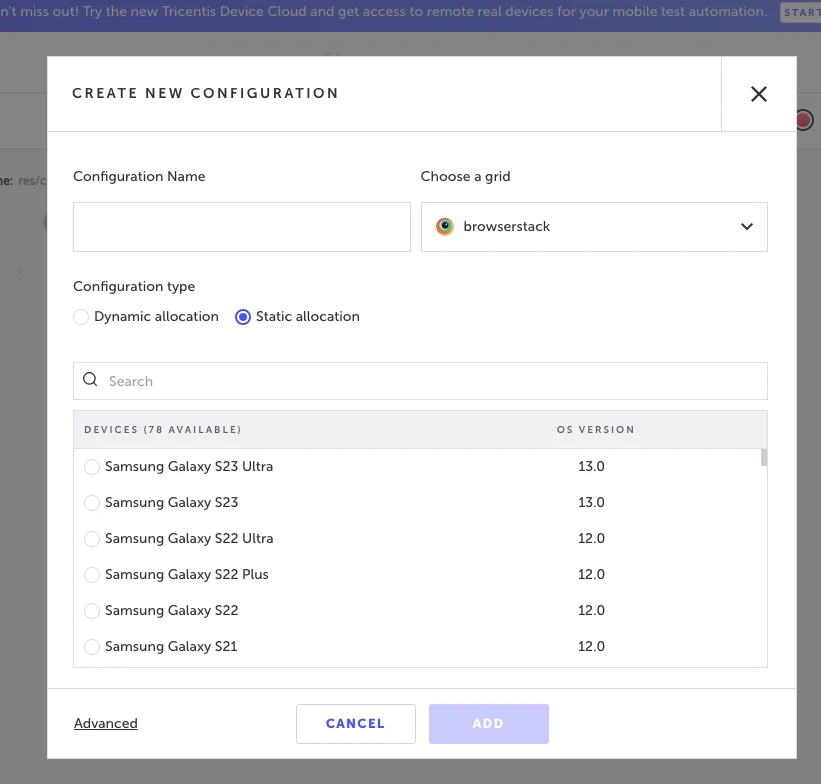
- In the Create New Configuration dialog:
- Enter a Configuration Name
- Choose browserstack as the grid
- Select Static allocation as the configuration type
- Choose your desired device from the available devices list (for example, Samsung Galaxy S23 Ultra with OS version 13.0)
- Click ADD to save the configuration.
Run tests on BrowserStack
- In the Testim Editor, open your test.
- Click the dropdown icon next to the Run button.
- Select Run on a grid.
- Choose your BrowserStack grid from the dropdown.
- Select the configuration you created.
- Click RUN to execute the test.
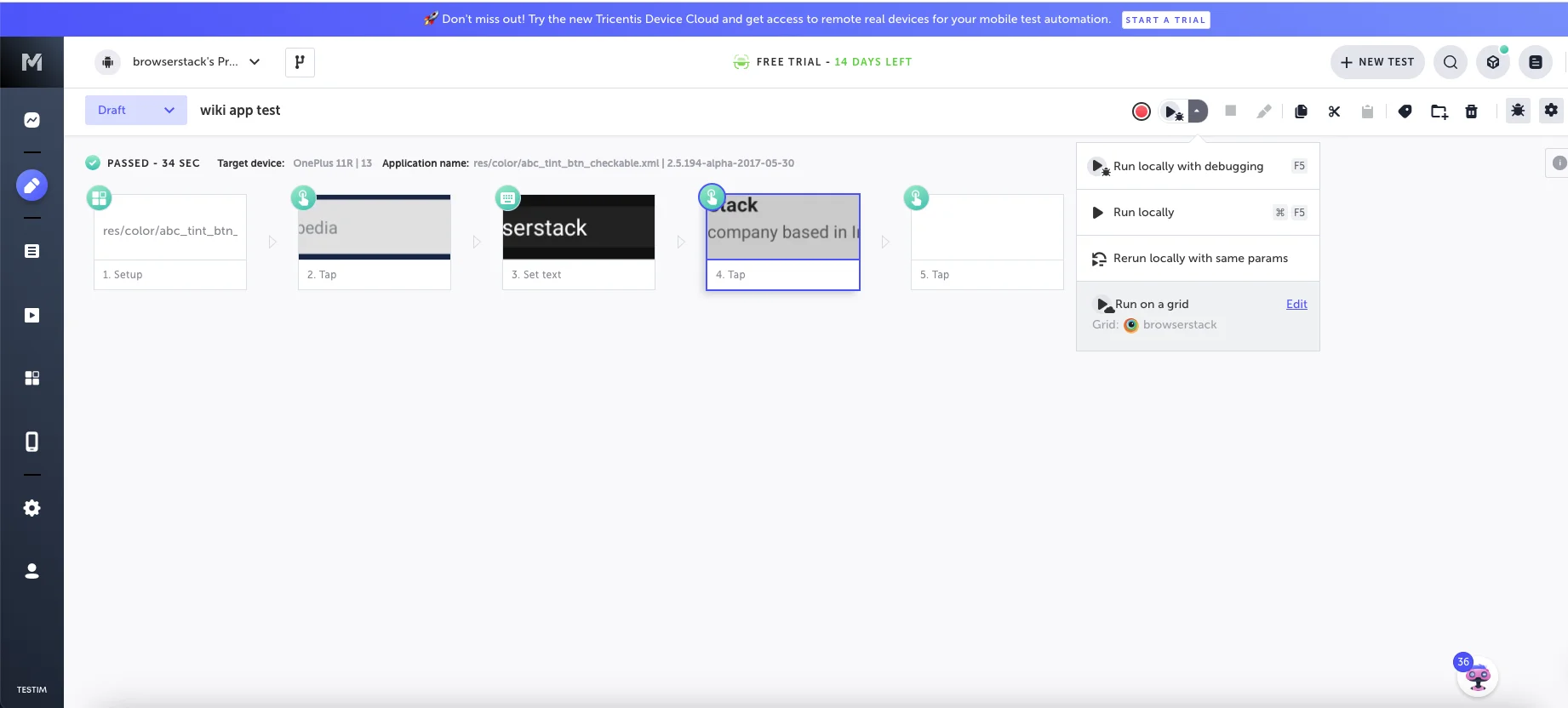
The test will run on BrowserStack App Automate, and you can monitor it in real-time on the App Automate dashboard.
Configure capabilities for App Automate
For optimal integration with BrowserStack, Testim requires capabilities to be formatted according to W3C WebDriver standards. BrowserStack-specific capabilities must be nested inside bstack:options.
Capability format
When running tests through Testim, capabilities are automatically configured. However, if you’re customizing capabilities through the Testim CLI with --mode appium, ensure the following format:
Standard Appium capabilities (at top level with appium: prefix):
appium:platformVersionappium:deviceNameappium:app
Under the W3C WebDriver protocol, only platformName is a standard capability. Non-standard capabilities such as deviceName, platformVersion, and app must be prefixed with appium: when sent over the raw Appium protocol (as used by the Testim CLI with --mode appium). BrowserStack SDK examples may show these capabilities without the prefix because the SDK handles prefixing internally. For details, see the Appium W3C capabilities reference.
BrowserStack capabilities (inside bstack:options):
buildNameprojectNamesessionNamerealDevicedebugnetworkLogs
For the full list of supported capabilities, refer to the BrowserStack App Automate capabilities documentation.
- Tests can only be recorded on a physical, or virtual devices provided by Testim. There is no option to select a remote grid for recording the script.
- Testim sets the project name, build name, and other capabilities automatically with limited customization options. Your tests will appear on the App Automate dashboard with these automatically generated names.
- For advanced configuration options, refer to the Testim documentation on grid management.
Next steps
We're sorry to hear that. Please share your feedback so we can do better
Contact our Support team for immediate help while we work on improving our docs.
We're continuously improving our docs. We'd love to know what you liked
We're sorry to hear that. Please share your feedback so we can do better
Contact our Support team for immediate help while we work on improving our docs.
We're continuously improving our docs. We'd love to know what you liked
Thank you for your valuable feedback!