
 Join our Discord
Upload apps for XCUITest testing on Apple TV
Upload your app from your filesystem or a public URL using App Management UI or the REST API, and define a custom ID.
To test your tvOS app on Apple TV devices using XCUITest, first upload your app (.ipa file) to BrowserStack servers. When you use the REST API, tvOS apps use the same upload endpoint as iOS apps.
Upload apps from filesystem
Upload your tvOS app (.ipa file) from your local filesystem using one of the following methods:
Upload app using App Management UI
To upload an app using the App Management UI, follow these steps:
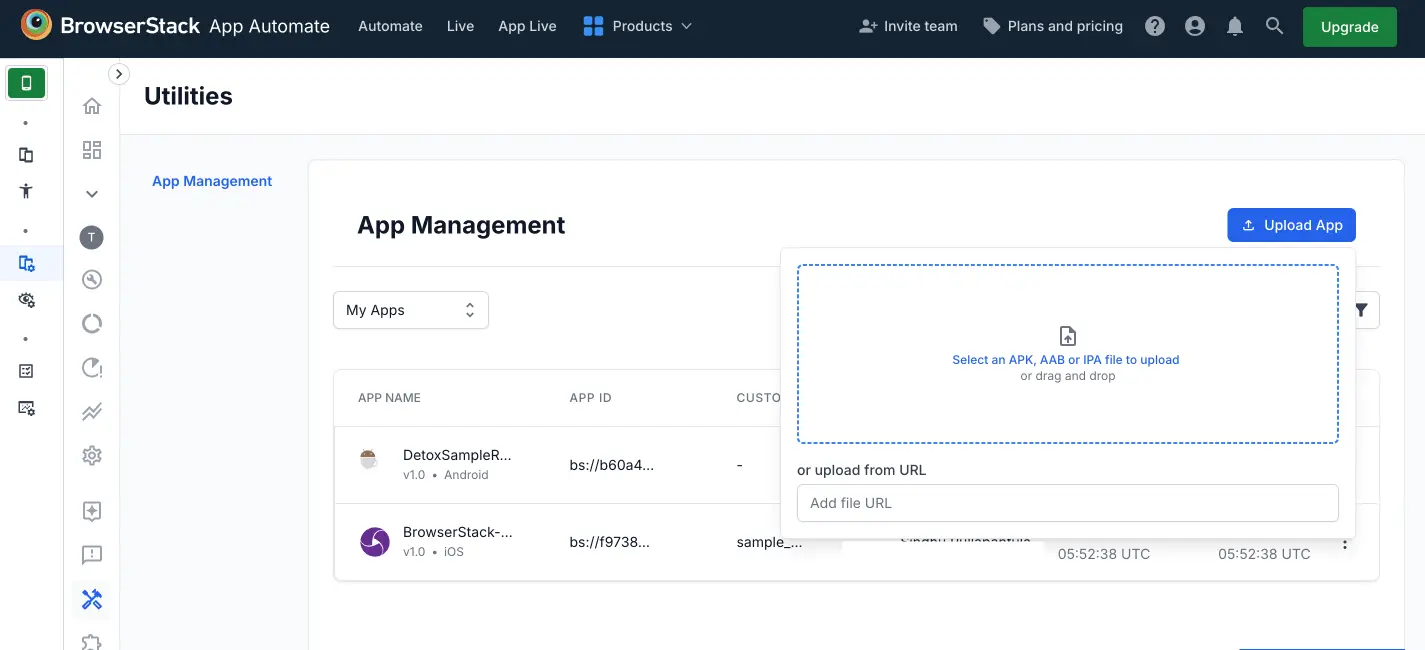
- Navigate to the App Automate dashboard. On the sidebar, click App Management.
- On the App Management UI, click Upload App.
- Select the tvOS app (
.ipafile) you want to upload from your filesystem. To upload the app using a public URL, paste the URL of your app in the or upload from URL box. - After selecting the app, choose XCUITest as the App Automate framework. You can optionally add flags and a custom ID.
- Click Upload. The app is uploaded to the BrowserStack servers, and you receive an App ID that you can use to run tests.
Upload app using REST API
To upload an app from your filesystem using the REST API, run the following cURL command:
curl -u "YOUR_USERNAME:YOUR_ACCESS_KEY" \
-X POST "https://api-cloud.browserstack.com/app-automate/xcuitest/v2/app" \
-F "file=@/path/to/app/file/YourTVApp.ipa"
A sample response is as follows:
{
    "app_url":"bs://<hashed_app_id>"
}
Save the app_url value from the response. You use it to specify the application under test when you execute your tests.
App upload takes a few seconds to about a minute depending on the size of your app. Don’t interrupt the cURL command until you get the response back.
Upload apps using public URL
To upload an app hosted at a publicly accessible URL, such as an S3 bucket link, paste the URL in the or upload from URL box on the App Management UI, or use the following cURL example:
curl -u "YOUR_USERNAME:YOUR_ACCESS_KEY" \
-X POST "https://api-cloud.browserstack.com/app-automate/xcuitest/v2/app" \
-F "url=https://example.com/path/to/YourTVApp.ipa"
The response returns an app_url in the same format as an upload from filesystem.
Define custom ID
On every app upload, a new value for app_url is generated. To use a constant value to specify the application under test, define a custom ID for your app and use the same custom ID every time you upload a new build of the app. The following example uploads a tvOS app with the custom ID defined as SampleTVApp:
curl -u "YOUR_USERNAME:YOUR_ACCESS_KEY" \
-X POST "https://api-cloud.browserstack.com/app-automate/xcuitest/v2/app" \
-F "file=@/path/to/app/file/YourTVApp.ipa" \
-F "custom_id=SampleTVApp"
The API returns a response similar to the following:
{
    "app_url":"bs://<hashed_app_id>",
    "custom_id":"SampleTVApp"
}
While executing your XCUITest tests, use the custom_id value (SampleTVApp in the above example) to specify the application under test. The test execution picks the last uploaded build corresponding to that custom ID.
- The use of
custom IDis optional. - The maximum character limit in the
custom_idparameter is 100 and the characters allowed are a-z, A-Z, 0-9, period(.), underscore(_), and hyphen(-). -
custom_idapplies only to the individual user who uploaded the app. Other users in the same Group ID cannot reference the app using only thecustom_id.
Related topics
- Upload your test suite for XCUITest testing on Apple TV.
- List or delete your uploaded apps using the XCUITest apps REST API.
We're sorry to hear that. Please share your feedback so we can do better
Contact our Support team for immediate help while we work on improving our docs.
We're continuously improving our docs. We'd love to know what you liked
We're sorry to hear that. Please share your feedback so we can do better
Contact our Support team for immediate help while we work on improving our docs.
We're continuously improving our docs. We'd love to know what you liked
Thank you for your valuable feedback!