
 Join our Discord
App reset
Reset your app to a clean state before running tests in App Low Code Automation to ensure reliable, repeatable test execution.
Tests often fail when the app is not in the expected initial state. Residual data from a previous run, such as a logged-in session or items left in a cart, can cause early steps (for example, Tap Login) to fail because the app is already past the screen the step expects. App reset clears the application data and relaunches the app to its default state, so every run starts from a clean, predictable environment.
You can reset the app in two ways:
- Click the Reset app button while authoring a test.
- Click Run all to run the test, then confirm the reset prompt.
Reset the app
Use the standalone reset to clear the app state without re-running the whole script, for example, when repeatedly testing an onboarding flow.
- In the DSL editor, click Reset app in the top panel, or press
⌘Ron Mac.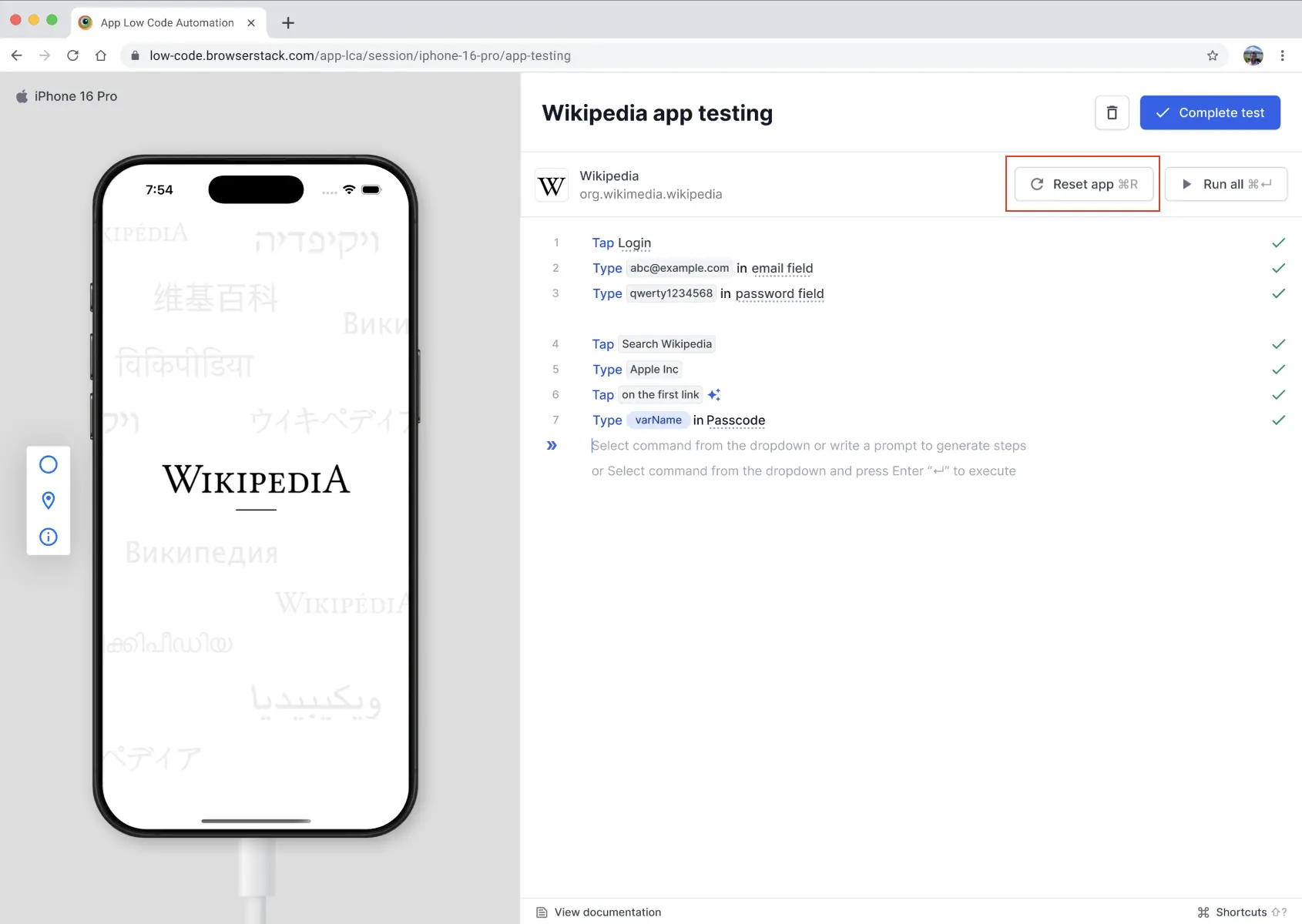
- In the Reset app state confirmation dialog, click Continue to clear the app data and restart the app to its initial state. To dismiss the dialog without resetting, click Cancel.
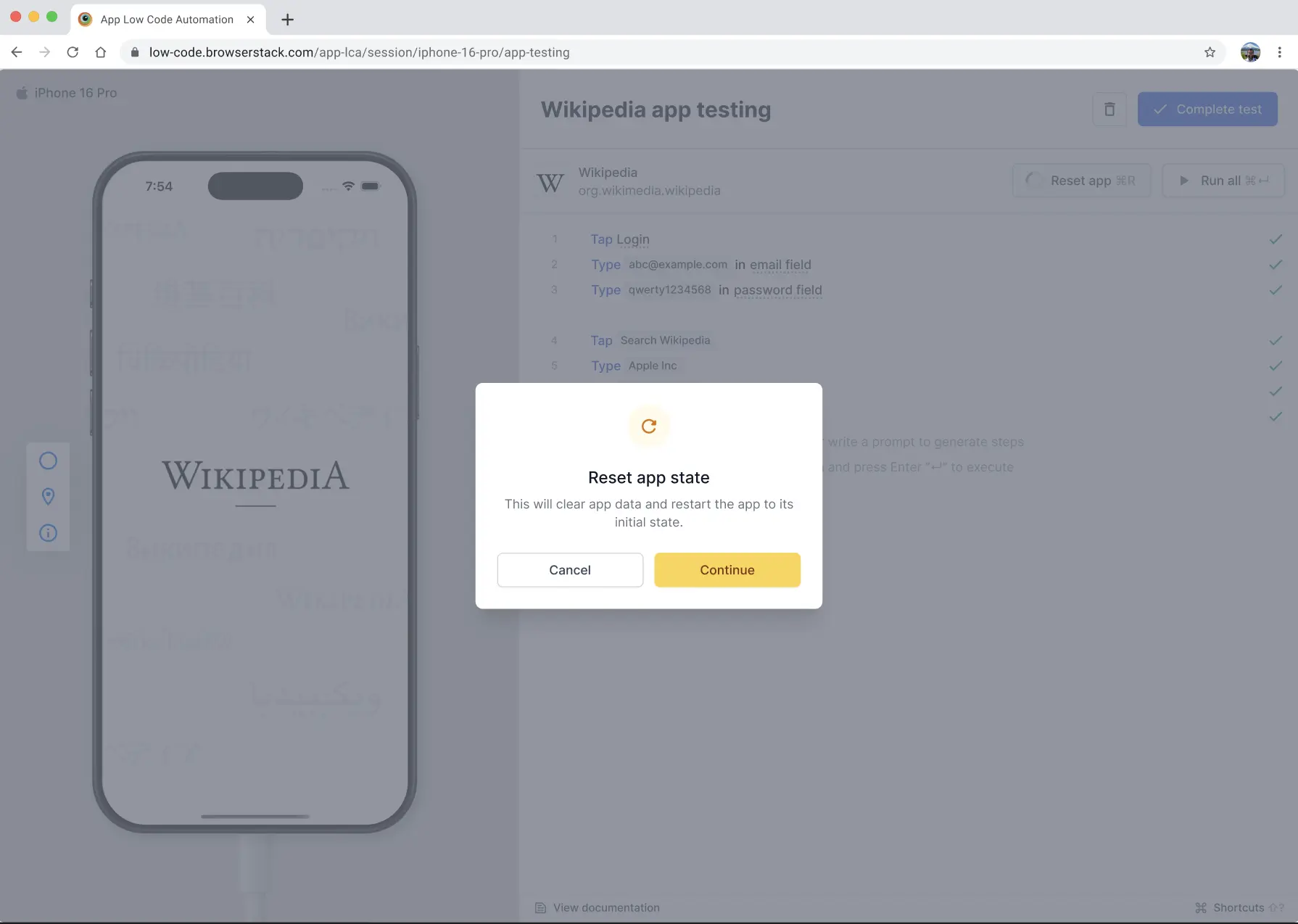
A loading message appears while the app data is cleared and the app is relaunched on the real cloud device. When the reset completes, the app returns to its default state. The DSL editor remains on the current line, so you can continue authoring from where you left off.
Reset the app when you run all steps
When you run all steps, you can choose to start from a clean state.
- In the DSL editor, click Run all, or press
⌘↵on Mac.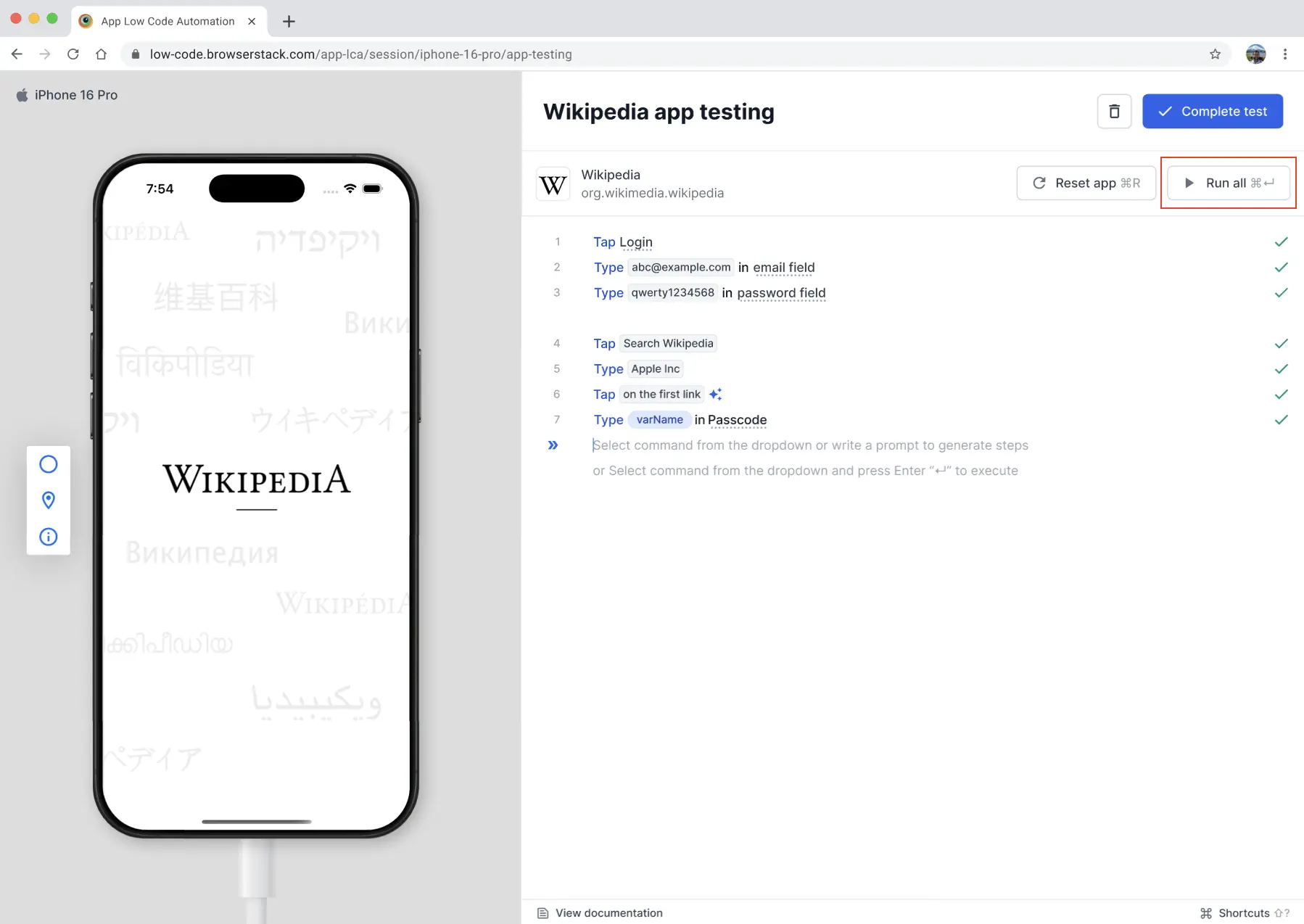
-
In the Clear app state before running steps? dialog, choose one of the following options:
- Continue without clearing: Execution starts immediately without resetting the app state.
-
Clear and continue: The app data is cleared, then execution proceeds from step 1. A loading message appears while the state is cleared, which may take a moment.
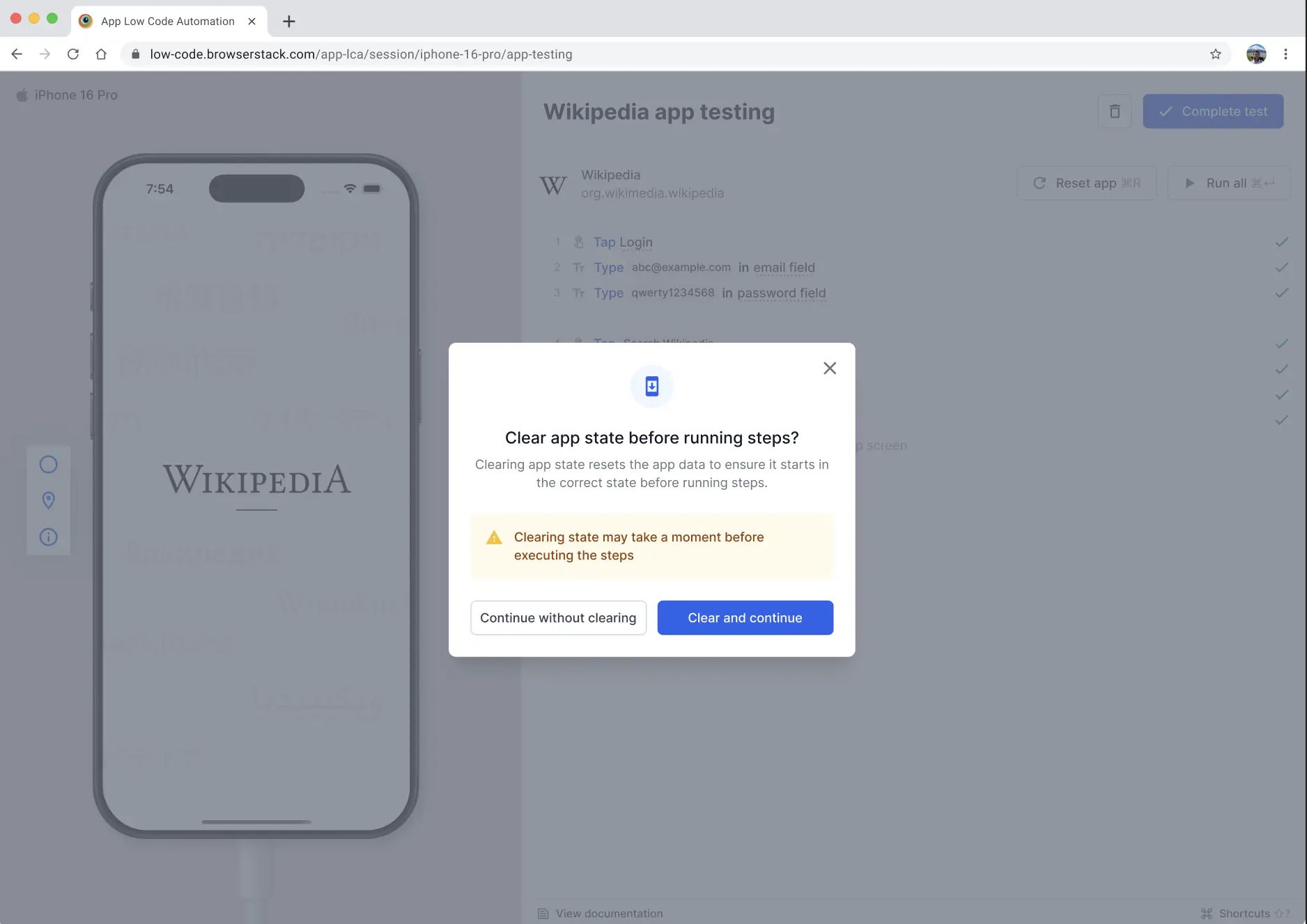
If the app reset fails for either of the options, App Low Code Automation displays an error message and stops the run all process so you don’t wait on a test that will fail.
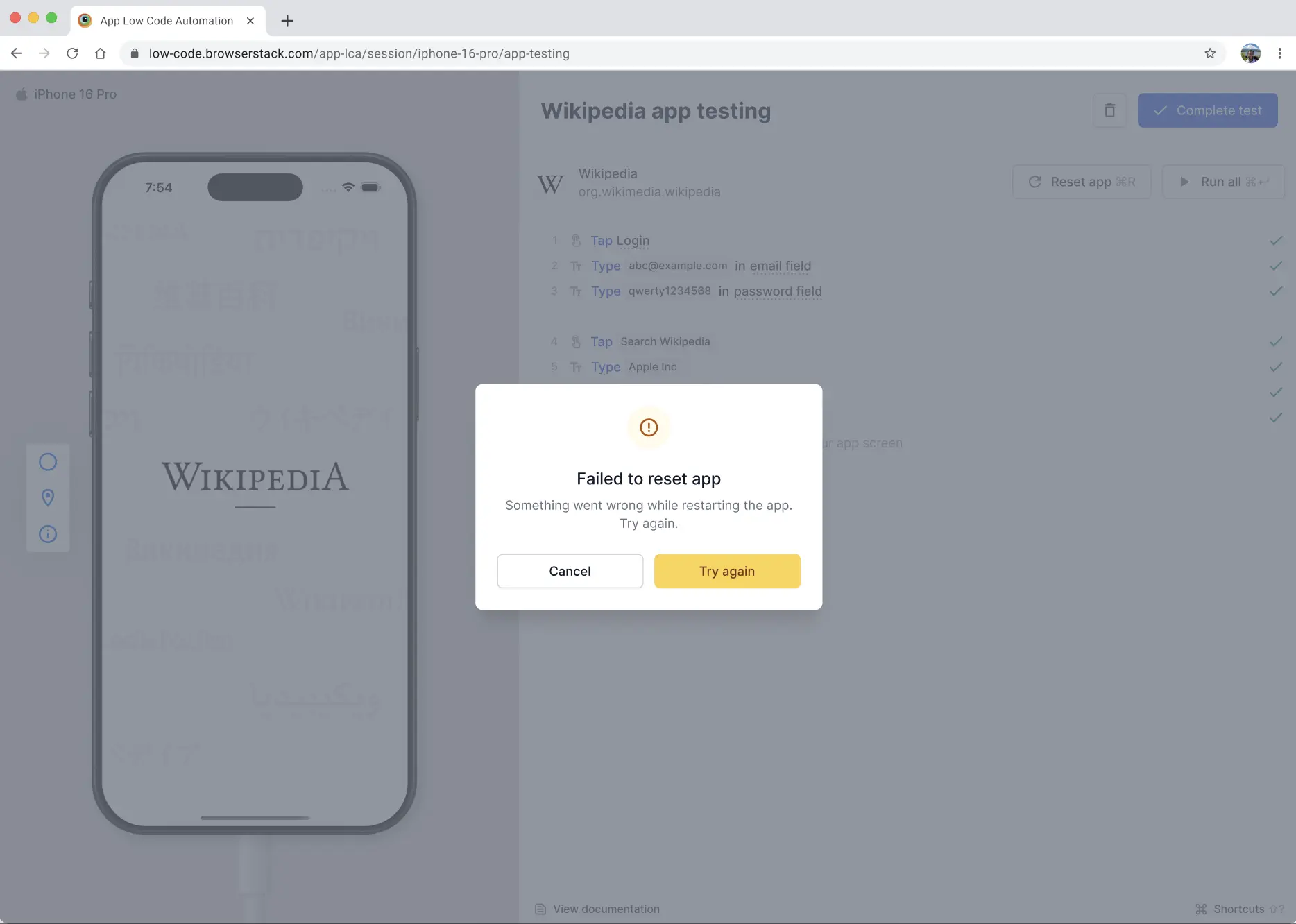
To recover, click Try again.
We're sorry to hear that. Please share your feedback so we can do better
Contact our Support team for immediate help while we work on improving our docs.
We're continuously improving our docs. We'd love to know what you liked
We're sorry to hear that. Please share your feedback so we can do better
Contact our Support team for immediate help while we work on improving our docs.
We're continuously improving our docs. We'd love to know what you liked
Thank you for your valuable feedback!