
 Join our Discord
Test biometric authentication
Test app flows that use fingerprint or face authentication in App Low Code Automation by simulating success, failure, and cancellation on real devices.
Biometric authentication is a process of enhancing security of applications by using biological or behavioral attributes of individuals to verify their identity. Examples of biometric authentication include fingerprint scanning, facial recognition, DNA matching, retina scanning, etc.
App Low Code Automation enables you to test apps that require biometric authentication by using the Biometric Authentication setting on mobile devices.
Biometric authentication is available only in the App Low Code Automation Pro plan. For more information about the Pro plan, contact BrowserStack Support.
Supported apps and devices
The following apps, platforms, and authentication types are supported for biometric authentication:
-
App type: You can test biometric authentication only on apps that you upload as
.ipaor.apkfiles. It is not supported on apps distributed through the App Store, Play Store, or TestFlight, or on system apps. - Platforms: Biometric authentication is supported on Android 6 and later, and iOS 13 and later.
- Authentication types: Fingerprint authentication on Android, and Touch ID and Face ID on iOS.
- Unsupported devices: BrowserStack disables the Settings app on Xiaomi, Vivo, and Huawei devices for security reasons, so you cannot test apps that require biometric authentication on these devices.
Enable biometric authentication for your app
When you upload your app, click the Settings icon next to the app and then turn on the Biometric Authentication toggle in App Configurations.
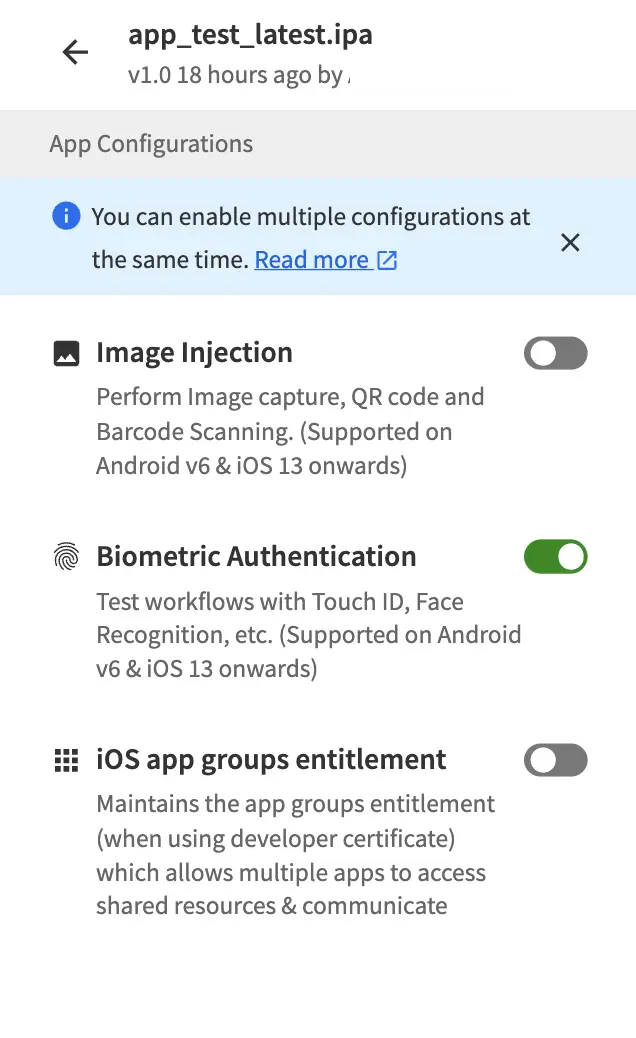
After the setup completes, the app launches on the device and you can start authoring your test.
Test your app using biometric authentication
After you enable biometric authentication, follow these steps to test your app:
- Add the steps that navigate your app to the screen that triggers biometric authentication, such as a login or payment screen.
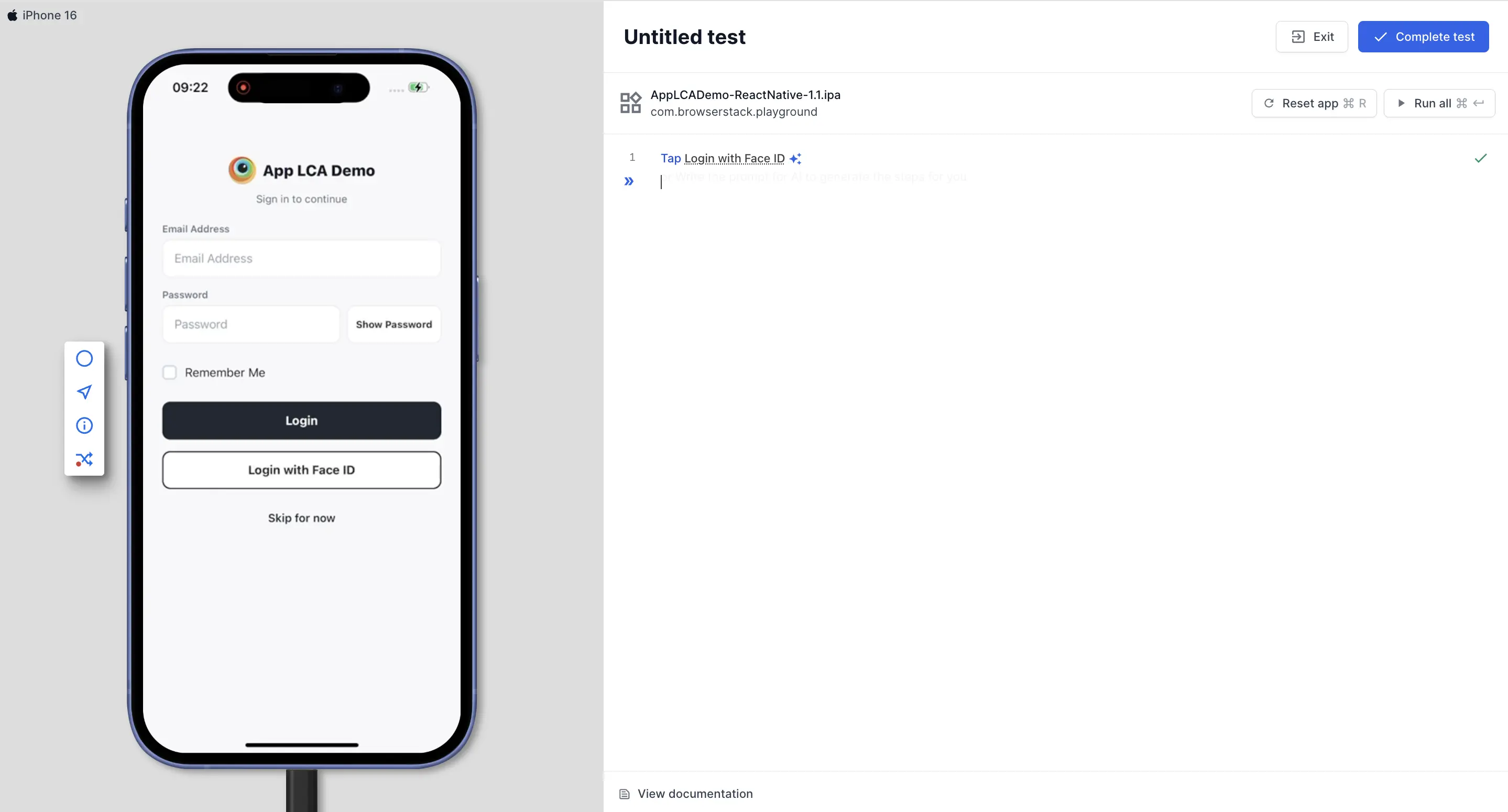
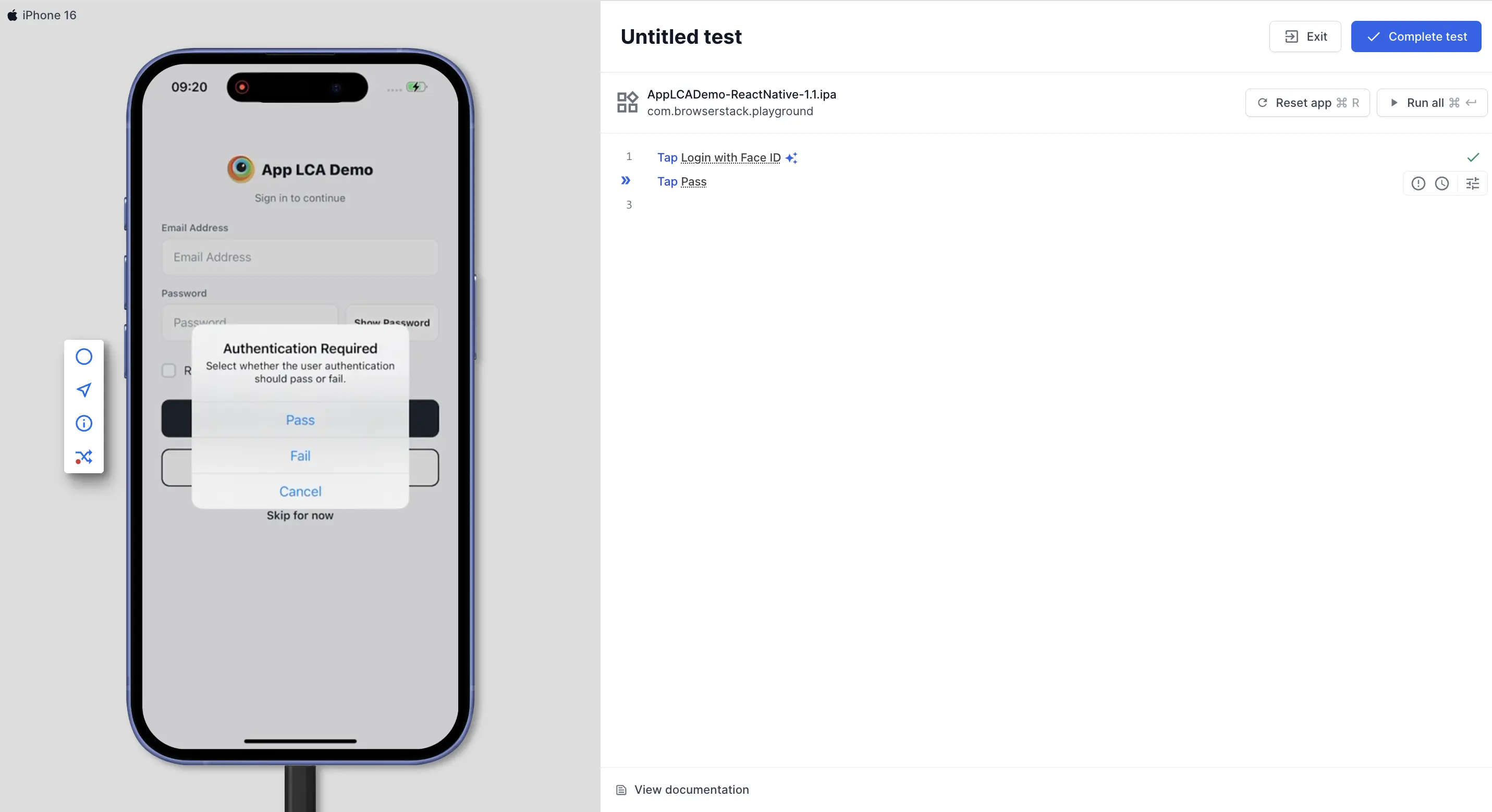
- On the Authentication Required prompt, tap Pass, Fail, or Cancel to test authentication success, failure, or dismissal.
Points to remember
Keep the following behaviors in mind when you test biometric authentication:
- Enable the Biometric Authentication setting before you start the session. You cannot enable it during a running test.
- Inside if-else blocks, loops, modules, and helper flows, the step behaves like any other action step.
- The same step works on both iOS and Android when you run a cross-platform test suite.
- On iOS, you can’t use Biometric authentication together with Close all system popups. If you turn on both settings, biometric steps fail. For more information, see Close system popups.
We're sorry to hear that. Please share your feedback so we can do better
Contact our Support team for immediate help while we work on improving our docs.
We're continuously improving our docs. We'd love to know what you liked
We're sorry to hear that. Please share your feedback so we can do better
Contact our Support team for immediate help while we work on improving our docs.
We're continuously improving our docs. We'd love to know what you liked
Thank you for your valuable feedback!