
 Join our Discord
Record conditional flows with if-else
Use if-else conditional flows in App Low Code Automation to run different test steps based on the state of your app at runtime.
Conditional flows let you add branching logic to your tests using if-else blocks. Instead of following a single linear path, your test adapts to the state of the app at runtime and runs different steps based on whether a condition is met. This helps you handle dynamic screens, such as permission popups, and account for differences in flow between Android and iOS without writing code.
Conditional flows are part of the natural language syntax you use to author tests. For the full list of supported commands, refer to the Write tests using natural language syntax document.
Sample use case: Your app may show a location permission pop-up on launch. Add an If block that checks whether the pop-up is present. If it is, the test taps Allow to dismiss it and continues. If it isn’t, the test skips that step and proceeds to the home screen.
Supported conditional blocks
App Low Code Automation supports three types of conditional blocks:
- If: Runs the steps inside it when its condition is met.
- Else if: Checks another condition when the preceding If or Else if conditions are not met.
- Else: Runs the steps inside it when none of the preceding conditions are met.
You can combine these blocks in any of the following ways:
- An If block on its own.
- An If block followed by one or more Else if blocks, with no Else block.
- An If block followed by only an Else block.
- An If block followed by one or more Else if blocks and a final Else block.
Add a conditional flow
Start an If block, choose what kind of condition to check, add the steps to run when the condition is met, then add Else if or Else blocks for the other cases.
Steps inside an If, Else if, or Else block are indented to visually separate them from the rest of the test. You can’t remove this indentation with the backspace key. The cursor stays at the indented position while you add steps inside a block.
To add a conditional flow:
- In the test editor, type
If. App Low Code Automation suggests the condition types you can check: a page condition, an element condition, or a variable condition.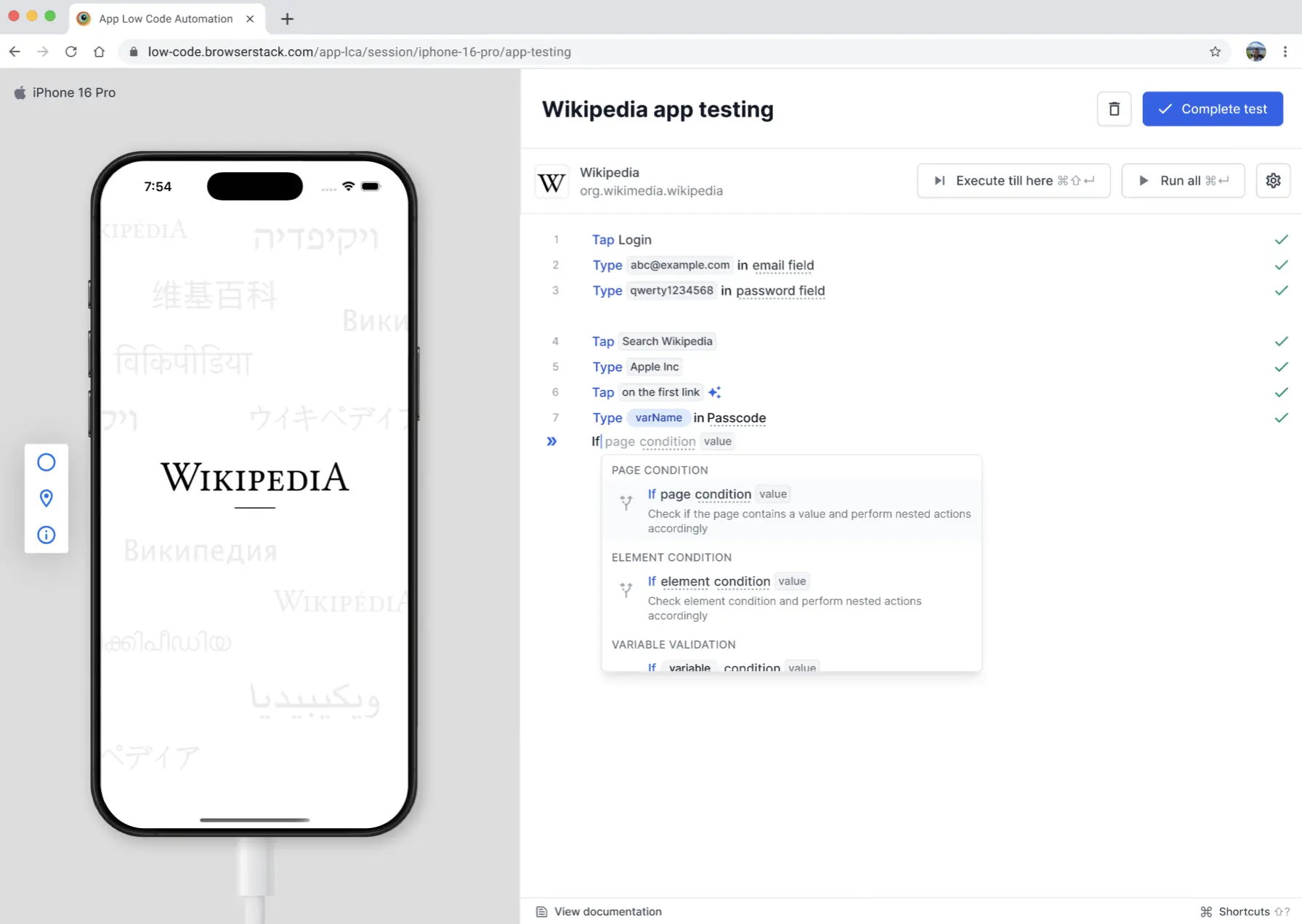
- Select a condition type and enter the value to check, for example
If page contains Wikipedia. To check two conditions together, useandoror, as suggested by the use “and/or” to add multiple conditions hint. For the full list of conditions you can check, refer to the Supported conditions section.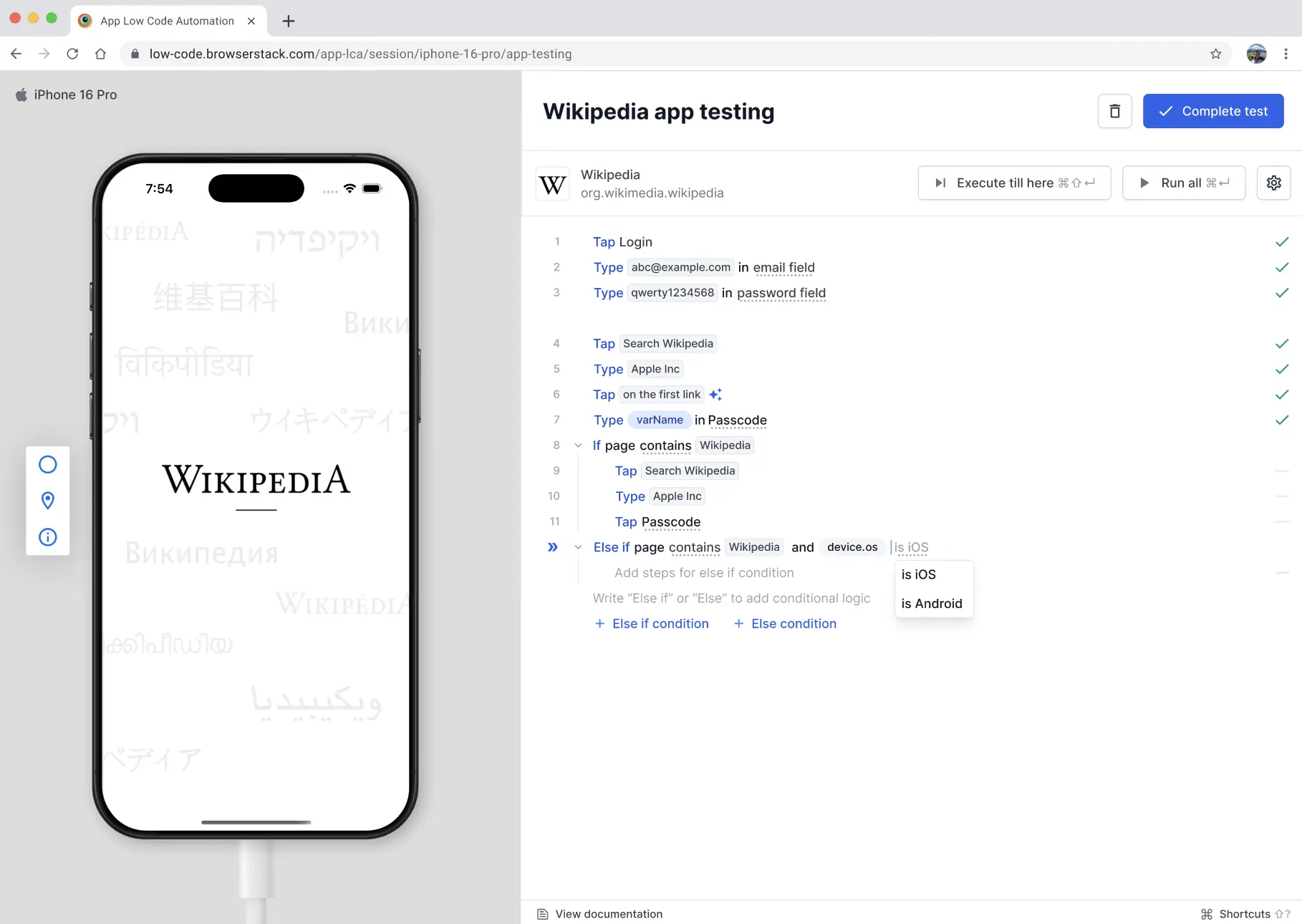
- Under the Add steps for if condition placeholder, add the steps to run when the condition is met.
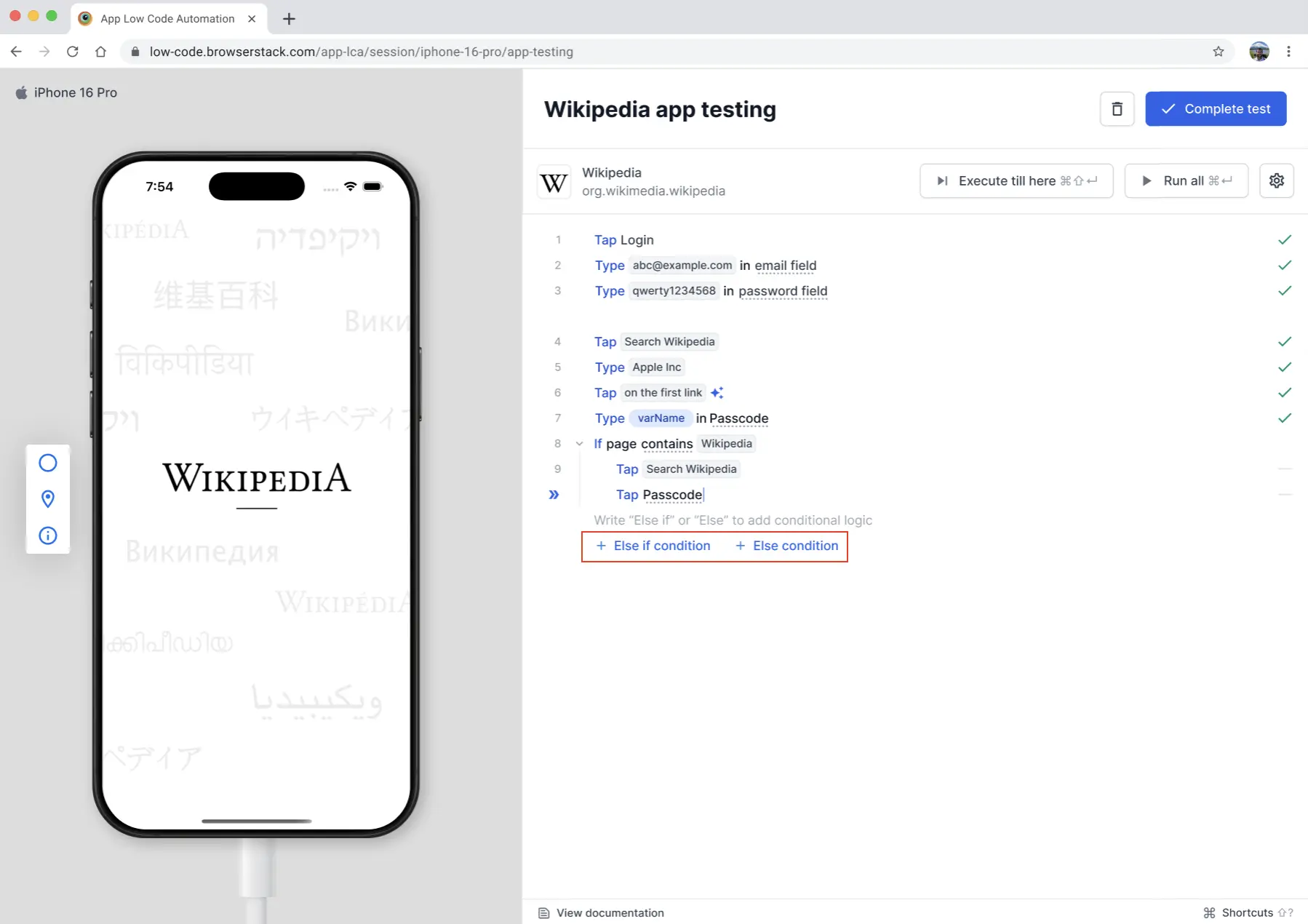
- To handle the other cases, click Else if condition or Else condition below the block, then add the condition and steps for each.
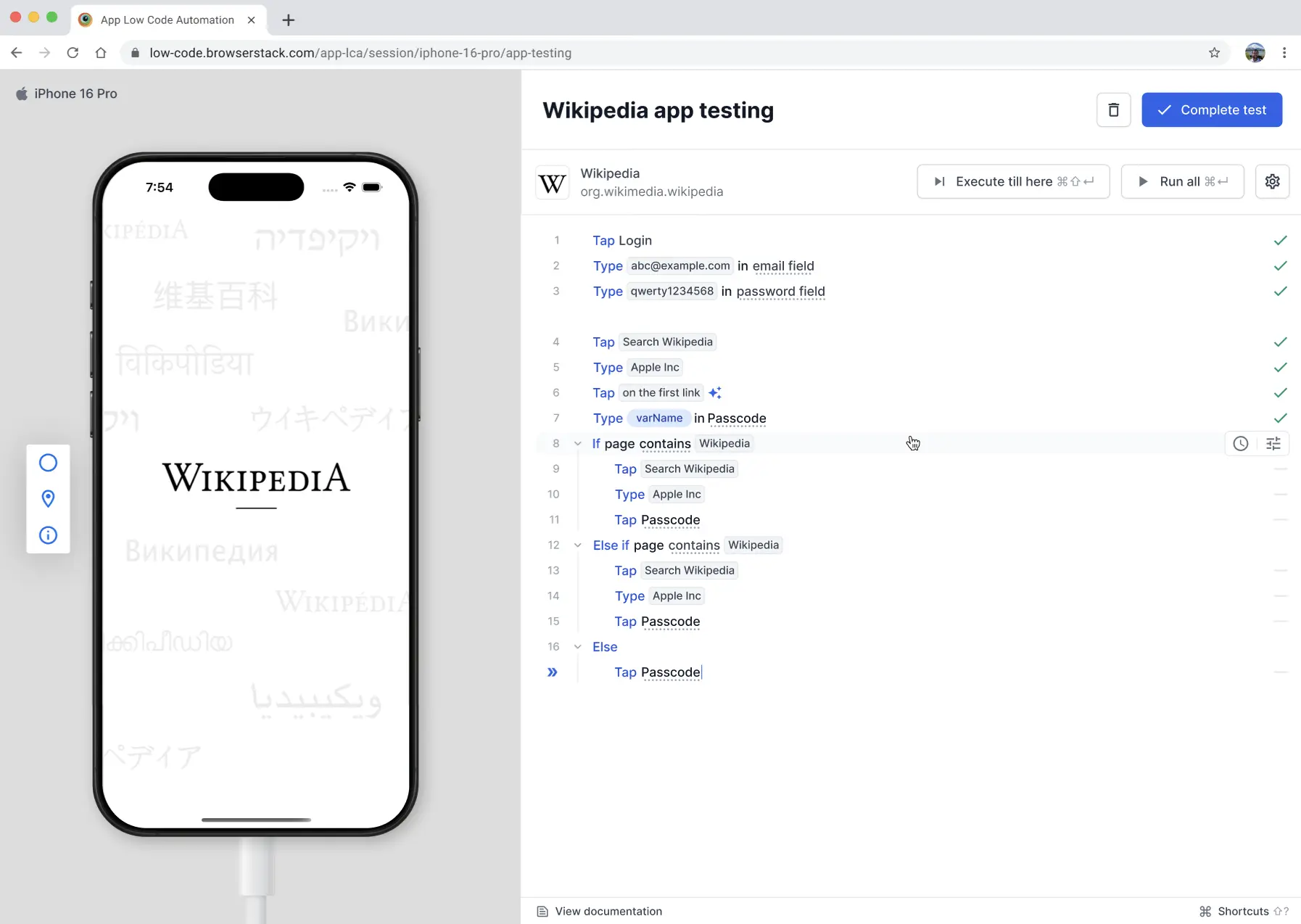
When the test runs, App Low Code Automation evaluates the conditions in order and runs the steps in the first block whose condition is met. The following example shows a complete flow with an If block, an Else if block, and an Else block.
Supported conditions
You can use any of the conditions available in your Validate if commands, along with variable, device, and OS conditions. AI validation isn’t available as a condition, but you can add it as a step inside an If, Else if, or Else block.
Page conditions
Page conditions check the content of the current screen.
| Condition | Description |
|---|---|
page contains text
|
Met when the screen contains the specified text. |
page contains regex regex
|
Met when the screen contains text matching the regular expression. |
page does not contain text
|
Met when the screen does not contain the specified text. |
page does not contain regex regex
|
Met when the screen does not contain text matching the regular expression. |
Element conditions
Element conditions check the text, state, or availability of a UI element.
| Condition | Description |
|---|---|
text of element is expected text
|
Met when the element text matches the expected text. |
text of element contains partial text
|
Met when the element text contains the partial text. |
text of element matches regex pattern
|
Met when the element text matches the regular expression. |
text of element is equal to number 42
|
Met when the element text equals the number. |
text of element is greater than number 42
|
Met when the element text is greater than the number. |
text of element is less than number 42
|
Met when the element text is less than the number. |
text of element is not equal to number 42
|
Met when the element text does not equal the number. |
text of element is greater than or equal to number 42
|
Met when the element text is greater than or equal to the number. |
text of element is less than or equal to number 42
|
Met when the element text is less than or equal to the number. |
element is empty |
Met when the element has no value. |
element is not empty |
Met when the element has a value. |
element is visible |
Met when the element is visible on the screen. |
element is not visible |
Met when the element is not visible on the screen. |
element is enabled |
Met when the element is enabled. |
element is disabled |
Met when the element is disabled. |
element is selected |
Met when the element is selected. |
element is not selected |
Met when the element is not selected. |
element is checked |
Met when the element is checked. |
element is unchecked |
Met when the element is unchecked. |
element exists |
Met when the element exists on the screen. |
element does not exist |
Met when the element does not exist on the screen. |
Variable conditions
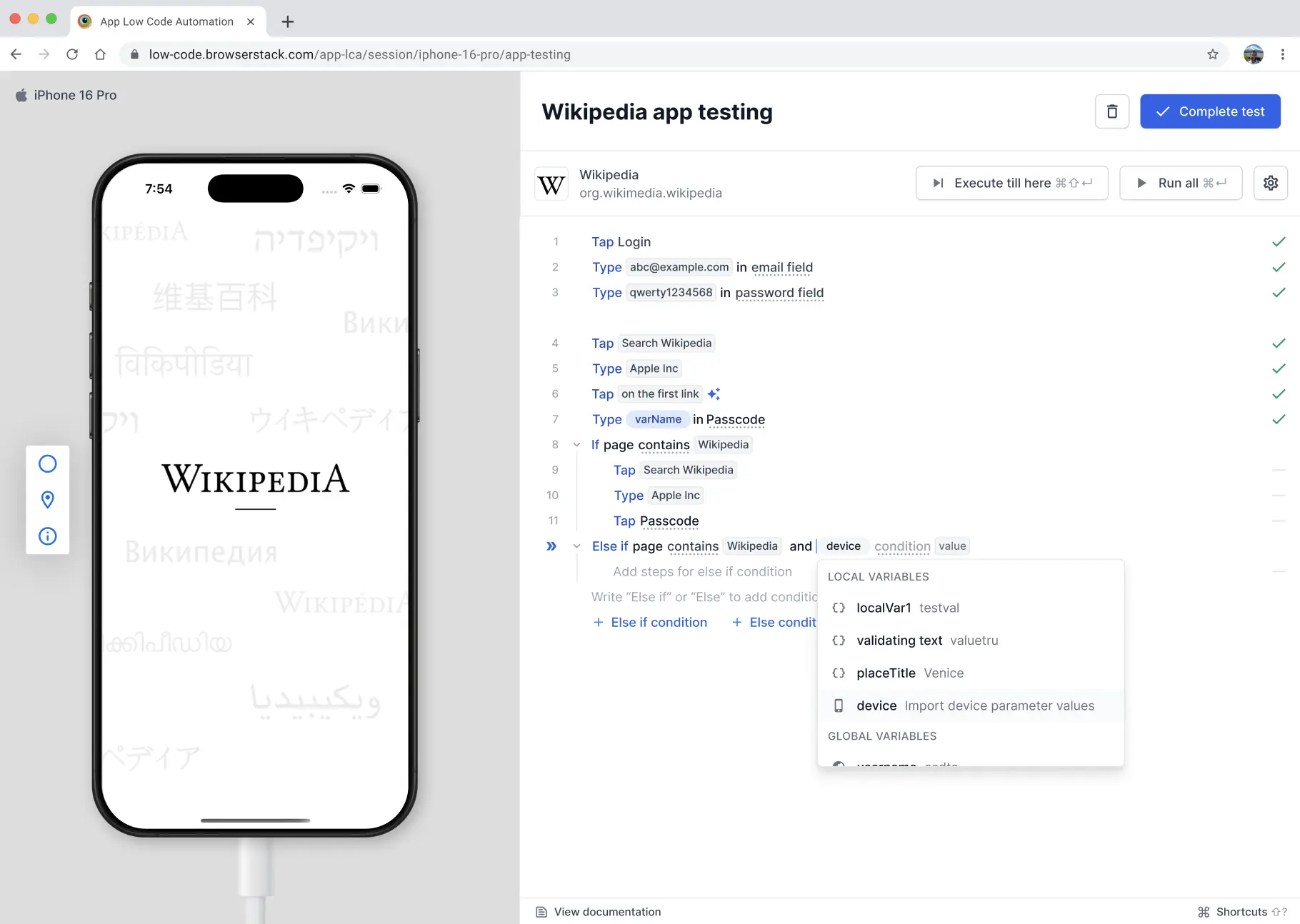
Variable conditions check the value of a variable defined in your test. When you start a variable condition, App Low Code Automation lists the available local and global variables to choose from. For more information on variables, refer to the Variables document.
| Condition | Description |
|---|---|
variable is expected text
|
Met when the variable value matches the expected text. |
variable contains partial text
|
Met when the variable value contains the partial text. |
variable matches regex pattern
|
Met when the variable value matches the regular expression. |
variable is equal to number 42
|
Met when the variable value equals the number. |
variable is greater than number 42
|
Met when the variable value is greater than the number. |
variable is less than number 42
|
Met when the variable value is less than the number. |
variable is not equal to number 42
|
Met when the variable value does not equal the number. |
variable is greater than or equal to number 42
|
Met when the variable value is greater than or equal to the number. |
variable is less than or equal to number 42
|
Met when the variable value is less than or equal to the number. |
Device and OS conditions
Device and OS conditions let you run different steps based on the device the test runs on. These conditions are useful when the flow differs between Android and iOS, or between phones and tablets. Type device. to choose a device parameter.
| Condition | Description |
|---|---|
device.os is Android or iOS
|
Met when the test runs on the specified operating system. |
device.type is phone or tablet
|
Met when the test runs on the specified device type. |
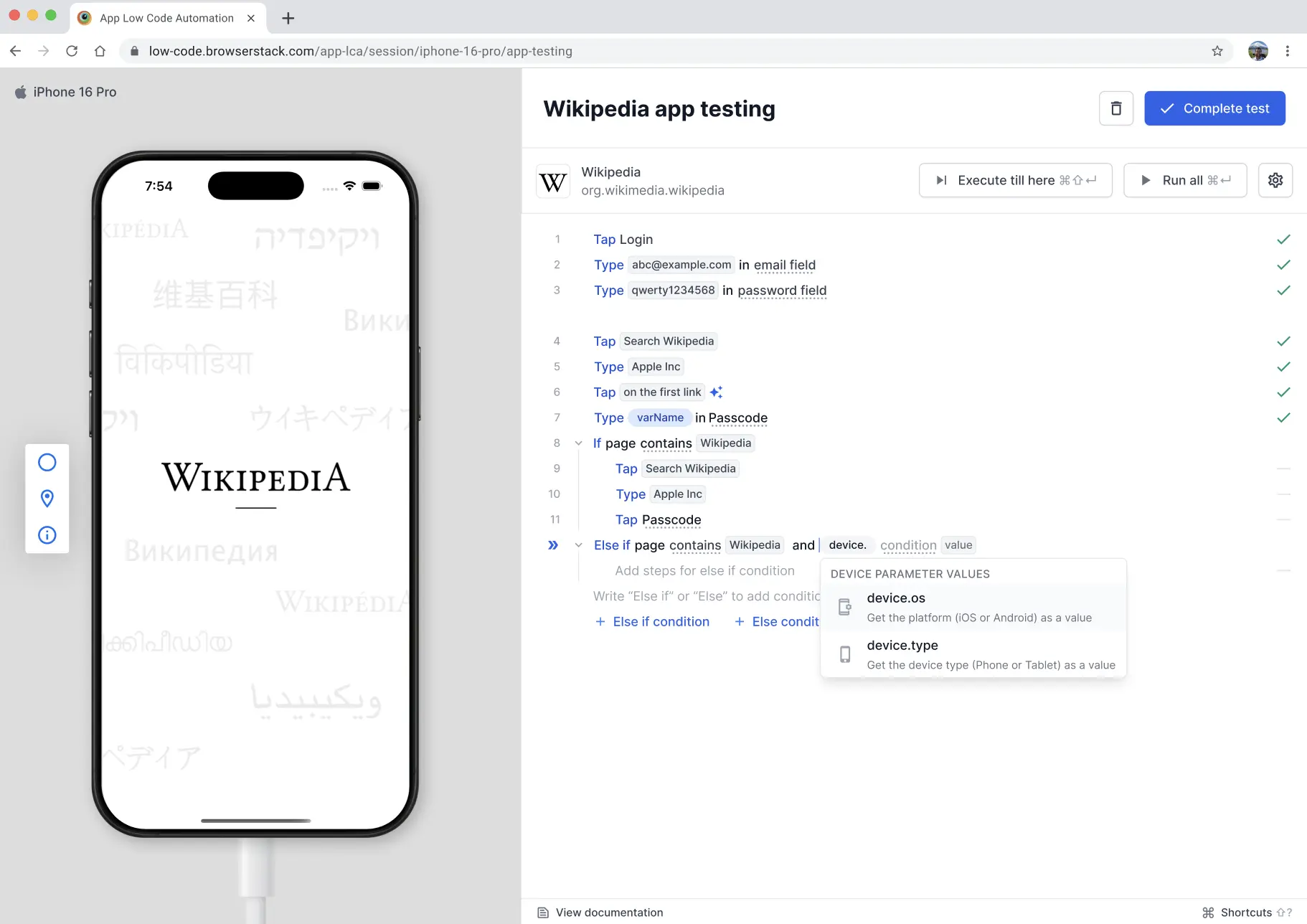
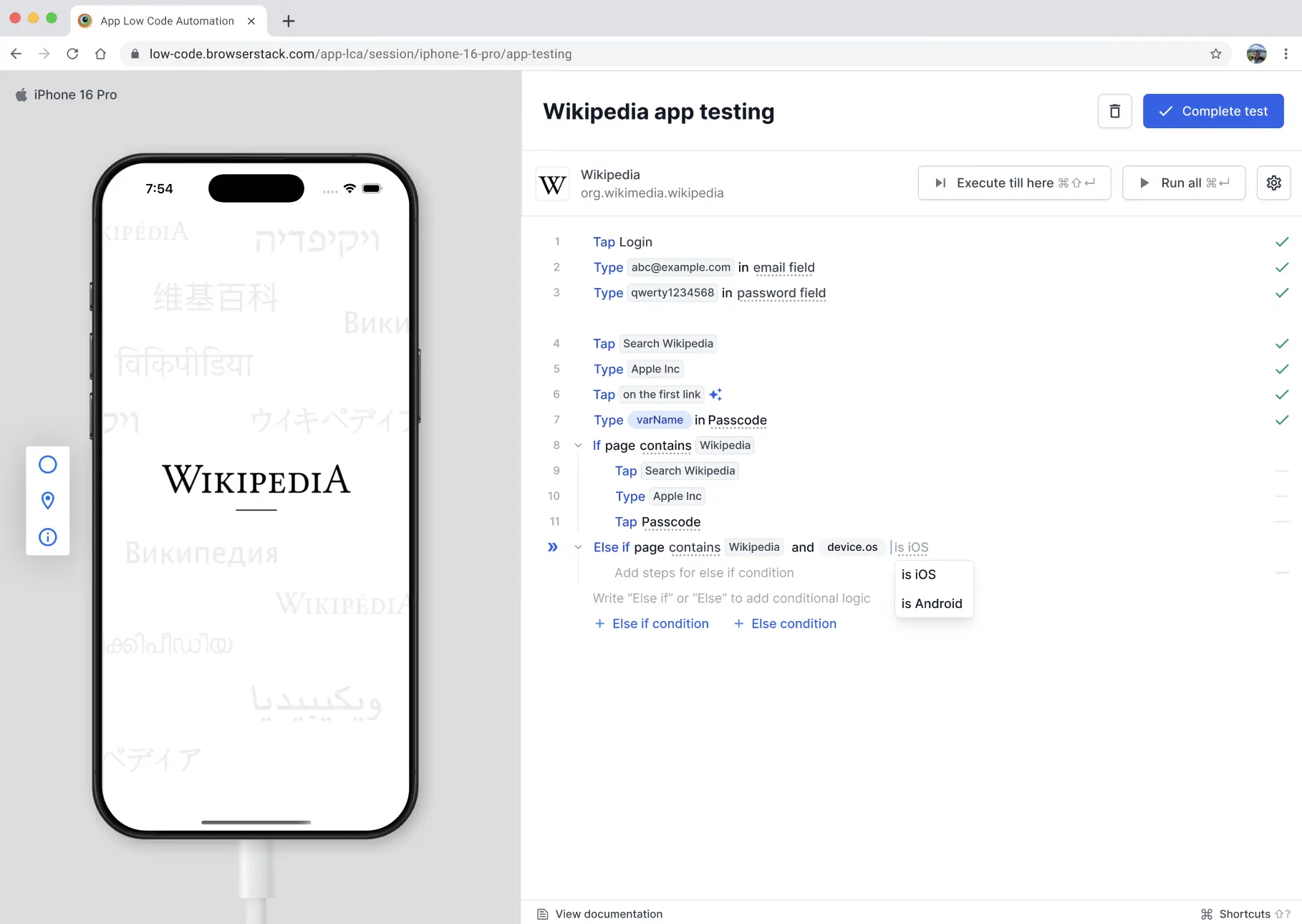
After you select device.os, App Low Code Automation suggests the values is iOS and is Android.
Combine two conditions in a block
You can combine two conditions in a single block using and or or:
- Use
andto run the block only when both conditions are met. - Use
orto run the block when either condition is met.
When you type and or or, App Low Code Automation suggests the second condition type, such as a page, element, or variable condition. For example, If page contains Wikipedia and device.os is iOS runs the block only when both conditions are true. You can combine a maximum of two conditions in a single block.
Use loops inside conditional blocks
You can’t nest one conditional block inside another, but you can combine conditional blocks with loops.
You can’t nest one conditional block inside another. You can add a loop inside a conditional block and a conditional block inside a loop. However, once a loop is inside an If block, you can’t nest it further with another conditional block or loop.
Add a loop inside a conditional block to repeat a set of steps when a condition is met, or add a conditional block inside a loop. For more information on loops, refer to the Repeat steps with loops document.
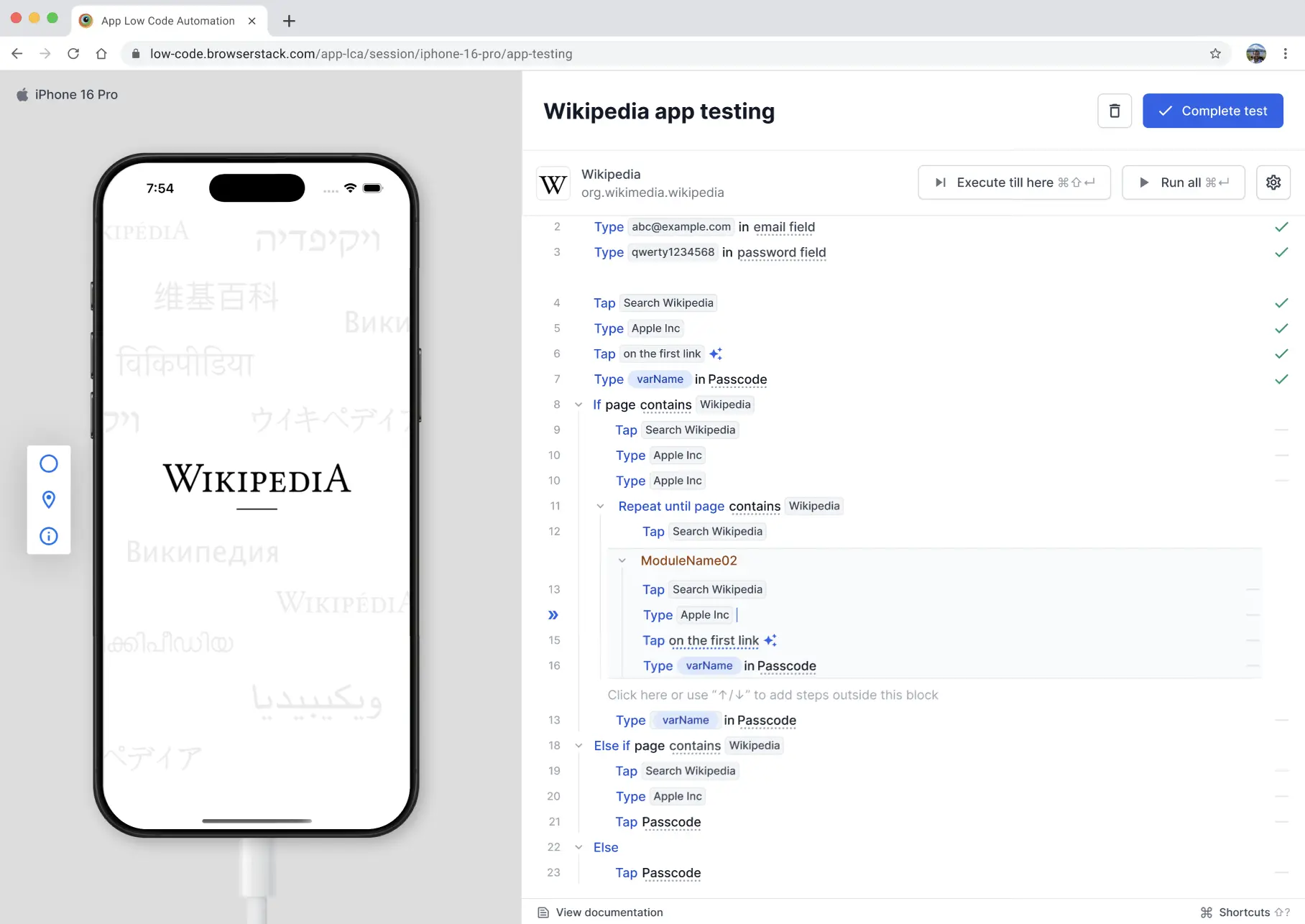
A variable you declare inside a conditional block can be used outside that block in later steps.
Use AI commands inside conditional blocks
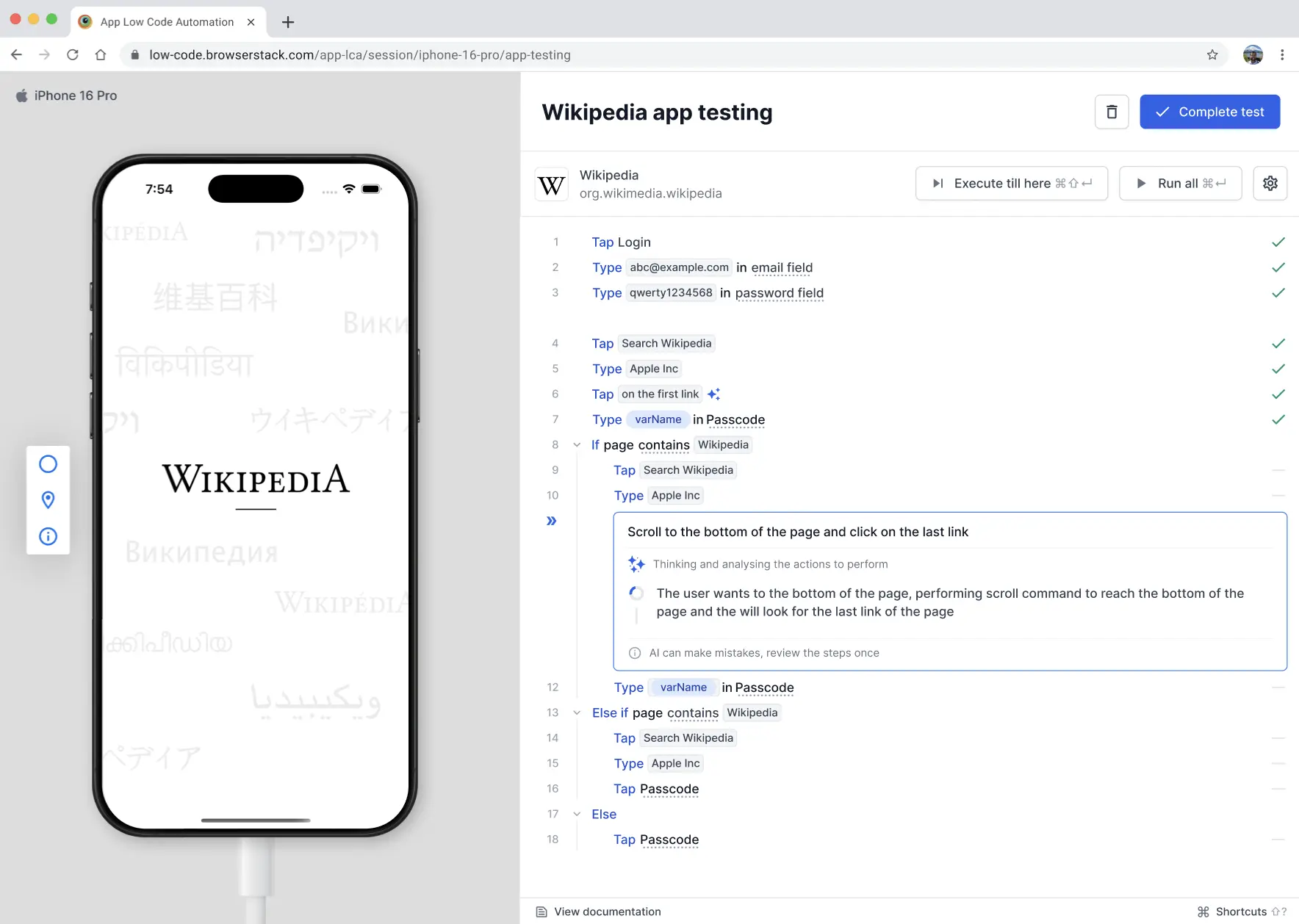
You can use AI commands inside conditional blocks to author steps in natural language. Select Generate steps with AI and enter a prompt to generate the test steps for that block. For more information, refer to the Generate AI steps document.
Use modules with conditional blocks
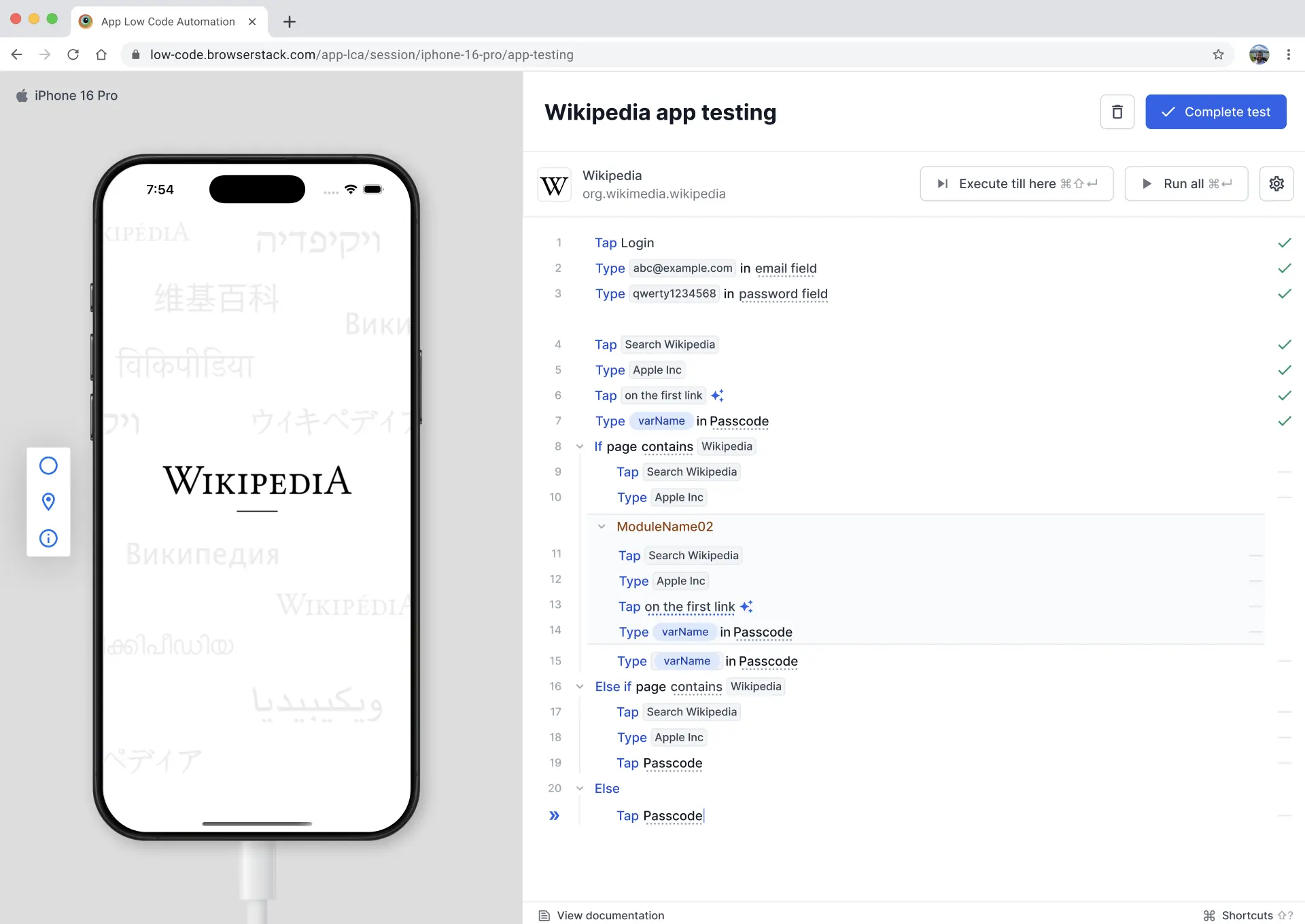
A module can contain conditional blocks, so you can reuse a flow that includes if-else logic. You can also import a module inside a conditional block.
You can’t import a module into a conditional block if that module already contains a conditional block. App Low Code Automation shows a Cannot import module here message because conditional blocks can’t be nested inside one another.
How conditional steps handle failures
The steps that define a condition behave differently from the action steps inside a block:
- Condition steps in the If and Else if blocks support only timeout settings. The only failure logic available for them is Fail and stop execution.
- Action steps inside a block support both failure logic and timeout settings, the same as standalone steps. For more information, refer to the Configure step behaviour document.
Behaviour during authoring and test runs
While you author or edit a test, pressing Enter on an If, Else if, or Else block moves the cursor to the next line inside the block. This lets you add steps inside a block even when its condition isn’t currently met.
During test replay, Run all, or Execute selected steps, if a condition fails, the cursor moves to the next Else if or Else block. If no such block remains, the test exits the conditional block and continues with the next step.
We're sorry to hear that. Please share your feedback so we can do better
Contact our Support team for immediate help while we work on improving our docs.
We're continuously improving our docs. We'd love to know what you liked
We're sorry to hear that. Please share your feedback so we can do better
Contact our Support team for immediate help while we work on improving our docs.
We're continuously improving our docs. We'd love to know what you liked
Thank you for your valuable feedback!