
 Join our Discord
Call an API and extract values
Learn how to call an API endpoint from a test and extract response values into variables in App Low Code Automation.
App Low Code Automation lets you make API calls while recording your test, solving the complexity of automating test cases that involve dependencies beyond the app UI. You can integrate API calls directly into tests for:
- Initializing test environments
- Invoking specific services
- Checking backend conditions
- Managing test data
Add API step
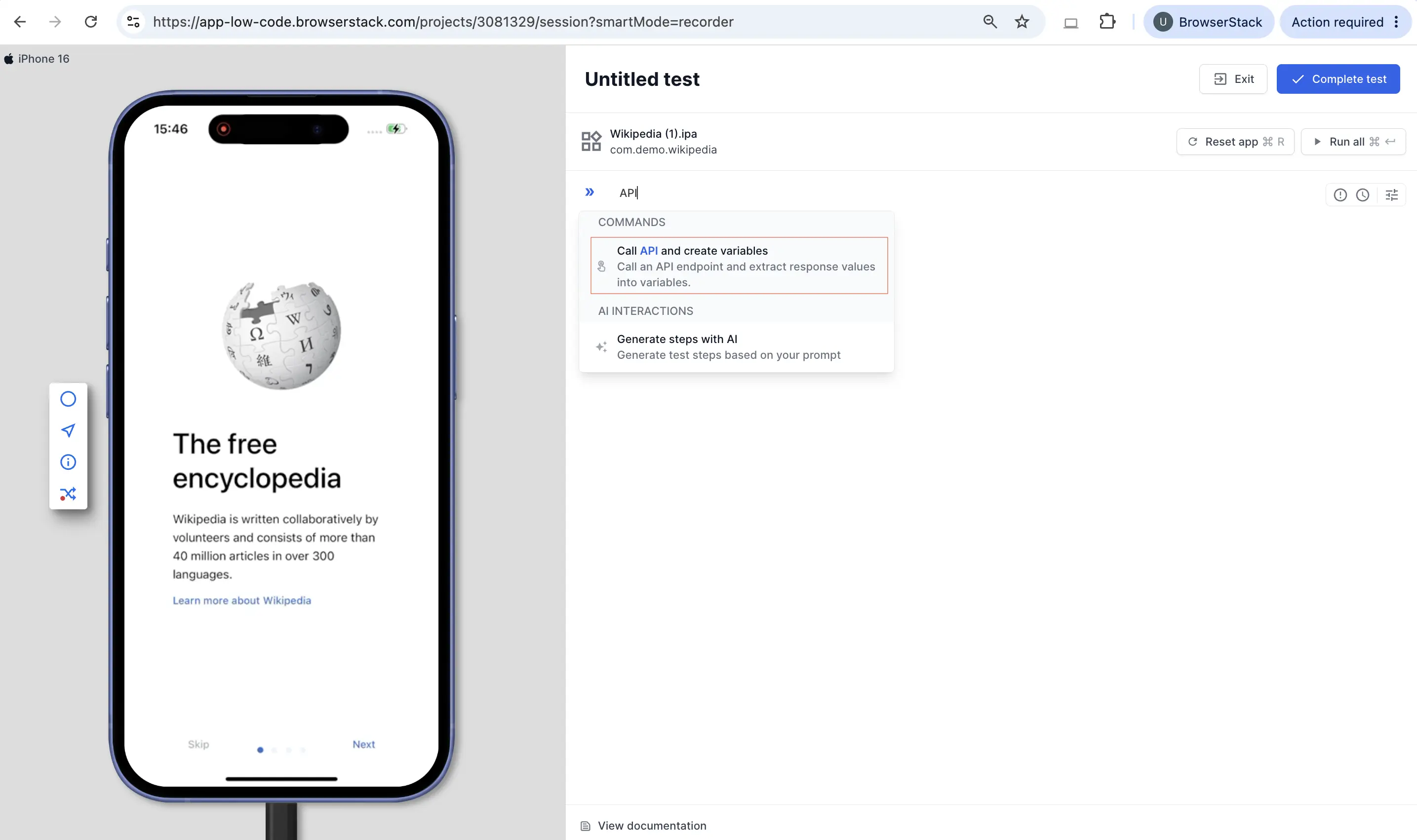
To add an API request in your test, type API in the test editor and select the Call API and create variables command.
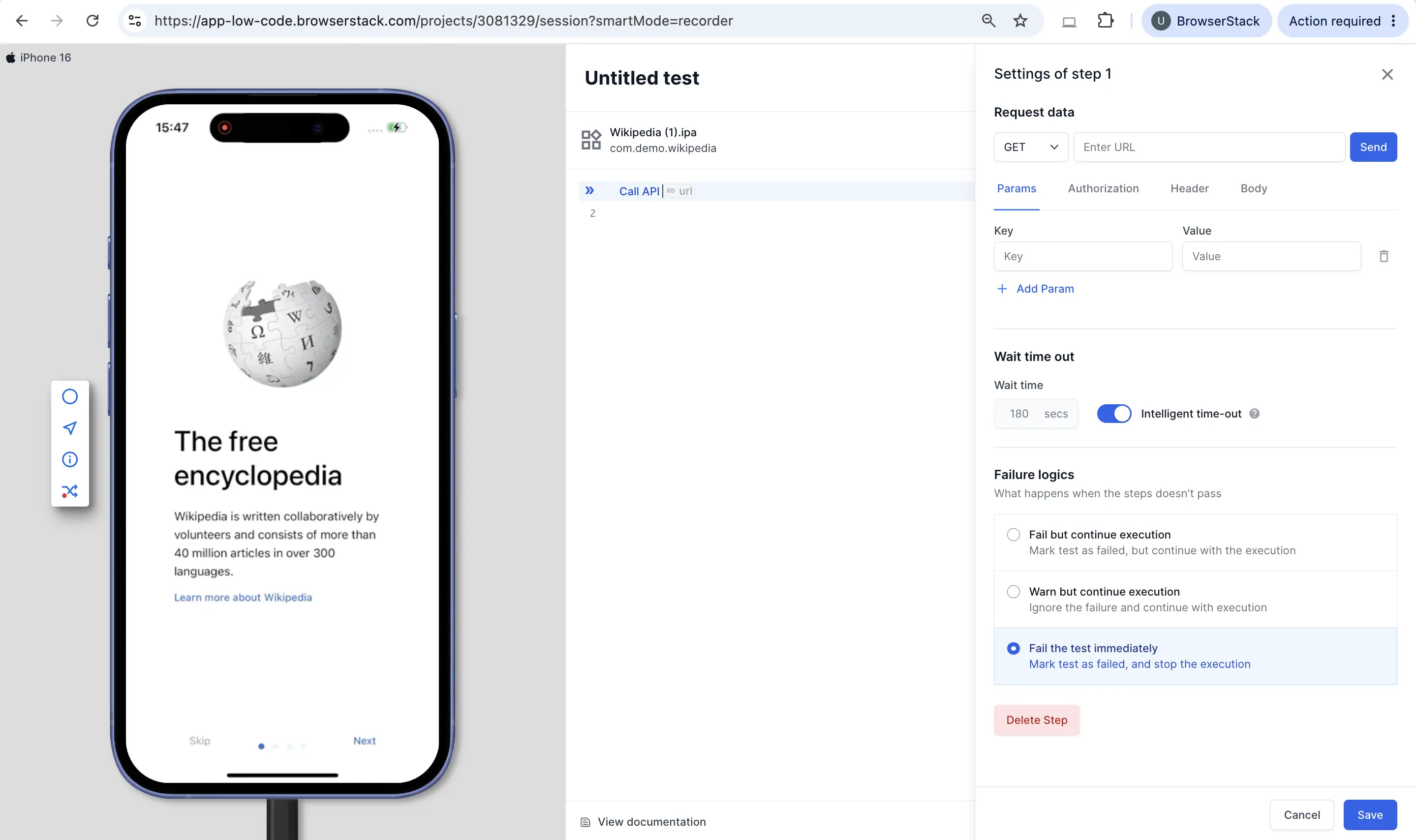
The Settings of step panel opens, where you configure the request data, wait timeout, and failure logic.
Request data
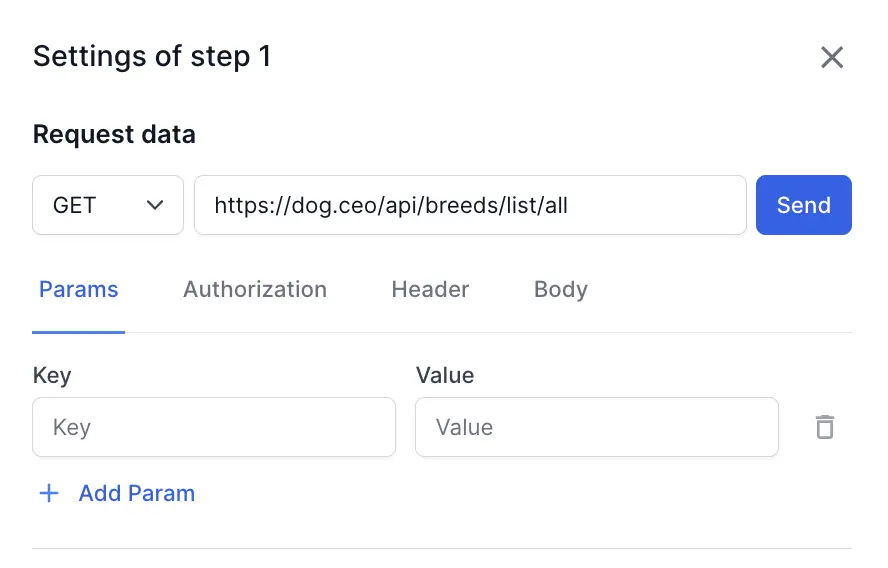
In the Request data section, select the HTTP method, enter the API URL, and configure the request using the Params, Authorization, Header, and Body tabs. Click Send to run the request.
| Attributes | Description |
|---|---|
| Method | Select the HTTP method for the API call, including options like GET, POST, PUT, DELETE, or PATCH. |
| URL | Specify the URL for the API endpoint. |
| Params | Specify key-value fields for query parameters. Click Add Param to add more. |
| Authorization | Select and apply the suitable authorization method, such as Basic or Bearer, for the API call. |
| Header | Configure headers such as cookies, content-type, encoding, and language according to your API specifications. |
| Body | Specify the data to send in one of the following formats: - Form data or key-value fields - Raw |
Extract values from API responses
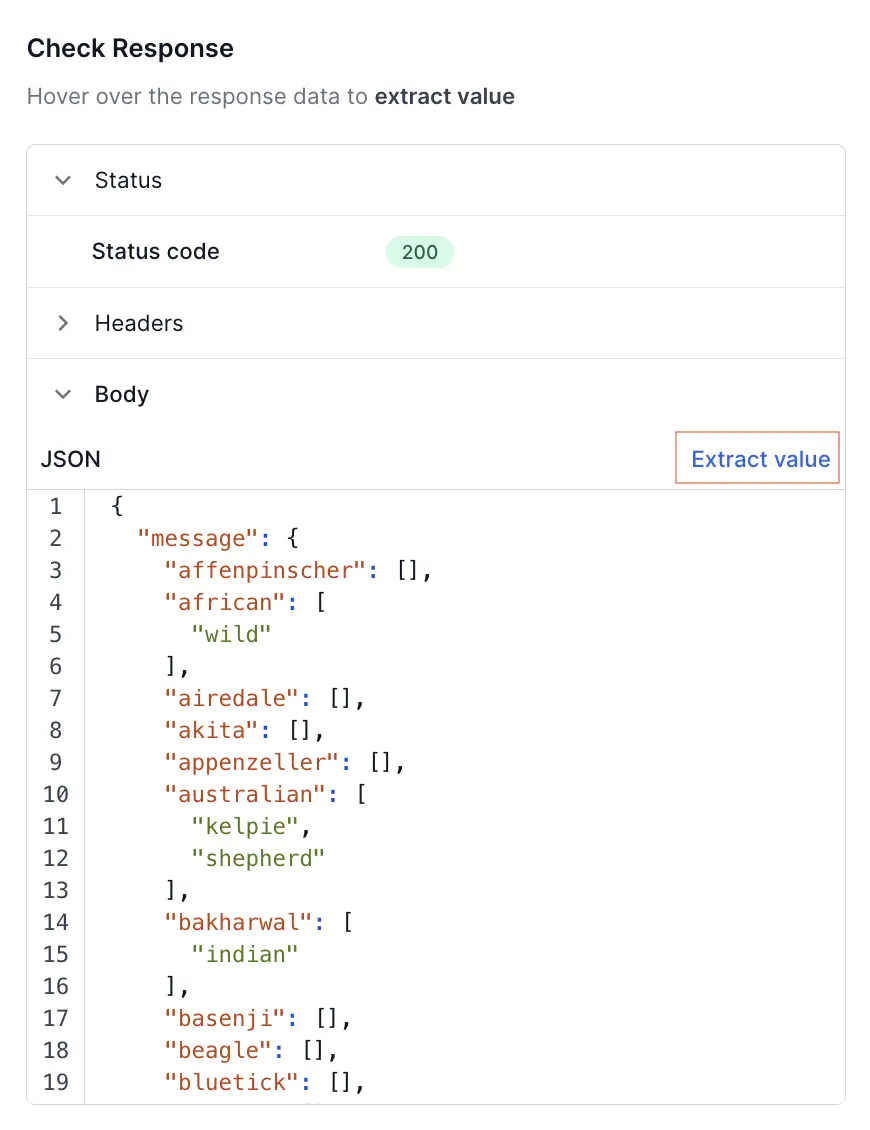
After you fill in the request fields and click Send, the request runs and a response populates. The Check Response section contains:
- Status
- Headers
- Body
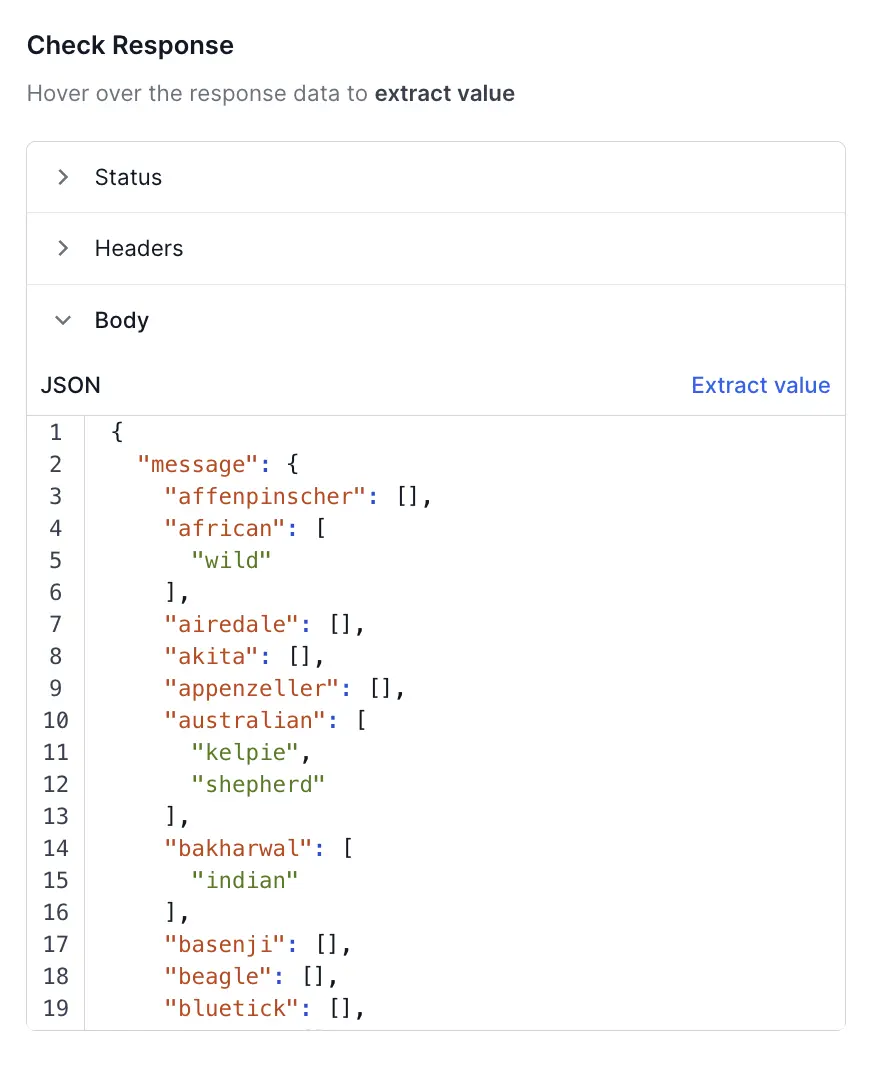
You can then extract values from the response and store them in variables to reuse in later steps of your test.
Extract value from JSON response
To store any response status, header, or body value from a JSON response into a variable:
- Expand the Body section to view the response and click Extract value.
- In the Enter JSON path field, enter the JSON path to the value you want to extract.
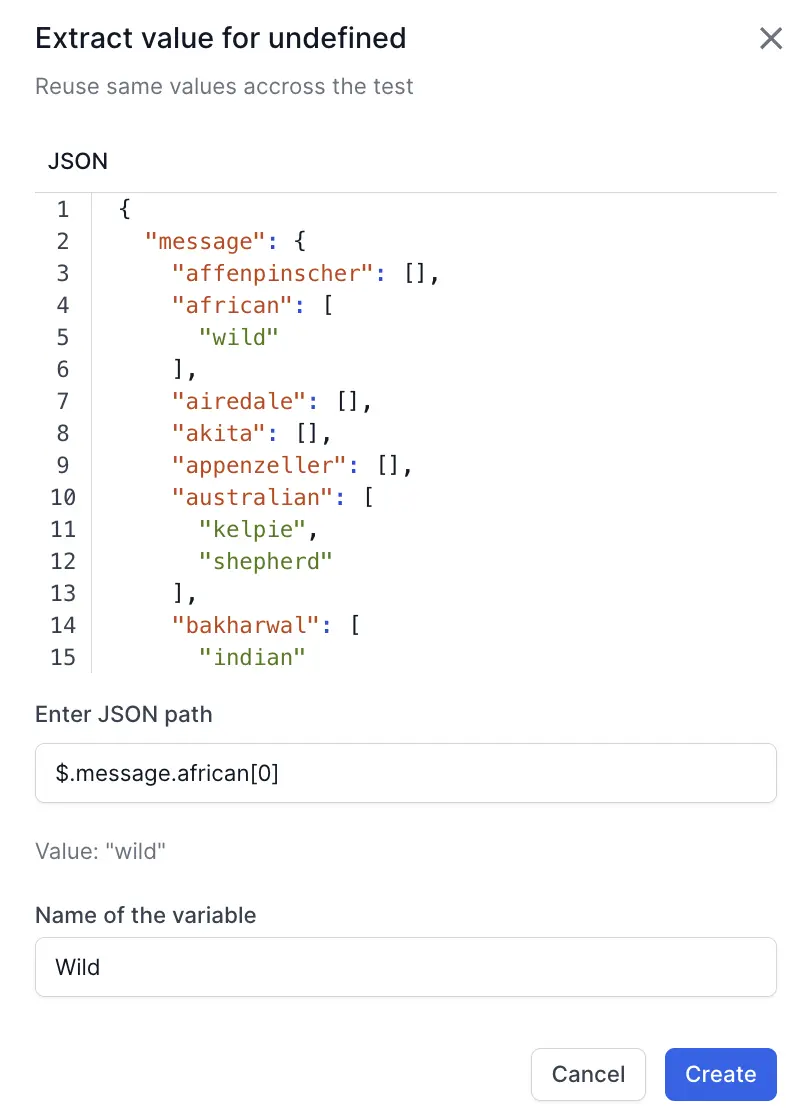
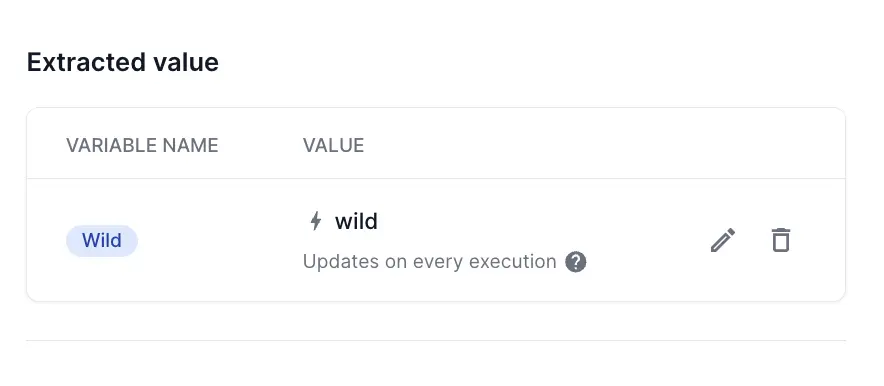
- Enter a name for the variable, then click Create. The extracted value is stored in the variable and appears under Extracted value. The value updates on every execution, so you can reference it in subsequent test steps.
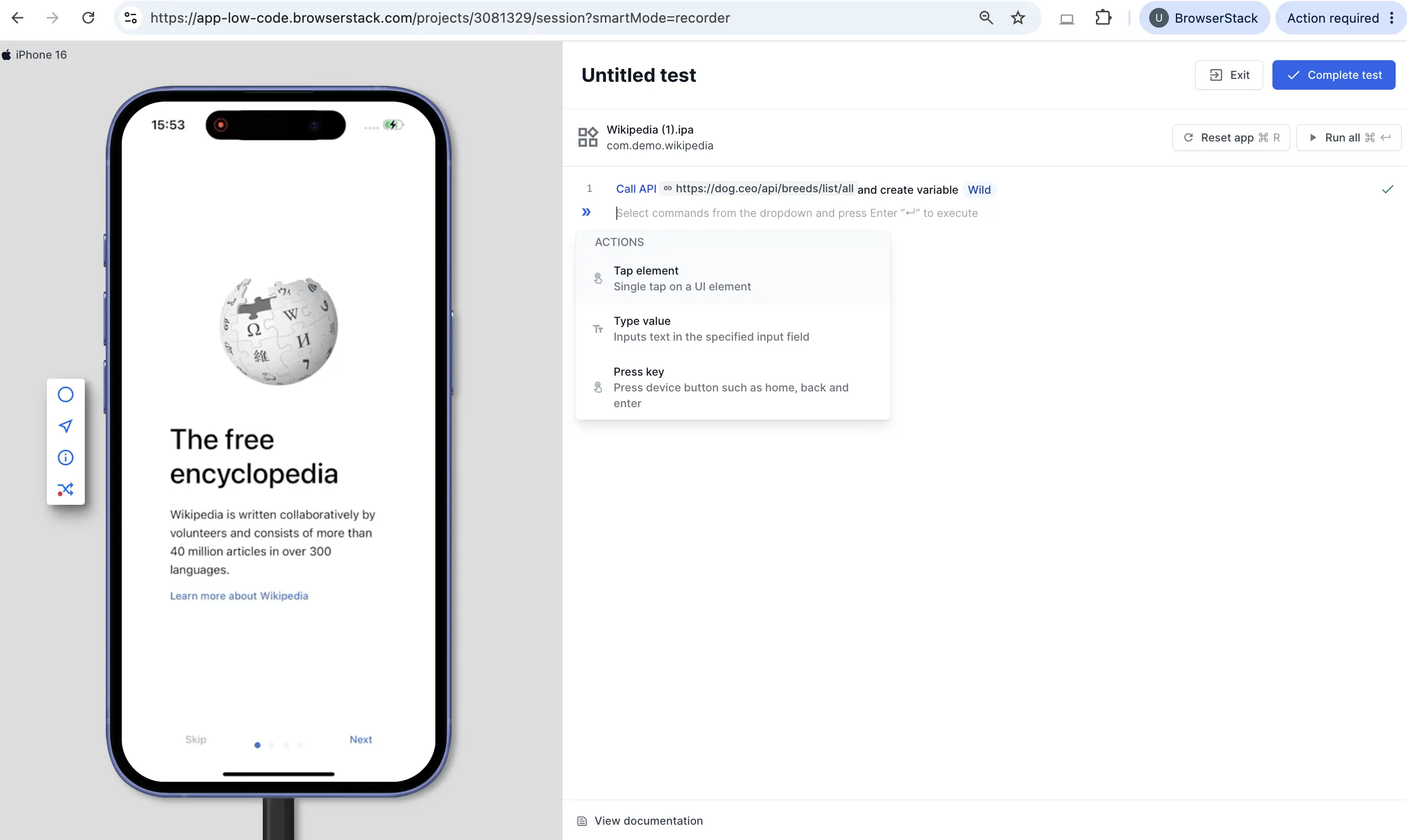
- Click Save. The saved API step appears in the test step panel, showing the endpoint called and the variable created.
Extract value from XML response
To store any XML node or attribute value into a variable, click Extract value and use XPath to select the value you want to extract. You can then reference this variable in later test steps. For example, set the XPath to /user/id to extract the value 12345 from the following response:
<user>
  <id>12345</id>
  <name>Jane Doe</name>
</user>
We're sorry to hear that. Please share your feedback so we can do better
Contact our Support team for immediate help while we work on improving our docs.
We're continuously improving our docs. We'd love to know what you liked
We're sorry to hear that. Please share your feedback so we can do better
Contact our Support team for immediate help while we work on improving our docs.
We're continuously improving our docs. We'd love to know what you liked
Thank you for your valuable feedback!