
 Join our Discord
Configure device type and device model
Learn how to configure the right device type and model to create your app tests in App Low Code Automation.
Set up your device type and model before you start a test in App Low Code Automation. It lets you create your test on the device you select, so you can verify your app’s behavior on the correct hardware. You can test across different environments and screen sizes.
Both iOS and Android devices are supported.
Supported devices and models
App Low Code Automation currently supports both iOS and Android devices, with the following models and OS versions:
| Device type | Device model | OS version |
|---|---|---|
| iOS: iPhone | iPhone 17 | iOS 26 |
| iPhone 16 | iOS 18 | |
| iPhone 16 Pro | iOS 18 | |
| iPhone 15 | iOS 17 | |
| iPhone 15 Pro | iOS 17 | |
| iPhone 14 | iOS 16 | |
| iPhone 14 Pro | iOS 16 | |
| iOS: iPad | iPad Pro 11 2025 | iPadOS 26 |
| iPad Air 13 2025 | iPadOS 18 | |
| Android: Samsung Galaxy S | Galaxy S26 | Android 16 |
| Galaxy S25 | Android 15 | |
| Galaxy S24 | Android 14 | |
| Galaxy S23 Ultra | Android 13 | |
| Galaxy S23 | Android 13 | |
| Galaxy S22 | Android 12 | |
| Galaxy S21 | Android 11 | |
| Android: Samsung Galaxy Tab | Galaxy Tab S11 | Android 16 |
| Galaxy Tab S10 Plus | Android 15 | |
| Android: Google Pixel | Pixel 9 | Android 15 |
Why configure device type and model?
- Your tests will run on the exact device and model you select, so you can validate real user scenarios.
- You can identify and fix device-specific issues early in your development cycle.
- Selecting the right device makes your test results more accurate and relevant for your users.
Select device type and model
Before you click Start test, you need to choose the device type and model.
- On the Low Code Automation dashboard, select the desired device type.
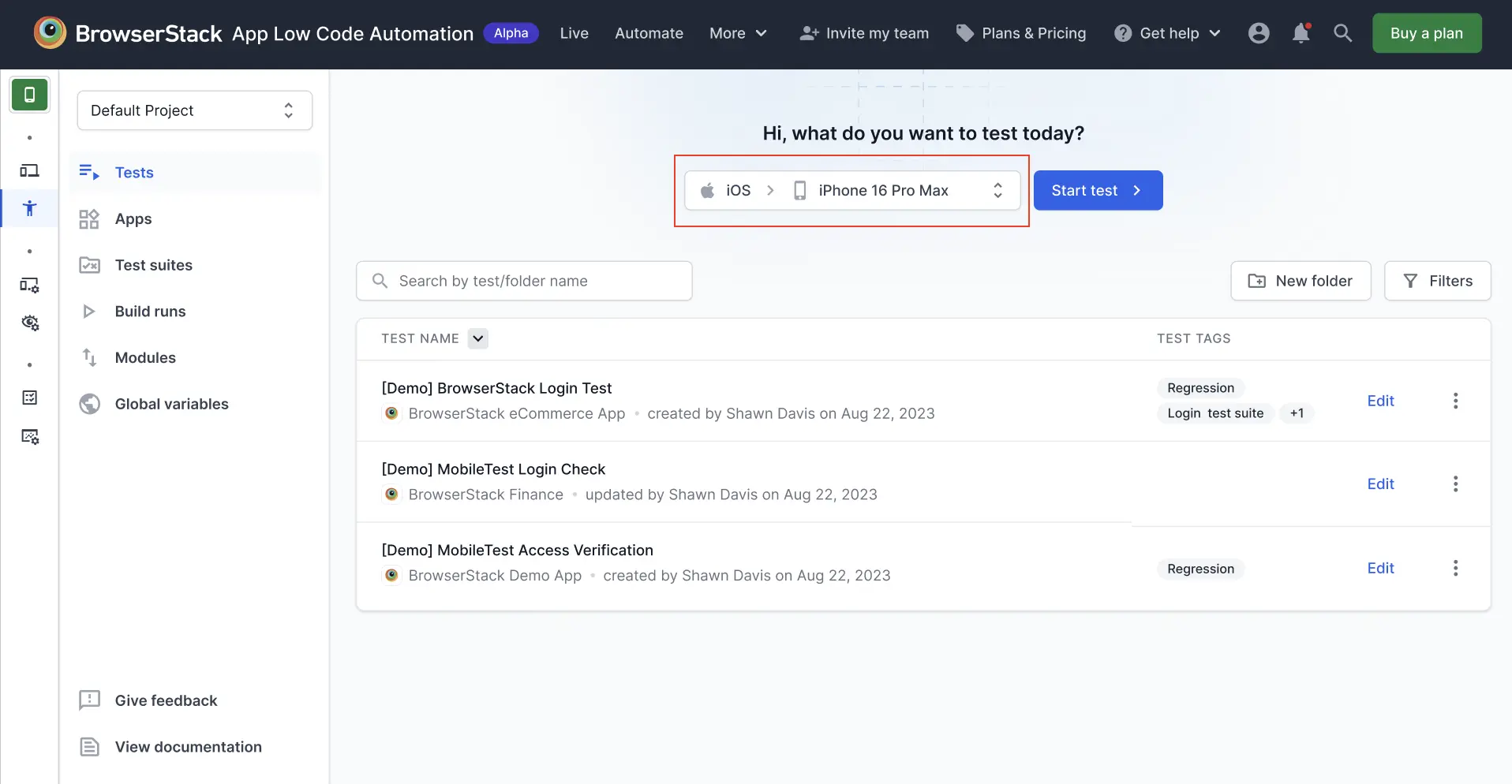
- Select the device model from the dropdown. For example, choose iPhone 16 Pro Max. You can write your test on only one device model at a time.
- Click Start test >. A real device launches based on your selection. This ensures your tests run on the actual hardware, providing accurate results.
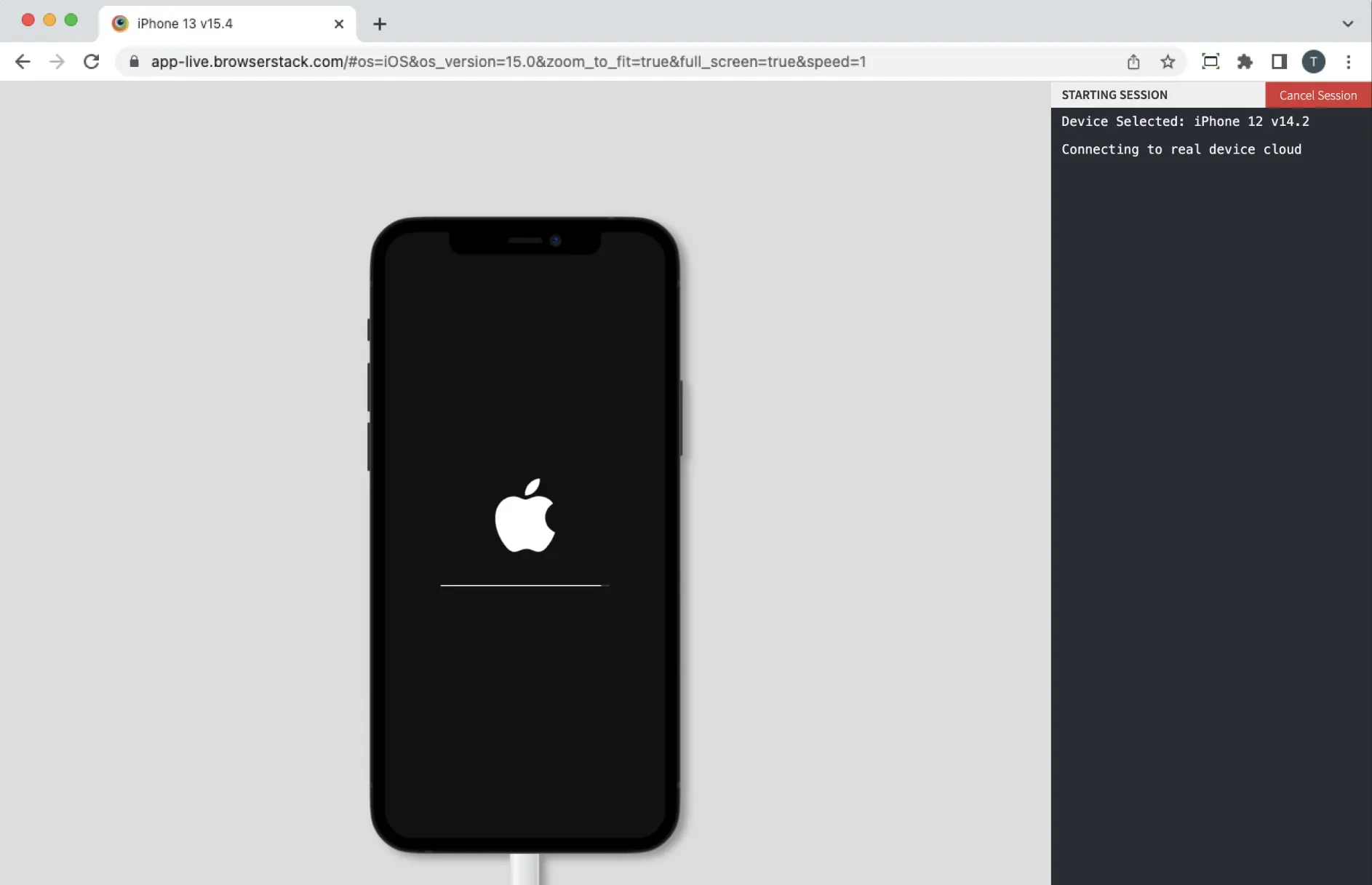
You can now select the app to upload. For more information, refer to the Upload apps document.
Best practices
- Always select the device model that matches your target user base.
- For consistent results, make sure all team members use the same device and resolution during testing.
- Ensure your app is compatible with the OS version of the selected device.
We're sorry to hear that. Please share your feedback so we can do better
Contact our Support team for immediate help while we work on improving our docs.
We're continuously improving our docs. We'd love to know what you liked
We're sorry to hear that. Please share your feedback so we can do better
Contact our Support team for immediate help while we work on improving our docs.
We're continuously improving our docs. We'd love to know what you liked
Thank you for your valuable feedback!