
 Join our Discord
Image injection
Inject a static image into the device camera in App Low Code Automation to automate photo capture flows such as QR code and document scanning.
App flows that capture a photo, such as QR code scans, profile pictures, and marketplace listings, are hard to automate because the cloud device camera points at a static lab environment. Image injection lets you supply a predictable image to the device camera during a test, so the app captures the image you choose and downstream validations run reliably.
You upload images to the media library and reference them in a test step to inject them into the camera capture flow.
Supported apps and formats
The following apps, platforms, and image types are supported for image injection:
-
App type: You can inject images only into apps that you upload as
.ipaor.apkfiles. Injection is not supported on apps distributed through the App Store, Play Store, or TestFlight, on system apps, or in WebViews. - Platforms: Image injection is supported on Android 6 and later, and iOS 13 and later.
-
Image formats: You can upload
.jpg,.jpeg, and.pngimages. HEIC images are not supported, so convert them to JPG or PNG before you upload. - Image size: Each image can be up to 10 MB.
Enable image injection for your app
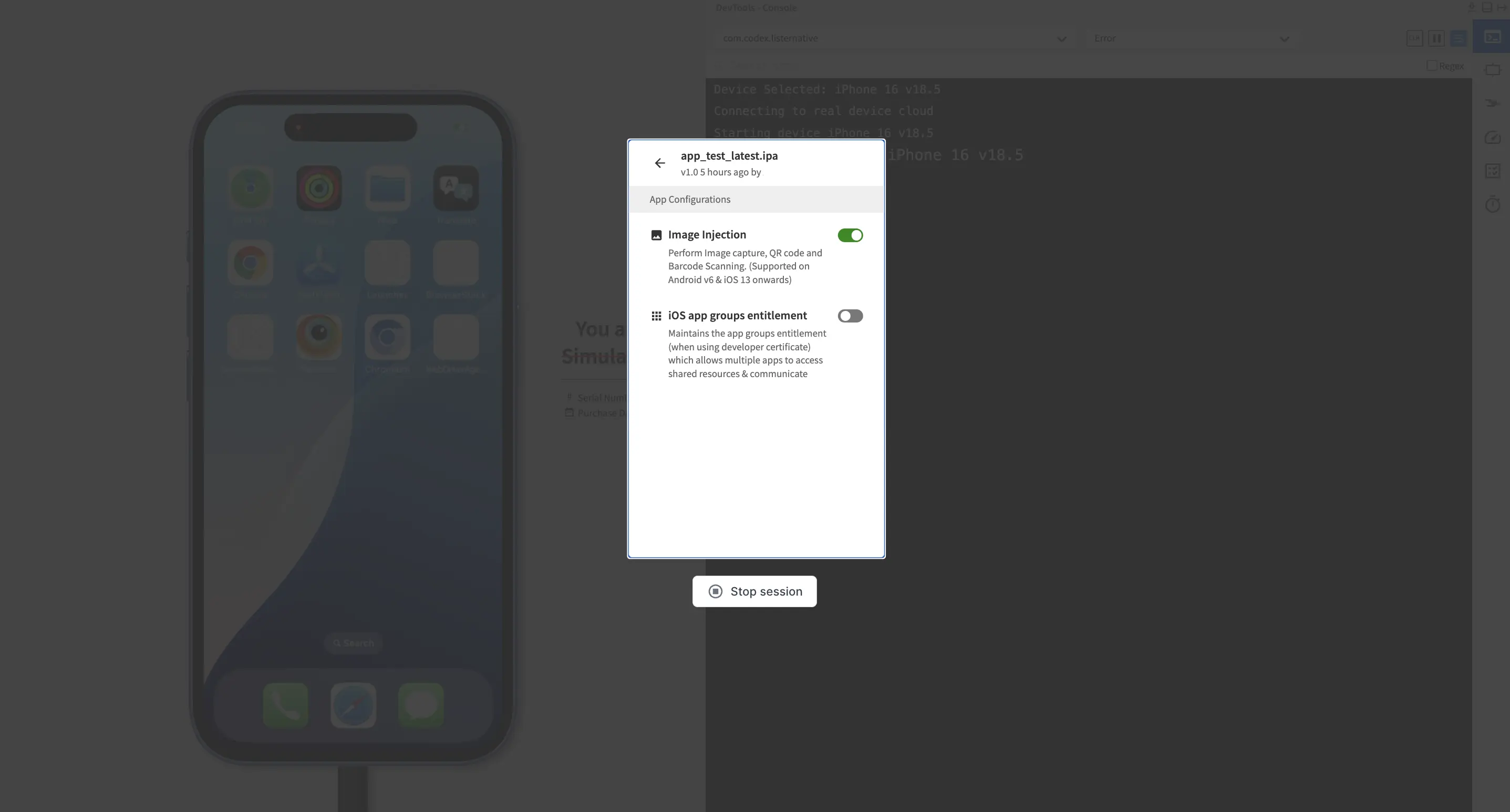
When you upload your app, turn on the Image Injection toggle in App Configurations to allow the app to receive injected images for camera capture, QR code, and barcode scanning.
Inject an image into the camera
To inject an image into the camera:
- In the test editor, enter
Inject image to camera, then select the command. The step is added and the settings panel opens.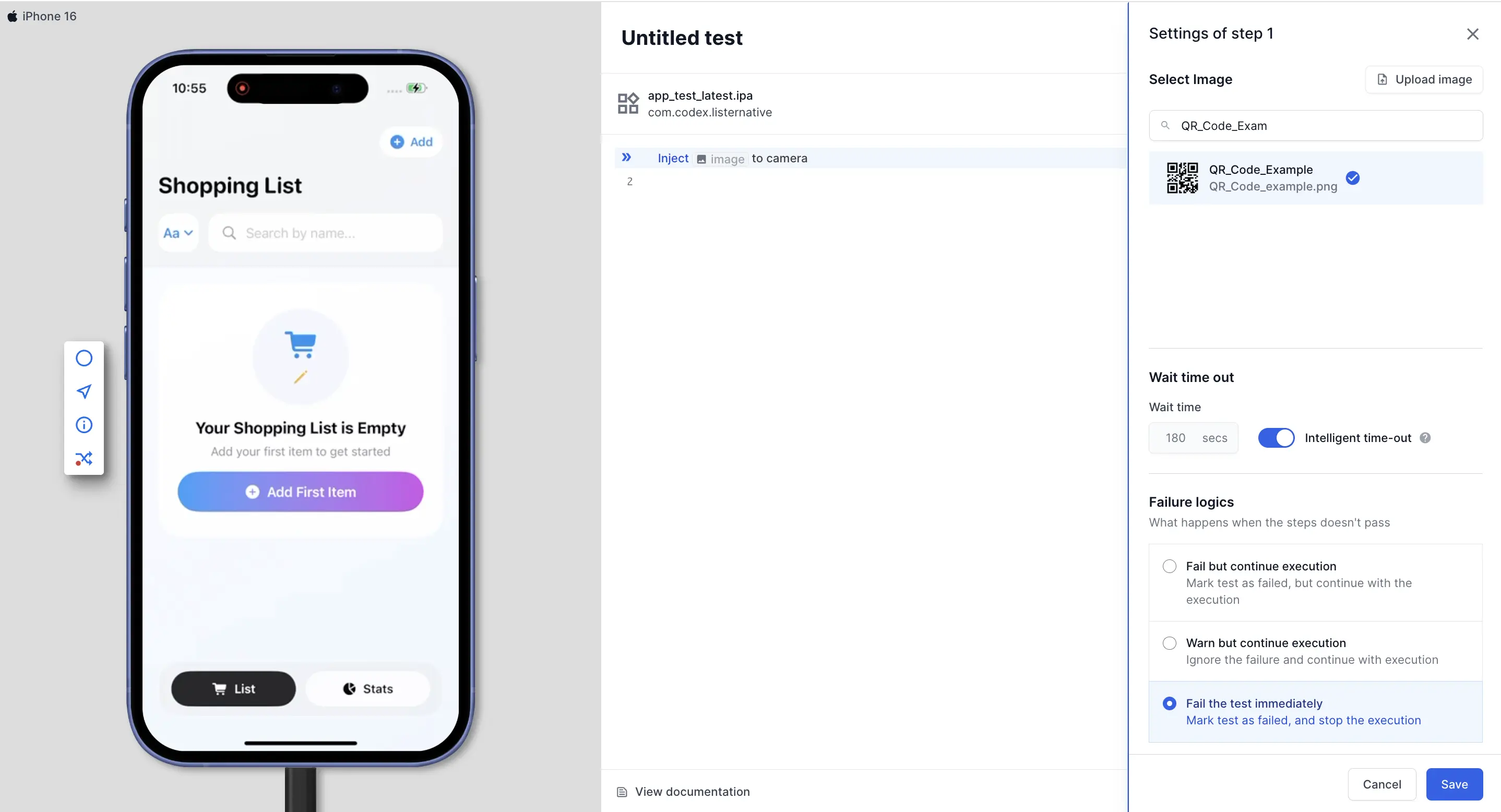
- In the Select Image section, click Upload image to add a new image.
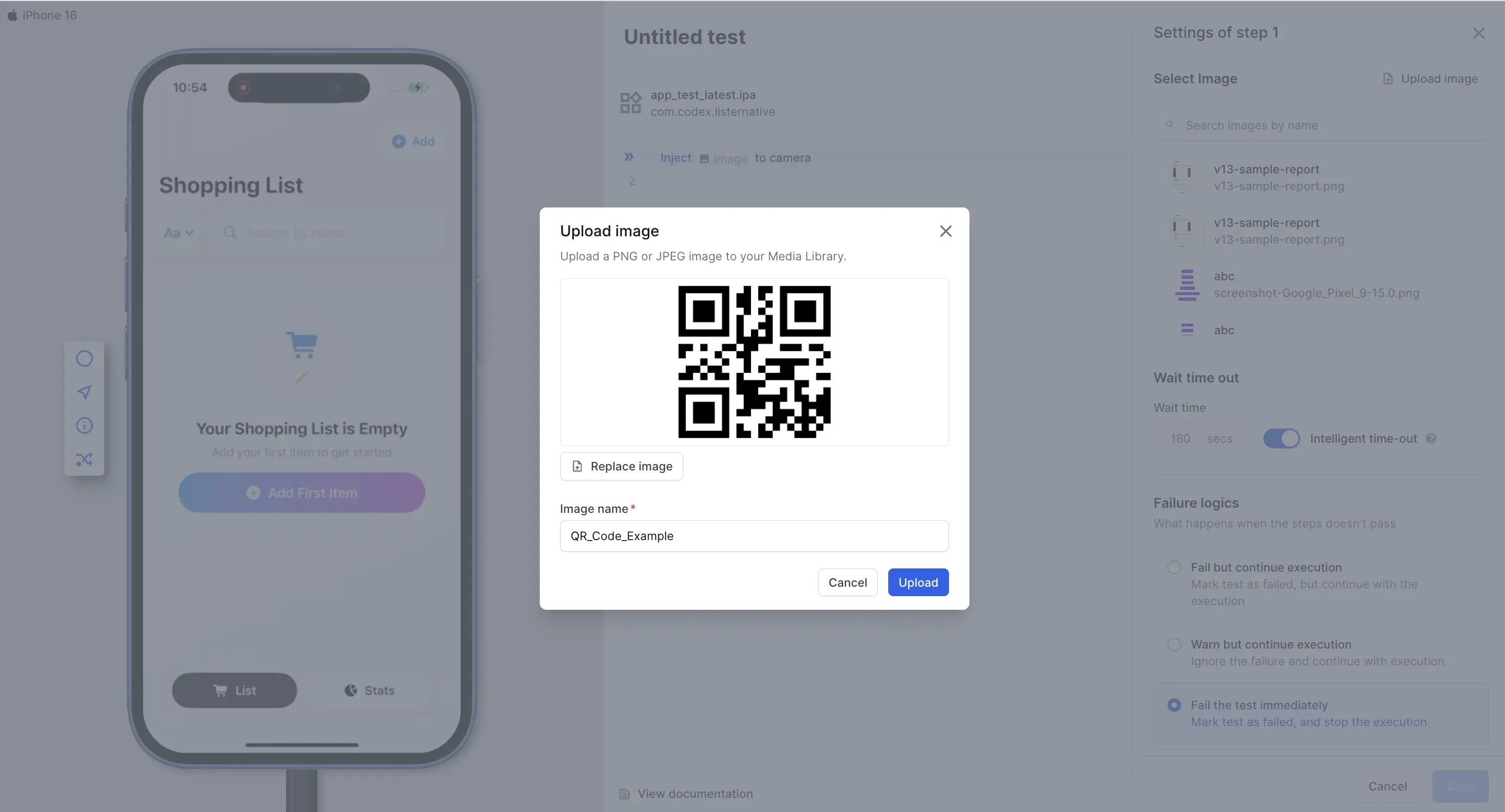
- In the Upload image dialog, select a PNG or JPEG image, enter an Image name, then click Upload. The image is saved to your media library, where you can reuse it across tests.
- Click Save. The step updates to show the injected image, for example,
Inject QR_Code_Example to camera.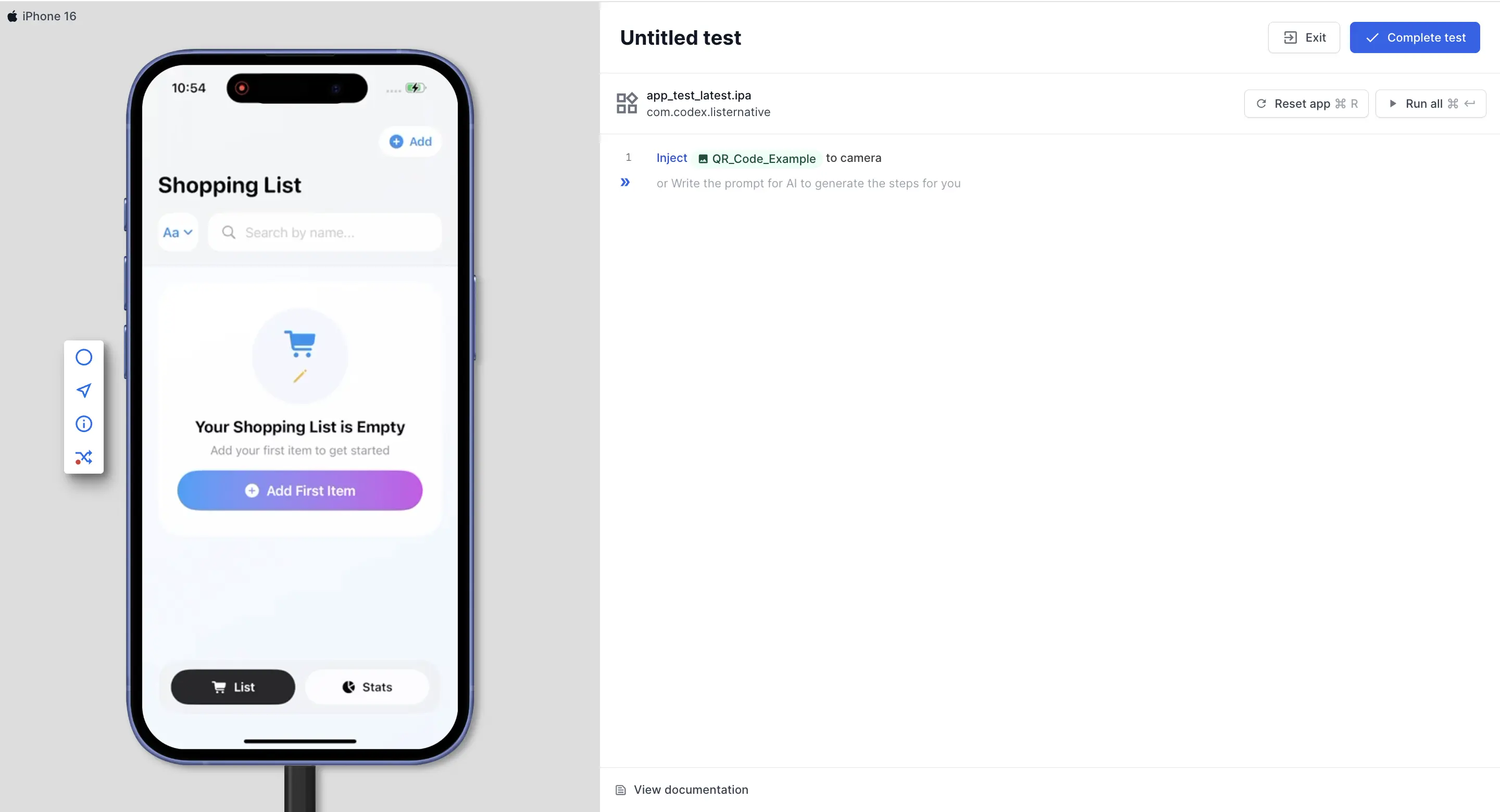
When you run the test and the app opens the camera, the injected image replaces the live capture.
Inside if-else blocks, loops, modules, and helper flows, the inject step behaves like any other action step. Each loop iteration re-injects the image, and only one image stays active per test.
Upload images to the media library
The media library stores the images you use for image injection, so you can upload them once and reuse them across tests. To add an image, go to Media Library, click Upload image, select a PNG or JPEG image of up to 10 MB, enter an Image name, then click Upload.
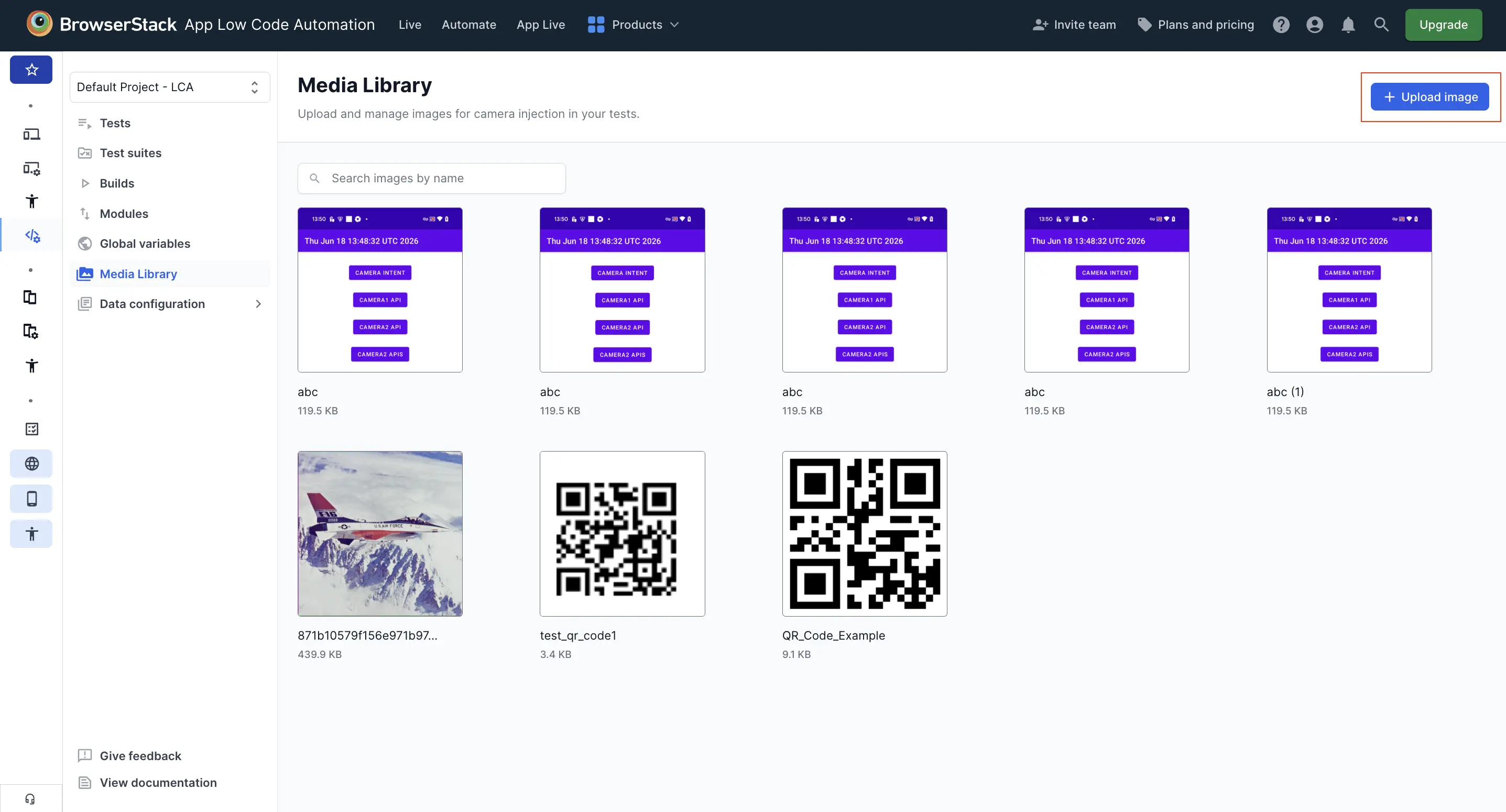
You can upload a maximum of 10 images to the media library.
Points to remember
Keep the following behaviors in mind when you use image injection:
- You can inject one image per test. If a test runs more than one inject step, the last executed step’s image is used.
- Injection into the gallery or photo picker is not supported.
- The same command works on both iOS and Android when you run a cross-platform test suite.
We're sorry to hear that. Please share your feedback so we can do better
Contact our Support team for immediate help while we work on improving our docs.
We're continuously improving our docs. We'd love to know what you liked
We're sorry to hear that. Please share your feedback so we can do better
Contact our Support team for immediate help while we work on improving our docs.
We're continuously improving our docs. We'd love to know what you liked
Thank you for your valuable feedback!