
 Join our Discord
Repeat steps with loops
Learn how to use Loops in App Low Code Automation to repeat a set of test steps for a defined number of iterations.
Loops let you run the same set of test steps multiple times without duplicating them. Instead of writing the same steps over and over, you group them inside a loop and define how many times they should run. This keeps your tests shorter, easier to read, and simpler to maintain.
Sample use case:
Suppose you want to add the same product to the cart five times to test inventory limits. Instead of repeating the Tap on Add to cart step five times, you can wrap it in a loop and set the number of iterations to 5. App Low Code Automation runs the grouped steps the specified number of times during the test.
Repeat steps using loops
Use a Repeat command to create a loop, then add the steps you want to run repeatedly inside it.
The number of iterations must be between a minimum of 1 and a maximum of 100.
To repeat steps using a loop:
- In the test editor, type
Repeat. The Repeat fornumbertimes command appears. Select it to create the loop.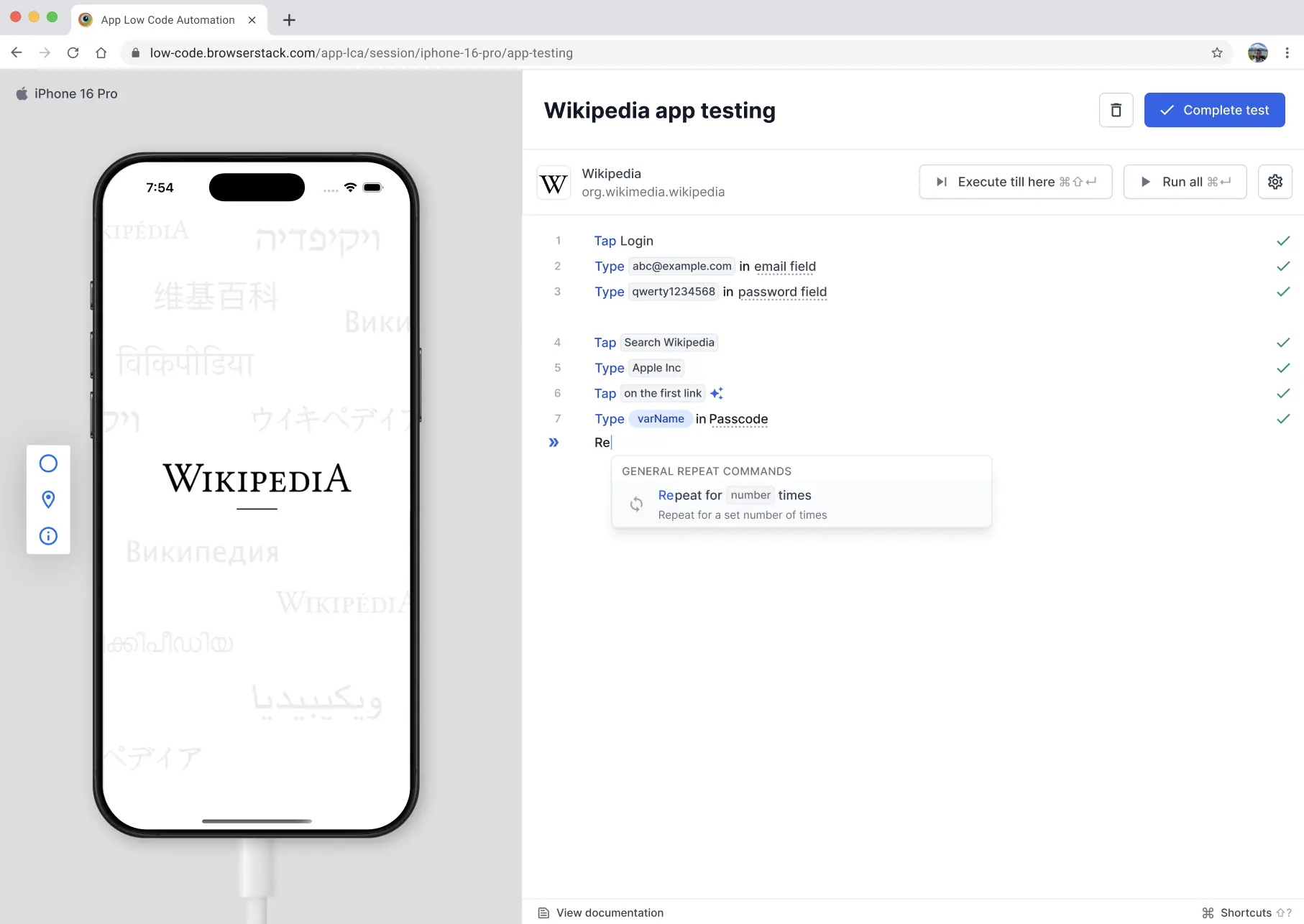
- In the
numberfield, enter the number of times you want to repeat the steps.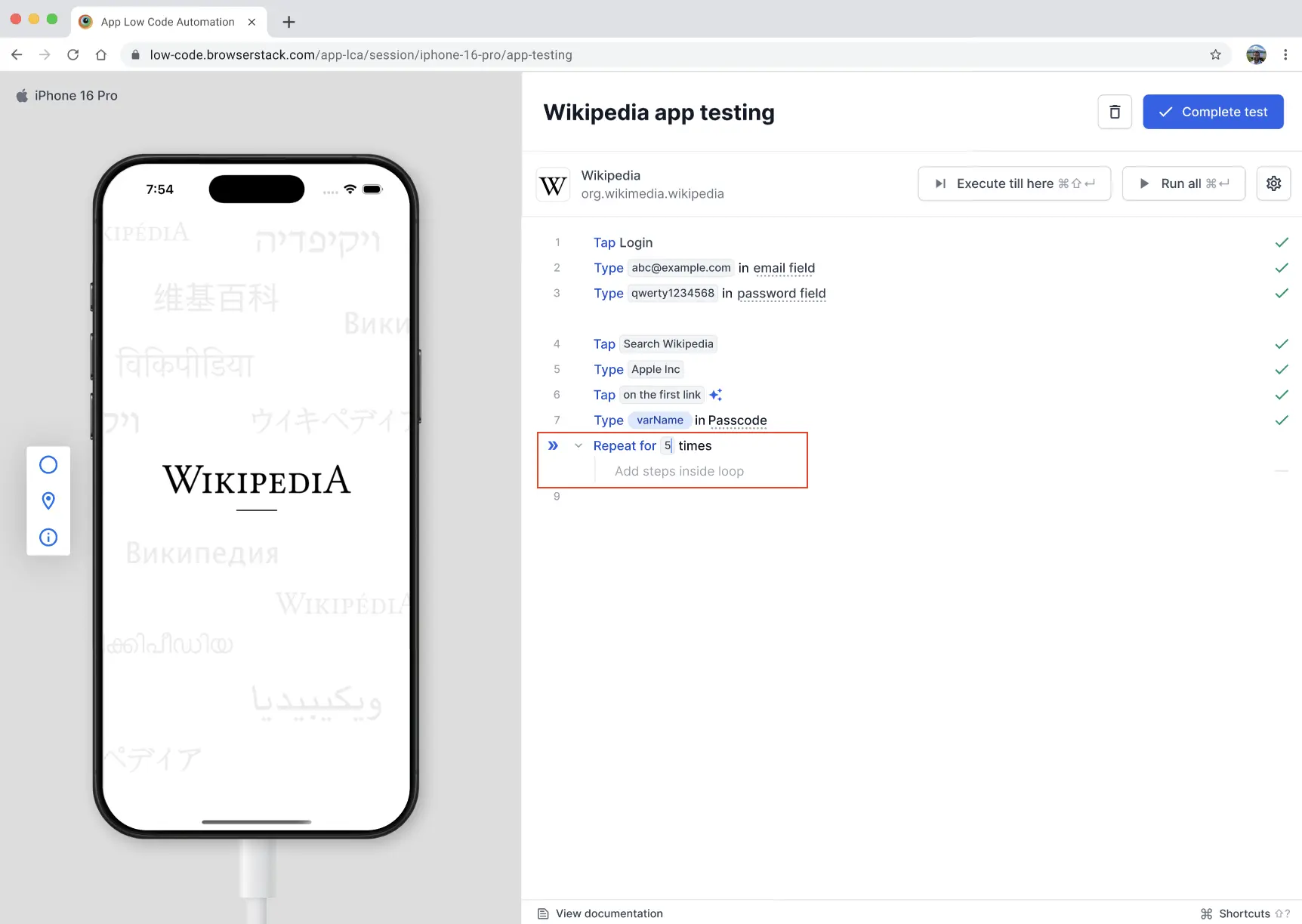
- Under the Add steps inside loop placeholder, add the steps you want to repeat inside the loop.
These grouped steps form the body of the loop, and App Low Code Automation runs them in order on every iteration.
Exit a loop
To add steps outside the loop, move to the next step after the loop body, place your cursor at the start point, and click. The cursor moves out of the loop, and any steps you add next run outside the loop.
Select steps and convert into a loop
You can convert existing steps into a loop instead of creating an empty loop first.
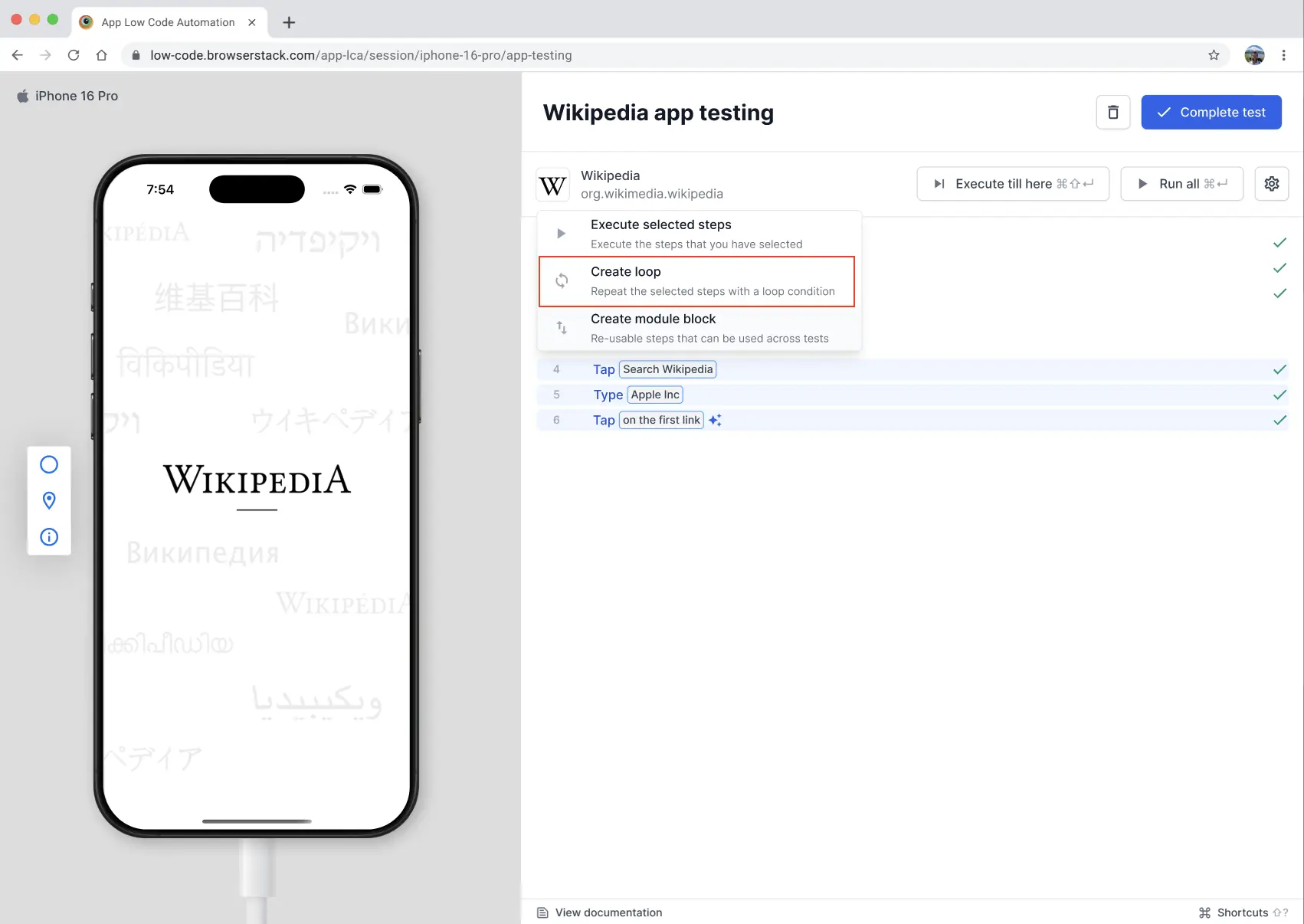
- Select the steps you want to repeat, then click Create loop.
- In the Select a looping condition dropdown, select Repeat for
numbertimes. - Enter the number of times to repeat in the
numberfield. The selected steps are grouped inside the loop and run on every iteration.
Add a module inside a loop
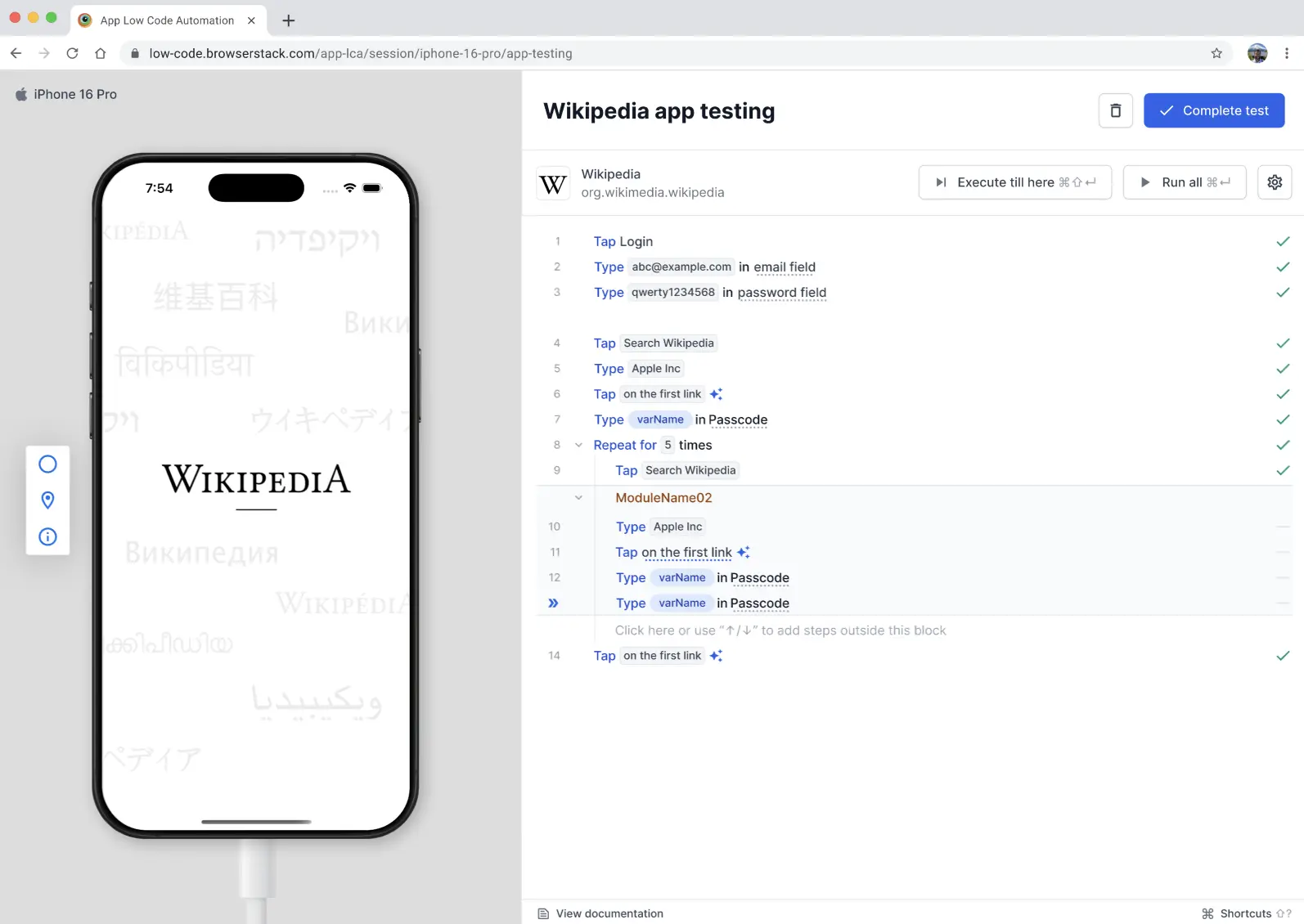
You can reuse an existing module inside a loop. In a step inside the loop, type + and select the module you want to add. The module runs as part of the loop body on every iteration.
Number of iterations
The number of iterations defines how many times the grouped steps run. Set it in the number field of the Repeat for number times step. For example, Repeat for 5 times runs the steps inside the loop five times during the test.
If the value is not an integer or exceeds the maximum allowed at runtime, the loop does not run and the loop step is marked as failed with an error message.
Use the iteration number in a step
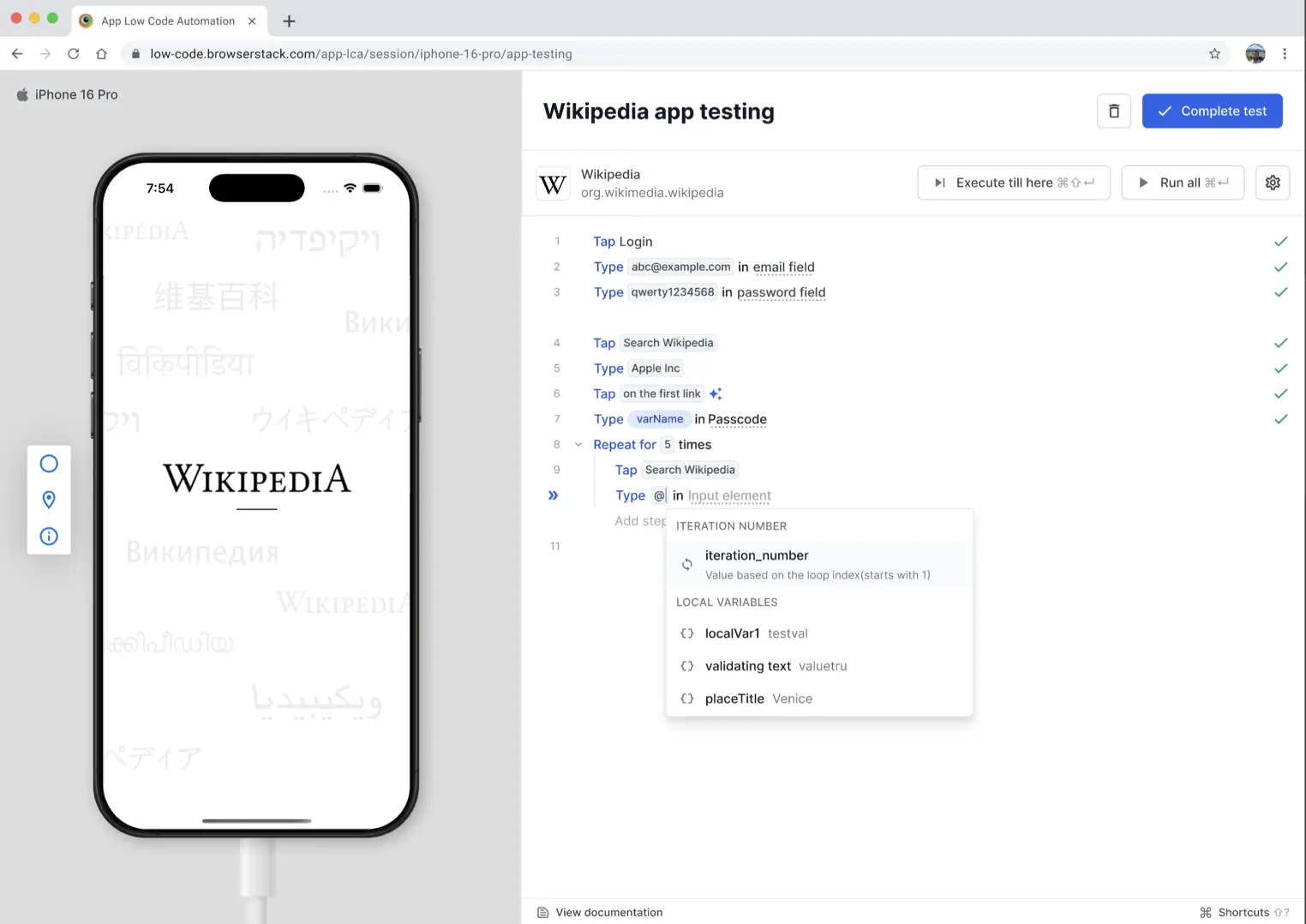
Every loop tracks its current pass as an iteration_number. This value is based on the loop index and starts at 1, incrementing by one on each pass until the loop completes. Use it when a step needs a value that changes with each iteration, such as paginating through results or entering a different input every time.
To insert the iteration number into a step inside the loop:
- In a step inside the loop, type
@where you want the value to appear. - In the dropdown, select iteration_number.
On each pass, App Low Code Automation replaces iteration_number with the current iteration value when the step runs.
Loops help you reduce repetition and keep your tests concise. For more details, refer to the documentation or reach out to support.
We're sorry to hear that. Please share your feedback so we can do better
Contact our Support team for immediate help while we work on improving our docs.
We're continuously improving our docs. We'd love to know what you liked
We're sorry to hear that. Please share your feedback so we can do better
Contact our Support team for immediate help while we work on improving our docs.
We're continuously improving our docs. We'd love to know what you liked
Thank you for your valuable feedback!