
 Join our Discord
Secrets
Learn how to store sensitive data such as credentials and API keys as encrypted secrets in App Low Code Automation and use them in your test steps.
When you run tests on App Low Code Automation, you may need to provide sensitive information, such as login credentials or credit card details. App Low Code Automation lets you create secrets to handle this securely.
Secrets are confidential data stored as a name and value pair. These are masked to protect your information. When you create a secret, it gets encrypted and stored in the backend database. You can then use these secrets safely during test execution, keeping your sensitive data protected.
Secrets move to the App Low Code Automation Pro plan when that plan becomes available. Until then, you can create and use secrets. For more information about the Pro plan, contact BrowserStack Support.
Create a secret
You can create a secret from the Secrets page or directly from the test editor.
In the left pane of the App Low Code Automation dashboard, expand Data configuration and click Secrets.
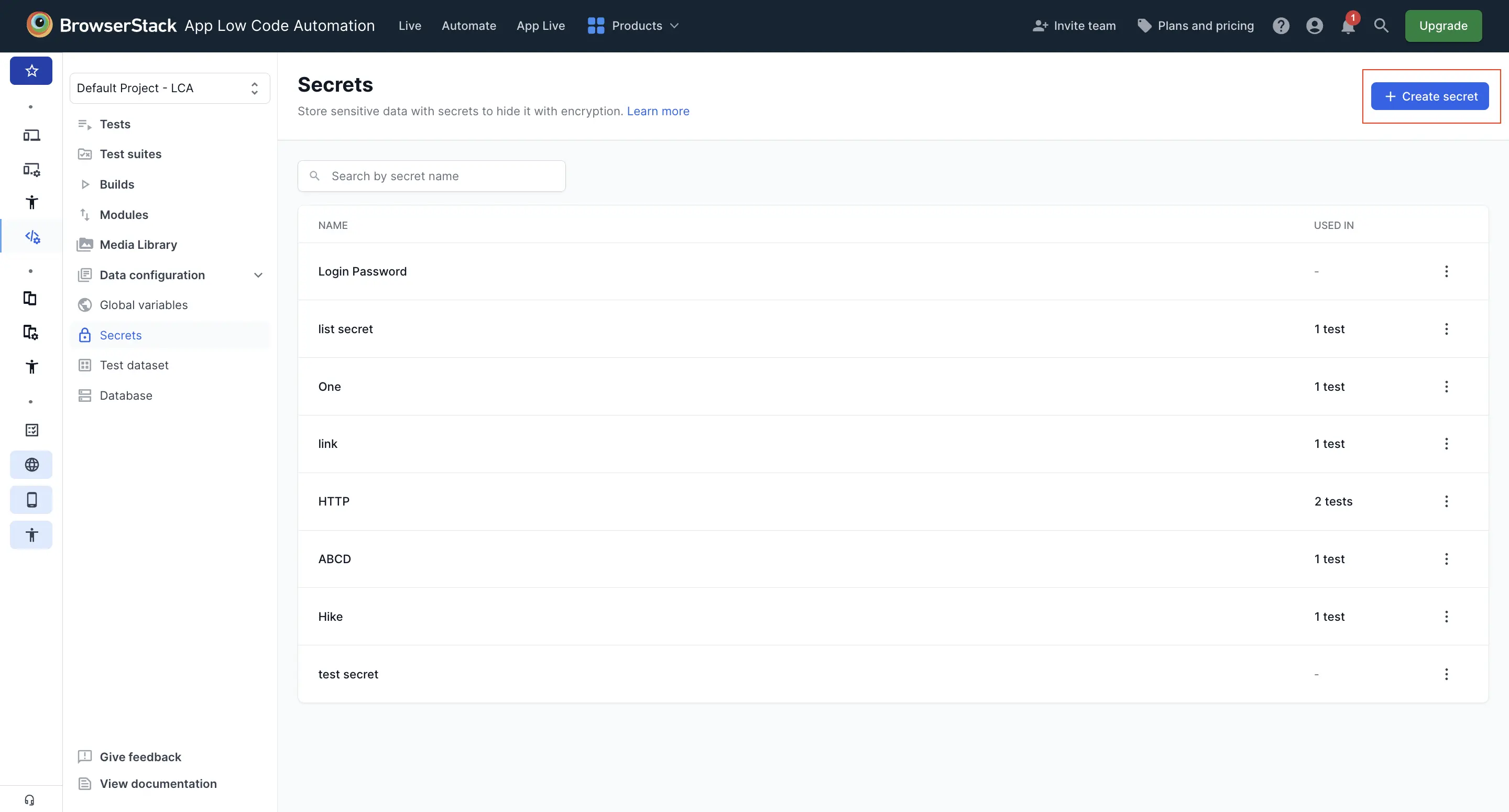
Click Create secret.
Enter the following details:
- Name of the secret: a unique name for the secret.
- Value: the confidential data.
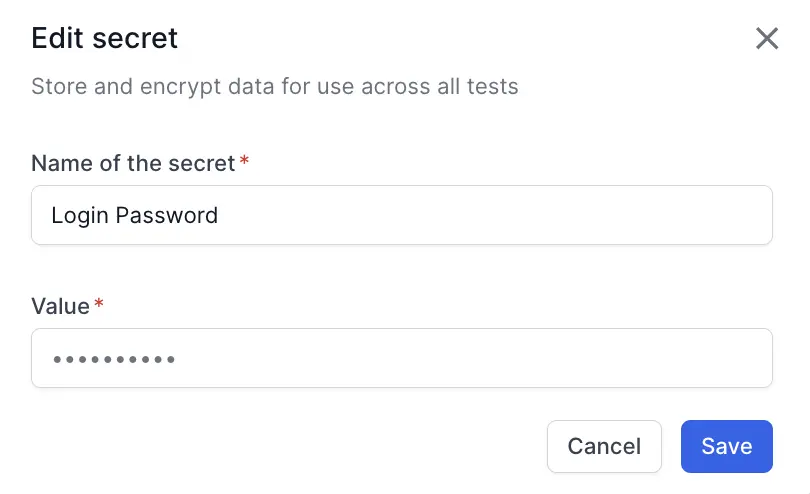
Click Create. App Low Code Automation saves the secret to your project, ready to use in any test or module.
Alternatively, you can create a secret in the test editor. Type @ in a test step, click the Secrets tab, and click + Create new secret.
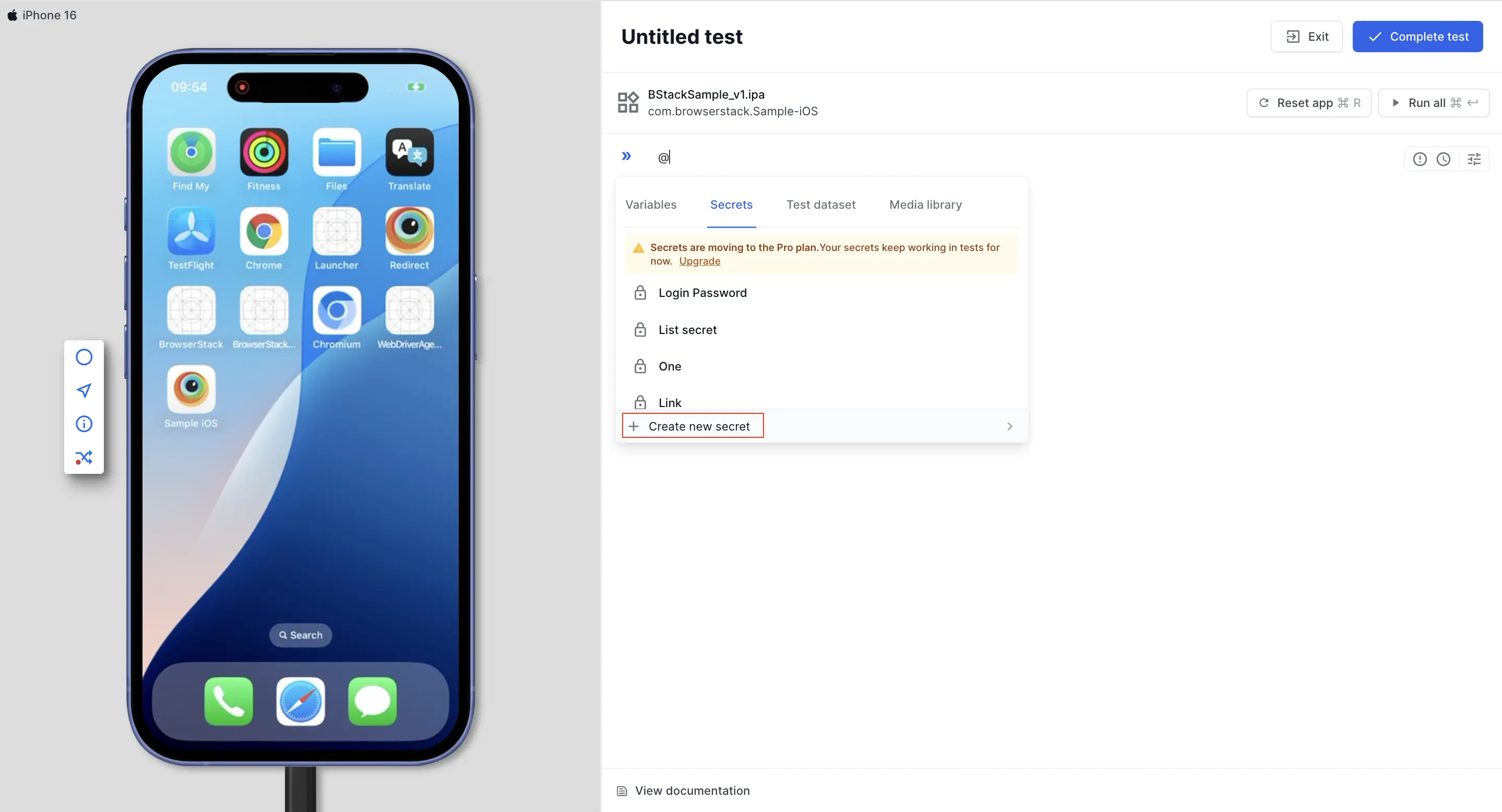
Import a secret into a test
To import a secret into a test step:
In the test editor, go to the step where you want to use the secret.
Type @ at the position where the value belongs. The import dialog opens.
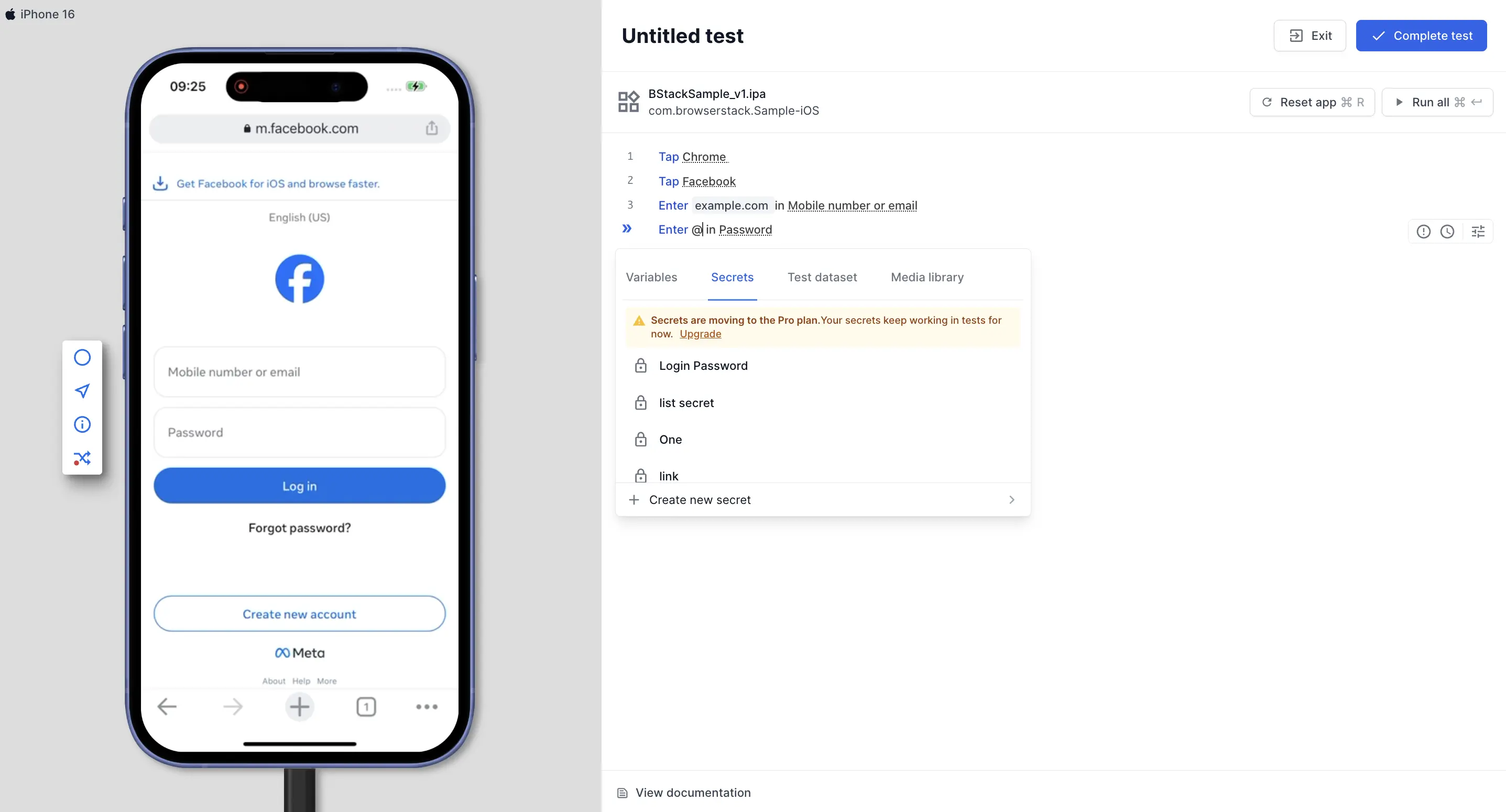
Click the Secrets tab. The tab lists your secrets. Select the secret you want.
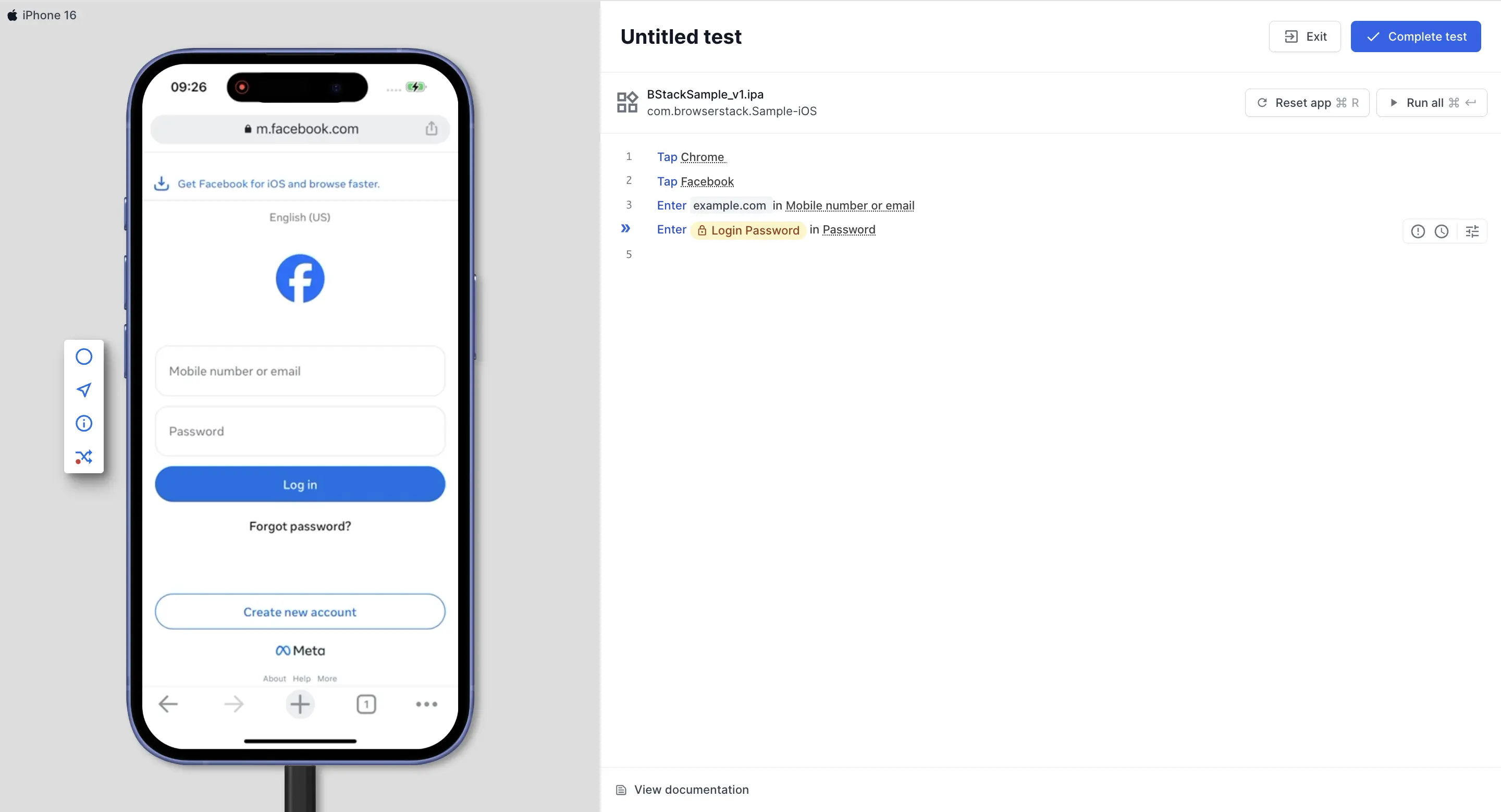
You can combine multiple variables and secrets in the same step or input field.
You cannot use secrets in AI steps.
Manage secrets
In the left pane of the App Low Code Automation dashboard, expand Data configuration and click Secrets to see every secret in your project. The dashboard shows the following columns:
- NAME is the name of the secret.
-
USED IN shows how many tests and modules reference the secret, such as
2 testsor1 test, 1 module. Click the entry to see each test and module by name.
To edit or delete a secret, click the ︙ icon in its row and choose one of the following options:
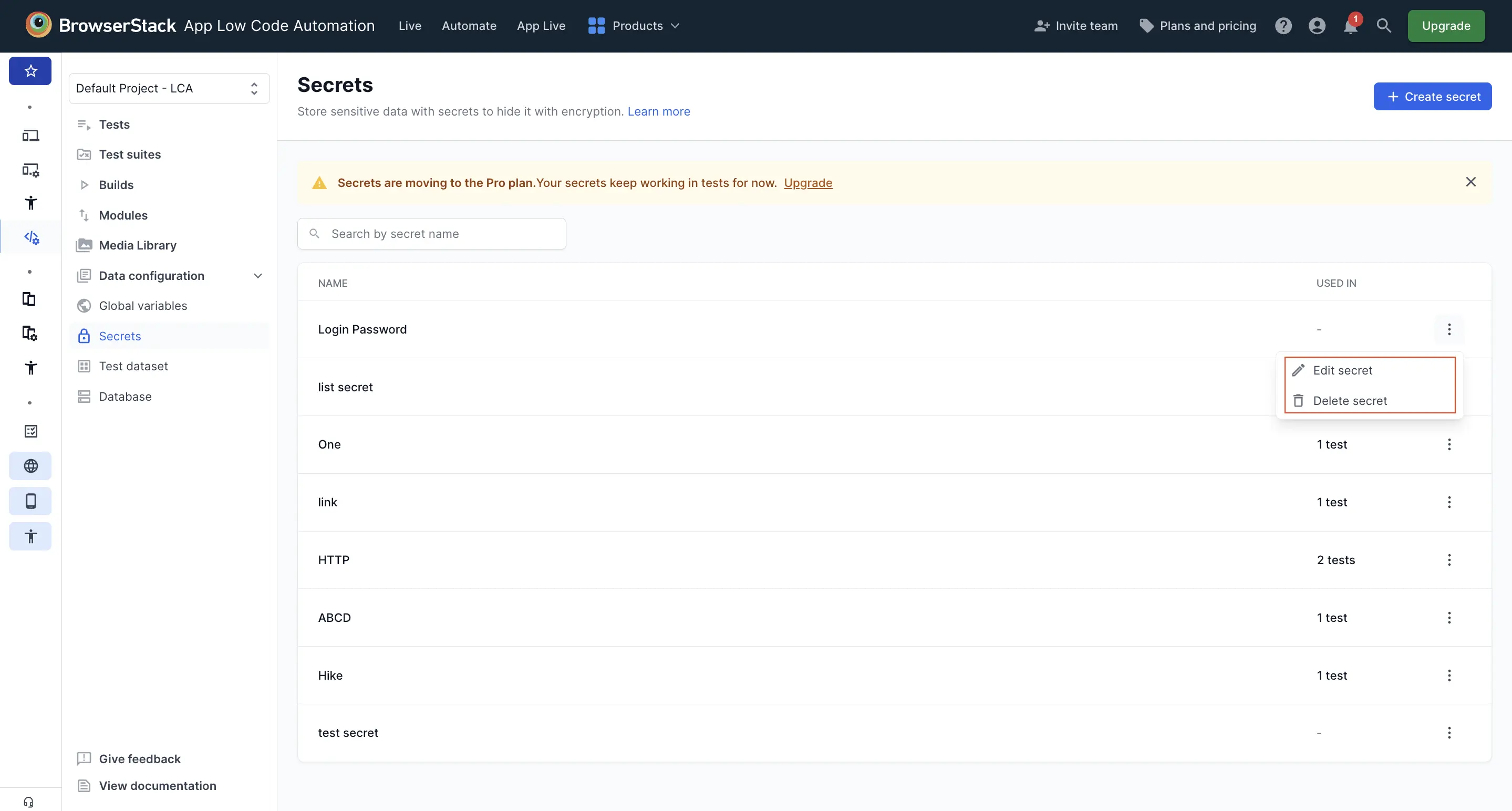
- Edit secret lets you update the name and enter a new value.
- Delete secret removes the secret.
- Editing a secret changes its value in every test and module that references it.
- You can delete a secret only when no test or module references it.
We're sorry to hear that. Please share your feedback so we can do better
Contact our Support team for immediate help while we work on improving our docs.
We're continuously improving our docs. We'd love to know what you liked
We're sorry to hear that. Please share your feedback so we can do better
Contact our Support team for immediate help while we work on improving our docs.
We're continuously improving our docs. We'd love to know what you liked
Thank you for your valuable feedback!