
 Join our Discord
AI validation
Describe what should appear on screen in natural language, and AI will verify it in your App Low Code Automation tests.
AI validation lets you describe the expected screen state in plain English and have AI verify it. Unlike page, text, and element validations, which compare a single target against a single expected value, AI validation can assess the screen as a whole.
Use AI validation for checks that standard validations can’t perform, such as:
- The product image has loaded and is not a gray placeholder.
- The subtotal plus tax equals the total.
- The bottom navigation bar contains five items, and only one is active.
- The primary button uses a solid style, and the screen is in dark mode.
- No error banner overlaps the search results.
AI validates your prompt against both the screenshot and the page source of the current screen, and returns a pass or fail result with an explanation. To validate against only the screenshot or only the page source, state this explicitly in your prompt. To verify that an element is absent, state this explicitly in your prompt.
Every run of this step uses AI. That includes authoring, replays, and cloud runs. Each run counts toward your AI usage and adds a few seconds. Page, text, and element validations are instant and don’t use AI. Use these validations whenever they can verify the required condition. Use AI validation only for conditions that these validations cannot verify.
Add an AI validation
To add an AI validation step, follow these steps:
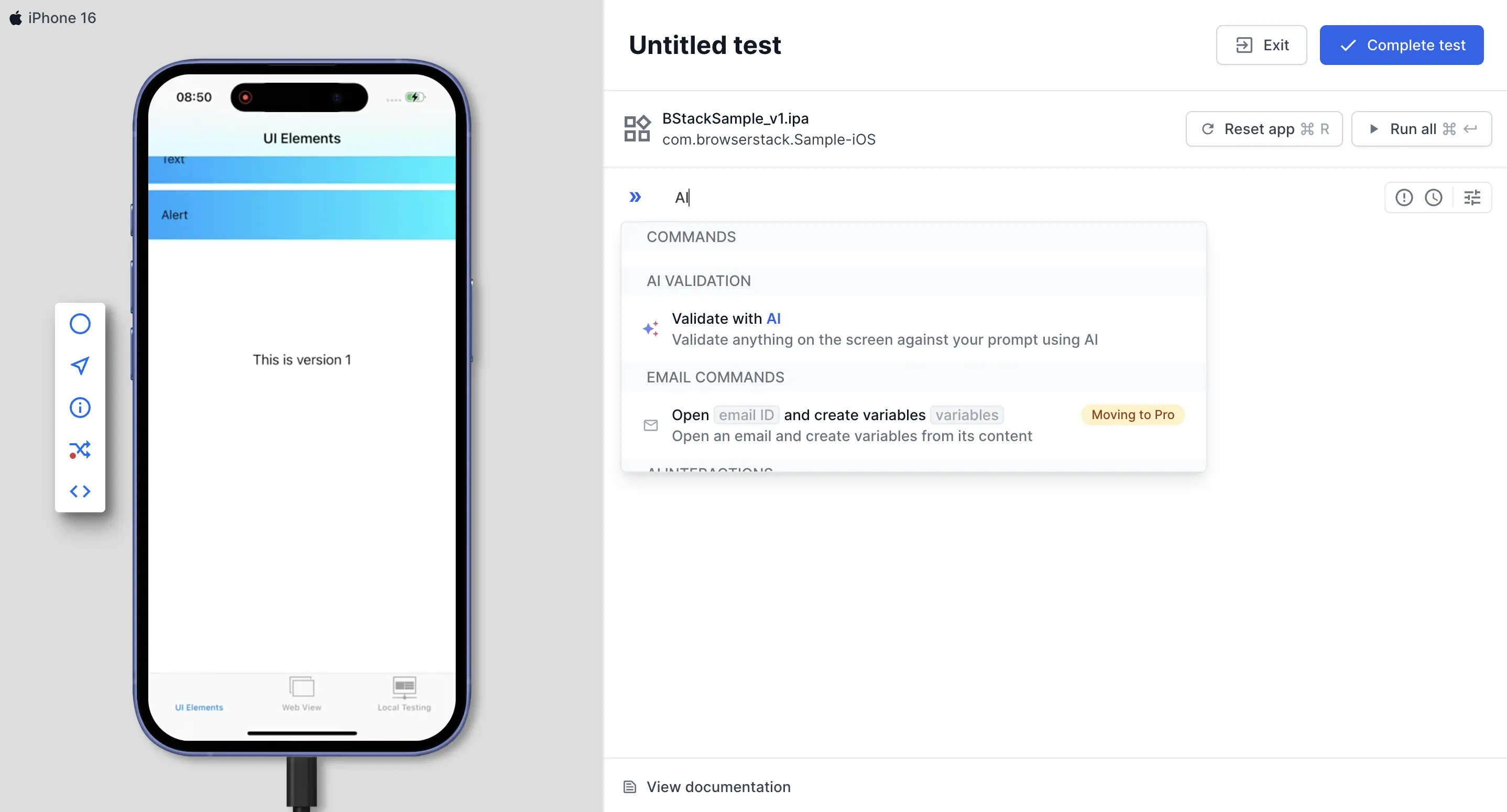
In the test editor, type AI in a new step row. Select Validate with AI.
In the Validation prompt field, enter the prompt. To add a variable or a dataset value, type @.
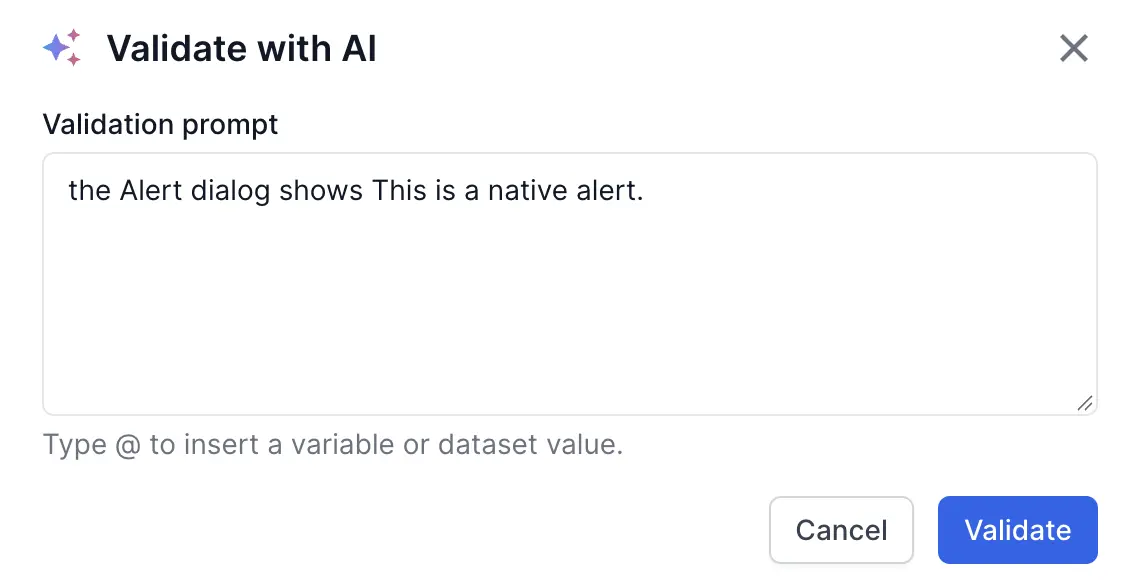
Click Validate.
The following video shows how AI runs the validation and returns the result:
Examples:
- Validate if
"the product image is loaded and is not a gray placeholder" - Validate if
"the subtotal plus tax equals the total shown above them" - Validate if
"there are exactly five items in the bottom navigation and only one is active" - Validate if
"the screen is in dark theme" - Validate if
"no error banner is covering the results" - Validate if
"the Proceed to Checkout button is a solid filled button with white text" - Validate if
"the check-in date shown in the search form is earlier than the check-out date" - Validate if
"@unit_price * 2 is equal to @cart_total"
Write a good prompt
AI checks the prompt as you wrote it. A clear prompt gives a stable step. Follow these tips:
-
Be specific. Name the element or area and state the exact condition. For example, instead of
the cart looks right, writethe Order Summary card shows 2 items and a total of $49.98. -
Include every condition. You can combine multiple checks in one prompt.
- To pass all the checks, join them with
and. - To pass at least one check, join them with
or.
- To pass all the checks, join them with
-
Specify the source, if needed. AI checks the screenshot, the page source, or both. If the two sources disagree, AI uses one of them. To use a specific source, add
use the screenshotoruse the page sourceto the prompt. -
Use variables for data checks. If a prompt compares only variables, AI doesn’t need the screen. To insert a variable, type
@. -
Write prompts that work on both platforms. The same prompt runs on Android and iOS. Because screens differ across platforms, a prompt that passes on one platform might fail on the other. To use a different prompt for each platform, place one prompt in an
If device.os is Androidblock and the other in theElseblock.
Rules and constraints
- Every run uses AI. This includes authoring, replays, and cloud runs. In a loop, each iteration uses AI. In a module, each module run uses AI.
- You can add the step inside if-else blocks, loops, and modules. You can’t use it as an If or Repeat condition.
- The screenshot and page source use the device language. If the device language isn’t English, an English prompt might fail.
- AI validation checks the screen against your prompt, not against a saved baseline. It isn’t a pixel-level visual check.
For the other validation types, see Validations. For the command syntax, see Natural language syntax.
We're sorry to hear that. Please share your feedback so we can do better
Contact our Support team for immediate help while we work on improving our docs.
We're continuously improving our docs. We'd love to know what you liked
We're sorry to hear that. Please share your feedback so we can do better
Contact our Support team for immediate help while we work on improving our docs.
We're continuously improving our docs. We'd love to know what you liked
Thank you for your valuable feedback!