
 Join our Discord
Two-factor authentication (2FA)
Prevent unauthorized access to user accounts.
Two-factor authentication (2FA) provides an additional level of security to your BrowserStack account. With 2FA enabled, every time you log in, you must authenticate with a one-time code in addition to entering your username and password. This ensures that even if your password is compromised, your account remains protected from unauthorized access.
Supported 2FA methods
You can choose from the following methods to receive your authentication code:
- Authenticator apps: A Time-based one-time password (TOTP) application that automatically generates an authentication code which changes after a certain period of time. We recommend using cloud-based TOTP apps such as: Google Authenticator, Duo Mobile, Authy, Microsoft Authenticator.
- Email: Authentication code is sent to your registered email address.
- Two-factor authentication does not affect BrowserStack API usage.
- Two-factor authentication does not affect authentication using Single Sign-On. In this case, you will need to enable two-factor from your identity provider instead.
Steps to enable 2FA on a BrowserStack user account
Users need to follow the steps below to enable 2FA.
- Sign in to BrowserStack.
- Go to Account > Summary
- Go to Authentication & Security > Setup two-factor authentication. Click the Setup Now button.
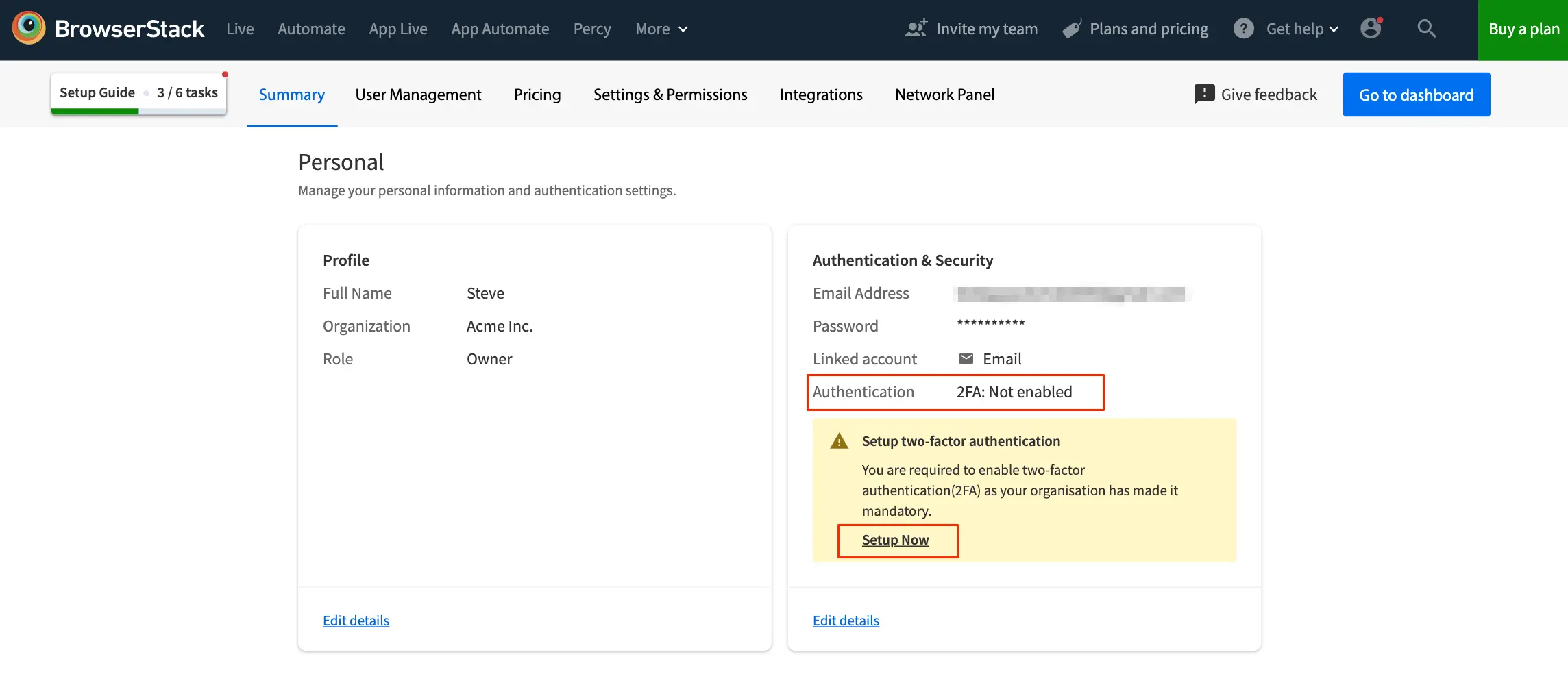
- Select Use authenticator app or Use email as your authentication method.
Use authenticator app method
- Open the 2FA app on your mobile device.
- Tap the option to scan a QR code.
- Scan the QR code on the BrowserStack.
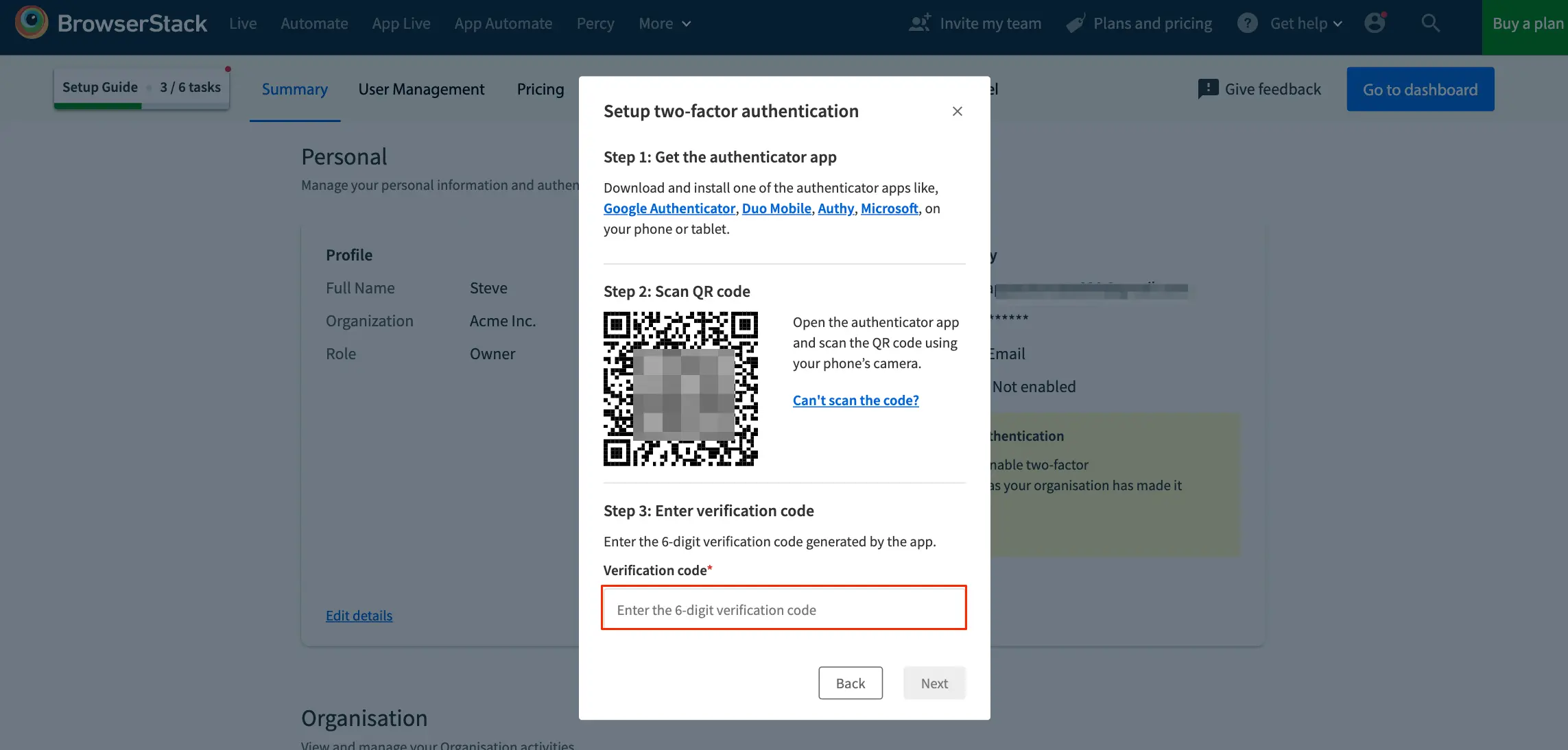
- The 2FA app will generate a 6-digit, one-time code.
- Enter the 6-digit code, then click Next.
- A list of recovery codes will be displayed. If you lose your mobile device, you can use a recovery code instead of a generated 6-digit code to sign in. Click Download & exit.
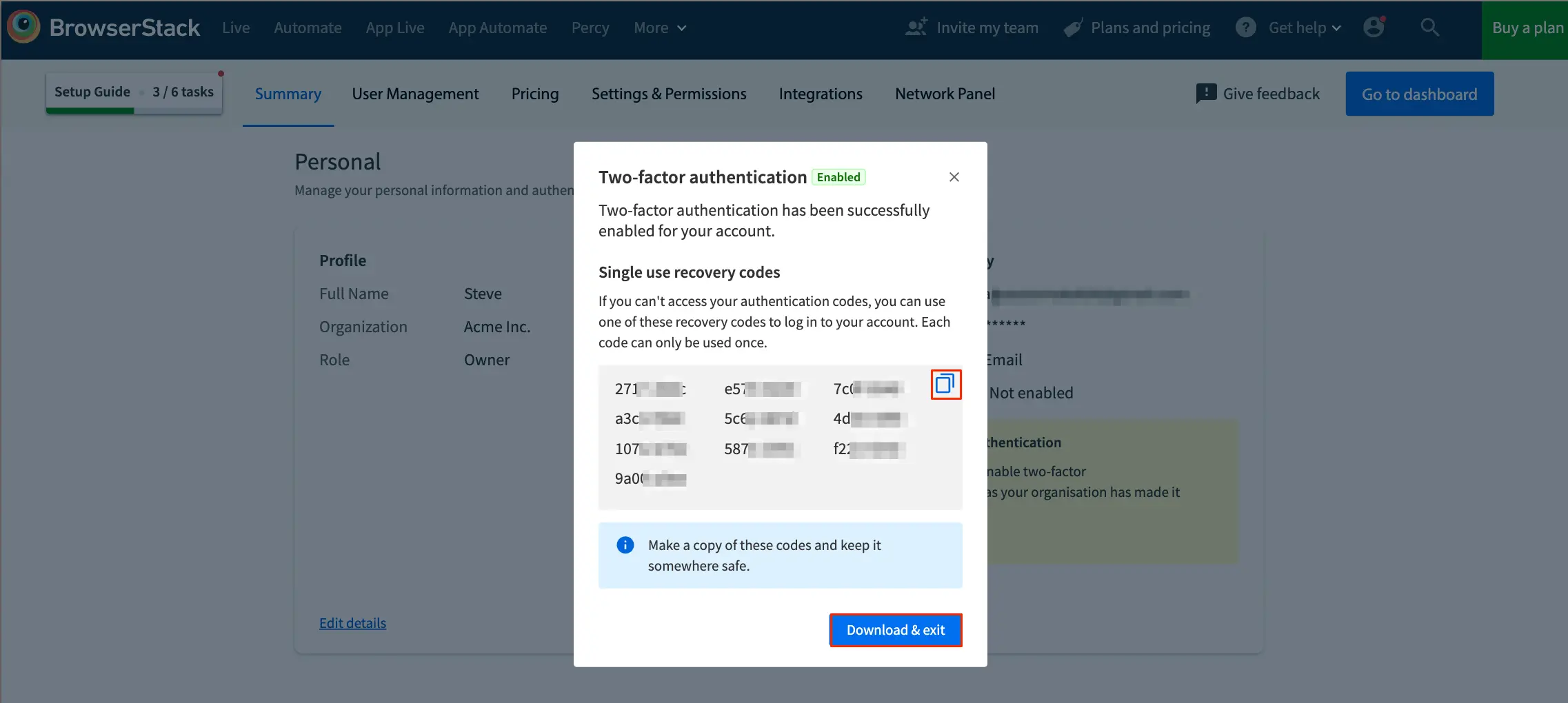
- If you lose your mobile device, you can use a recovery code instead of a generated 6-digit code to sign in.
- You can download or copy to store the recovery codes. Each recovery code can only be used once.
Use email method
- Click Send code.
- Zoom will send a 6-digit, one-time code to your number.
- Open the SMS sent by Zoom.
- Copy the code in the SMS, then paste it in the Zoom web portal.
- Click Verify.
- Zoom will display a list of recovery codes. If you lose your mobile device, you can use a recovery code instead of a generated 6-digit code to sign in.
- Note: If you aren’t able to verify the code. Click Back then try again.
- Click Download or Print to store the recovery codes. Each recovery code can only be used once.
- Click Done.
How to edit 2FA setup (user)
After setting up 2FA, you can edit your existing setup if you want to edit the 2FA method, or generate new recovery codes.
- Sign in to BrowserStack.
- Go to Account > Summary
- Go to Authentication & Security > Setup two-factor authentication. Click the Edit details button.
- Go to the Authentication tab
- You can change your 2FA method or Regenerate recovery codes.
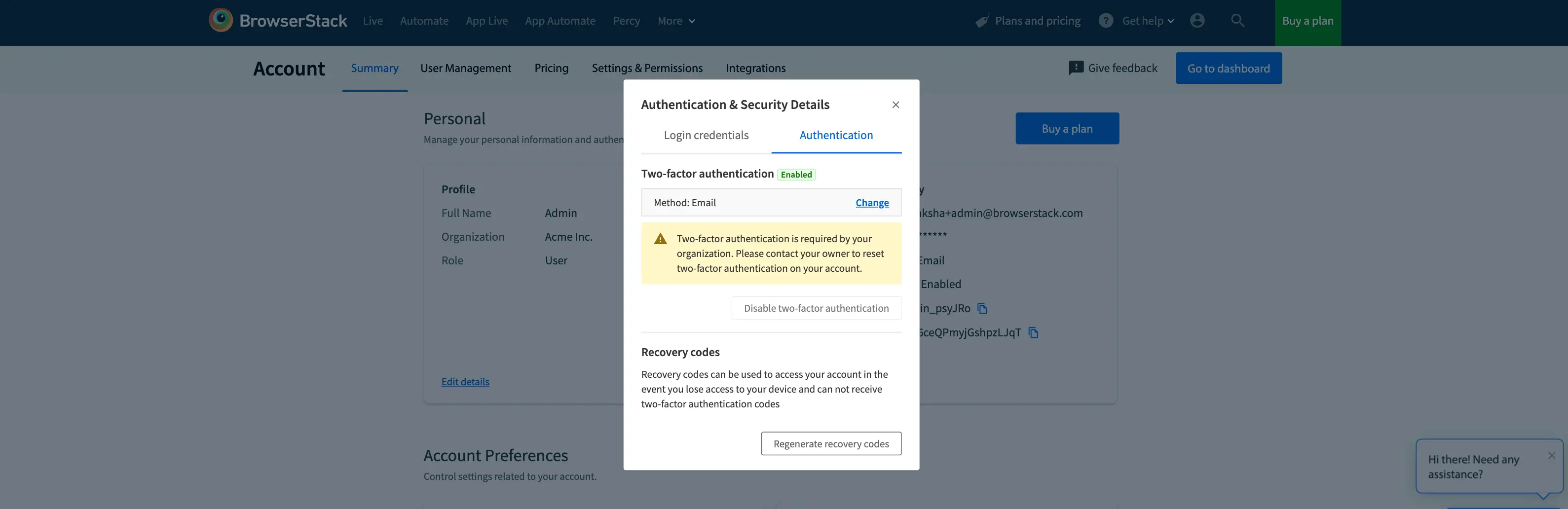
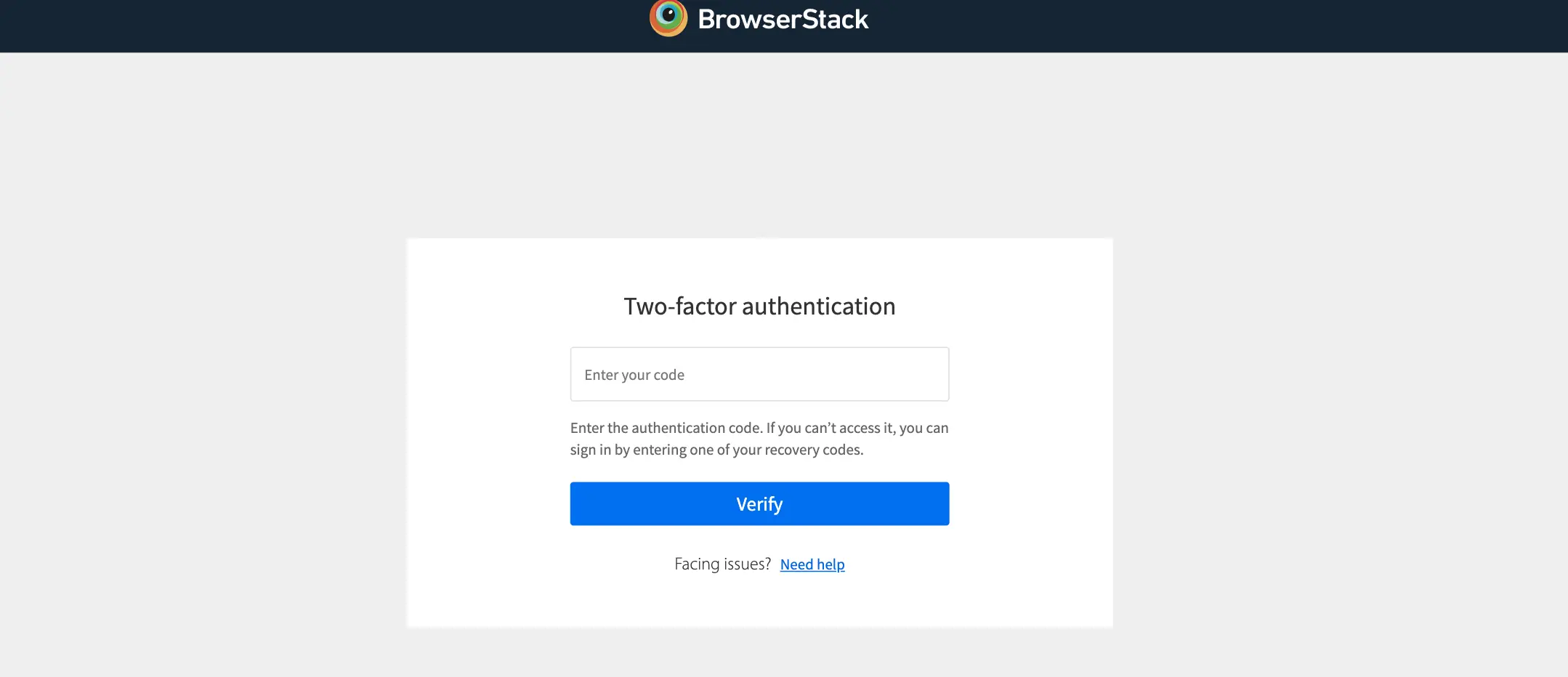
Once 2FA has been enabled on a user account, the next time onwards when you sign in, BrowserStack will ask for the code generated from your 2FA app, or the code sent to you via email.
We're sorry to hear that. Please share your feedback so we can do better
Contact our Support team for immediate help while we work on improving our docs.
We're continuously improving our docs. We'd love to know what you liked
We're sorry to hear that. Please share your feedback so we can do better
Contact our Support team for immediate help while we work on improving our docs.
We're continuously improving our docs. We'd love to know what you liked
Thank you for your valuable feedback!