
 Join our Discord
Test using CER certificates
Learn how to use CER certificates to test website features on BrowserStack Live.
You can upload and install .cer (Certificate) files on BrowserStack Live to test websites and workflows that require client-certificate authentication.
To start testing with .cer certificates, contact BrowserStack Support.
Use cases
Testing with .cer certificates is useful in scenarios such as:
- Testing websites that require a valid client certificate for authentication.
- Verifying workflows that depend on certificate-based access.
- Conducting compatibility checks for advisory portals that require authentication.
- Ensuring that certificate installation works across different operating systems and browsers.
Supported operating systems and browsers
The following operating systems and browsers support .cer certificates:
| Operating System | Browsers |
|---|---|
| Windows | Chrome, Edge |
| macOS | Chrome, Edge |
| Android | Chrome, Edge |
| iOS | Chrome |
Upload .cer certificates
You can upload a maximum of five .cer certificates per user in BrowserStack Live. The uploaded certificates will be available for 30 days from the date of upload. After 30 days, the certificates will be automatically deleted from the session.
To upload a .cer certificate:
- Log in to the Live dashboard.
- On the Live dashboard, select the OS version and browser to start your test session. For supported OS and browser combinations, refer to the supported operating systems and browsers section.
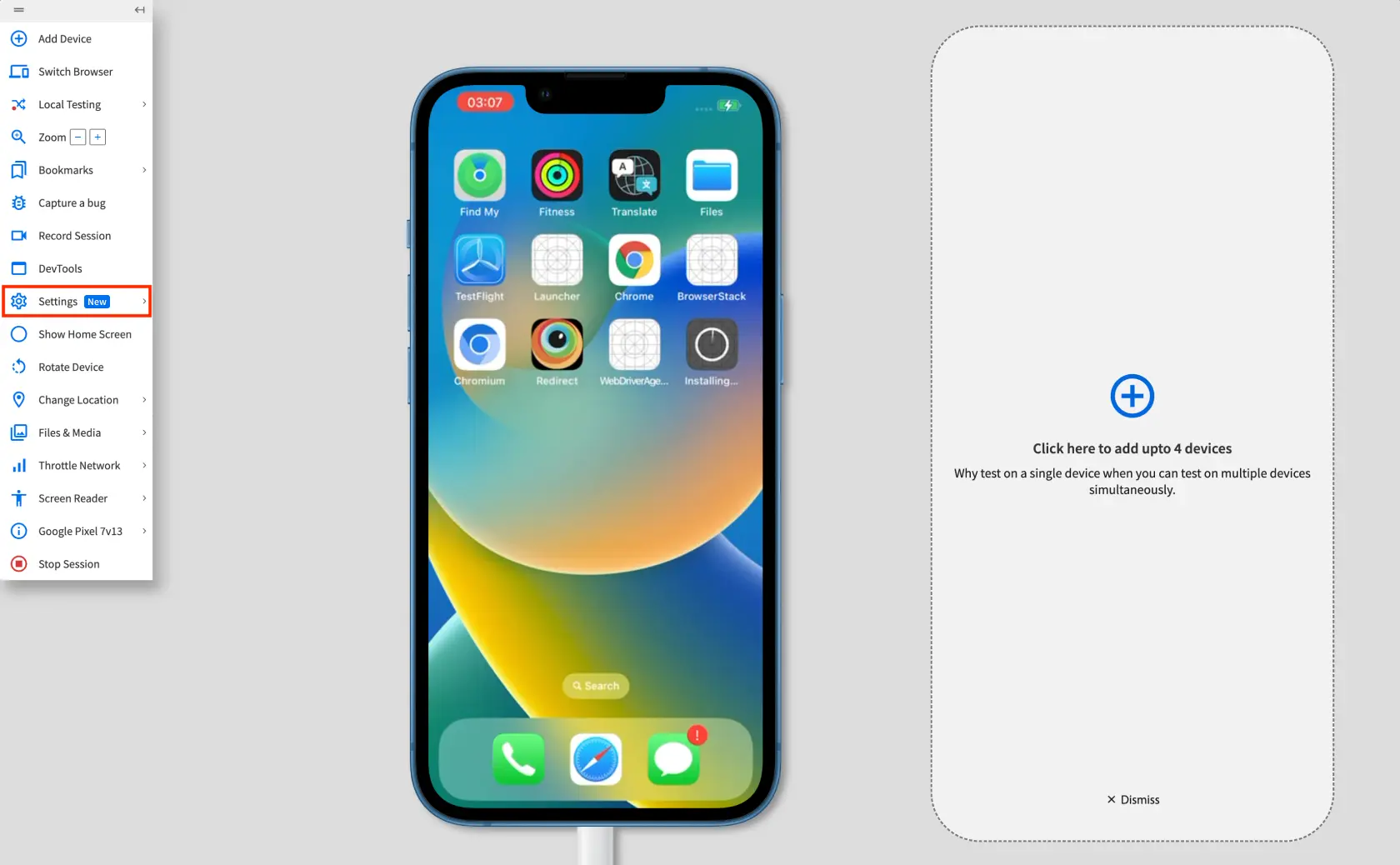
- In the Live vertical toolbar, click Settings.
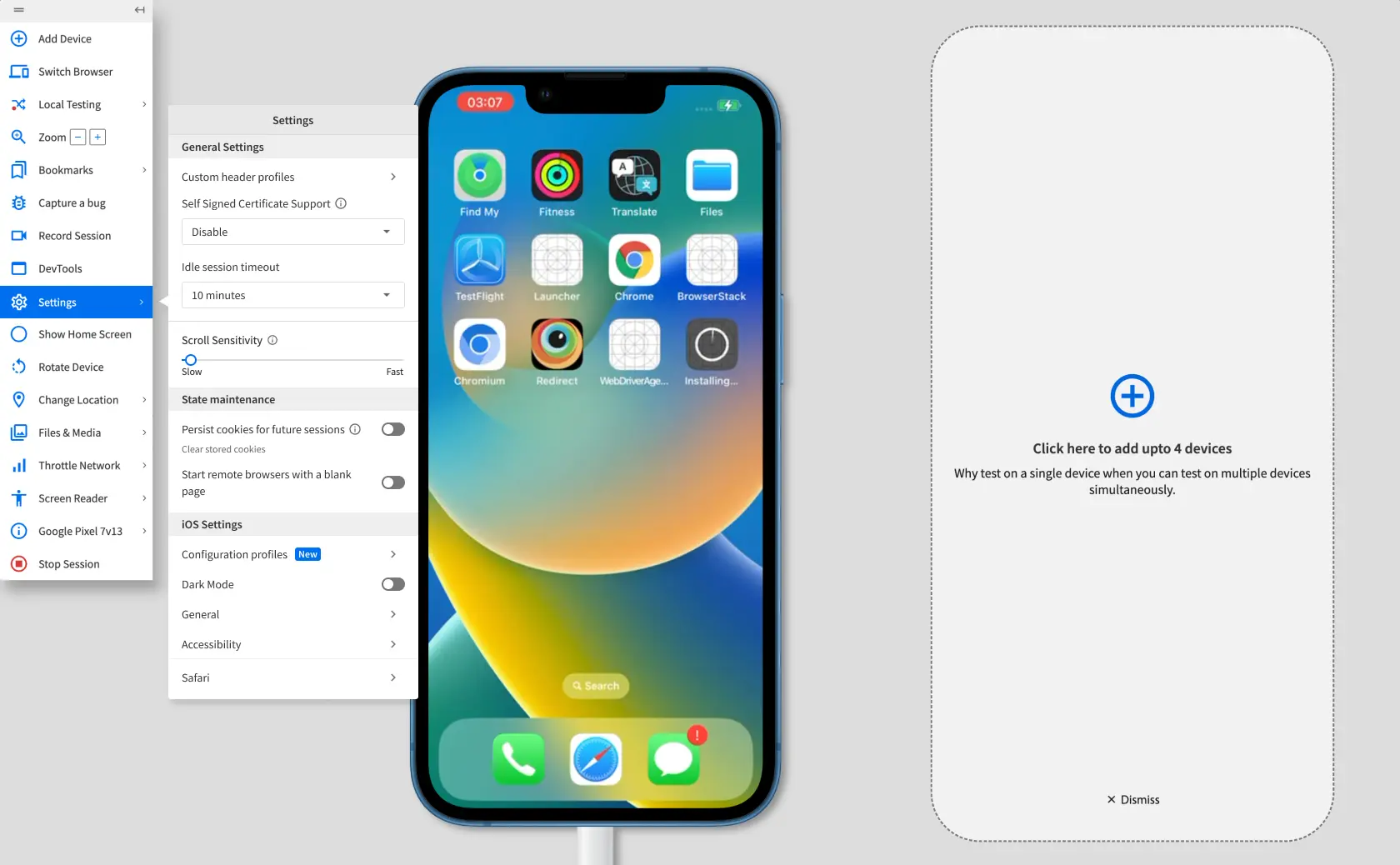
- In the Settings prompt, click Configuration profiles on iOS and macOS or Certificates on Android and Windows.
The Configuration profiles or Certificates prompt appears.
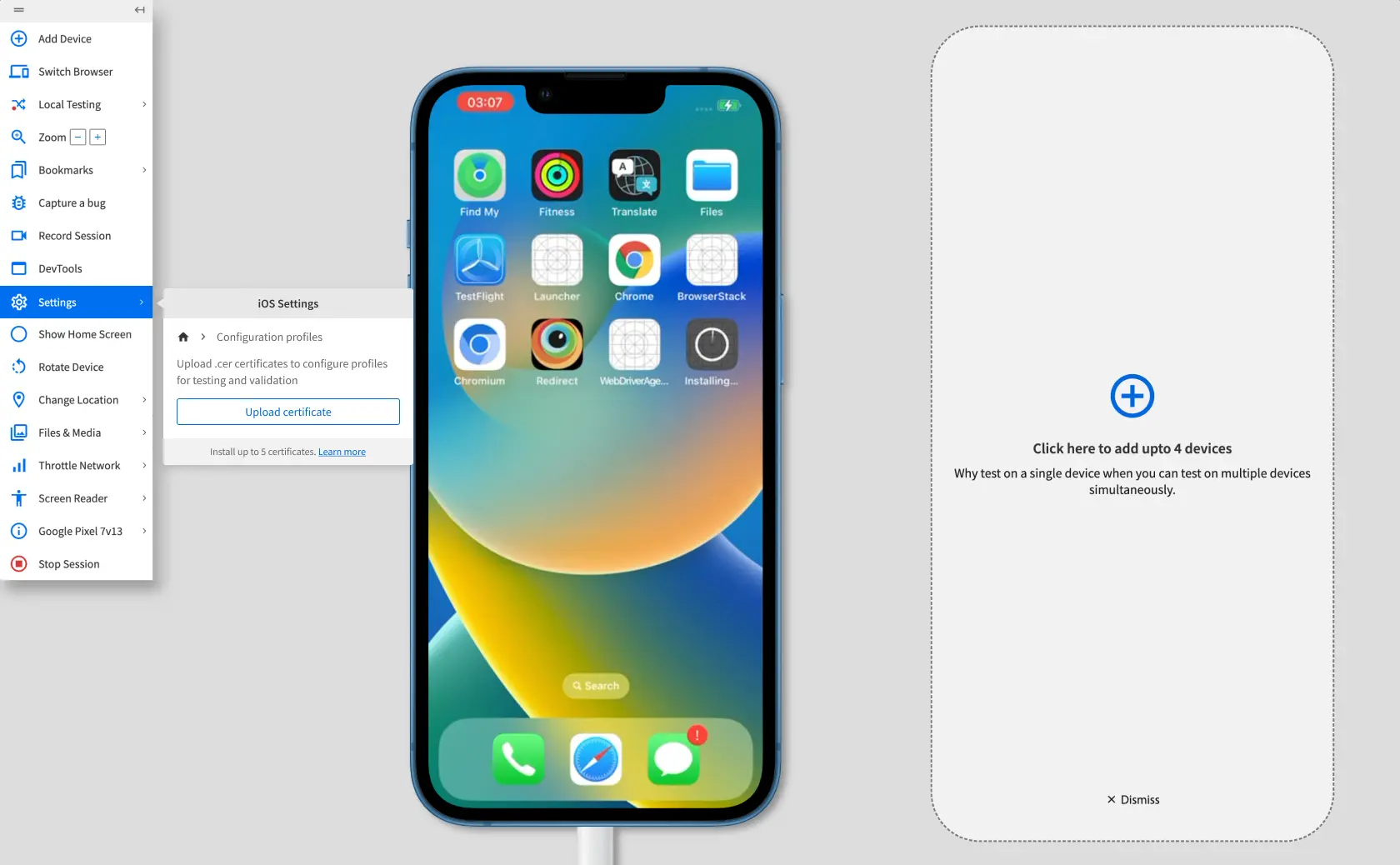
- In the Configuration profiles or Certificates prompt, click Upload certificates.
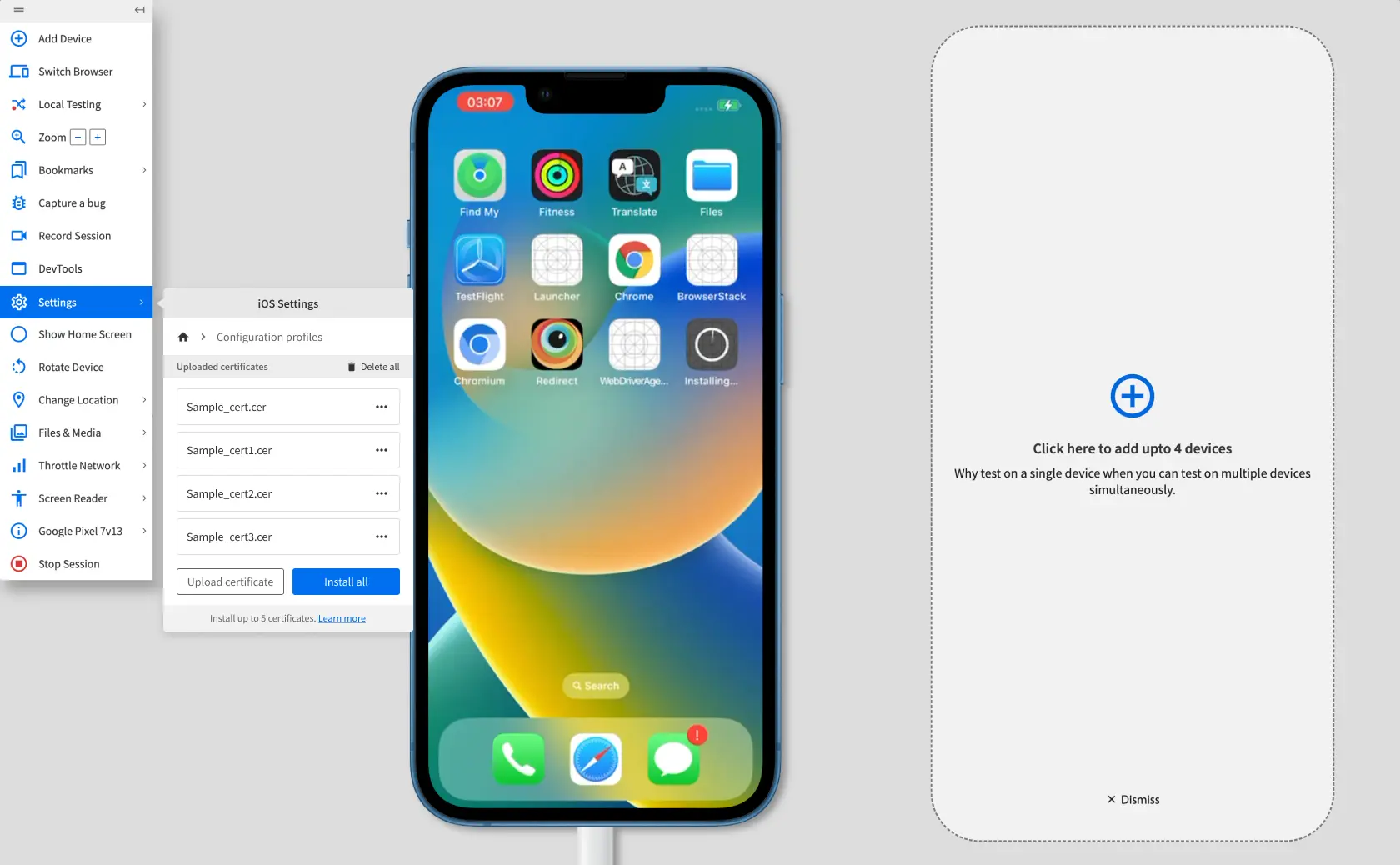
- From your local machine, select the
.cercertificate that you want to upload. The certificate is uploaded and appears in the Configuration profiles or Certificates prompt.
Install .cer certificates
Once uploaded, you can install the .cer certificates during a test session. For information on how to upload certificates, see Upload .cer certificates.
To install a .cer certificate:
- Log in to the Live dashboard.
- On the Live dashboard, select the OS version and browser to start your test session. For supported OS and browser combinations, refer to the supported operating systems and browsers section.
- In the Live vertical toolbar, click Settings.
- In the Settings prompt, click Configuration profiles on iOS and macOS or Certificates on Android and Windows.
- Click the more options button (⋯) next to the certificate you want to install.
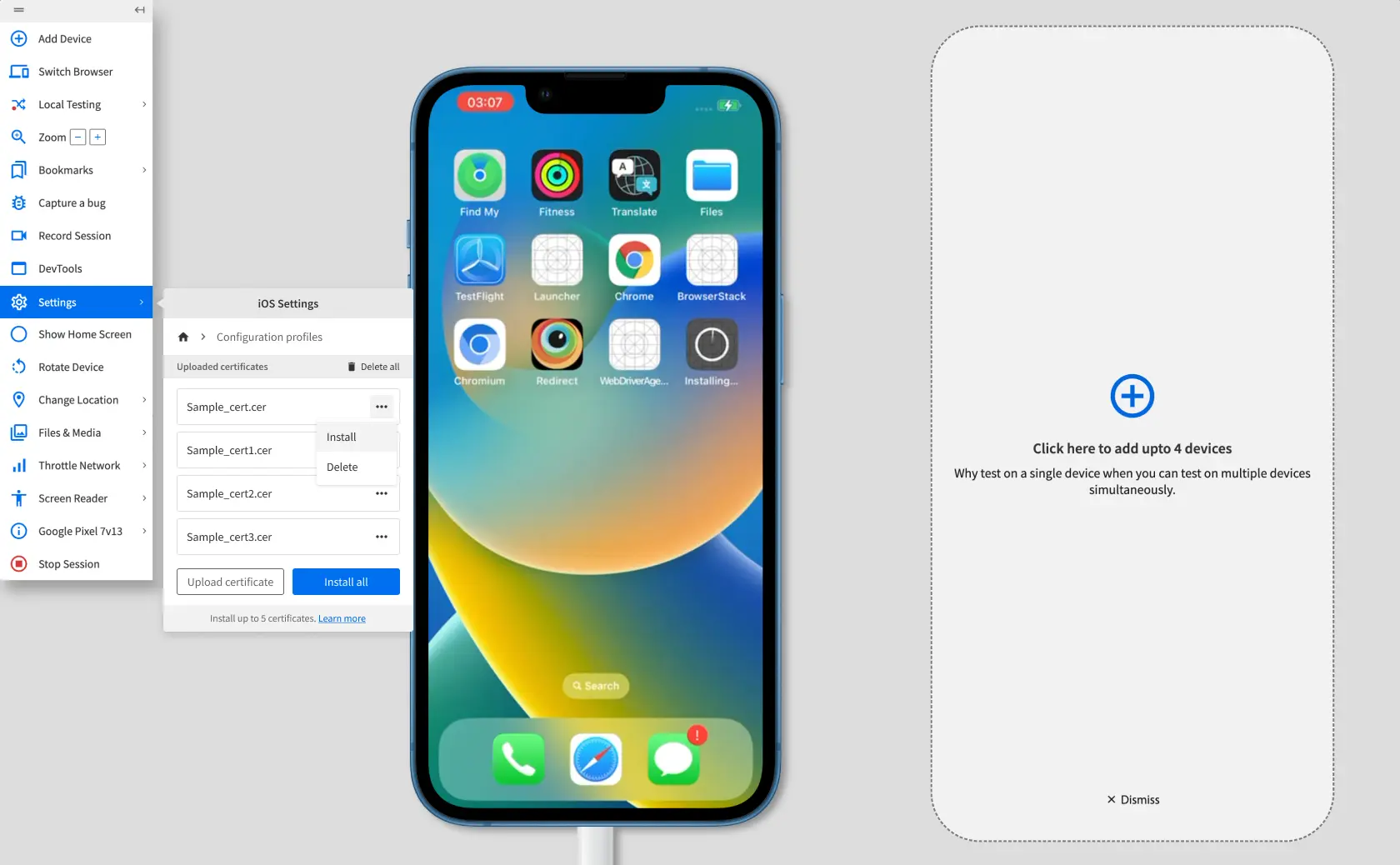
- Click Install.
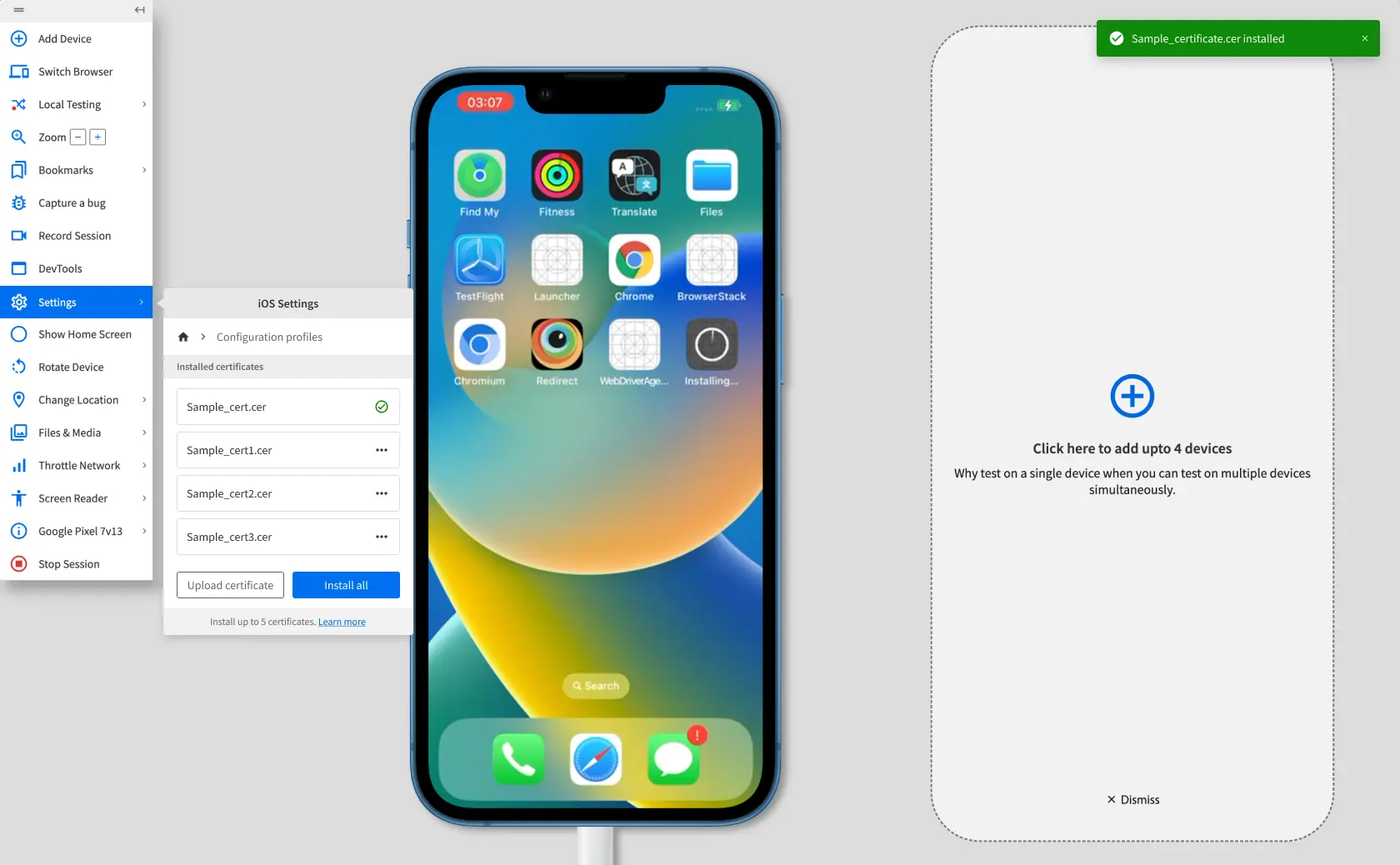
A banner appears confirming that the certificate is installed for the current session and the certificate status in the Configuration profiles or Certificates prompt changes to a green checkmark.
Delete .cer certificates
You can delete any uploaded certificate that has not been installed during an ongoing test session. If you want to delete an installed certificate, you must restart the test session.
To delete an installed certificate:
- Log in to the Live dashboard. If you are already in a test session where the certificate is installed, restart the session.
- On the Live dashboard, select the OS version and browser to start your test session. For supported OS and browser combinations, refer to the supported operating systems and browsers section.
- In the Live vertical toolbar, click Settings.
- In the Settings prompt, click Configuration profiles on iOS and macOS or Certificates on Android and Windows.
- Click the more options button (⋯) next to the certificate you want to delete.
- Click Delete. A banner confirms that the certificate is deleted, and it is removed from the list of uploaded certificates.
We're sorry to hear that. Please share your feedback so we can do better
Contact our Support team for immediate help while we work on improving our docs.
We're continuously improving our docs. We'd love to know what you liked
We're sorry to hear that. Please share your feedback so we can do better
Contact our Support team for immediate help while we work on improving our docs.
We're continuously improving our docs. We'd love to know what you liked
Thank you for your valuable feedback!