
 Join our Discord
New Relic integration for BrowserStack Load Testing
Learn how to send BrowserStack Load Testing metrics and events to New Relic so you can correlate load-test traffic with application performance, infrastructure health, and user experience.
Use this guide to connect BrowserStack Load Testing with New Relic so that you can correlate test activity with backend performance, infrastructure health, and user experience in a single place.
Prerequisites
Before you enable the New Relic integration, make sure you have:
- New Relic Account ID: Your New Relic account ID (also called account number), visible in the URL when you log in to New Relic.
- New Relic User API Key: A valid user API key with permissions to write metrics and events. You can create API keys in New Relic under Account Settings > API Keys.
- New Relic License Key: Your New Relic license key, available in Account Settings > License Key.
-
New Relic region: Specify your New Relic data center region (
USorEU) so BrowserStack can send data to the correct endpoint. - BrowserStack Load Testing account: Access to BrowserStack Load Testing with permission to configure integrations for your organization.
Integration overview
BrowserStack Load Testing streams metrics and events to your New Relic environment so you can analyze how your systems behave under load.
For an overview of all APM options, see Application Performance Monitoring integration.
Core capabilities:
- Metric streaming: BrowserStack aggregates performance data into short time buckets and pushes it to New Relic’s Metric API over HTTPS.
- Virtual user metrics: Track how many virtual users (VUs) are active, how long tests run, and how many requests they generate.
- Error and latency metrics: Monitor error rates and response-time percentiles to identify performance regressions.
- Browser metrics: For browser-based load tests, capture core web vitals such as LCP, FCP, CLS, and INP.
- Dimensions and tags: Each metric includes dimensions (for example, project name, test name, scenario, and region) so that you can slice and filter results inside New Relic.
- Lifecycle events: Test milestones (started, running, completed, failed) are sent as events so you can align performance changes with test execution.
- Distributed tracing: Custom headers enable request tracing, so you can correlate load test traffic with backend APM traces.
- Automated dashboards: Optionally create New Relic dashboards automatically upon test completion for quick analysis.
Supported metrics
BrowserStack Load Testing sends the following metrics to New Relic.
| Metric Name | Description |
|---|---|
browserstack.vu.max |
Maximum number of virtual users reached during the test |
browserstack.vu.started |
Total virtual users that started successfully |
browserstack.vu.ended |
Total virtual users that completed or were stopped |
browserstack.test.duration |
Total test execution time, in seconds |
browserstack.requests.total |
Total number of requests generated during the test |
browserstack.requests.rate.avg |
Average number of requests per second |
browserstack.errors.percentage |
Percentage of failed requests |
browserstack.response.time.avg |
Average response time across all requests, in milliseconds |
browserstack.response.time.p90 |
90th percentile response time, in milliseconds |
browserstack.response.time.p95 |
95th percentile response time, in milliseconds |
browserstack.response.time.p99 |
99th percentile response time, in milliseconds |
browserstack.response.time.max |
Maximum response time observed, in milliseconds |
browserstack.response.time.min |
Minimum response time observed, in milliseconds |
browserstack.system.cpu.usage |
CPU usage percentage during the test |
browserstack.system.memory.usage |
Memory usage percentage during the test |
browserstack.browser.lcp |
Largest Contentful Paint, in seconds |
browserstack.browser.inp |
Interaction to Next Paint latency, in milliseconds |
browserstack.browser.ttfb |
Time to First Byte, in milliseconds |
browserstack.browser.cls |
Cumulative Layout Shift score |
browserstack.browser.fcp |
First Contentful Paint, in seconds |
browserstack.browser.network.calls.total |
Total number of browser network calls |
Lifecycle events
In addition to metrics, BrowserStack Load Testing can send lifecycle events to New Relic so you can align spikes or drops in performance with changes in test state. You can use these events as annotations on New Relic charts or in dashboards to understand what was happening during a particular time range.
The following lifecycle events are supported:
| Event Name |
|---|
| Test Initialized |
| Test Running |
| Test Completed |
| Test Passed |
| Test Failed |
| Test Timed Out |
| Ramp Up Started |
| Ramp Down Started |
| Iterations Started |
| Iterations Ended |
Configure New Relic from the CLI
You configure New Relic integration in the browserstack-load.yml file. The following example shows a minimal configuration that enables New Relic and sends metrics to your account.
This configuration lives under the top-level integrations block in browserstack-load.yml alongside any other APM tools you configure.
Configuration reference
- connection.apiKey
- Your New Relic User API key for authentication. Store this securely in an environment variable (for example,
NEW_RELIC_API_KEY) rather than hard-coding it in the YAML file. - connection.accountId
- Your New Relic account ID (a numeric account number visible in New Relic’s account settings). Store this in an environment variable (for example,
NEW_RELIC_ACCOUNT_ID). - connection.licenseKey
- Your New Relic license key for account authorization. Store this securely in an environment variable (for example,
NEW_RELIC_LICENSE_KEY) rather than hard-coding it in the YAML file. - connection.region
- Your New Relic data center region. Valid values are
US(for accounts in the United States region) orEU(for accounts in the European Union region). - metrics
- Specifies which metrics to send to New Relic. You can group metrics and assign different tags to each group:
- Use
applyToAllMetrics: trueto send all available metrics. - Use
selectwith a list of metric names to send only specific metrics. - Assign
tagsto each group to add custom New Relic tags (for example,env:production,team:payments).
- Use
- events
- Specifies which lifecycle events to send to New Relic:
- Use
events: allto send all lifecycle events. - Use
eventswith a list of event names underselectto send only specific events. - Assign
tagsto organize and filter events in New Relic.
- Use
- headers
- (Optional) Inject custom HTTP headers into load test requests for distributed tracing and request correlation. For example, you can inject a custom test ID header to correlate load test traffic with backend APM traces.
Best practices:
- Store the New Relic API key (
apiKeyvalue) in an environment variable (for example,NEW_RELIC_API_KEY) instead of hard-coding it in the YAML file. - Verify that your API key has the required permissions to write metrics and events.
- Match the
regionsetting to the region where your New Relic account is hosted to ensure data is sent to the correct endpoint.
Switching to OpenTelemetry (OTel)
If you already have New Relic connected to BrowserStack Load Testing, you can switch from the native SDK path to OpenTelemetry (OTLP) push without needing new credentials.
Switch to OpenTelemetry (OTel)
OTLP is a vendor-neutral standard. Switching to OTel on New Relic lets you also push metrics in parallel to other observability tools (Honeycomb, Grafana Cloud, CloudWatch, or self-hosted collectors) without reconfiguring. You keep your New Relic connection intact - it’s just an alternative transport path.
How to switch
- In BrowserStack, open Load Testing > Project Settings > Integrations.
- Find the New Relic tile and click it to expand its configuration.
- Look for the Send via OpenTelemetry section and toggle it on to enable OTLP push.
- (Optional) Click Add Metrics/Events/Header to customize which metrics and events to send.
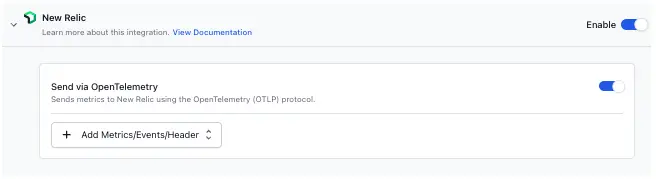
No new API keys are needed. Your next load test pushes metrics via OTLP to New Relic’s OTLP intake endpoint using your existing credentials.
For more details on OpenTelemetry and custom OTLP collectors, see Configure Load Testing with Custom OpenTelemetry (OTLP).
Next steps
After you save your changes to browserstack-load.yml, run your load test from the CLI or dashboard. When the test completes, open New Relic and search for the configured metric names (for example, browserstack.response.time.p95) to validate that data is flowing correctly. Then build dashboards and alerts based on the metrics that matter most to your team.
We're sorry to hear that. Please share your feedback so we can do better
Contact our Support team for immediate help while we work on improving our docs.
We're continuously improving our docs. We'd love to know what you liked
We're sorry to hear that. Please share your feedback so we can do better
Contact our Support team for immediate help while we work on improving our docs.
We're continuously improving our docs. We'd love to know what you liked
Thank you for your valuable feedback!