
 Join our Discord
Email notifications
BrowserStack Load Testing can send email notifications for users and organizations who want to be alerted and stay in the loop on their testing activities.
You can configure email notifications to receive alerts when your load tests reach specific statuses during test runs. The email notifications keep you informed about test progress and results, allowing you to respond quickly to test outcomes.
Email notifications can be configured for various test run statuses including Initializing, Completed, Aborted, Error, Passed, and Failed. You can select which team members receive these notifications for each test.
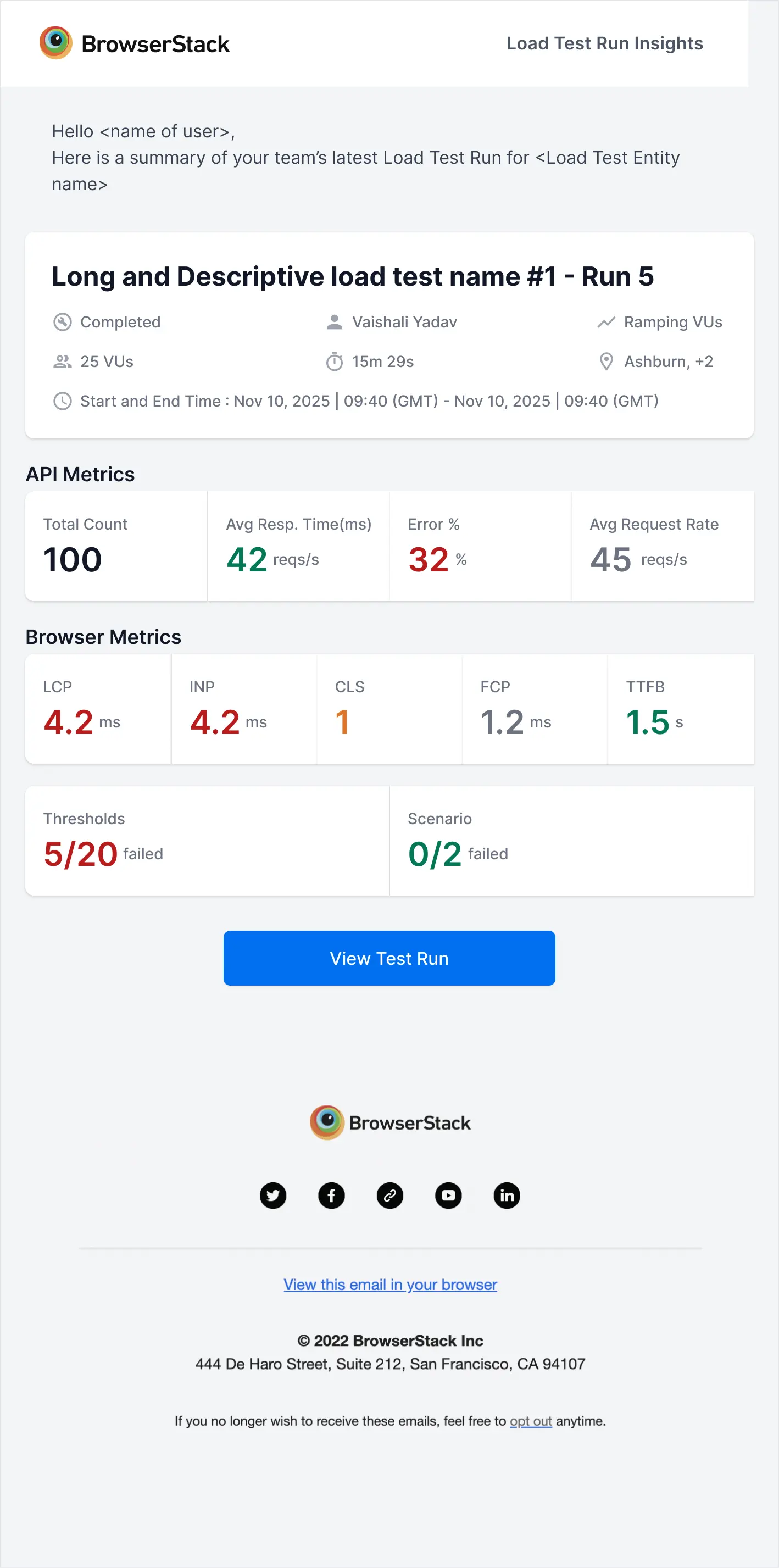
The email provides a comprehensive summary of your load test run, including:
- Test run status and metadata (VUs, duration, location, and start/end time)
- API metrics (total count, average response time, error percentage, and average request rate)
- Browser metrics (LCP, INP, CLS, FCP, and TTFB)
- Threshold and scenario results
You can click the View Test Run button in the email to view the detailed test results on Load Testing and start analyzing performance.
Configure email notifications
Navigate to the Load Testing dashboard and select any of the available tests you want to configure notifications for.
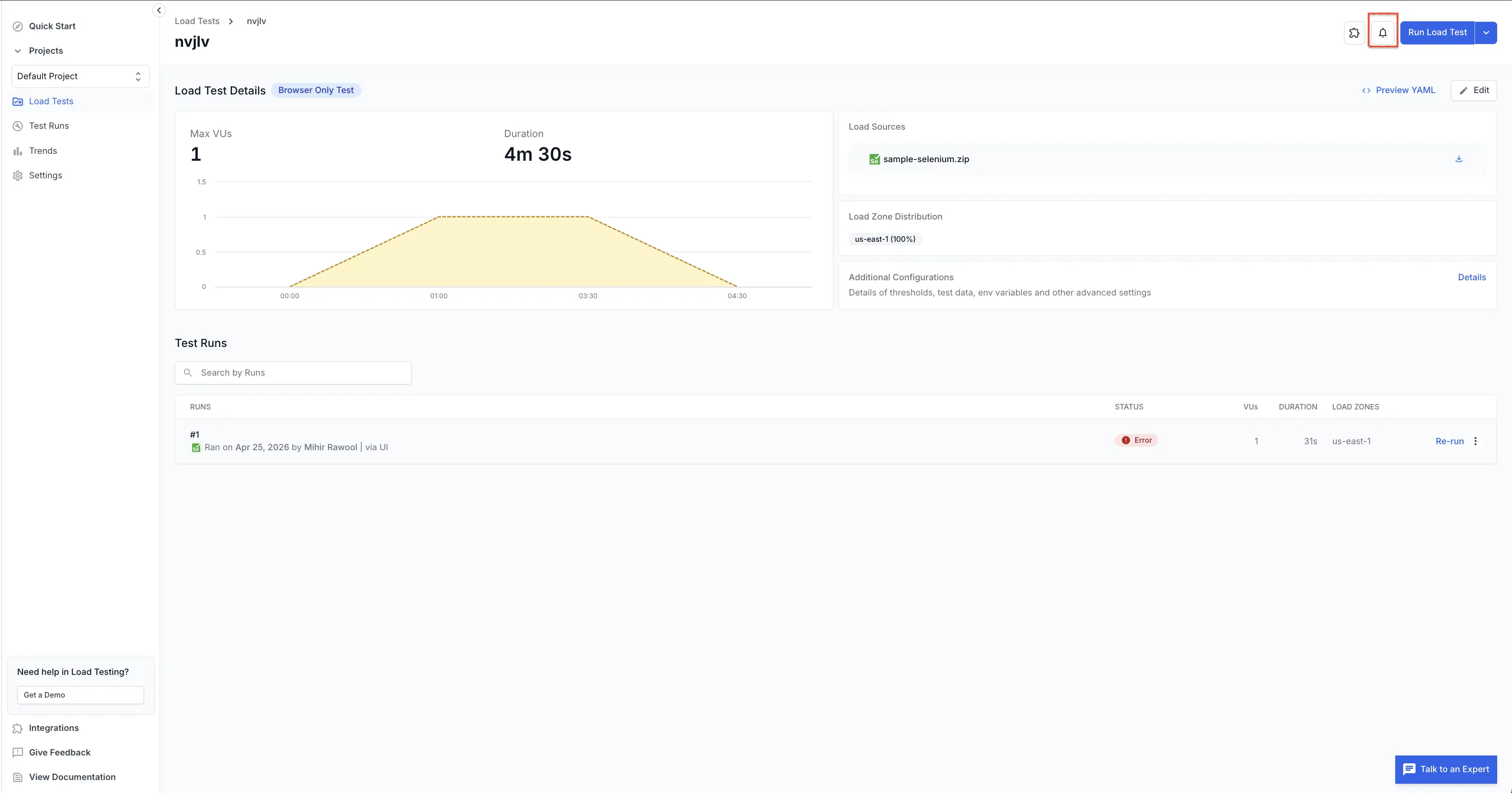
Click the bell icon on the top right corner of the test details page.
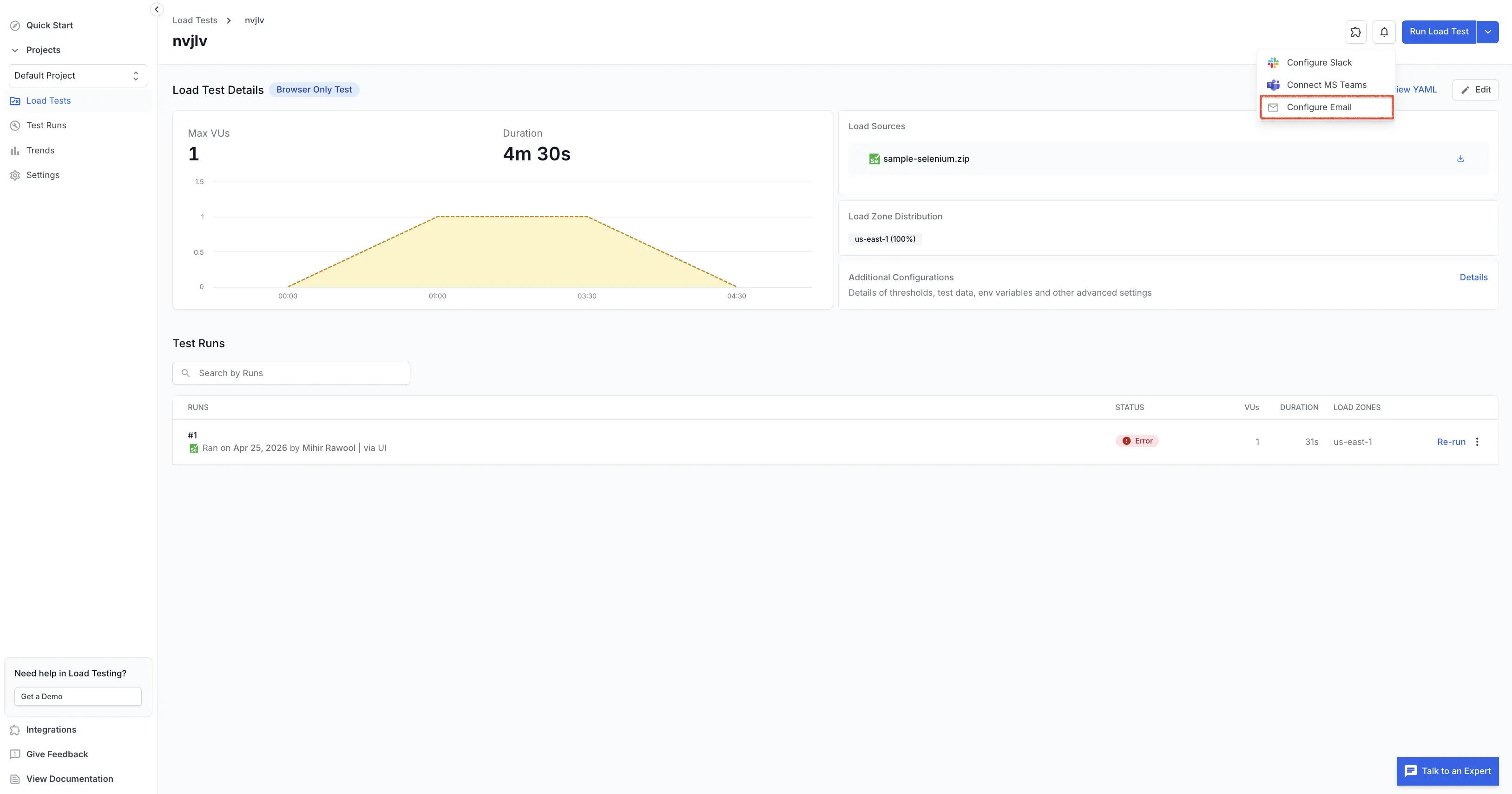
Select Configure Email from the dropdown menu.
In the Configure email notifications dialog, type to search and select the users you want to notify. You can configure which test run statuses trigger email notifications by selecting from the available options: Initializing, Completed, Aborted, Error, Passed, and Failed.
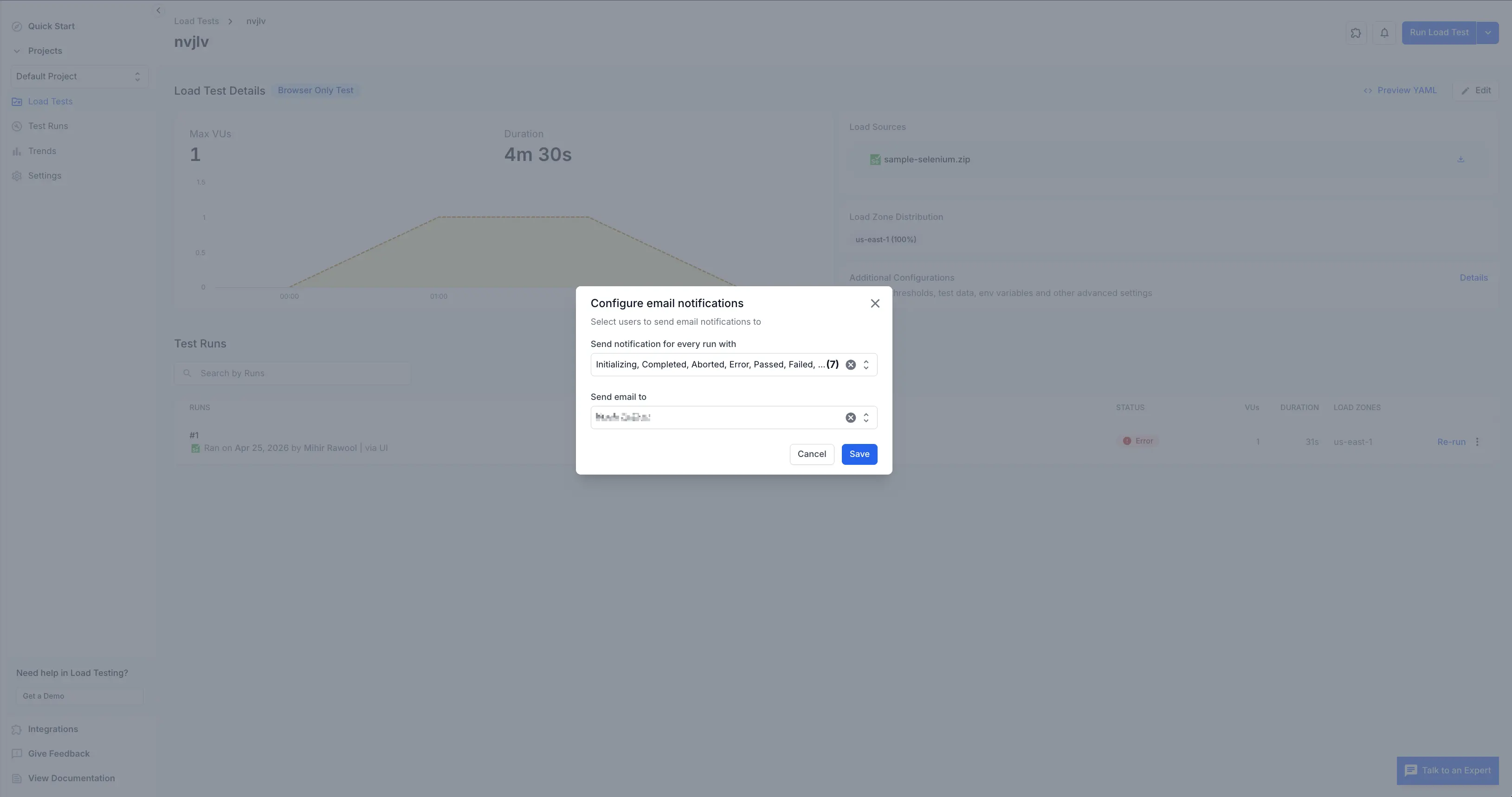
Click Save to save your email notification configuration.
Once configured, selected users will receive email notifications based on the test run statuses you specified.
Troubleshooting if you aren’t receiving any emails
Contact us if you are not receiving any emails despite being added to a project and subscribed to emails.
We're sorry to hear that. Please share your feedback so we can do better
Contact our Support team for immediate help while we work on improving our docs.
We're continuously improving our docs. We'd love to know what you liked
We're sorry to hear that. Please share your feedback so we can do better
Contact our Support team for immediate help while we work on improving our docs.
We're continuously improving our docs. We'd love to know what you liked
Thank you for your valuable feedback!