
 Join our Discord
Integrate Microsoft Teams with BrowserStack Load Testing
Set up the Microsoft Teams integration with BrowserStack Load Testing to receive test notifications and build updates directly in your Teams channels.
BrowserStack Load Testing integrates with Microsoft Teams to deliver real-time test notifications and build activity updates to your team channels and direct messages. After setup, team members can subscribe to daily summaries, receive alerts for failed tests, and monitor recent build activity without leaving Teams.
Prerequisites
Before you set up the Microsoft Teams integration, make sure you have:
- BrowserStack Load Testing account with organization administrator access
- Microsoft Teams workspace with administrative permissions to install apps
- Microsoft user account with access to the Teams workspace
Set up the integration
Follow these steps to integrate BrowserStack Load Testing with Microsoft Teams:
Log in to the BrowserStack Load Testing dashboard as an organization administrator.
Navigate to Integrations from the main menu.
In the Communication apps section, locate the Microsoft Teams integration card.
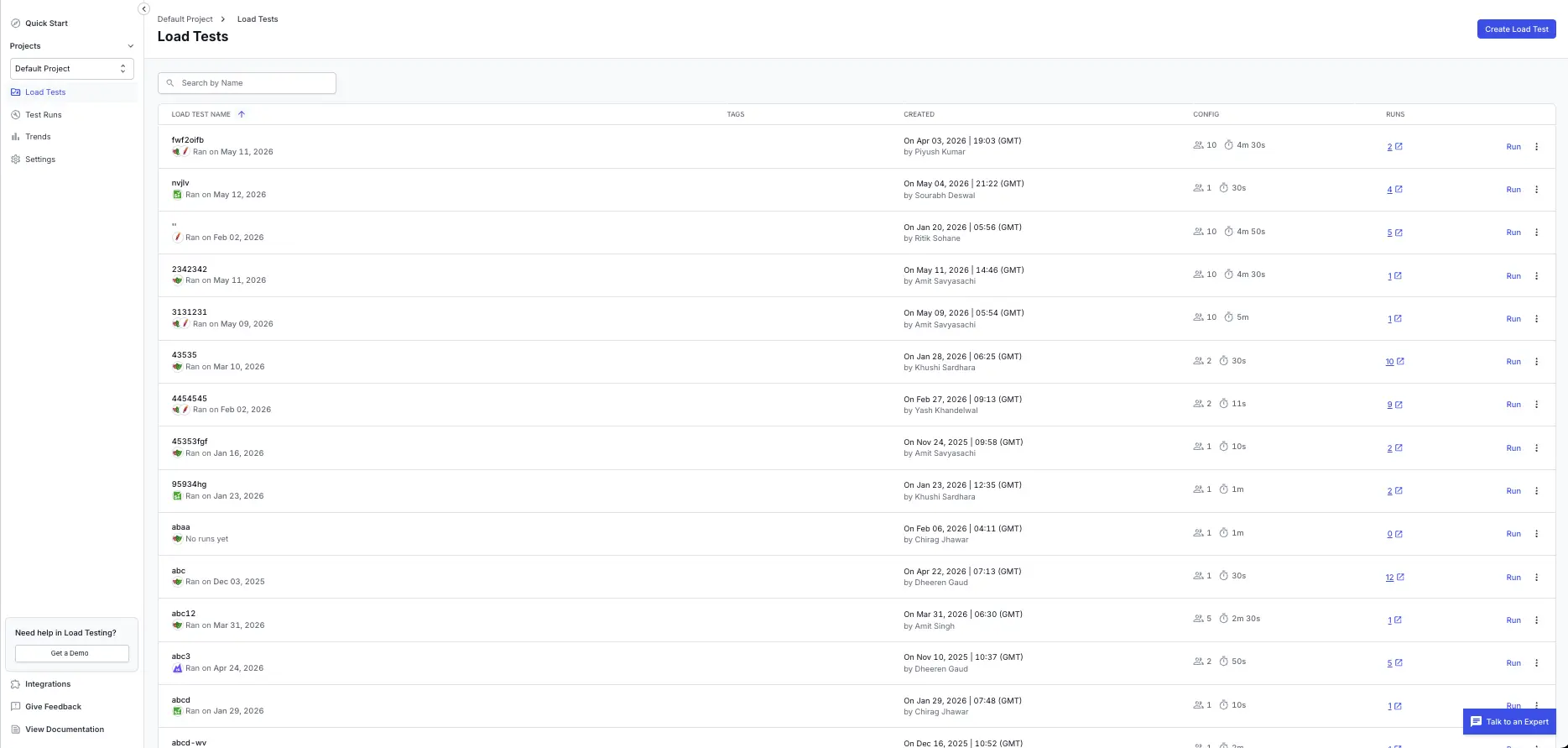
Click Connect to initiate the integration setup.
A popup window displays “Integrate with your Microsoft Teams account” with a Connect with OAuth button.
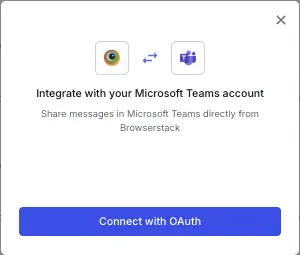
Click Connect with OAuth to authorize BrowserStack.
Sign in with your Microsoft account credentials when prompted.
Grant BrowserStack permission to access your Microsoft Teams workspace.
After successful authorization, you are redirected back to the BrowserStack dashboard with a confirmation message.
Only organization administrators can set up and configure the Microsoft Teams integration with BrowserStack Load Testing.
Next steps
After successfully integrating with Microsoft Teams:
- Configure your load tests to send notifications to specific Teams channels
- Set up notification preferences for different test types
- Invite team members to authorize the bot in their Teams accounts
- Explore the BrowserStack app in Teams to discover available commands and features
We're sorry to hear that. Please share your feedback so we can do better
Contact our Support team for immediate help while we work on improving our docs.
We're continuously improving our docs. We'd love to know what you liked
We're sorry to hear that. Please share your feedback so we can do better
Contact our Support team for immediate help while we work on improving our docs.
We're continuously improving our docs. We'd love to know what you liked
Thank you for your valuable feedback!