
 Join our Discord
Comments on load test reports
Add comments to a load test report to flag findings, mention teammates, and resolve performance issues without leaving the report.
When a load test finishes, its report holds the data your team needs to spot regressions, latency spikes, and errors. Comments let you discuss those findings directly on the report instead of in scattered Slack threads, Jira tickets, or email. You can pin a comment to the exact chart, stat, or table you’re looking at, mention the right teammate, and resolve the discussion once the issue is addressed, so the report stays the single source of truth.
With comments, you can:
- Pin a comment to the whole report, a specific tab, or an individual section such as a chart, stat card, or table.
- Mention teammates with @ to bring them into the discussion and notify them.
- Resolve a comment once the finding is addressed, and reopen it if the issue resurfaces.
- React with emoji, and edit or delete your own comments.
- Share a comment to Slack, Microsoft Teams, Jira, or email.
Where you can add comments
Comments attach at three levels of the report:
- Report: a general comment about the run, added from the comment panel.
- Tab: a comment on a tab such as Summary, Network, or Engine Health.
- Section: a comment pinned to a specific element within a tab, such as a stat card, chart, or table.
Sections that have comments show a count badge next to the section header. Each comment carries a badge for the level it’s pinned to, for example Summary > API Metrics. Select the badge to scroll the report to that section.
The commentable tabs depend on the report type:
| Report type | Commentable tabs |
|---|---|
| Browser load test | Summary, Browser, Logs, Engine Health |
| API load test | Summary, APIs, Logs, Engine Health |
| Hybrid load test | Summary, APIs, Browser, Logs, Engine Health |
Within each tab, you can pin a comment to individual stat cards, charts, and tables.
Add a comment
You can add a comment in three ways: from comment mode, from a section’s comment badge, or from the Comments button in the report header.
Use comment mode
To add a comment in comment mode, follow these steps:
Open a load test report and press C to enter comment mode.
Select the section you want to flag. The report freezes on that section instead of drilling in, and a comment box appears where you selected.
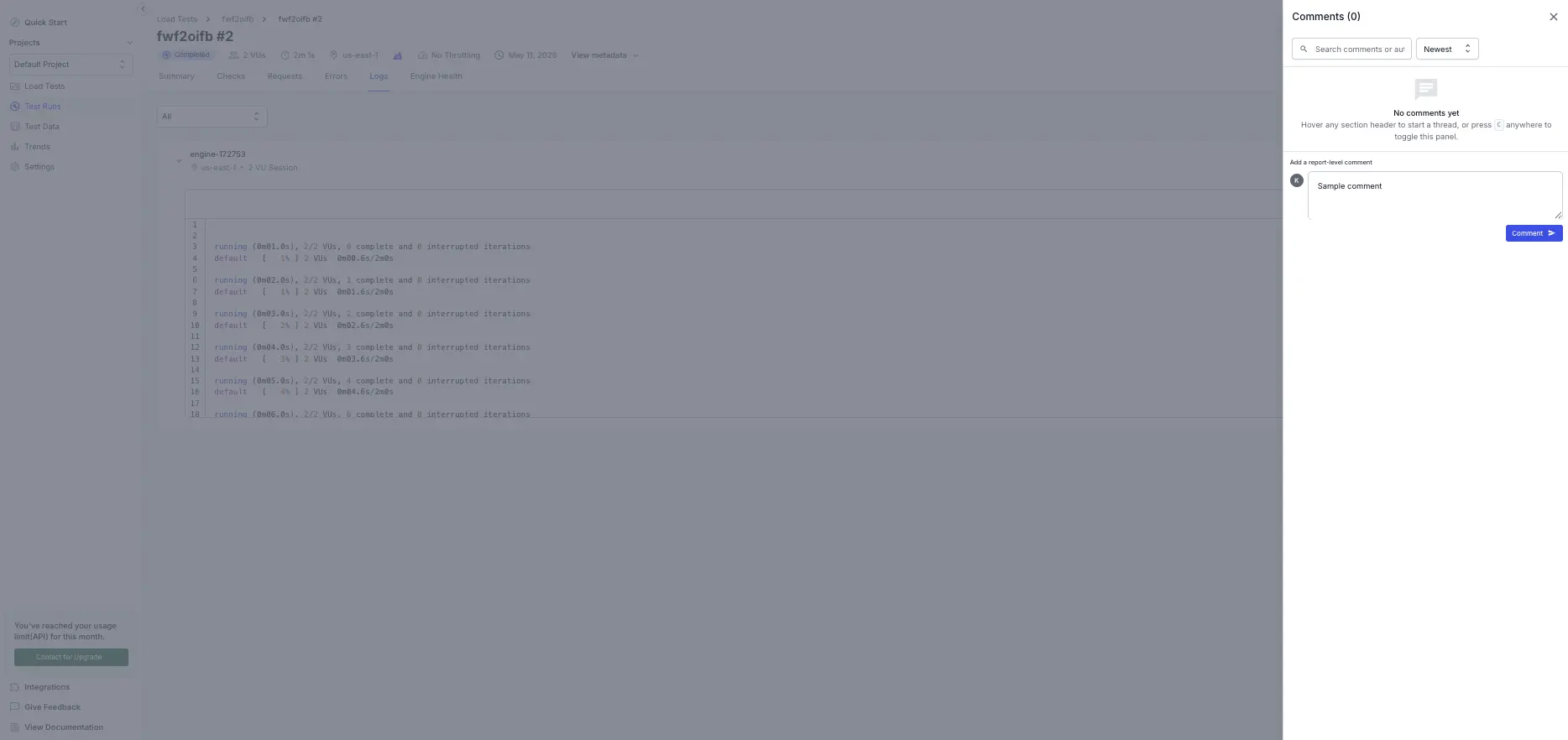
Type your comment. To bring in a teammate, type @ and select their name from the list.
Press Enter to post. The comment appears in the comment panel with a badge showing its section.
Press Escape to exit comment mode.
Use the comment badge
Sections that already have comments show a count badge next to the section header. Select the badge to open the comment panel filtered to that section.
Use the Comments button
Select Comments in the report header to open the comment panel with every comment on the report. To add a report-level comment, type in the input at the bottom of the panel and select Comment.
The comment panel
The comment panel opens on the right side of the report. The report content shifts left so it stays visible while you read and write comments. Use the panel to:
- Filter comments by All, Open, or Resolved, each with a count.
- Sort comments by Newest or Oldest.
- Search comments by text or author name.
Each comment shows the author, a relative timestamp such as “2h ago”, the section badge, the comment text, and actions to resolve, edit, delete, or share it.
Mention teammates
Type @ in a comment to search for teammates in your BrowserStack group by name or email. Select a name to insert a mention, shown as a styled chip. Mentioned teammates receive a notification with a link straight to the comment.
You can add up to 10 mentions in a single comment.
Notifications
When you’re mentioned in a comment, or a comment you wrote is resolved or reopened, you receive a notification:
- In-app: the bell icon in the report header shows an unread count. Open it to see who mentioned you and where, then select the notification to jump to the comment.
- Email: includes the author, a snippet of the comment, the section, and a View Comment link.
Selecting a notification opens the report, activates the right tab, opens the comment panel, and highlights the comment.
The following events trigger notifications:
| Event | In-app | |
|---|---|---|
| You’re mentioned in a comment | Yes | Yes |
| A comment you wrote is resolved | Yes | Yes |
| Someone reacts to your comment | No | No |
Resolve or reopen a comment
Anyone in your group can resolve a comment, not just the author. Resolved comments move to the Resolved filter and show who resolved them and when. If the issue comes back, select Reopen. Resolving or reopening a comment notifies its author.
Edit, delete, and react
Manage comments with these actions:
- Edit: you can edit your own comments. An edited comment shows “(edited)” next to the timestamp.
- Delete: you can delete your own comments. Group admins can delete any comment.
- React: react to any comment with an emoji. Five emoji show by default, with the rest under the three-dot menu.
Share a comment
Select Share on a comment to send it to Slack, Microsoft Teams, Jira, or email. The recipient gets a link that opens the report and highlights the comment. To set up these channels first, see Collaboration tools.
Things to know
Comments are retained for 60 days from the time they’re created. After 60 days, they’re removed from the report and can’t be recovered.
Keep the following in mind when commenting on reports:
- Comments don’t support nested replies. Mention a teammate with @ to bring them into a comment.
- Updates aren’t real-time. While the panel is open, it refreshes every 10 seconds, so a teammate’s new comment can take a few seconds to appear.
- A comment can be up to 3,000 characters long.
- You can add comments while a test is still running, and they remain after the test completes.
- Viewers who open a report through a public link can read comments but can’t add, edit, resolve, or react to them.
- If a section is removed from a report, for example after a re-run, its comments stay in the panel and show Unknown Section.
- If a teammate is removed from your organization, their comments remain with the author shown as [Deleted User].
We're sorry to hear that. Please share your feedback so we can do better
Contact our Support team for immediate help while we work on improving our docs.
We're continuously improving our docs. We'd love to know what you liked
We're sorry to hear that. Please share your feedback so we can do better
Contact our Support team for immediate help while we work on improving our docs.
We're continuously improving our docs. We'd love to know what you liked
Thank you for your valuable feedback!