
 Join our Discord
Compare load test reports
Set any completed run as a baseline and compare reports to see at a glance whether performance improved, degraded, or stayed the same.
Performance teams run the same load test across releases, infrastructure changes, and configuration tweaks. Comparing those runs by hand is slow and easy to get wrong, so regressions can slip through to production. Report comparison gives you a single, repeatable view: pick a reference run, set it as your baseline, and measure every later run against it. You can also compare any two runs directly when you don’t have a baseline.
With report comparison, you can:
- Mark any completed run as the baseline for a test, and unmark it later.
- Compare a new run against the baseline to confirm a regression or an improvement.
- Compare any two runs of the same test, even when no baseline is set.
- See at a glance whether each key metric improved, degraded, or stayed the same.
- Share the comparison with your team or with anyone through a public link.
Set a baseline
A baseline is the reference run that future runs are measured against, such as the last known-good release. Each test can have one active baseline at a time, and you can change it whenever a new run becomes your reference point.
To set a run as the baseline:
- Open the report for a completed run.
- Select the kebab menu ⋮ in the top-right corner.
- Select Set as Baseline.
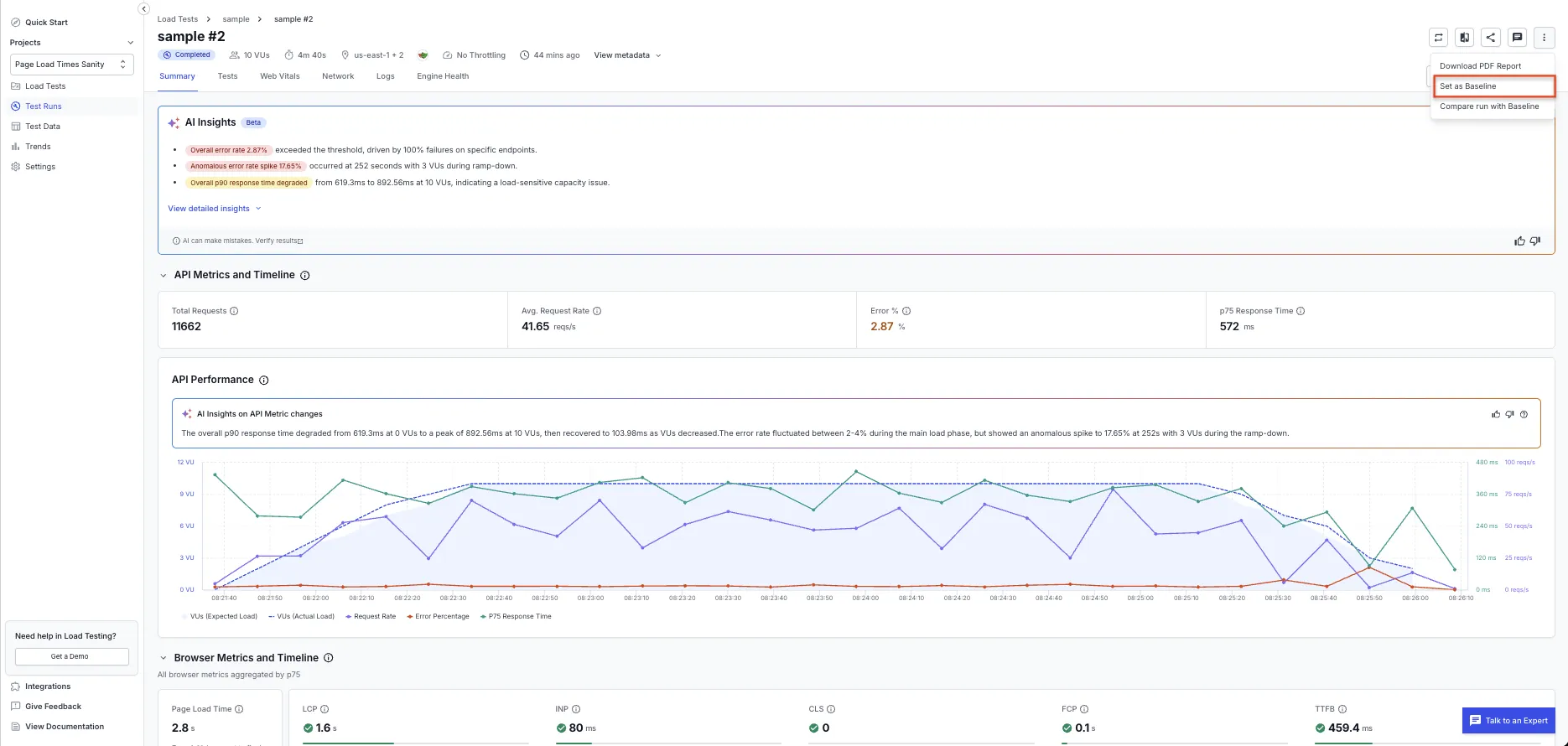
To remove the baseline later, open the kebab menu on the baseline run and select Remove Baseline.
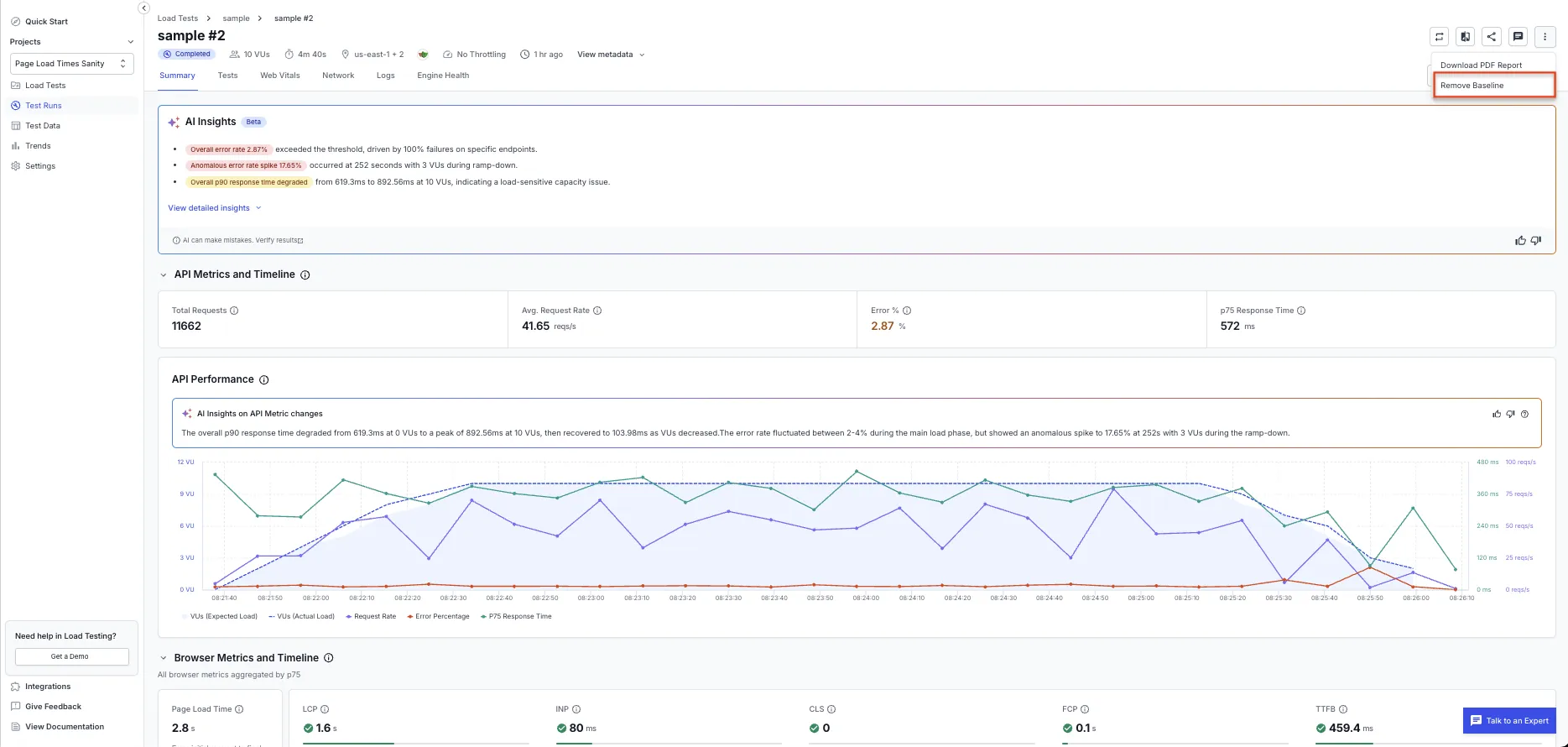
Each test has one active baseline at a time, and only completed runs are eligible. When you set a new run as the baseline, it replaces the previous one.
Compare reports
You compare runs from the report header. The comparison opens a side-by-side view of the two runs, with run details at the top and metric-level detail below.
Compare a run against the baseline
When a test has a baseline, open any later run, then open the kebab menu ⋮ and select Compare run with Baseline. Load Testing compares that run against the baseline automatically.
Compare any two runs
You don’t need a baseline to compare. Select the Compare run icon in the report header, then pick the two runs you want to measure against each other. Both runs must belong to the same test, so you compare like with like.
You can compare a report once the test has at least two completed runs.
Read the comparison
The comparison opens as the Run comparison view. Two cards at the top show the runs side by side, the one you opened as Current and the reference run as Baseline (Reference), each with its run metadata such as status, load profile, virtual users, duration, regions, and test file.
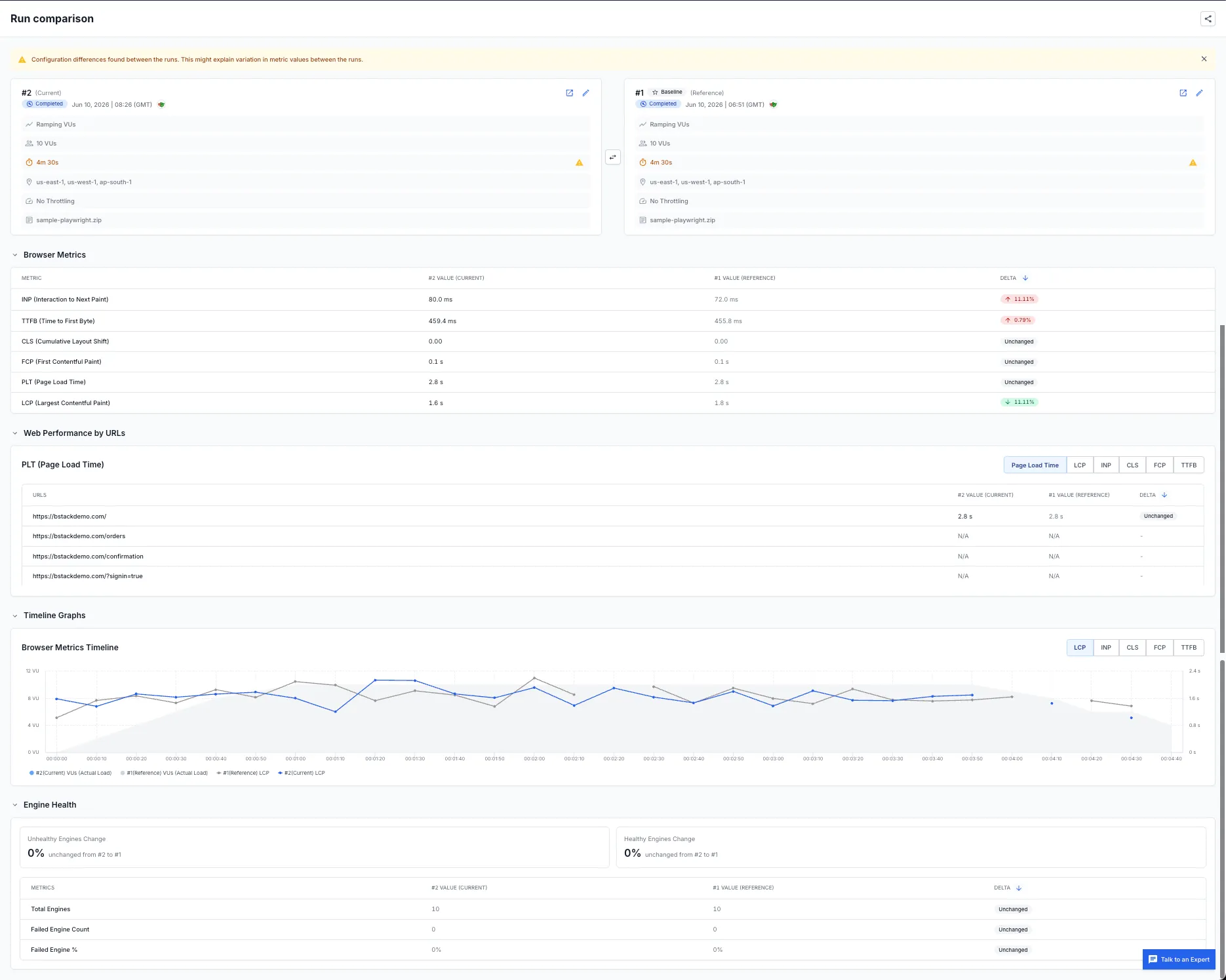
Every metric has a Delta column that shows the change between the two runs as a percentage, with an up or down arrow. A green value marks an improvement and a red value marks a degradation. A metric with no change shows Unchanged.
When the two runs used different configurations, a banner at the top of the view flags it, since configuration changes can explain why the metrics differ.
What gets compared
The metrics in a comparison depend on the report type. The comparison shows both runs side by side, along with run metadata such as virtual users, duration, and regions.
| Report type | What gets compared |
|---|---|
| Browser load test | Run metadata, Browser Metrics (INP, TTFB, CLS, FCP, Page Load Time, and LCP), Web Performance by URLs, Timeline Graphs, and Engine Health. |
| API load test | Run metadata, request rate, average response time, error percentage by thread group and label, and Engine Health (CPU and memory usage). |
| Hybrid load test | Run metadata, plus every metric compared for browser and API load tests. |
Share a comparison
To share a comparison, generate a public link from the comparison view. Anyone with the link can open the comparison without a BrowserStack account, which makes it useful for release sign-offs and updates to stakeholders.
Things to know
Keep the following in mind when you compare reports:
- A test needs at least two completed runs before you can compare.
- You can compare only runs from the same test. Cross-test comparison isn’t supported.
- A test has one active baseline at a time. Setting a new baseline replaces the previous one.
- When the two runs used different configurations, the Run comparison view flags it with a banner, since configuration changes can explain why the metrics differ.
- You can share a comparison through a public link, so people without a BrowserStack account can open it.
We're sorry to hear that. Please share your feedback so we can do better
Contact our Support team for immediate help while we work on improving our docs.
We're continuously improving our docs. We'd love to know what you liked
We're sorry to hear that. Please share your feedback so we can do better
Contact our Support team for immediate help while we work on improving our docs.
We're continuously improving our docs. We'd love to know what you liked
Thank you for your valuable feedback!