
 Join our Discord
Exclude domains from load test reports
Filter out third-party domains from Load Testing metrics to focus on the performance of your application
What it does
A load test usually loads third-party domains you did not write and are not benchmarking: analytics, auth providers, CDNs, chat widgets. Domain exclusion keeps those out of your report, so the browser metrics show only the domains you care about.
You give a list of domains and, for each, how to match it. Anything matching is left out.
Affected report data, the browser metrics:
- Page Load Times
- Web Vitals
- Network requests
Excluded data is never written anywhere. You can see which rules applied to your test in the test run metadata, and if you search for an excluded domain in the report UI, you see a message indicating it is part of exclusion.
Where it applies
Domain exclusion is available on browser load tests (a browser test, or the browser side of a hybrid test) running Playwright, Selenium, WebdriverIO, or Nightwatch. For Playwright, both Playwright - NodeJS and Playwright - Robot are supported.
It does not apply to API-only tests, which produce no browser page or network metrics. On a hybrid test the rules affect the browser side only. The API side is untouched.
When exclusion happens
Rules are applied at capture time, inside the browser, before metrics are stored. Excluded data is never written anywhere. That means:
- Your report, charts, tables and CSV exports all reflect the exclusion consistently. There is nothing to filter afterwards.
- Excluded data cannot be recovered for a completed run. Changing the rules affects future runs only.
If you are unsure whether a rule will do what you want, run once without it and compare the two reports. That is the only way to see what a rule would have removed.
What your rule is matched against
Your rule matches against the hostname component of the URL only. This distinction is critical to correct rule configuration.
Take a request the browser made:
https://cdn.jsdelivr.net:443/npm/lodash@4.17.21/package.json
scheme  hostname          port  path
Your rule is compared against the hostname (cdn.jsdelivr.net), and nothing else. The scheme, port, path and query string are all discarded before any comparison happens.
Hostname is not the same as domain name
Zoom into the hostname cdn.jsdelivr.net: cdn is the subdomain, jsdelivr the name, net the top-level domain.
-
Hostname:
cdn.jsdelivr.net. The full address of one specific machine, including every subdomain label. -
Domain name:
jsdelivr.net. The name the organization registered. They can create any number of hostnames under it:cdn.,www.,api.and so on.
The two conditions
Both match against the hostname, as described above. Both are case-insensitive, so Microsoft and microsoft behave identically.
| Condition | Matches when | Example rule | Matches | Does not match |
|---|---|---|---|---|
| Contains | the hostname contains your text anywhere | microsoft |
login.microsoftonline.com, microsoft.com, cdn.microsoft.com
|
example.com |
| Equals | the hostname is exactly your text | login.microsoftonline.com |
login.microsoftonline.com |
microsoftonline.com, www.login.microsoftonline.com
|
Contains checks whether the hostname contains your text, not whether the full URL does. The comparison runs one way round: your text has to fit inside the hostname. Entering a whole URL such as https://cdn.jsdelivr.net/npm/lodash@4.17.21/package.json can therefore never match, because the scheme and path it carries do not exist anywhere in a hostname. Enter cdn.jsdelivr.net, or a fragment of it like jsdelivr.
Rules combine with OR: a row is excluded as soon as any rule matches. Each rule stands alone, with no way to express “exclude A only when B”.
Add domains
You can add exclusion rules using the UI Builder dashboard or by editing your CLI configuration file. Choose the method that fits your workflow.
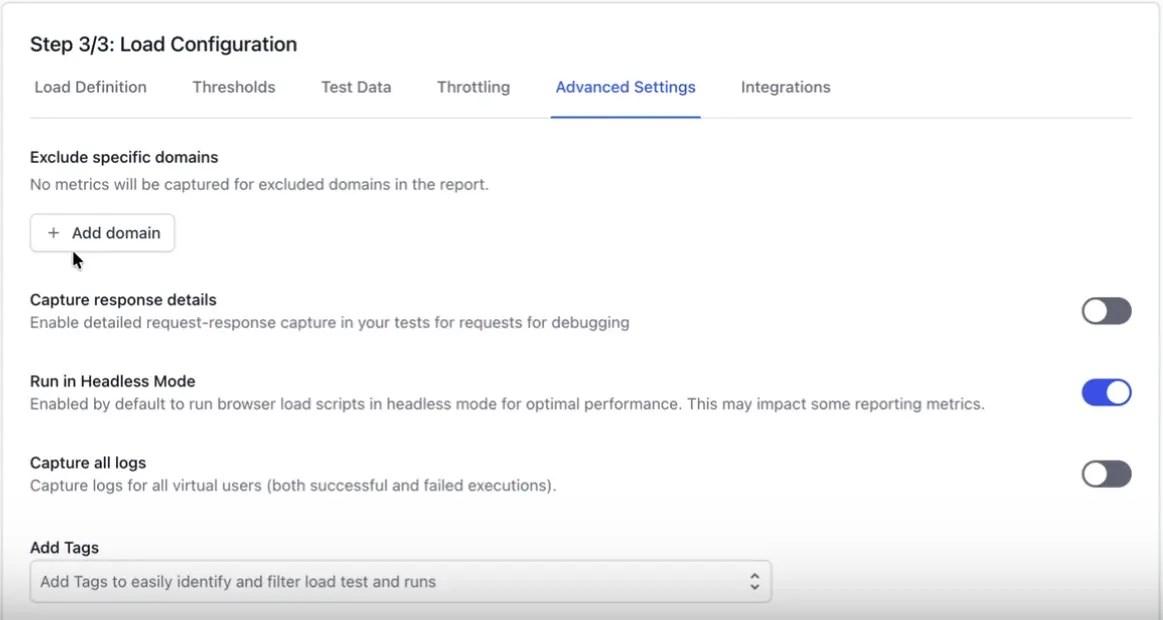
Open the load test for creation or editing and go to the configuration step. Look for Exclude specific domains in the Advanced Settings section, described as “No metrics will be captured for excluded domains in the report.”
To add a domain:
Click Add domain. A new row appears.
In the dropdown on the left, choose Contains or Equals. Contains is selected by default.
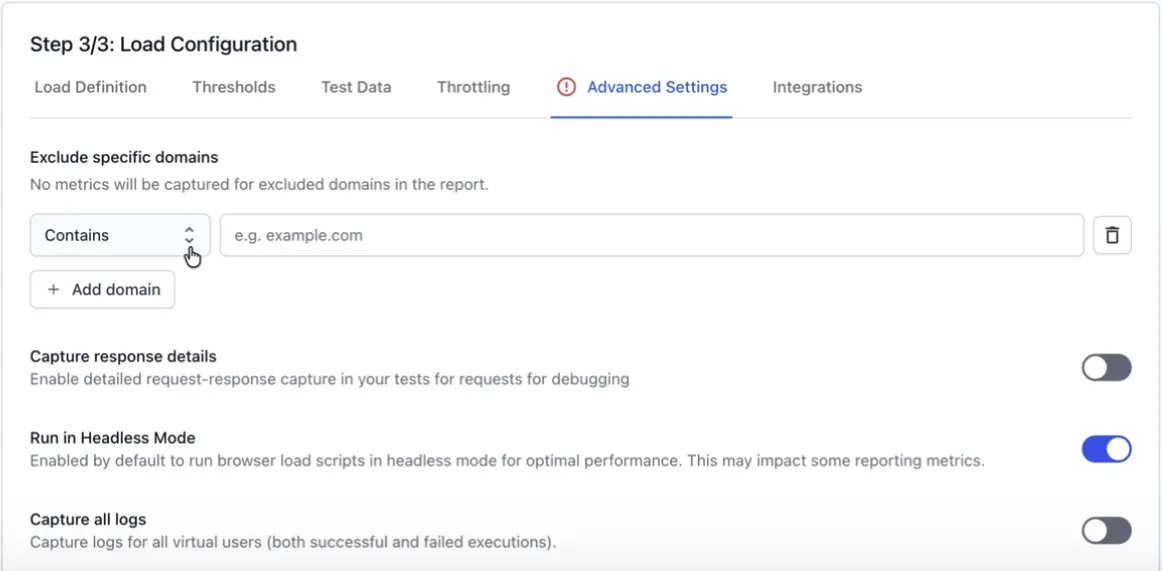
In the field on the right, type the hostname, the placeholder shows the expected shape, e.g. example.com.
Repeat for each domain you want to exclude.
Save the test.
To change a rule, edit the field or switch the dropdown on that row. There is no separate confirm step. The change is kept when you save the test.
To remove a rule, click the bin icon at the end of the row.
The form does the following for you:
- Duplicate detection. If two rows have the same domain and the same condition, the later one shows a warning: “Duplicate rule. This domain and condition are already excluded.” The same domain with two different conditions is not a duplicate. The warning is advisory and does not block saving.
- The 10-domain limit. Once you have 10 rows the Add domain button is disabled, with a tooltip explaining why.
- Editing an existing test loads the rules already saved on it, so you can add to or adjust the list without re-entering everything.
After saving, the rules are stored against the test and apply to every later run. A re-run inherits the rules the original run used.
If you cannot find the field, check the test type. It appears only on browser load tests.
What gets excluded, exactly
Each rule is checked against two things: the URL of each page, and the URL of each network request.
- Page Load Times and Web Vitals rows are matched on the page’s own URL.
- Network rows are matched on the request’s URL and on the URL of the page that issued it.
That second point produces the one behavior worth understanding:
Excluding a page also removes the network calls that page made. Exclude checkout.example.com and you lose that page’s Page Load Times and Web Vitals and every request it issued, including requests to other domains. This is deliberate because leaving those behind would show network activity belonging to a page that is no longer in the report.
Excluding a network call does not remove the page that made it. Exclude analytics.vendor.com and every page that called it keeps all of its own metrics. Only the calls to that vendor disappear.
A worked example: a test visits two pages, each calling the same vendor:
| Page | Calls |
|---|---|
shop.example.com |
analytics.vendor.com |
blog.example.com |
analytics.vendor.com |
| Rule | Result |
|---|---|
analytics.vendor.com + Contains |
Both pages keep all their own metrics. Only the vendor calls disappear, from both. |
shop.example.com + Equals |
Page shop.example.com disappears entirely, along with its call to the vendor. Page blog.example.com is untouched and still shows its own vendor call. |
A practical consequence: excluding a page can remove more than you expect. On a verified run, excluding one search engine also removed its analytics and bot-challenge requests to four unrelated hostnames, because that page had requested them.
Common configuration mistakes
Most confusion arises from two patterns. Understanding them upfront saves troubleshooting later.
Exact hostname matching with Equals
The Equals condition performs exact string comparison on the full hostname, including all subdomains. If a site’s pages are served from www.example.com, a rule of example.com with Equals excludes nothing because the two hostnames are different strings.
| Intended match | Incorrect rule | Correct rule |
|---|---|---|
| All subdomains of example.com |
example.com + Equals |
example.com + Contains |
| Only www.example.com | (none) |
www.example.com + Equals |
No validation error occurs when this mismatch happens. The test completes normally and the report appears unchanged, as if no exclusion rule were set. To diagnose rules that produce no effect, verify this condition first.
Hostname format validation
Domain values must be bare hostnames without URL components. A scheme (https://), port (:443), path (/path), or trailing slash (/) prevents the rule from matching on both Equals and Contains conditions.
| Invalid format | Valid format |
|---|---|
https://example.com |
example.com |
https://example.com/checkout |
example.com |
example.com/checkout |
example.com |
example.com:443 |
example.com |
example.com/ |
example.com |
Real-world case: A test attempted to exclude a jsDelivr request using four separate rules, yet the request remained in the report. The matching operation compared only the hostname cdn.jsdelivr.net against each rule:
| Rule as entered | Condition | Invalid component | Result |
|---|---|---|---|
https://cdn.jsdelivr.net |
Equals | scheme | No match |
cdn.jsdelivr.net/ |
Equals | trailing slash | No match |
cdn.jsdelivr.net:443 |
Equals | port | No match |
https://cdn.jsdelivr.net/npm/lodash@4.17.21/package.json |
Contains | scheme and path | No match |
All four represent the same format error. A correct rule, cdn.jsdelivr.net with either Equals or Contains excludes the request.
This principle applies symmetrically: a request whose URL contains your domain in a non-hostname context is not excluded. For example, a redirect to https://login.example-idp.com/oauth?redirect_uri=https://www.example.com/ originates from login.example-idp.com, so a rule for example.com does not match. This behavior is correct: the actual request was made to the identity provider host, not your site.
Limits
Domain exclusion is subject to the following constraints:
| Limit | Value |
|---|---|
| Domains per test | 10 |
| Length of a domain value | 200 characters |
| Conditions | Contains, Equals |
A rule set that saves is the rule set that runs. Nothing is silently dropped or truncated. If any entry is invalid the whole test is rejected rather than partially applied.
Reasons an entry is rejected:
- more than 10 entries
-
domainmissing or empty -
domainlonger than the maximum length -
conditionis anything other thancontainsorequals - an entry contains keys other than
domainandcondition
If a domain you excluded is still showing
If a domain you set a rule for continues to appear in the report, follow these steps to diagnose the issue:
Check you entered a hostname, not a URL: see Common configuration mistakes above. A scheme, port, path or trailing slash all stop the rule matching.
Check Equals vs Contains: see Common configuration mistakes above. Equals matches one exact hostname. Use Contains for a whole site.
Check it is the hostname the browser actually requested. A site may serve from www. or a regional subdomain rather than the domain you typed into the address bar. The Network table in the report shows the hostnames that were really used.
Check your test configuration. Rules appear in the test run metadata. Verify the rules you expect are actually saved by looking at the test configuration or the run metadata.
Check the test type. Rules are applied on browser load tests.
If everything is missing from the report, your rules most likely matched every domain the test visited. That run is treated as an ordinary empty report. It is not flagged as a special case, and the data cannot be recovered. Widen or remove a rule and run again.
We're sorry to hear that. Please share your feedback so we can do better
Contact our Support team for immediate help while we work on improving our docs.
We're continuously improving our docs. We'd love to know what you liked
We're sorry to hear that. Please share your feedback so we can do better
Contact our Support team for immediate help while we work on improving our docs.
We're continuously improving our docs. We'd love to know what you liked
Thank you for your valuable feedback!