
 Join our Discord
Rerun failed tests in Low Code Automation
Rerun failed tests automatically or manually in Low Code Automation.
Builds may encounter failures due to website updates, third-party dependencies, environment changes, or test data issues. Low Code Automation allows you to rerun only the tests that failed in a build, eliminating the need to rerun the entire test suite. This flexible approach helps you quickly identify and resolve issues while optimizing testing time and resources.
You can rerun failed tests in the following ways:
- Automatic rerun: Configure the test suite to automatically rerun failed tests once as soon as a build fails.
- Manual rerun: Trigger a rerun manually from the Builds page after the build fails.
- Rerun specific tests: Select individual failed or skipped tests from the Builds page and rerun only those. This option is available only for manual reruns, not for automatic reruns.
Automatic rerun of failed tests
You can configure your test suite to automatically rerun failed tests when triggered via scheduler. During test suite creation, after scheduling the tests, enable the Rerun failed tests once option.
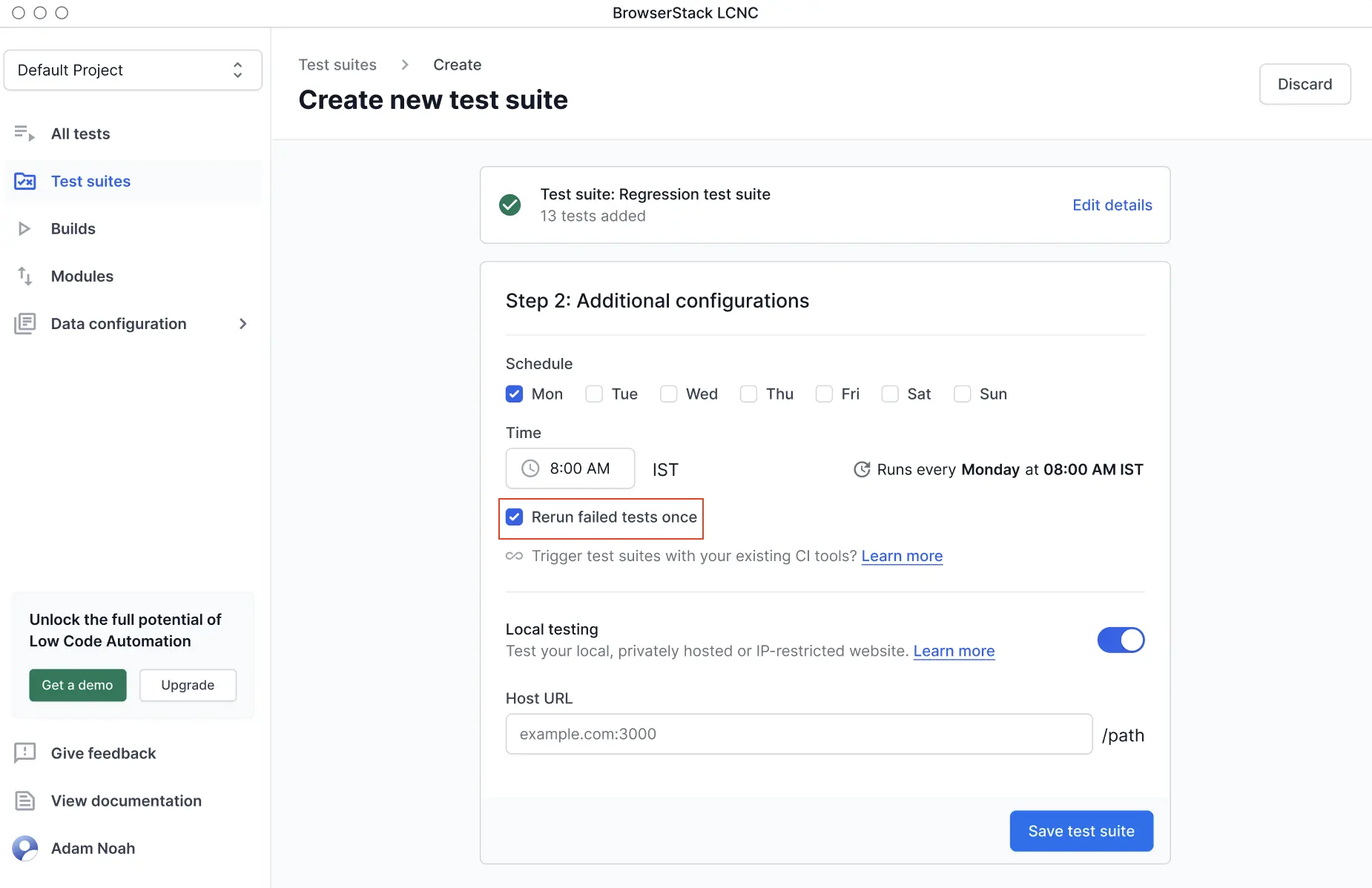
Once the build finishes, any failed tests are automatically rerun and the build gets updated with the latest results for the failed test runs.
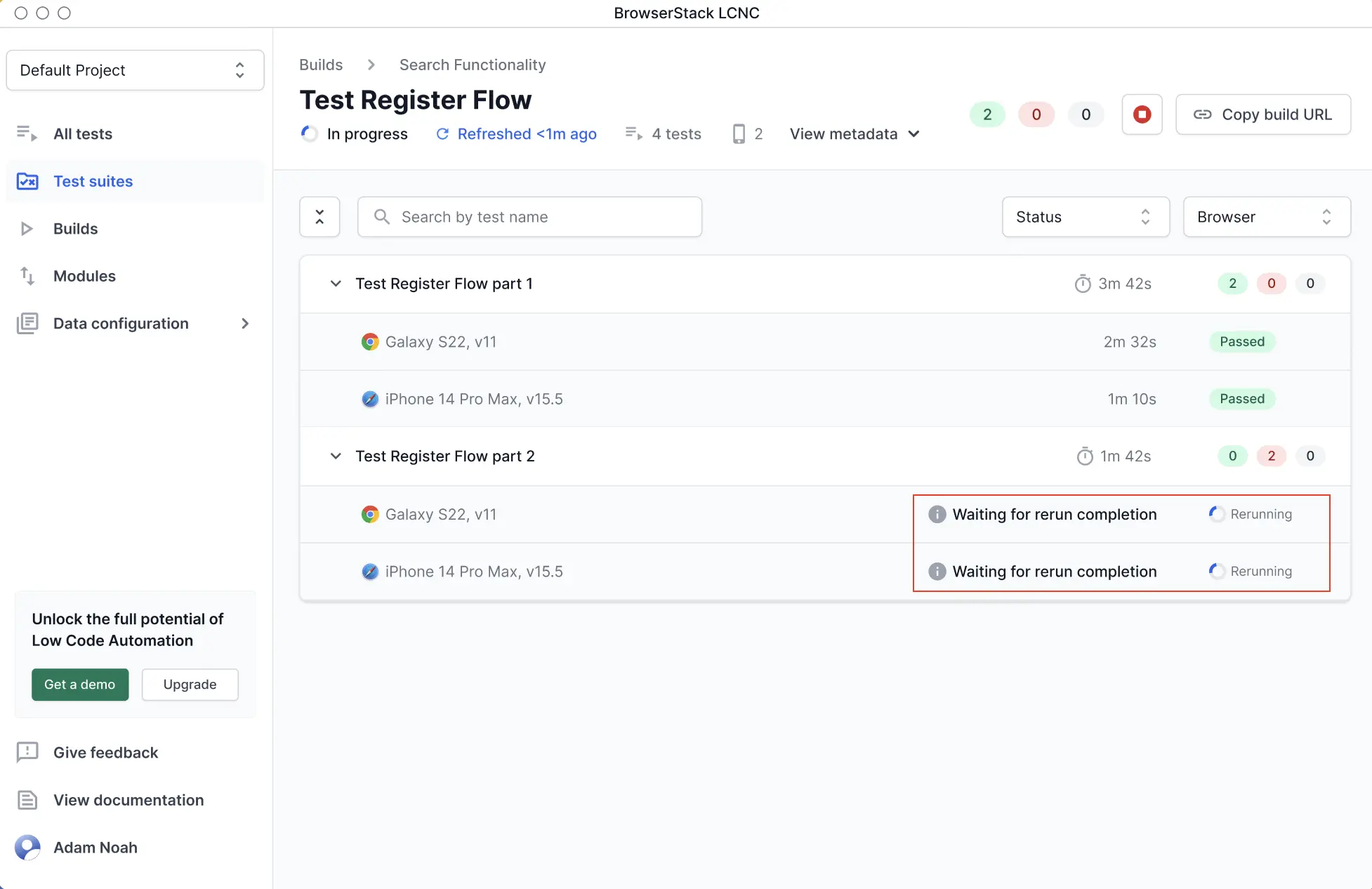
Manual rerun of failed tests
You can also manually rerun failed tests. Go to Builds and select the desired build which you want to rerun. Click the Rerun icon at the top.
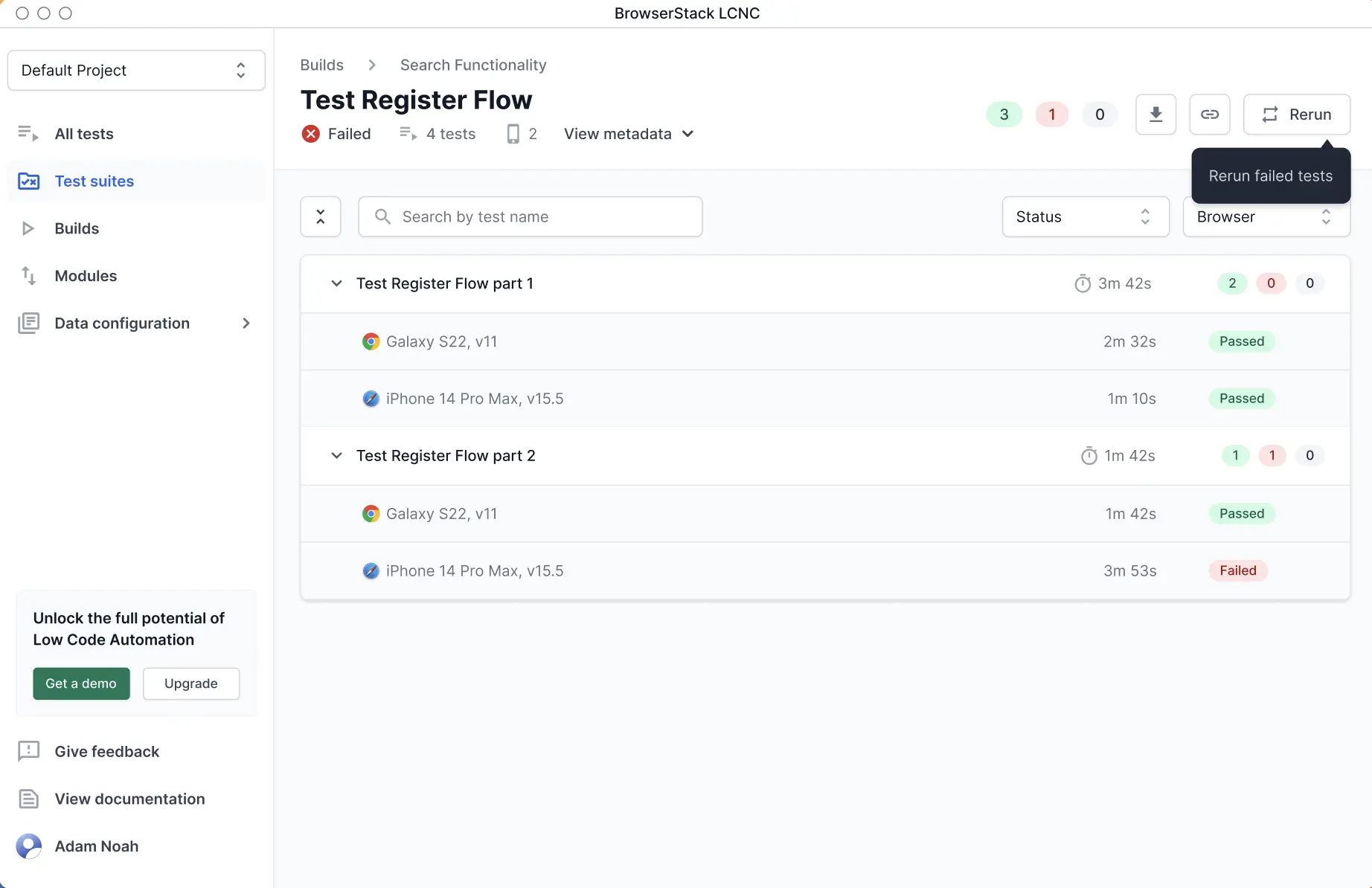
Manual rerun is only possible for the latest failed build of a suite, and only if there is no subsequent passing build.
Rerun specific failed tests
Use Rerun specific tests to select individual failed or skipped tests from a build and rerun only those.
Go to Builds and select the failed build.
Click the arrow next to Rerun, then select Rerun specific tests.
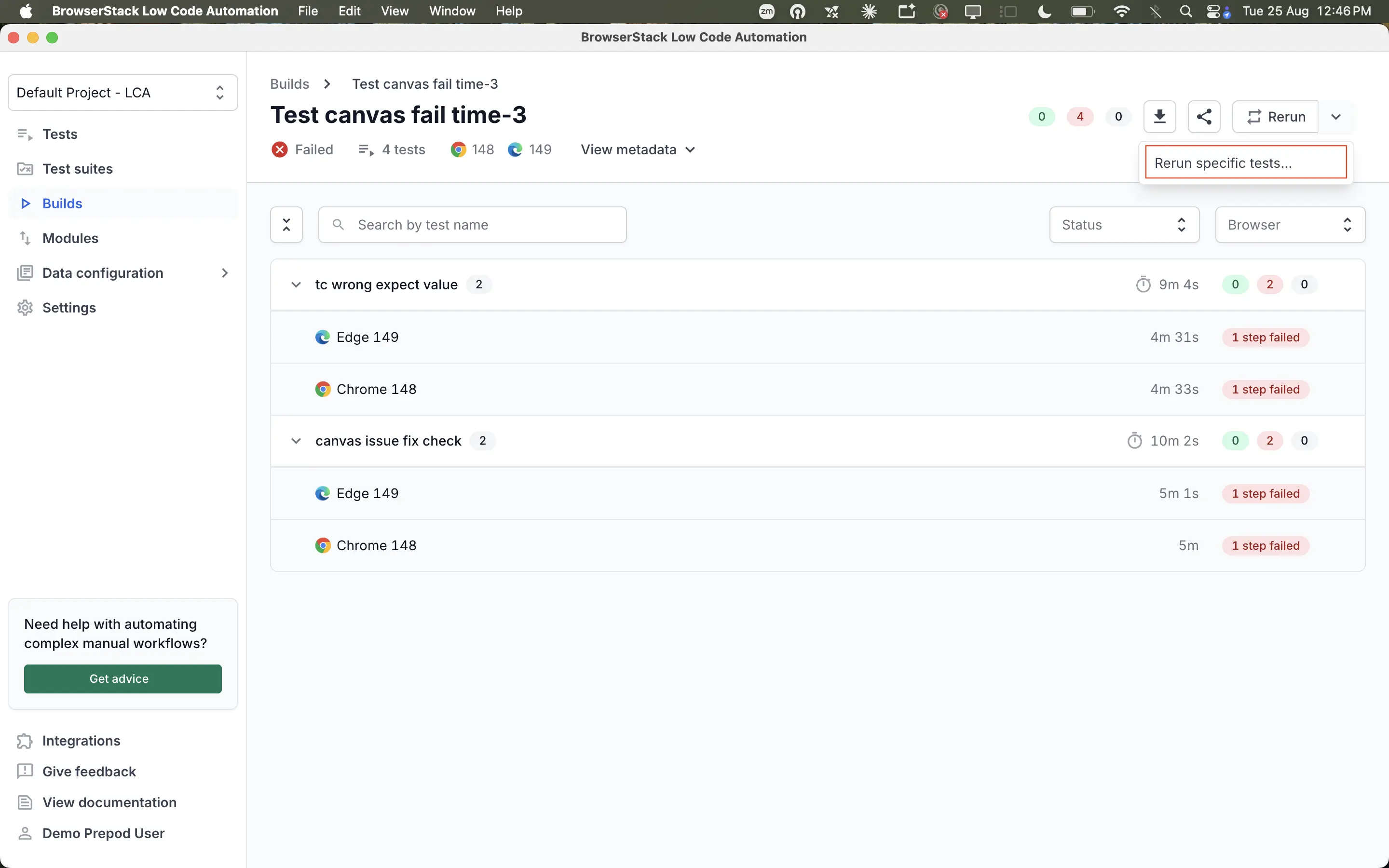
In the Rerun specific tests panel, select the failed or skipped tests you want to rerun.
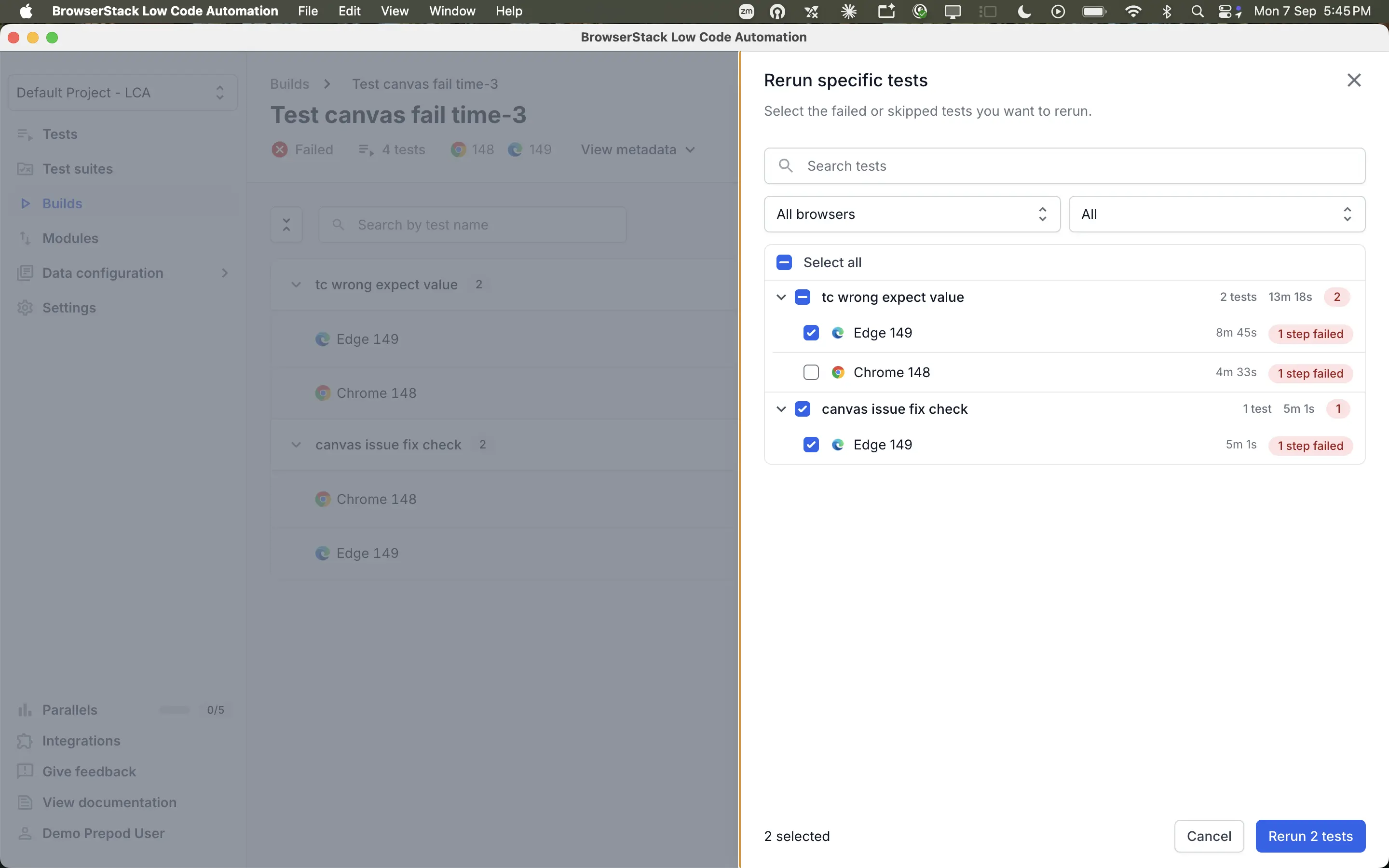
Click Rerun.
Build information post rerun
After the rerun is finished, a Rerun icon appears next to each failed test. Hover over to view detailed information.
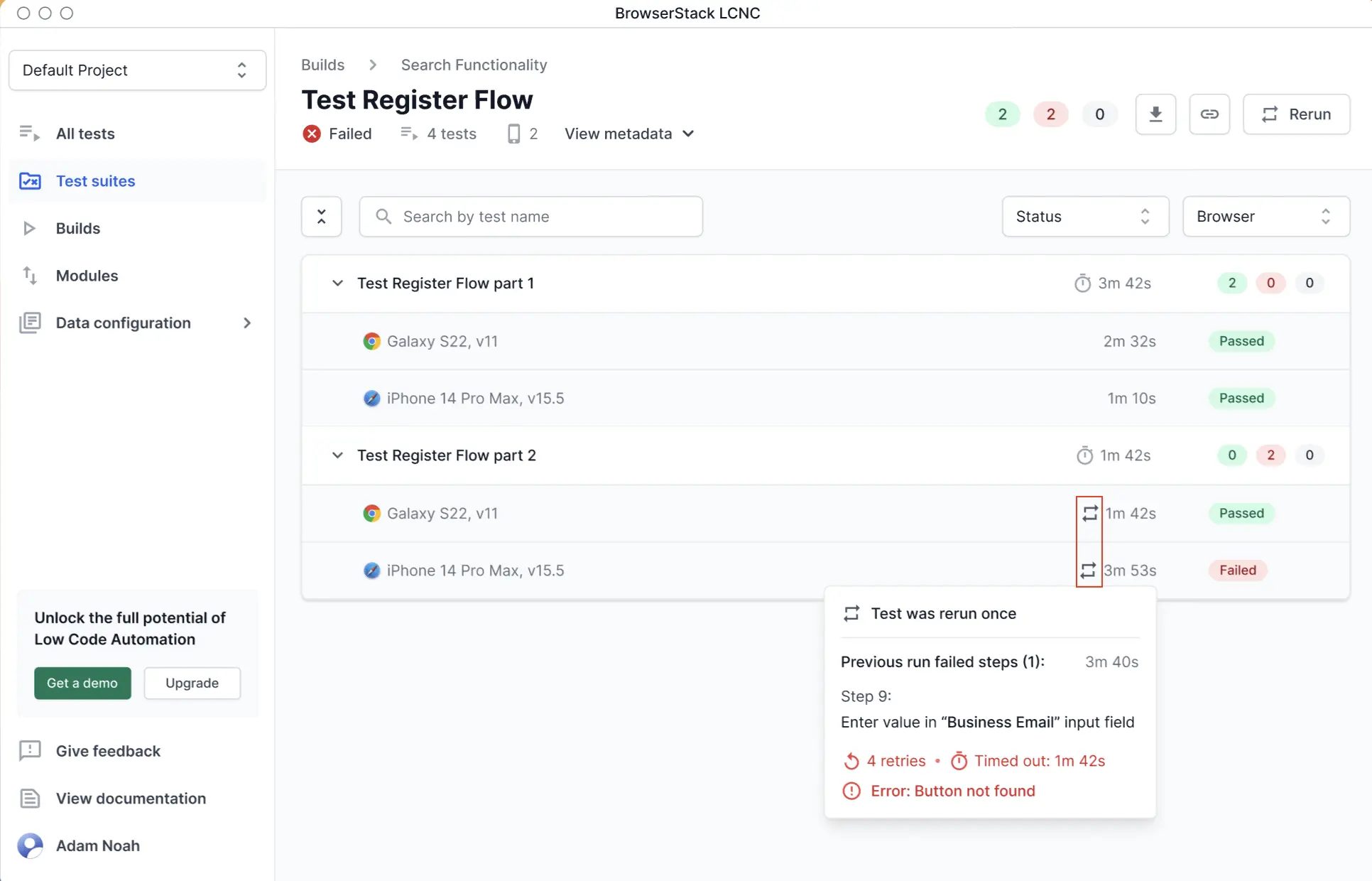
You can see the following information:
- Once the rerun of the failed tests is finished, the status of the tests is updated within the same build.
- The overall status of the build is also updated based on the execution results.
- The total build duration after reruns is the sum of the main run and all rerun durations.
- You can also view the result of a previous run by hovering over any test execution result that was rerun within the build.
- Previous rerun history can also be viewed in the build’s metadata.
Points to remember
- You can rerun a failed test any number of times, as long as it belongs to the latest failed build for the test suite.
- You can also manually rerun a test that was previously rerun automatically.
- Automatic and Manual rerun options are currently not supported for builds with Accessibility (A11y) enabled.
- Rerun is currently not supported if a dataset from the test was added, deleted or new rows were added in it before triggering the rerun from a build.
We're sorry to hear that. Please share your feedback so we can do better
Contact our Support team for immediate help while we work on improving our docs.
We're continuously improving our docs. We'd love to know what you liked
We're sorry to hear that. Please share your feedback so we can do better
Contact our Support team for immediate help while we work on improving our docs.
We're continuously improving our docs. We'd love to know what you liked
Thank you for your valuable feedback!