
 Join our Discord
Smart multi-tab handling
Learn how smart multi-tab handling intelligently identifies and selects the correct browser tab during test playback using URL and title matching.
Smart multi-tab handling is an intelligent feature that ensures your tests interact with the correct browser tab during replay, even when your application opens multiple tabs or windows. This feature uses smart matching based on tab properties like URL path, query parameters, and title to accurately identify the intended tab.
This eliminates common test failures caused by:
- Tabs opening in different orders across test runs
- Dynamic tab creation based on user actions
How smart multi-tab handling works?
During test recording, Low Code Automation automatically captures key details about each browser tab, including the URL and page title.
When your test runs, it intelligently matches these details to identify the correct tab, even if tabs open in a different order. If the system can’t determine the correct tab automatically, you can configure tab attributes manually to ensure accurate tab selection.
Configure tab attributes
When a test step fails to identify the correct tab, you can refine the tab selection criteria by configuring tab attributes. This allows you to define specific rules that help the test reliably locate the element on the correct tab during execution.
To configure tab attributes:
- In the test recorder, locate the step that needs tab configuration and open the step configuration page.
-
Expand Improve tab accuracy and click Configure.
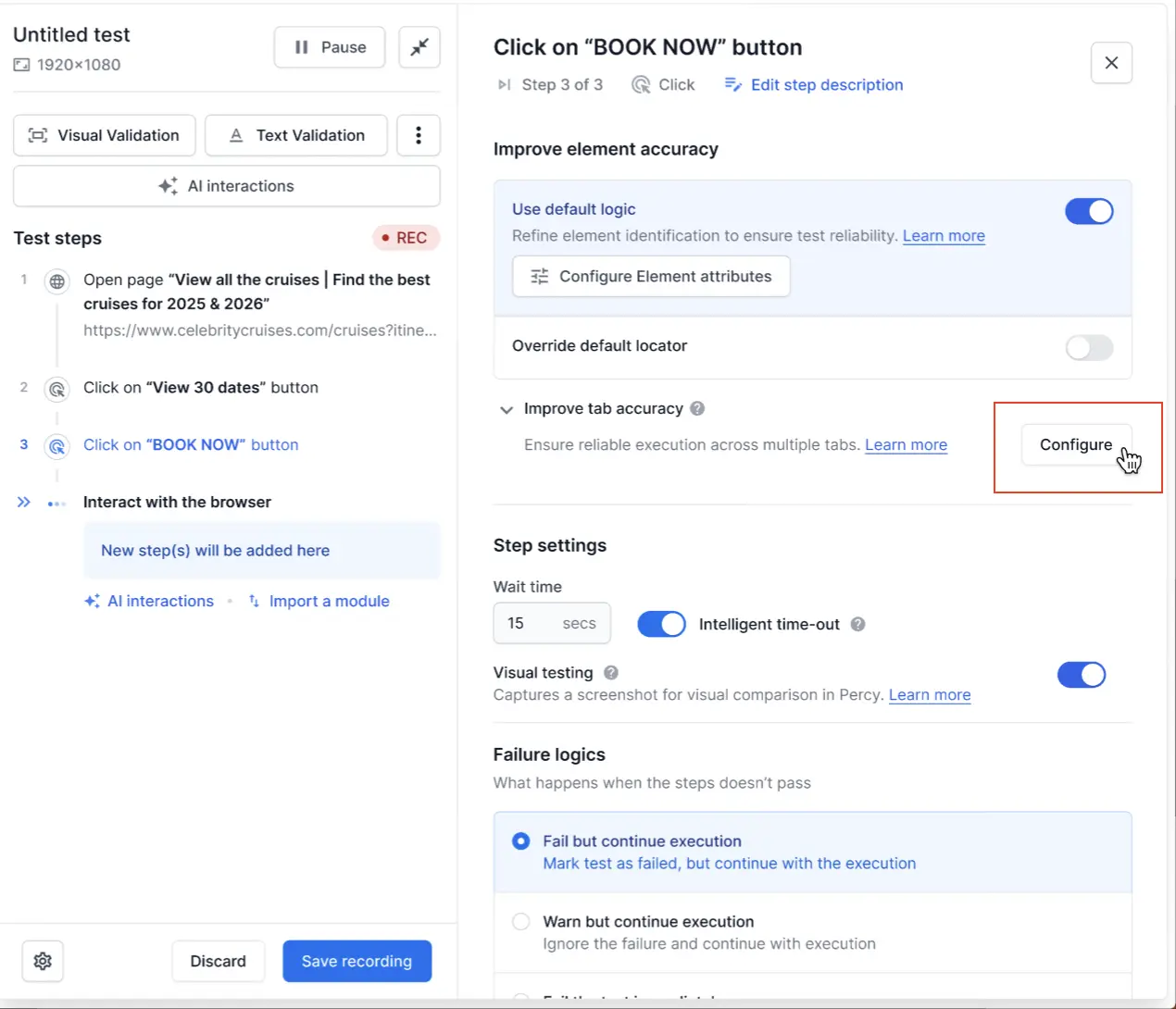
It opens the Configure tab attributes tab.
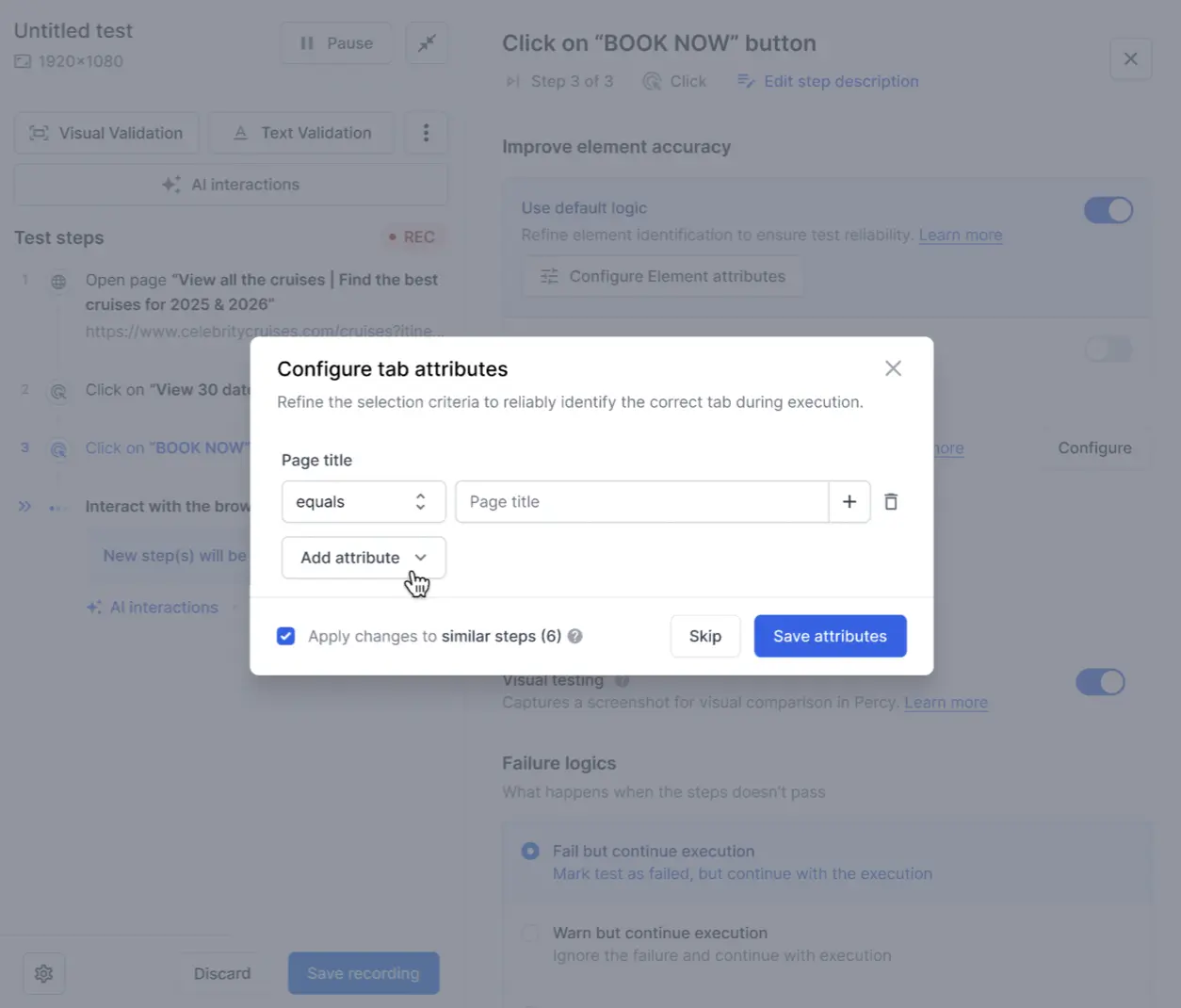
- In the Configure tab attributes dialog, add one or more matching criteria:
- Page title: Select an operator (such as equals, contains) from the dropdown and enter the expected page title. Click the + icon to add the attribute.
- Page URL: Select an operator from the dropdown and enter the expected URL or URL pattern. Use the + icon to add the attribute.
-
Query parameters: Add key-value pairs to match specific query parameters. For each parameter, enter the Key, select an operator (such as equals), and enter the Value. Click the + icon to add more query parameters.
-
Example: Key:
user, Operator:equals, Value:admincorresponds to URLs likehttps://example.com/dashboard?user=admin
-
Example: Key:
-
Full path parameter: Define the complete URL path for exact matching.
-
Example:
/cart/checkoutmatches the exact path in URLs likehttps://example.com/cart/checkout
-
Example:
- Use the delete icon next to each attribute to remove it.
- Click + Add more to add additional query parameter rows.
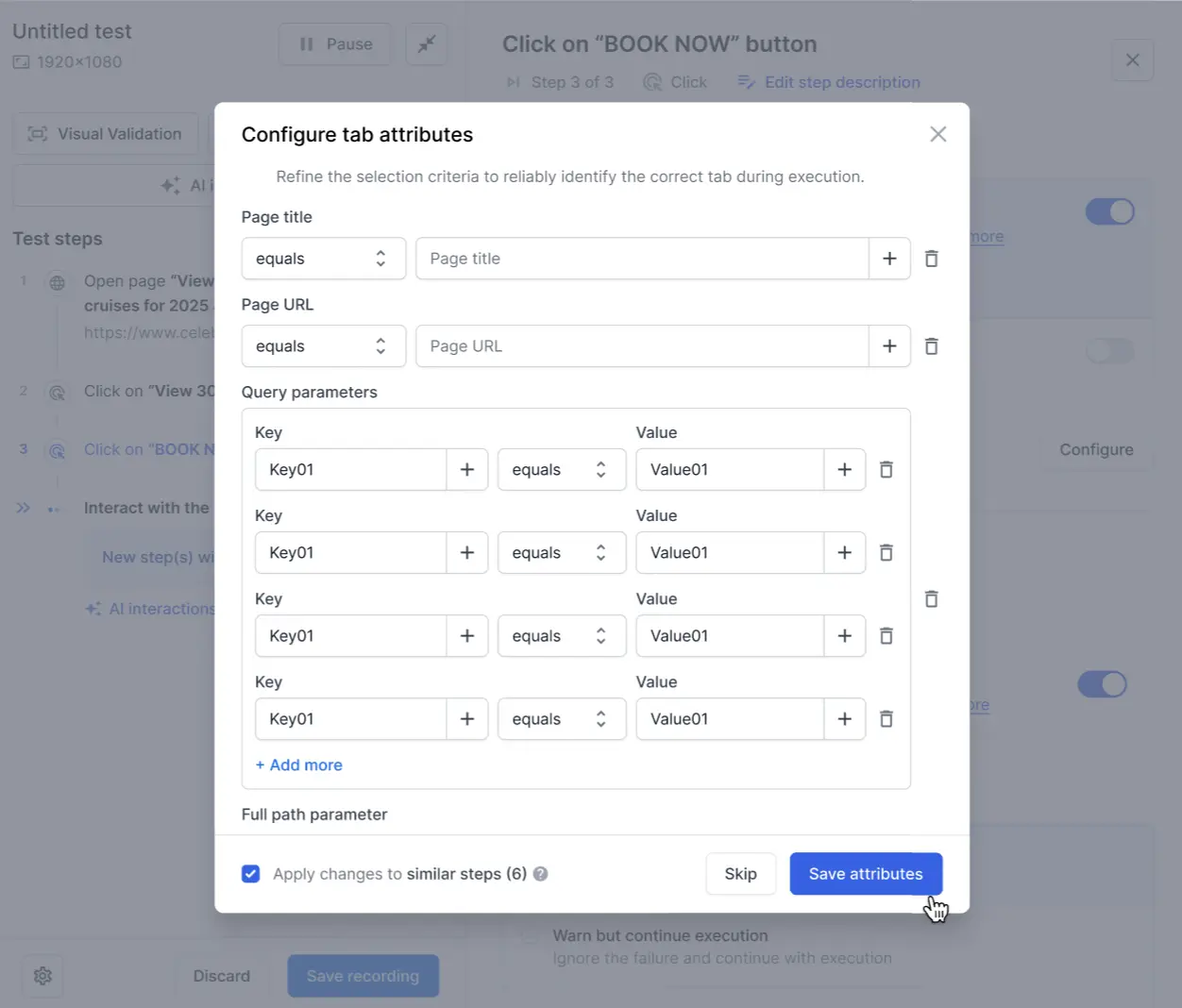
- (Optional) Enable Apply changes to similar steps to apply the same tab selection rules to other similar steps in your test.
- Click Save attributes, or click Skip to dismiss without saving.
Alternatively, when a test execution fails, click the Configure tab attributes button on the failed step and add the matching criteria in the dialog to configure it.
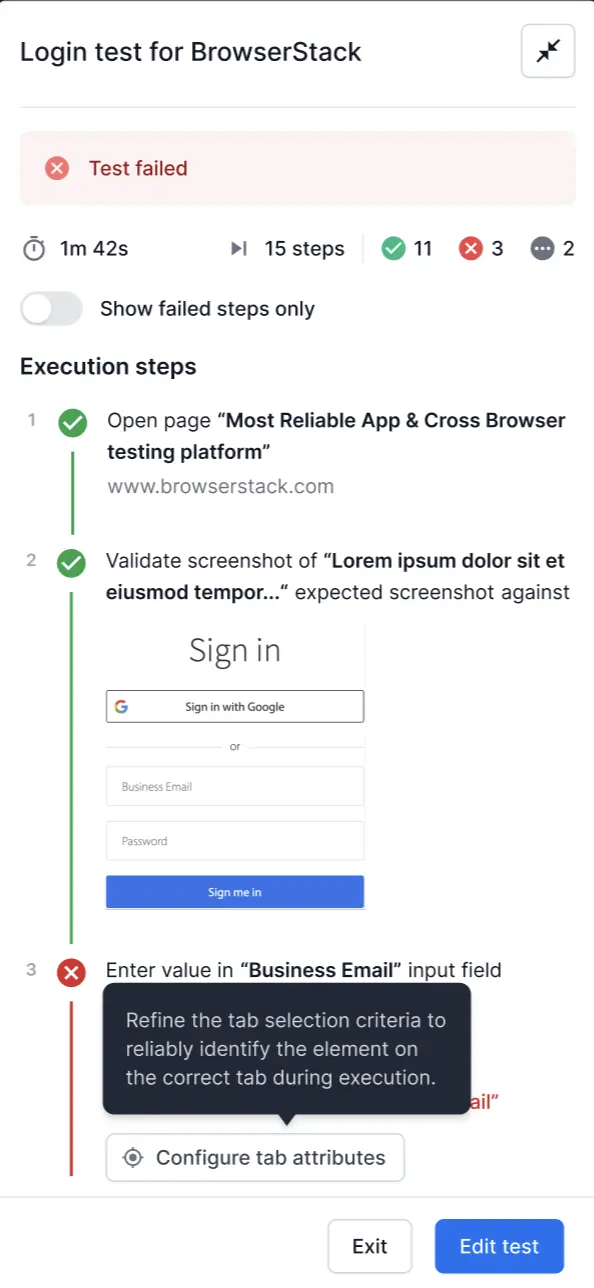
The configured tab attributes help the test execution engine identify the correct tab by matching against the specified criteria. It ensures your test interacts with the intended browser tab even when multiple tabs are open.
Tab attributes you configure take precedence over the default element accuracy logic, providing you with precise control over tab selection when needed.
We're sorry to hear that. Please share your feedback so we can do better
Contact our Support team for immediate help while we work on improving our docs.
We're continuously improving our docs. We'd love to know what you liked
We're sorry to hear that. Please share your feedback so we can do better
Contact our Support team for immediate help while we work on improving our docs.
We're continuously improving our docs. We'd love to know what you liked
Thank you for your valuable feedback!