
 Join our Discord
TOTP authenticator
Generate time-based one-time passcodes (TOTP) within Low Code Automation to automate logins that require a rotating authenticator code.
Time-based one-time passcodes (TOTP) from authenticator apps change every few seconds, which makes logins hard to automate. Low Code Automation stores your authenticator as a TOTP secret key and generates a live code during recording and execution.
The TOTP authenticator is available only in the Low Code Automation Pro plan. For more details, contact us.
A TOTP secret key is a type of Secret. It stores the authenticator key for an account and generates a rotating code on demand. On the Secrets page, TOTP secrets are marked with a TOTP tag next to the name. Turn on the TOTP only toggle to filter the list to TOTP secrets.
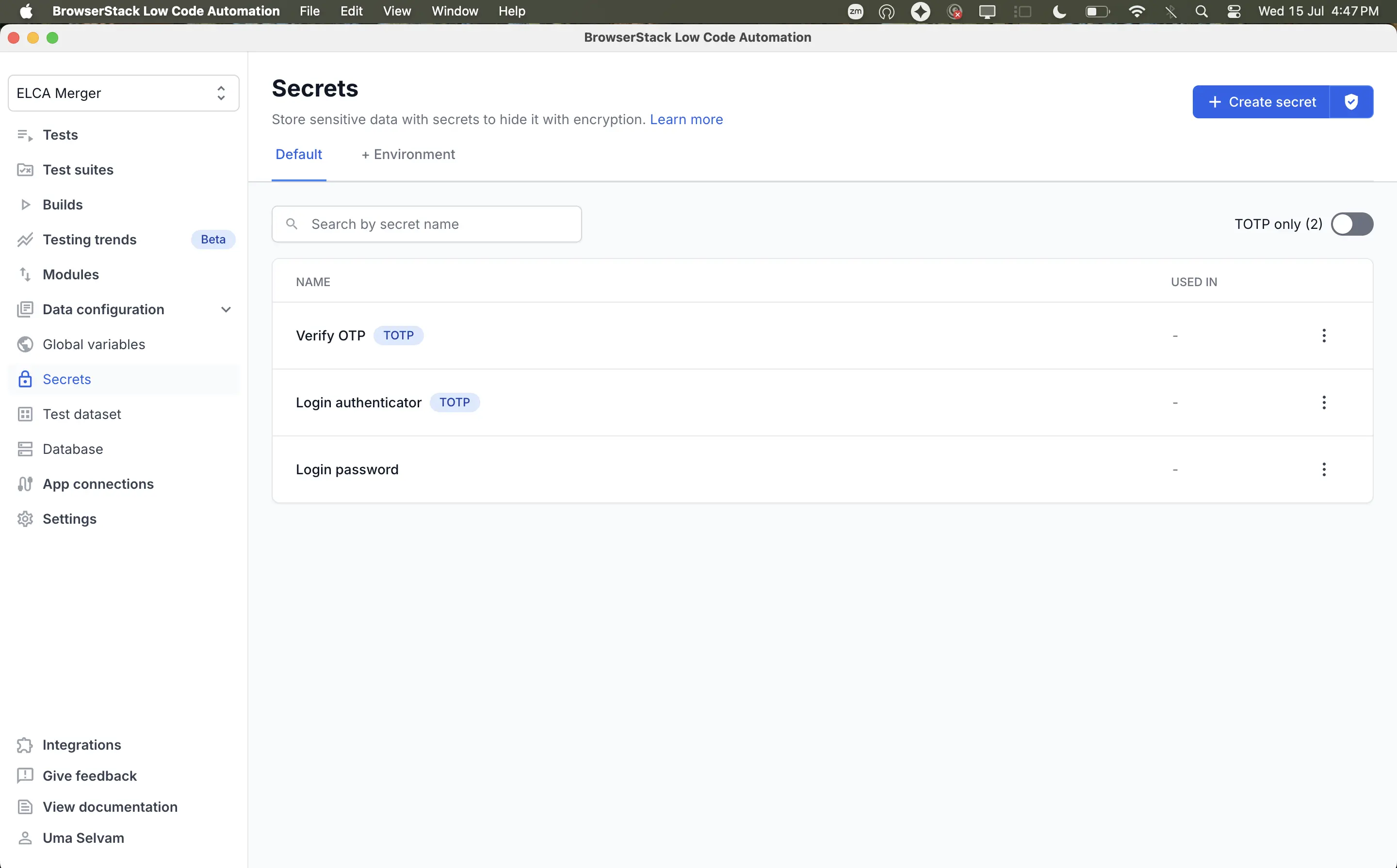
Create a TOTP secret
You can create a TOTP secret from the Secrets page by entering the Base32 secret key or by uploading the QR code from your account’s two-factor setup. Follow these steps:
Open Low Code Automation and click Secrets in the left pane.
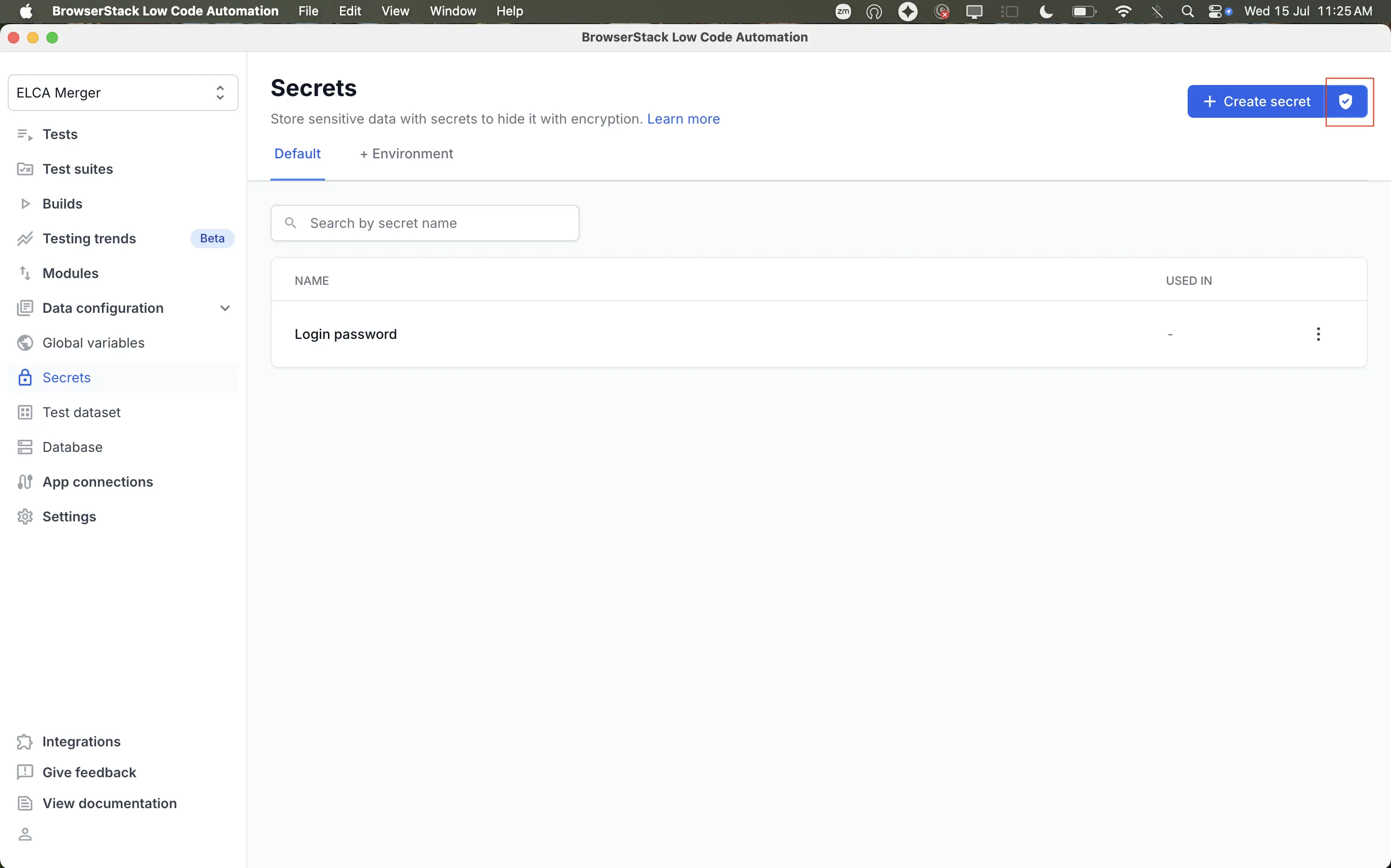
Click the shield icon next to + Create secret. The Create a TOTP secret dialog appears.
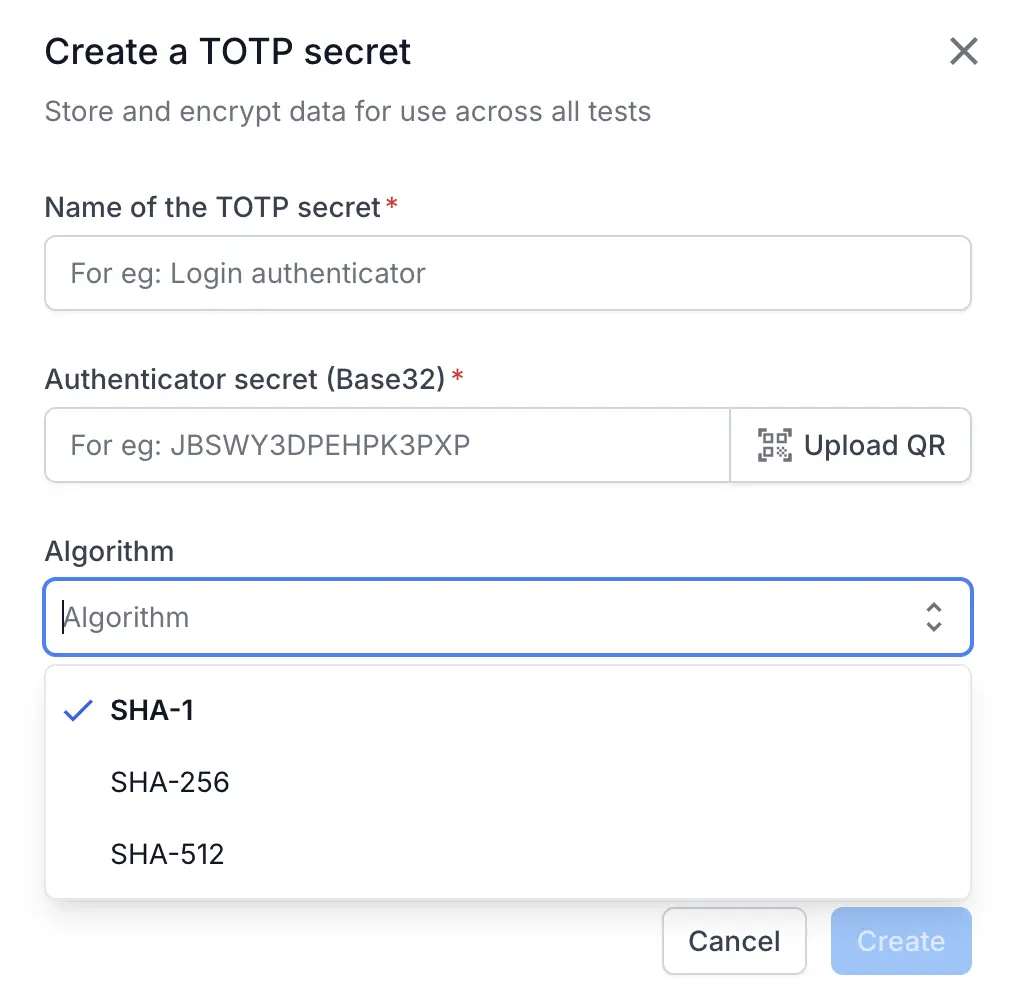
In Name of the TOTP secret, enter a name for the TOTP. For example, Login authenticator.
In Authenticator secret (Base32), enter the Base32 secret key, or click Upload QR to upload the QR code image from your account’s two-factor setup.
From the Algorithm dropdown, select the hashing algorithm your authenticator uses. The options available are SHA-1, SHA-256, and SHA-512.
Click Generate code to verify to confirm the key before saving. A six-digit code appears with a countdown to the next refresh.
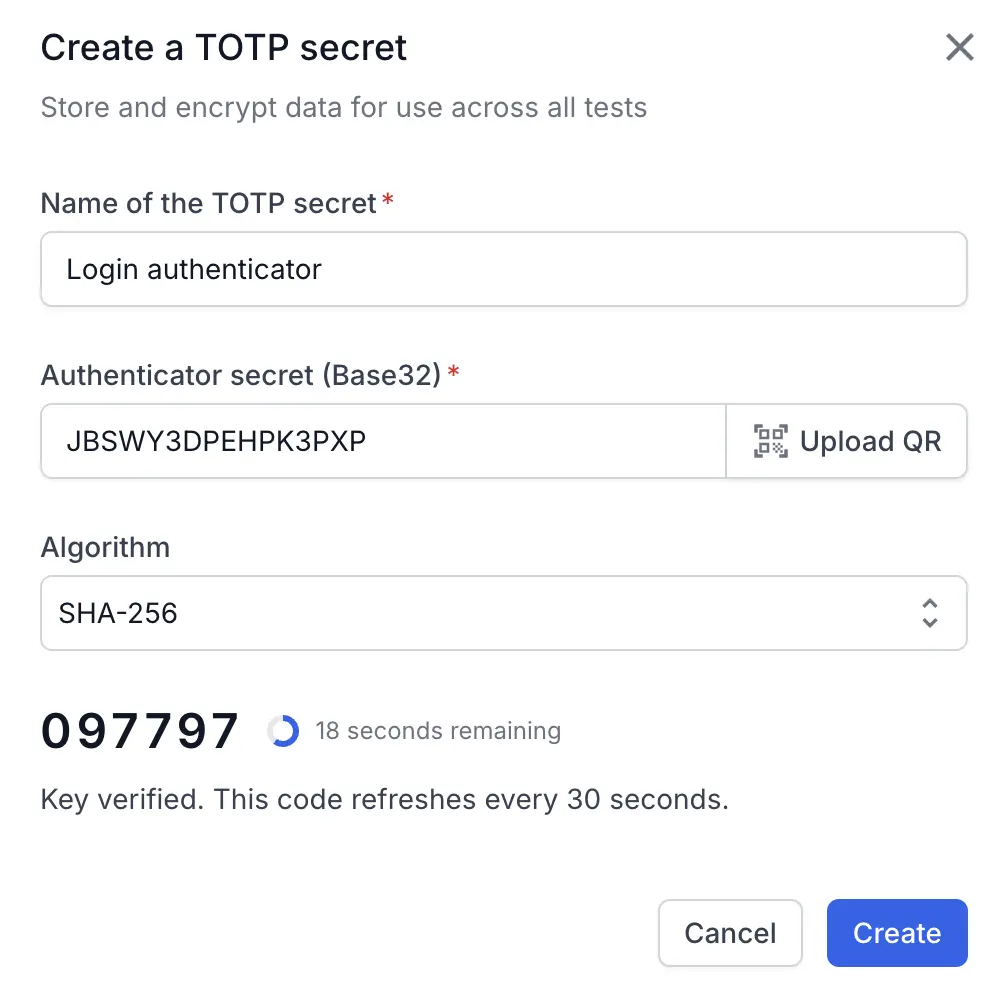
Click Create.
The TOTP secret is created and listed on the Secrets page with a TOTP tag. You can now use it in your tests.
Use the TOTP code in a test
After you create a TOTP secret, you can insert a live code into a login field while recording a test. You can add a TOTP code in two ways.
Select a TOTP secret from a detected field
During recording, Low Code Automation automatically detects TOTP code fields and suggests your saved TOTP secrets. Follow these steps:
- Click the code field in your application. The TOTP secrets list appears below the field.
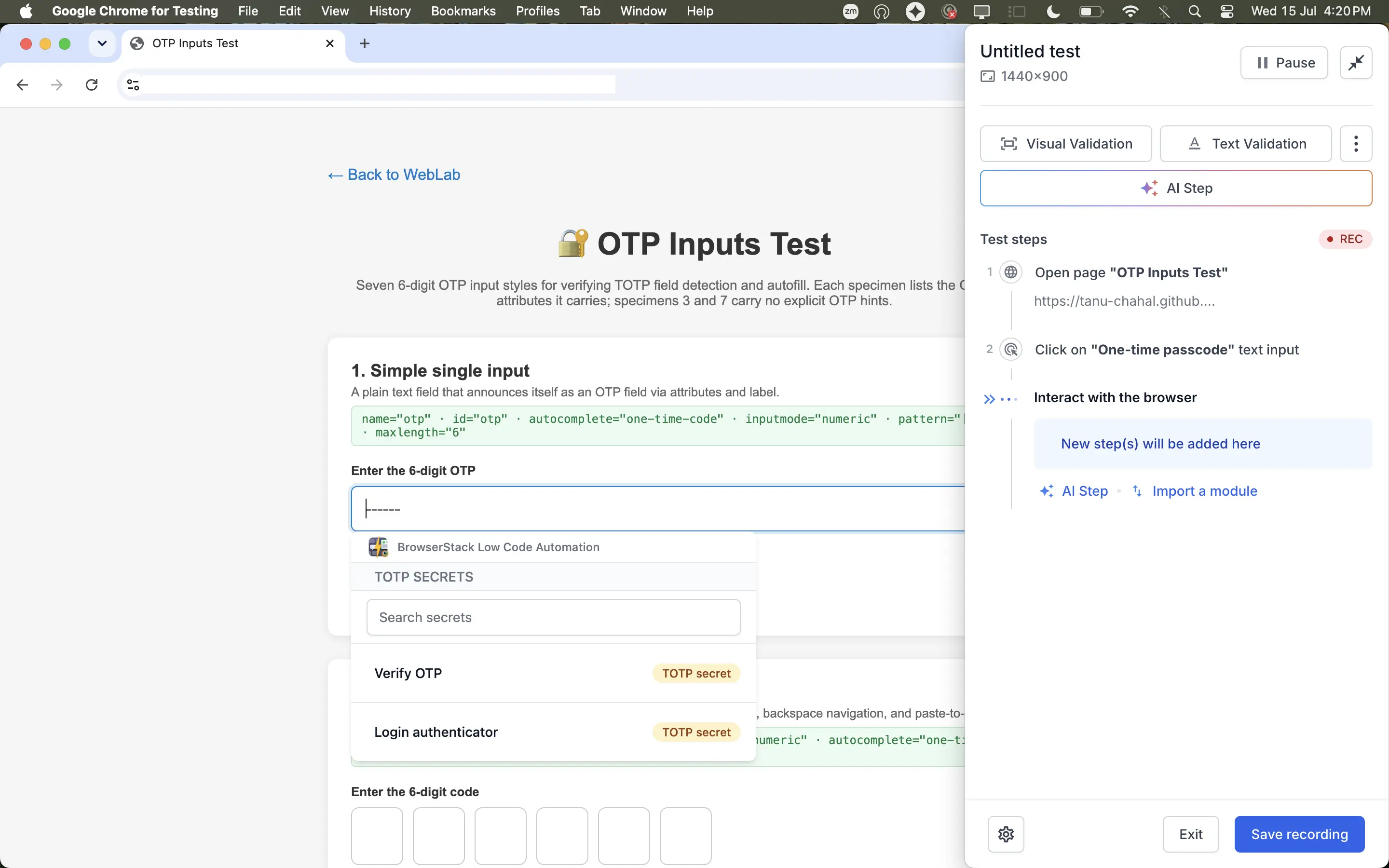
- Search for and select the TOTP you want to use. For example, Verify OTP.
Low Code Automation generates a live code from the selected secret, fills it into the field, and records the action as a reusable step.
Add a TOTP secret to a step
If a code field is not detected automatically, add the secret from the step details. Follow these steps:
- Enter a value in the TOTP field, then click the Type step.
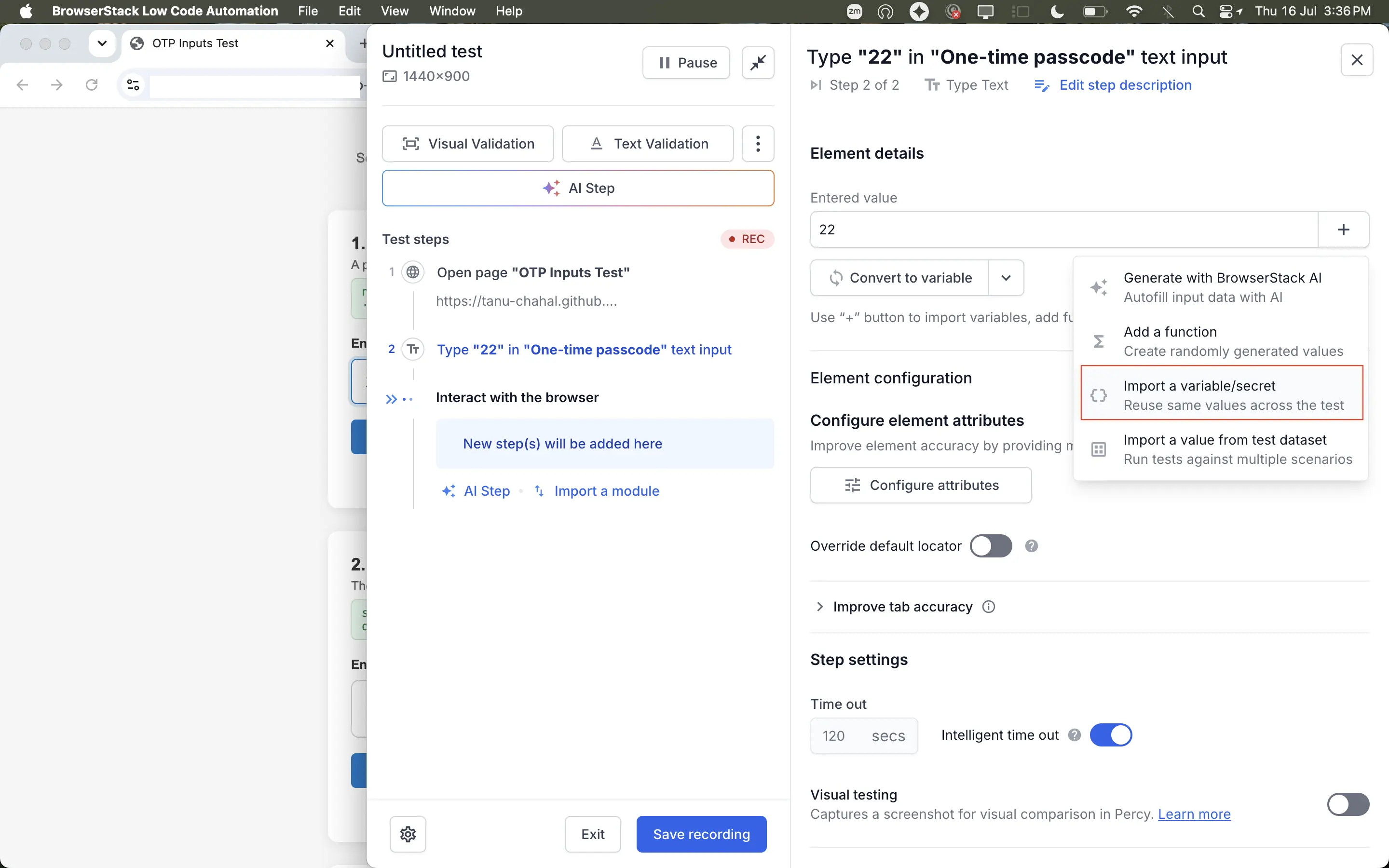
- In Entered value, click the + icon to open the Import variables/secrets dialog.
- Open the Secrets tab, then select the TOTP tab.
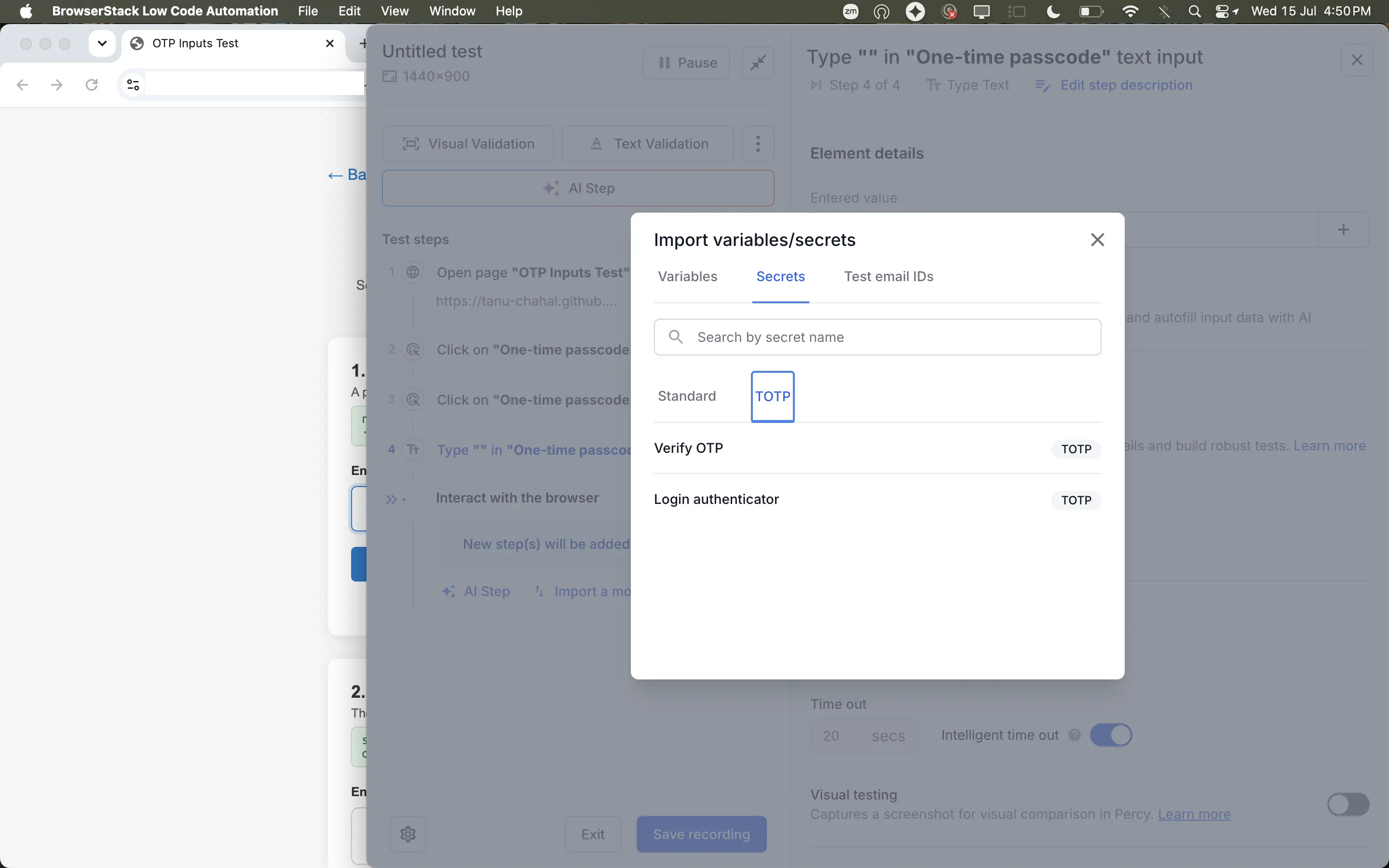
- Search for and select the TOTP you want to use. For example, Verify OTP.
The secret is added to the step as totp:<secret name> and appears under Secrets in the step’s Variables list.
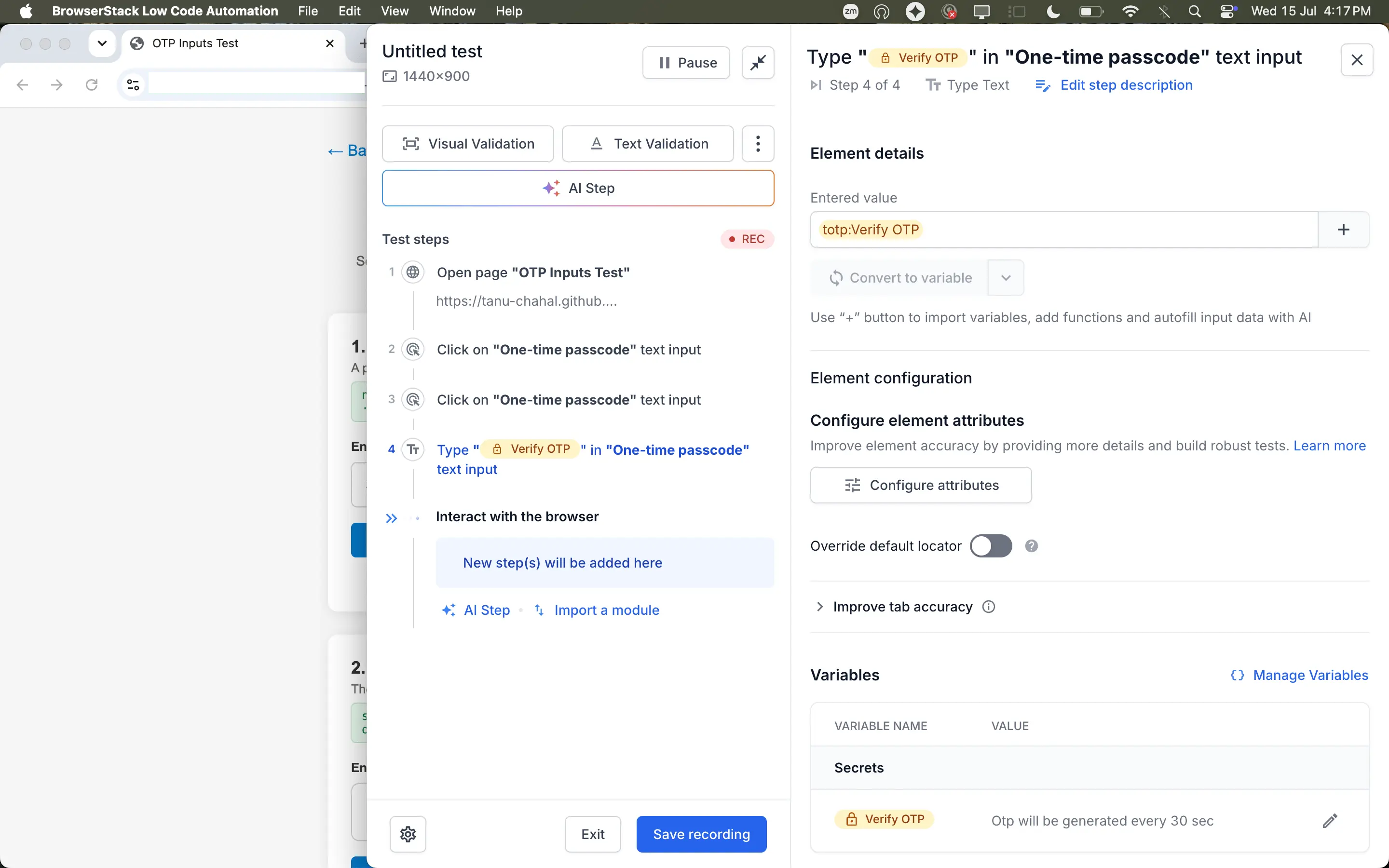
Each time the test runs, Low Code Automation generates a fresh code from the secret, so the login stays in sync with the rotating passcode.
Edit or delete a TOTP secret
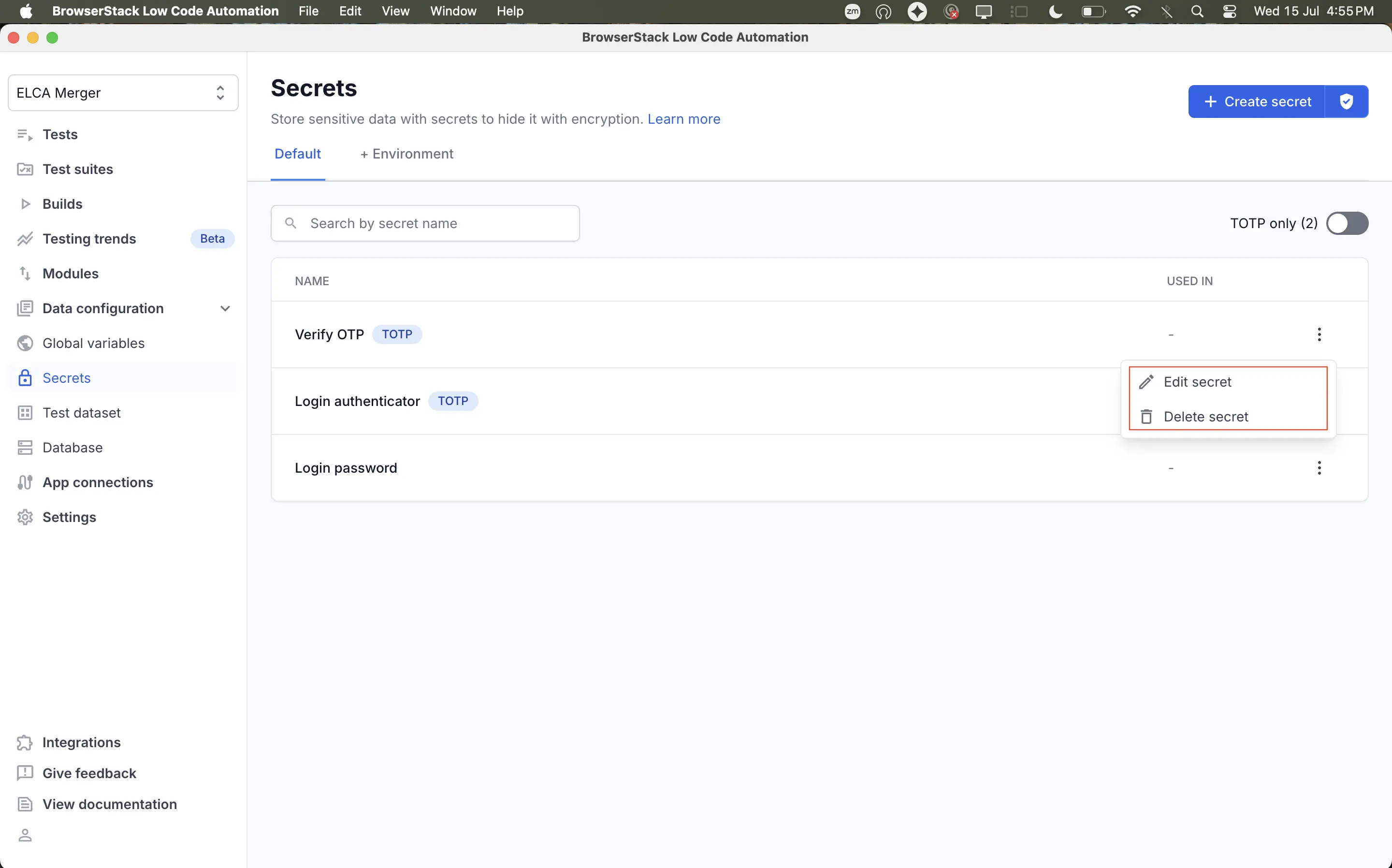
On the Secrets page, click the ︙ icon in the secret’s row and select one of the following:
- Edit secret: Update the name, authenticator secret, or algorithm in the Edit secret dialog. Click Generate code, then click Save.
-
Delete secret: Remove the TOTP secret. Tests that reference the secret can no longer generate a code from it.
We're sorry to hear that. Please share your feedback so we can do better
Contact our Support team for immediate help while we work on improving our docs.
We're continuously improving our docs. We'd love to know what you liked
We're sorry to hear that. Please share your feedback so we can do better
Contact our Support team for immediate help while we work on improving our docs.
We're continuously improving our docs. We'd love to know what you liked
Thank you for your valuable feedback!