
 Join our Discord
Cross-browser insights
Find out which browsers show the same visual change in a snapshot, so you review that change once instead of on every browser.
When a snapshot changes on multiple browsers, Percy uses AI to compare those diffs together and tells you which browsers show the same change. You review the change on one browser and skip the matching browsers.
Cross-browser insights doesn’t determine whether a change is a bug. It only shows which browsers have the same change, so you still review that change once. Any browser that Percy can’t match with the others stays in your review as usual.
Cross-browser insights is available on paid Percy plans. To enable it for your organization, contact your BrowserStack account manager or BrowserStack support. It’s available only in the old version of the Percy dashboard. If you use the new dashboard, select Switch to Old Version at the bottom of the left navigation. After you switch, you can’t return to the new dashboard yourself. For more information, see How to switch to the old version.
Benefits
Cross-browser insights offers the following benefits:
- Review shared changes once: When two or more browsers show the same change, you review it on one browser and skip the rest.
- Catch browser-specific changes: Percy identifies the browser that shows a different change, so you don’t miss it while you skip the matching ones.
How it works
Consider a pricing page snapshot captured on Chrome, Edge, Safari, and Firefox at a viewport width of 1280 px. In the new build, the Team plan price changed on every browser, but Firefox also shows an unrelated badge change. Percy reports the following:
| Browser | Result | Change |
|---|---|---|
| Chrome, Edge, Safari | Same change | The Team plan price changed from $49 to $59. |
| Firefox | Different change | The badge changed from a blue “Most popular” label to a green “Best value” label. The price didn’t change. |
The band above the snapshot states that Chrome, Edge, and Safari show the same change and that Firefox differs and needs a separate review. You review the price change on one of the three matching browsers, and then review Firefox on its own.

Percy compares browsers separately for each viewport width. It also compares Safari on iPhone with Chrome on Android, at any width.

View cross-browser insights
To view cross-browser insights for a snapshot, follow these steps:
- Open a build that has visual changes in Percy.
- Click a changed snapshot. If Percy finds matching browsers, a grey band appears above the snapshot and summarizes which browsers show the same change.
- Turn on the Visual Review Agent AI toggle for the snapshot.
- Hover over a matched browser tab. Dotted rings appear on every browser tab that shares the same change, and a hover card lists those browsers.
- Review the change on one browser from the matched set.
- Review any browser that the band lists as different on its own.
The following table describes each part of the cross-browser insights view:
| Element | What it displays |
|---|---|
| Insights band | A grey band above the snapshot. It summarizes which browsers show the same change and which browsers differ and need a separate review. |
| Browser tab rings | Dotted rings on the browser tabs. When you hover a matched browser tab, every browser that shares the same change shows a ring. |
| Hover card | A card on each matched browser tab that names the other browsers with the same change at that width. If every browser at that width matches, the card says that reviewing one browser covers the rest. The card doesn’t describe the change itself. |
| Three-dot menu | A menu on the insights band with the Hide cross-browser insights option. |
Browser tab rings and hover cards appear only when the Visual Review Agent AI toggle is on for the snapshot. The insights band appears whether the toggle is on or off.
Hide or show cross-browser insights
Hiding cross-browser insights turns off the band, the browser tab rings, and the hover cards for you across all your projects. Other members of your organization still see them.
To hide cross-browser insights, follow these steps:
- Click the three-dot menu on the band.
- Select Hide cross-browser insights.
A Cross-browser insights hidden confirmation appears with an Open settings link that takes you to the setting to turn them back on. The your profile settings link in the three-dot menu opens the same setting.

To show cross-browser insights again, follow these steps:
- Click your profile avatar in the top-right corner of the Percy dashboard.
- Under Account settings, click Profile.
- In the left sidebar, click Cross-browser insights.
- Turn on Highlight browsers with the same change.
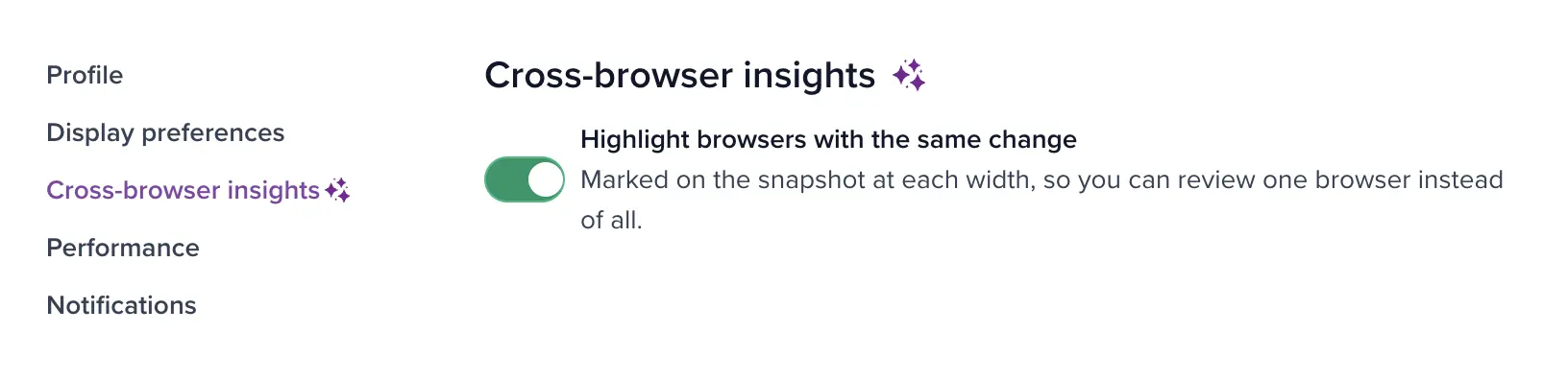
You can also open the cross-browser insights settings page directly.
Things to know
Review these constraints before you rely on cross-browser insights:
- Desktop and phone browsers are compared separately: Percy compares desktop browsers with each other at the same width, and Safari on iPhone with Chrome on Android. It never compares a phone browser with a desktop browser.
- Each desktop width is compared separately: For example, Percy compares browsers at 375 px and 1280 px separately, so you still review at least one snapshot for each width.
- Works from the second build: Percy needs a baseline to compare against, so a new snapshot doesn’t show cross-browser insights.
- Percy on Automate isn’t supported: Cross-browser insights works with Percy web projects that capture snapshots with a Percy SDK or the Percy CLI.
- Small rendering differences are ignored: As with the Visual Review Agent, Percy ignores minor rendering noise such as anti-aliasing. Small rendering differences between browsers aren’t reported.
- One browser at a time: Percy doesn’t show two browsers side by side. You still review one browser at a time, and cross-browser insights tells you which browsers you can skip.
Related topics
We're sorry to hear that. Please share your feedback so we can do better
Contact our Support team for immediate help while we work on improving our docs.
We're continuously improving our docs. We'd love to know what you liked
We're sorry to hear that. Please share your feedback so we can do better
Contact our Support team for immediate help while we work on improving our docs.
We're continuously improving our docs. We'd love to know what you liked
Thank you for your valuable feedback!