
 Join our Discord
Variables and functions
Learn how to use local variables, global variables, and functions to reuse test data across multiple steps, making your tests flexible and easy to maintain.
Variables make your tests flexible, readable, and easy to maintain. There are two types of variables in Salesforce Test Automation:
- Local variables: Used within a single test to store and reuse values.
- Global variables: Shared across multiple tests in your project.
In addition to variables, you can use Functions to generate random data dynamically for testing purposes.
Use variables to eliminate hardcoded values, centralize data, and make your tests easier to update.
Sample use case:
Instead of hardcoding login credentials in every test step, create variables called email and password. Reference these variables in your test steps, so you only need to update the value in one place if it changes. This makes your tests easier to maintain and reduces errors from inconsistent data.
Create a local variable
Local variables let you reuse values within the same test. You can create them directly from the test editor.
To create a local variable:
- While creating a test, click the
@icon in the command input field. It opens the variable options menu. Select Create Variables from the menu.
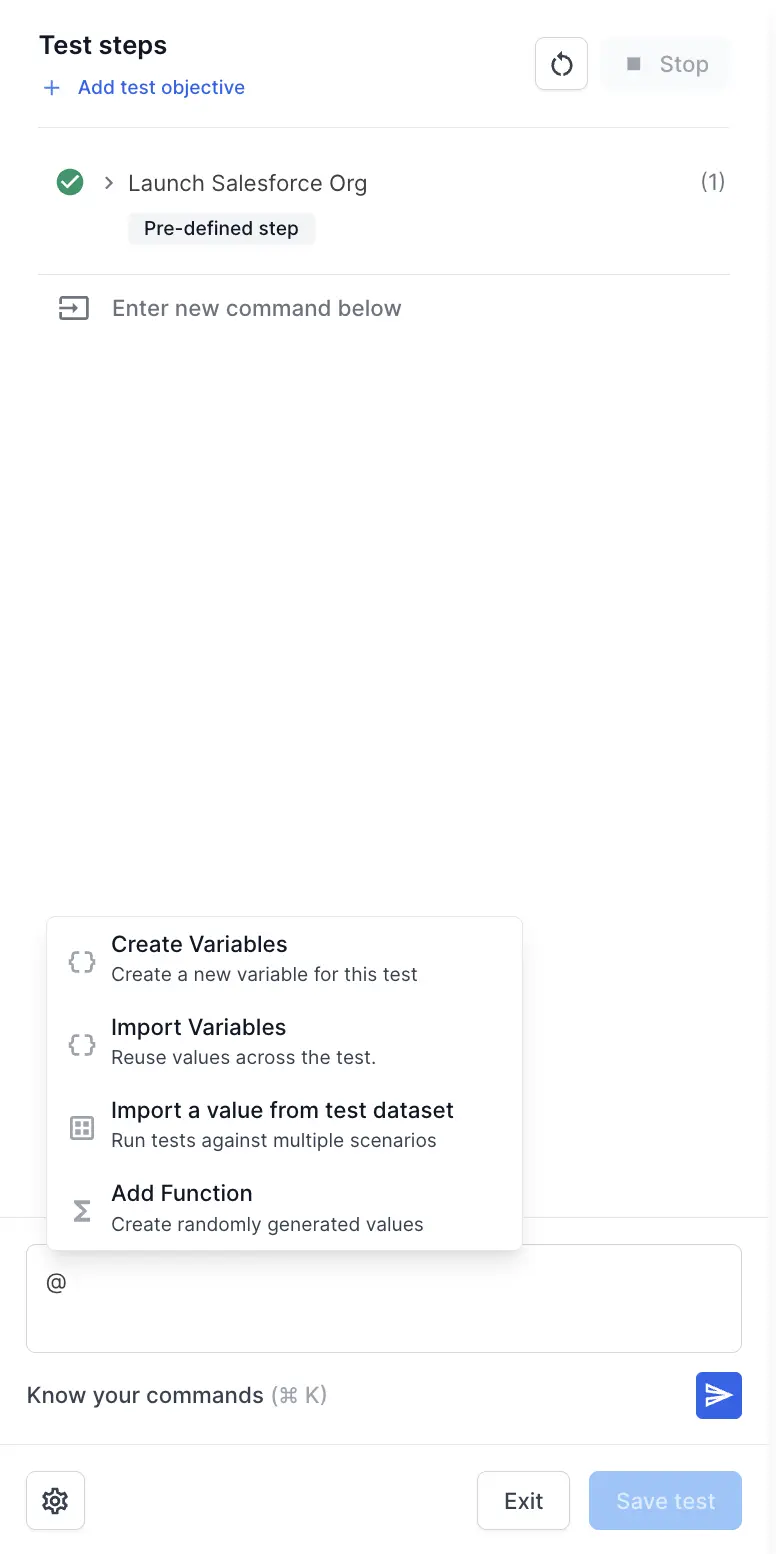
- In the Create variable dialog:
- Enter the Name of the variable (for example,
Login email) - Enter the Value of the variable (for example,
user@example.com) - (Optional) Click Add Function to generate dynamic values instead of static values. Refer to the Add functions for dynamic data section.
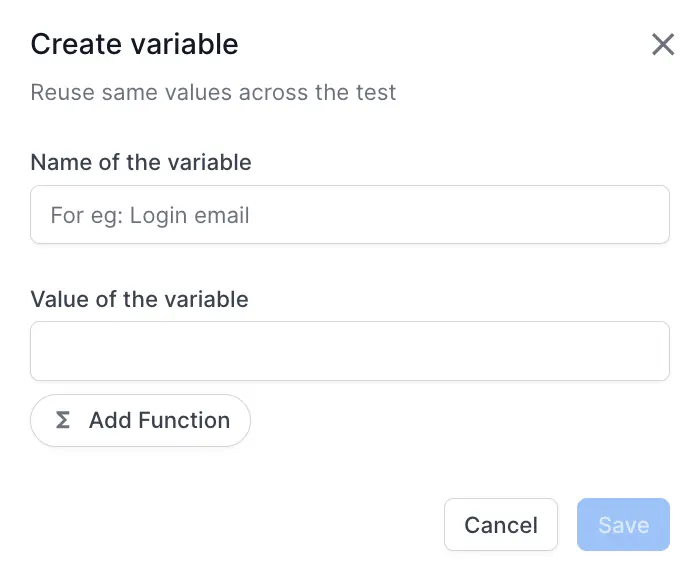
- Enter the Name of the variable (for example,
- Click Save.
- Alternatively, you can convert any existing value in a test step into a variable by clicking the Convert to variable icon next to the value.
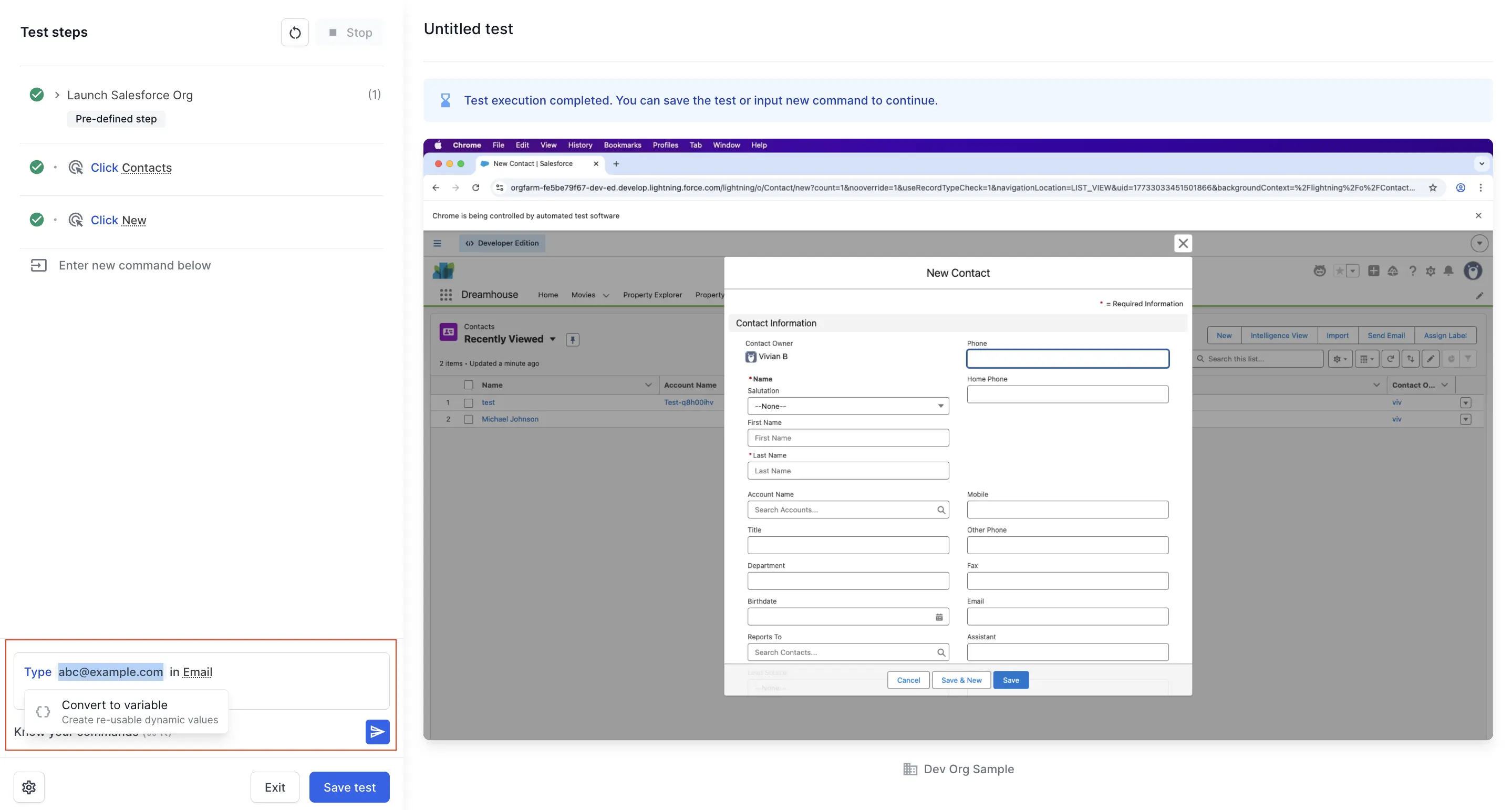
You can now reference this variable in other steps within the same test by typing @ and import it.
To delete a local variable, remove its first occurrence from the test step where it was created.
Create a global variable
Global variables help you share data across multiple tests and maintain consistency throughout your project.
To create a global variable:
- Go to Data configuration > Global variables in the sidebar on the home page.
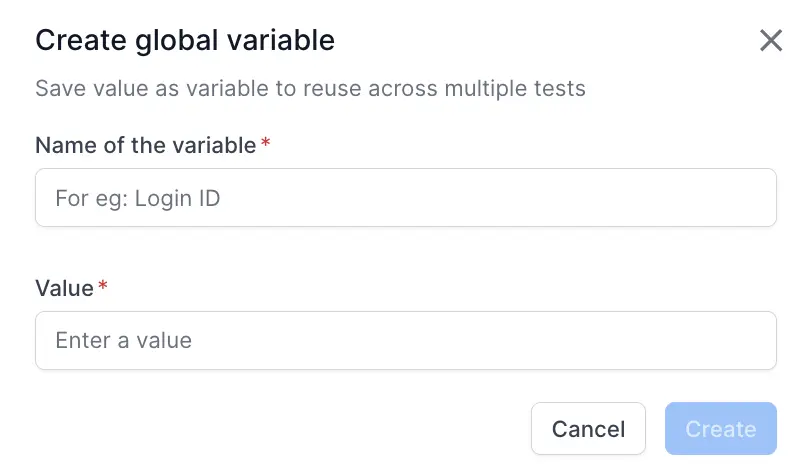
- Click + Create variable.
- In the Create global variable dialog:
- Enter the Name of the variable (for example,
Login ID) - Enter the Value (for example,
admin@company.com)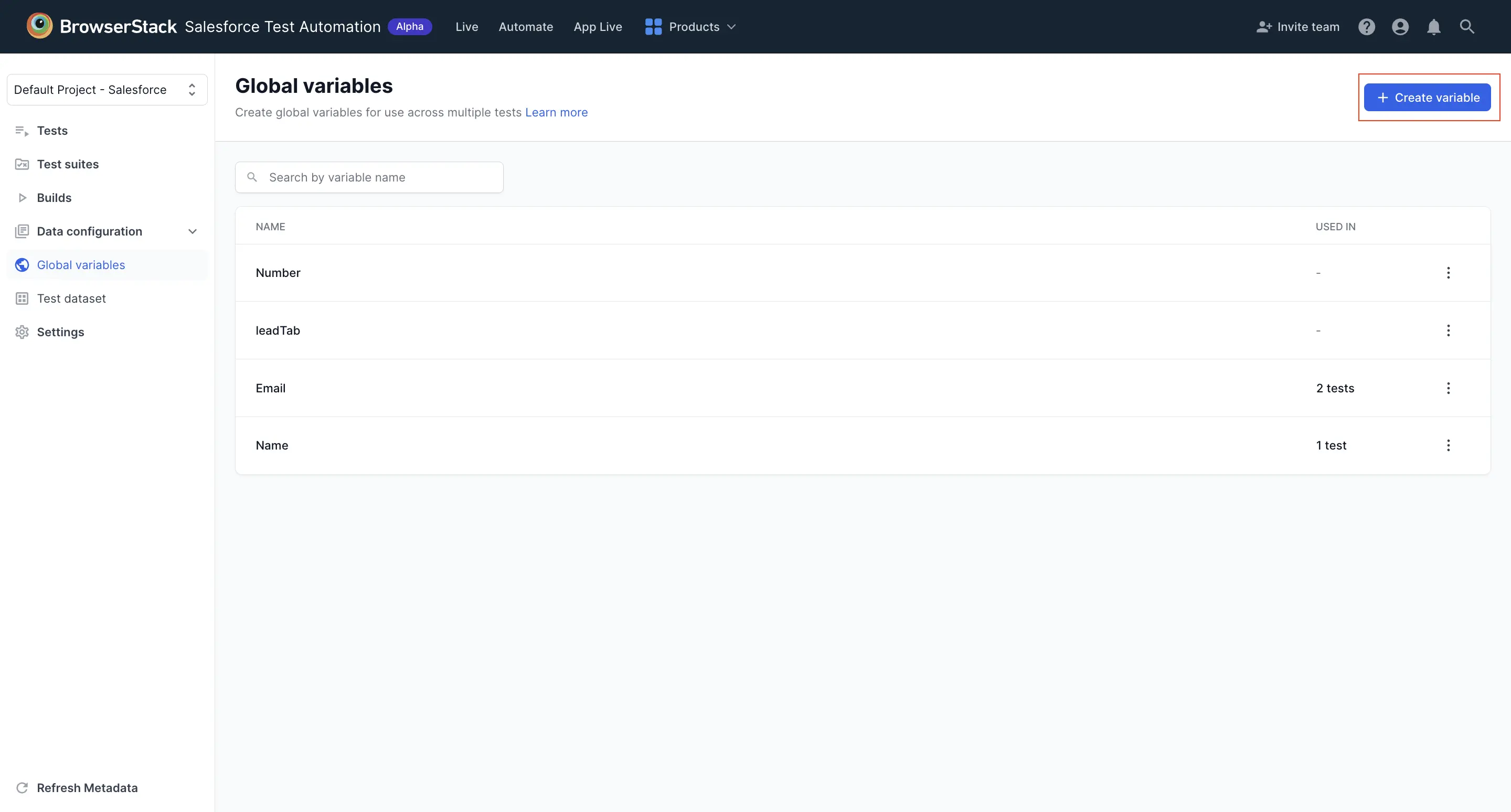
- Enter the Name of the variable (for example,
- Click Create.
The global variable is now available for use in any test within your project.
You cannot create global variables in the test editor. You can only create them in the Global variables section on the Salesforce Test Automation dashboard.
Manage global variables
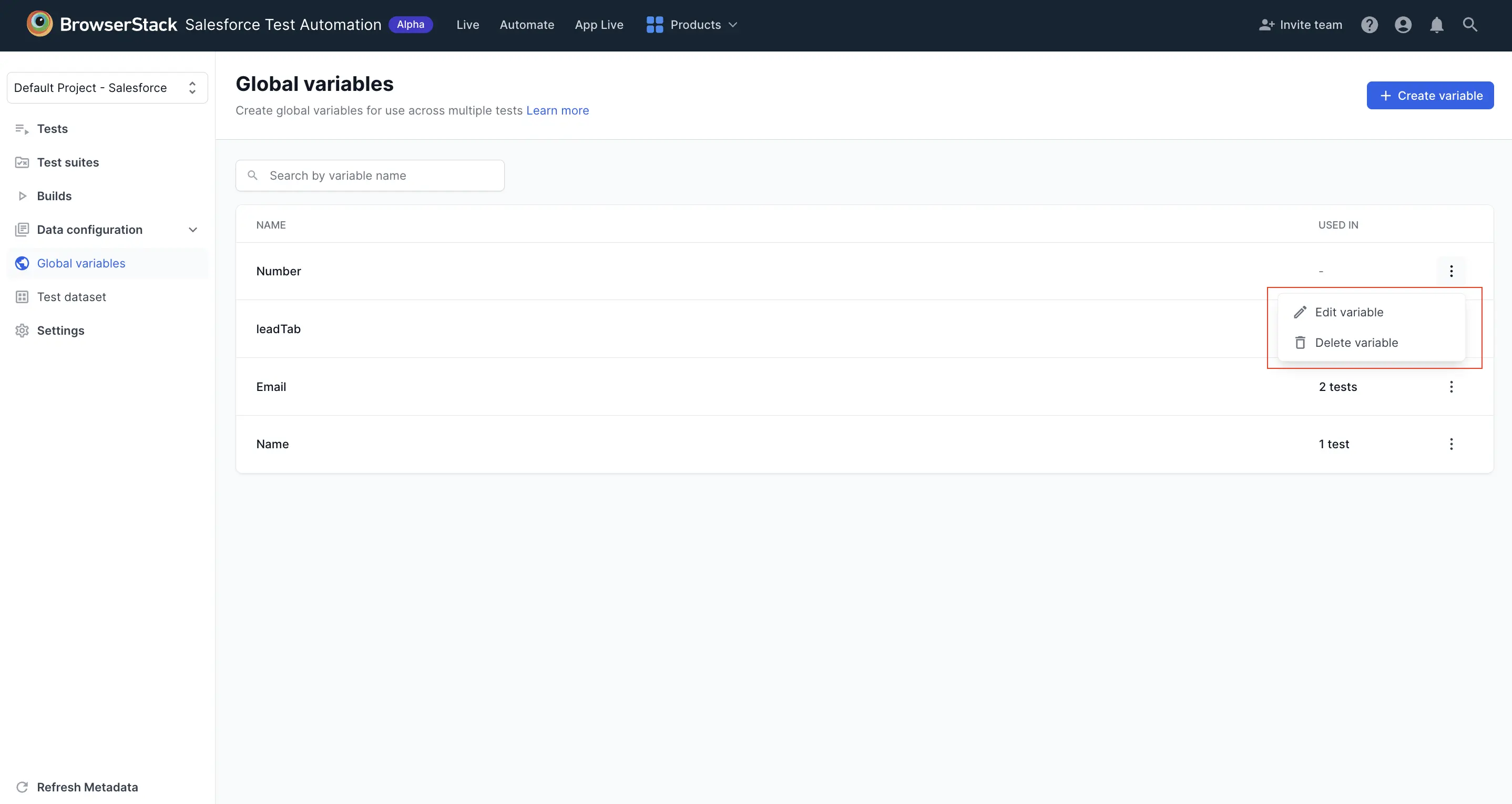
In the Global variables section, you can view all global variables. The USED IN column shows how many tests use each variable.
To delete a global variable:
- Click the … (three dots) icon next to the variable.
- Perform any of the following actions:
- Edit variable: Edit the name and value of the variable.
-
Delete variable: Delete the variable.
Import variables in test steps
To use a variable in your test:
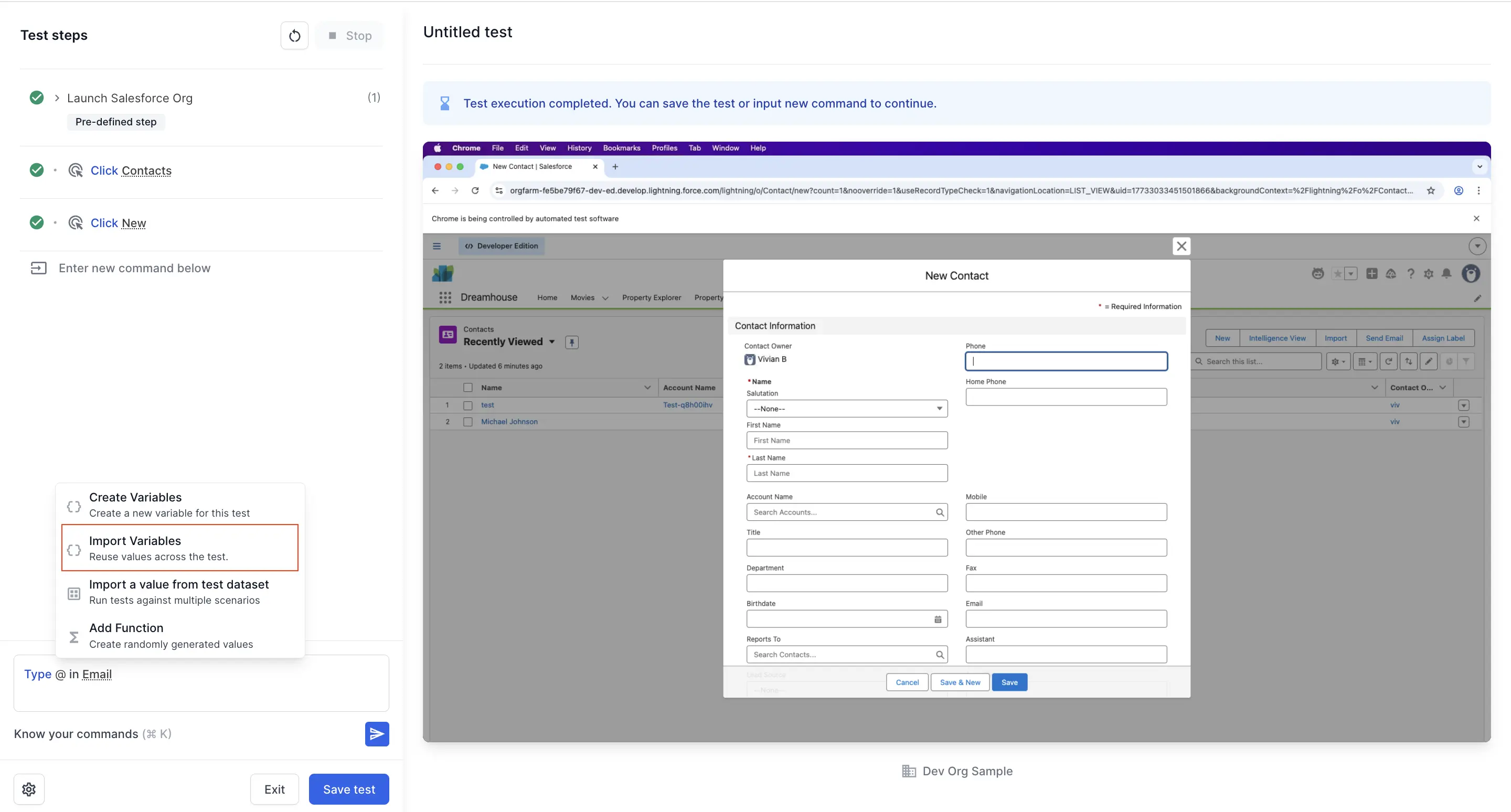
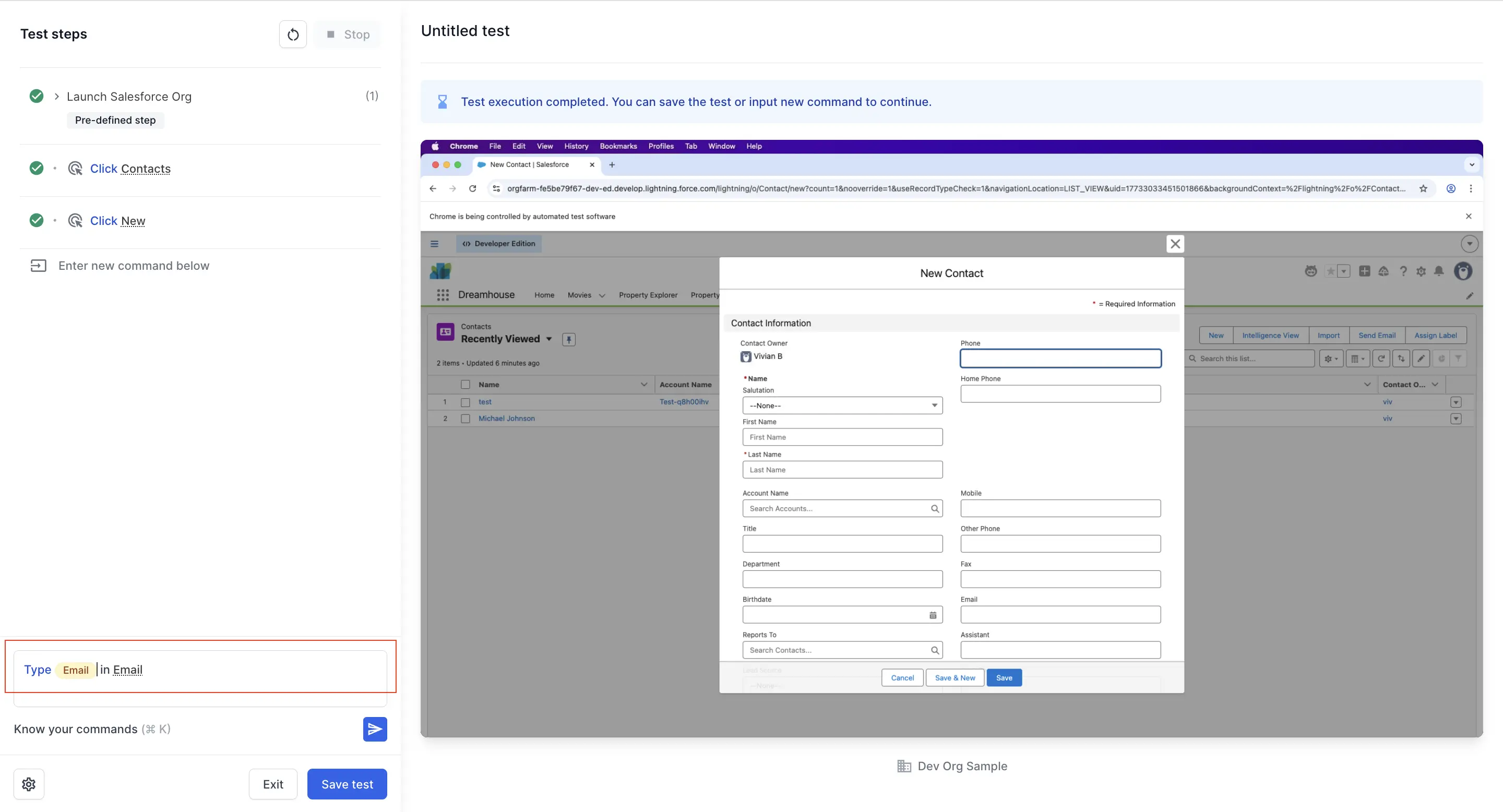
- In the test editor, type
@at the location where you want to use a variable. - Select Import Variables from the menu.
- In the Import variables dialog, select the Local or Global tab to view the available variables.
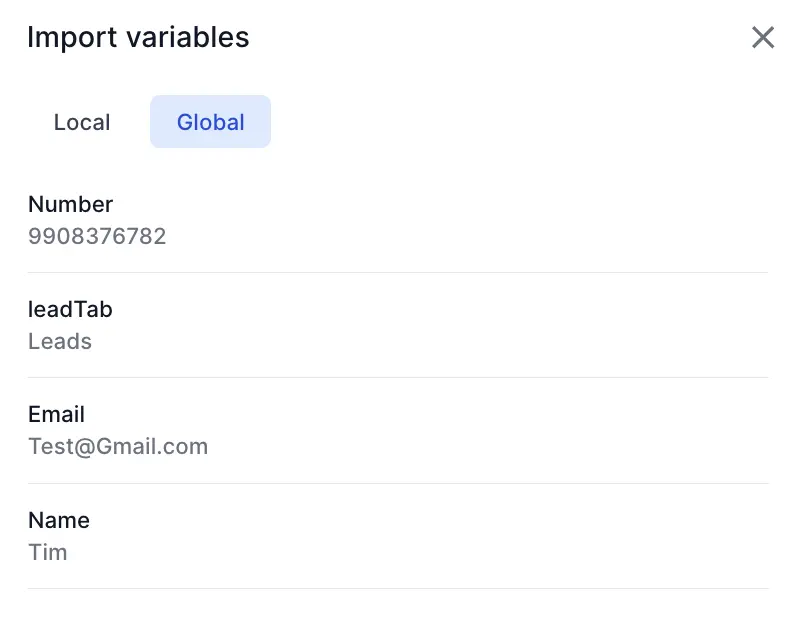
- Select the variable you want to use. The variable is added into your test step.
Add functions for dynamic data
Functions allow you to generate random data dynamically, which is useful for testing scenarios that require unique values such as emails, passwords, or dates.
To add a function:
- While creating a variable, click Add Function in the Create variable dialog.
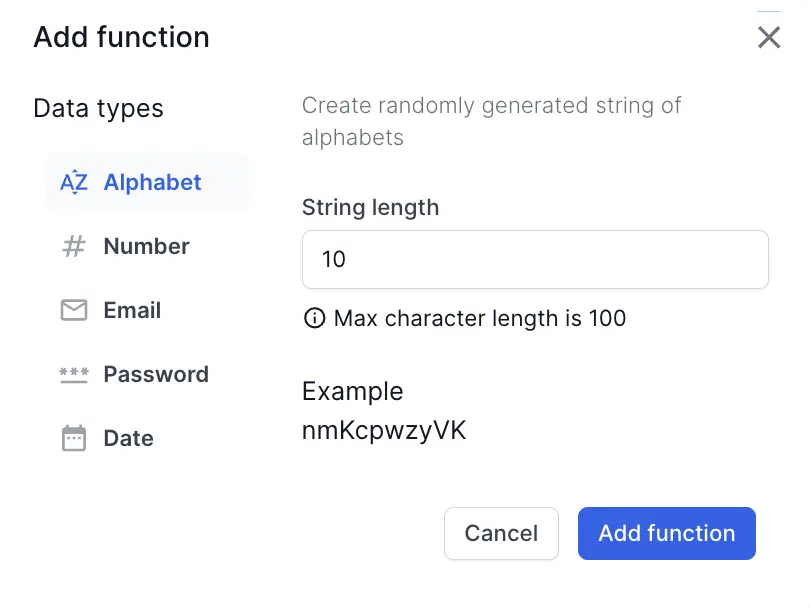
- In the Add function dialog, select a data type from the available options:
- Alphabet: Generates random alphabetic strings
- Number: Generates random numeric values
- Email: Generates random email addresses
- Password: Generates random passwords
- Date: Generates date values
- Configure the function parameters:
- For Alphabet: Set the string length (max 100 characters)
- An example of the generated value is shown in the dialog
- Click Add function.
The function generates a new random value each time the test runs, ensuring unique data for each execution.
We're sorry to hear that. Please share your feedback so we can do better
Contact our Support team for immediate help while we work on improving our docs.
We're continuously improving our docs. We'd love to know what you liked
We're sorry to hear that. Please share your feedback so we can do better
Contact our Support team for immediate help while we work on improving our docs.
We're continuously improving our docs. We'd love to know what you liked
Thank you for your valuable feedback!