
 Join our Discord
Auto-approve settings
Define the boundaries of what Test Companion is allowed to do without asking for your permission first.
Auto-approve settings is where you define the boundaries of what Test Companion is allowed to do without asking for your permission first. By default, the AI pauses and requests approval before performing most actions, reading files, editing code, running terminal commands. Auto-approve lets you selectively remove these approval gates for actions you are comfortable with, so the AI can work faster.
How to open settings
To open the auto-approve settings:
Click the ... (more options) button at the top-right corner of the Test Companion panel, then select Settings.
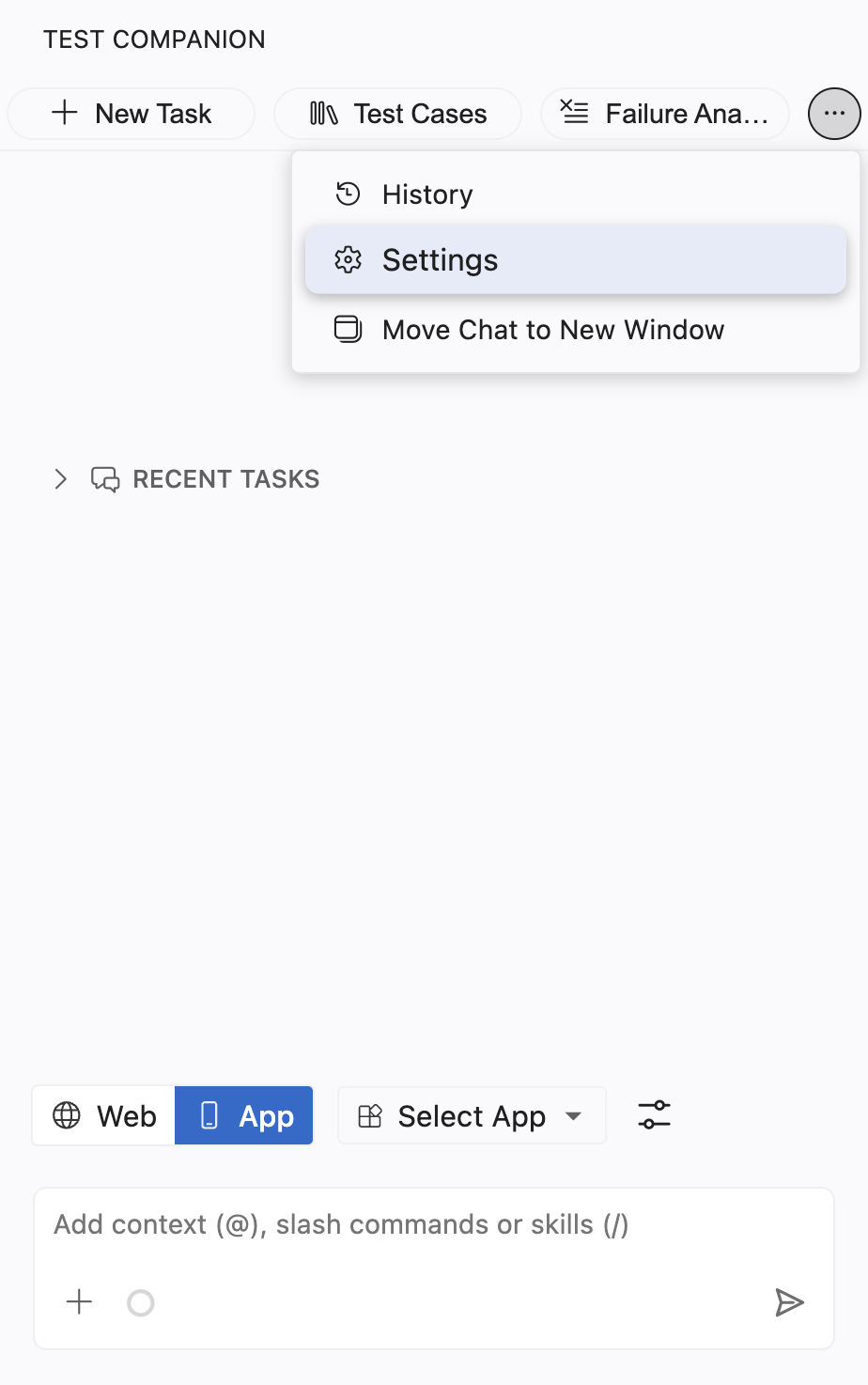
Select the Auto-Approve Settings tab.
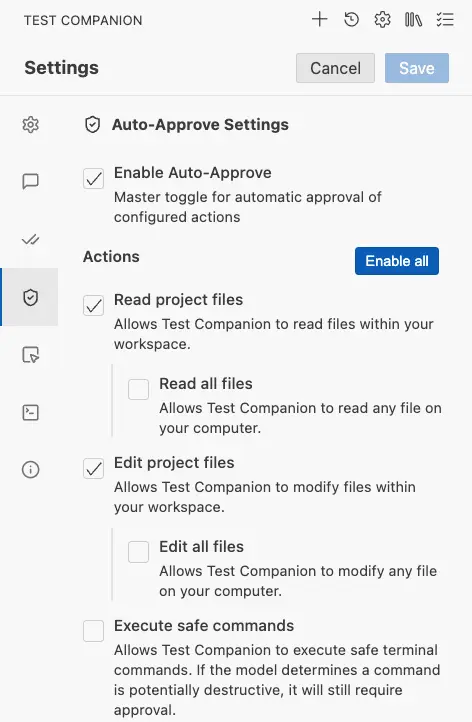
Turn on Auto-Approve for the actions you want, then click Save.
Enable auto-approve
This is the overall on/off switch. If you uncheck this, none of the individual action approvals below take effect. Every action then requires manual approval. This is useful when you want to temporarily lock everything down, for example before a demo or when you work on a production configuration.
| Setting | Details |
|---|---|
| Field type | Checkbox |
| Default value | Enabled (checked) |
| What it does | Master toggle that activates the auto-approval system. When disabled, the AI always asks for permission before every action, regardless of the following individual settings. |
Actions
Following the overall on/off toggle, you will find a list of individual actions that you can auto-approve. Each one controls a specific category of action that the AI may need to perform during a task.
A button labelled Enable all appears at the top-right corner of this section. Clicking it checks every action at once. This is useful during initial setup when you want maximum autonomy. You can then selectively disable individual actions.
Read project files
Reading project files is typically a low-risk action. The AI needs to read your code to understand your project structure, analyze existing tests, and generate new code that is consistent with your codebase.
| Setting | Details |
|---|---|
| Field type | Checkbox |
| Default value | Enabled (checked) |
| What it does | Allows Test Companion to read files within your current workspace without asking for permission. |
Example: When you ask “Generate test cases for the checkout page,” the AI reads your existing page objects, utility files, and configuration to understand the patterns your project uses before writing new test code.
Read all files
This is a broader permission. When enabled, the AI can read files outside your current project folder. For example, a global configuration file in your home directory, or a shared library installed elsewhere on your machine.
| Setting | Details |
|---|---|
| Field type | Checkbox (indented under “Read project files”) |
| Default value | Disabled (unchecked) |
| What it does | Expands file reading permissions beyond your workspace to include any file on your computer. |
When to enable: If you have shared test utilities, environment configuration files, or documentation located outside your workspace that the AI needs to reference.
When to keep disabled: In most cases. If the AI only needs to work within your project, the default workspace-scoped permission is sufficient and more secure.
Edit project files
This is where the AI’s output becomes tangible. It creates new test files, updates existing code, and modifies configuration. If you are using default interaction mode and want the AI to work independently, this should be enabled.
| Setting | Details |
|---|---|
| Field type | Checkbox |
| Default value | Enabled (checked) |
| What it does | Allows Test Companion to modify files within your current workspace without asking for permission. |
If you prefer to review every change before it is written, disable this. The AI will show you the proposed changes and wait for your approval.
Example: The AI detects that a test is failing because of a renamed CSS selector. With “Edit project files” auto-approved, it updates the selector in your page object file immediately. Without auto-approve, it shows you the proposed change and waits for you to click “Approve.”
Edit all files
| Setting | Details |
|---|---|
| Field type | Checkbox (indented under “Edit project files”) |
| Default value | Disabled (unchecked) |
| What it does | Expands file editing permissions beyond your workspace to include any file on your computer. |
Enabling this setting gives the AI write access to files outside your project directory. Only enable this if you have a specific need.
- Example: Updating a global Git configuration or a shared test environment file. In most workflows, workspace-scoped editing is all you need.
Execute safe commands
| Setting | Details |
|---|---|
| Field type | Checkbox |
| Default value | Disabled (unchecked) |
| What it does | Allows Test Companion to run terminal commands that it determines to be safe, without asking for your permission first. |
Test Companion uses a built-in safety classifier to evaluate terminal commands before execution. Commands categorized as “safe” include read-only or easily reversible operations, such as:
-
npm testorpytest(running tests) -
git statusorgit log(checking repository state) -
ls,cat,grep(viewing files and output) -
npm install(installing dependencies)
Even with this setting enabled, Test Companion always requires your approval for commands the classifier considers potentially destructive. These include:
-
rm -rfor any recursive deletion commands -
git pushorgit reset --hard(irreversible Git operations) - Commands that modify system-level configuration
- Commands containing pipes to potentially dangerous utilities
Example: You ask the AI to “Run the test suite and show me which tests fail.” With “Execute safe commands” enabled, the AI runs pytest --tb=short directly, displays the output, and summarizes the failures. Without this setting, it would show you the command first and wait for approval before running it.
When to enable this
- During active development when you are frequently running tests and builds
- When you trust the AI’s safety classifier and want faster iteration cycles
- When using workflow templates that involve predictable, safe terminal operations
When to keep disabled
Keep this disabled in the following situations:
- When working with production databases, deployments, or other sensitive infrastructure
- When you are new to Test Companion and want to understand what commands the AI runs
- If your organization’s security policy requires manual approval of all terminal executions
Recommended configurations by role
| Role | Read project files | Edit project files | Execute safe commands | Read all files | Edit all files |
|---|---|---|---|---|---|
| New user (learning) | ✅ | ❌ | ❌ | ❌ | ❌ |
| Individual developer | ✅ | ✅ | ✅ | ❌ | ❌ |
| QA engineer (daily use) | ✅ | ✅ | ✅ | ❌ | ❌ |
| Team lead (reviewing) | ✅ | ❌ | ❌ | ❌ | ❌ |
| CI/CD integration | ✅ | ✅ | ✅ | ✅ | ❌ |
If you are unsure, start with conservative settings (only “Read project files” enabled) and gradually enable more actions as you build confidence in how the AI uses the settings.
We're sorry to hear that. Please share your feedback so we can do better
Contact our Support team for immediate help while we work on improving our docs.
We're continuously improving our docs. We'd love to know what you liked
We're sorry to hear that. Please share your feedback so we can do better
Contact our Support team for immediate help while we work on improving our docs.
We're continuously improving our docs. We'd love to know what you liked
Thank you for your valuable feedback!